For the complete documentation index, see llms.txt. This page is also available as Markdown.

Listings board

A real estate office follows every listing from listed to sold, one swimlane per agent, with the asking total of each stage in view.

Overview

A real estate office follows every listing from listed to sold, one swimlane per agent, with the asking total of each stage in view. The whole tab is one Kanban Dynamic Component on a Lightning app page, reading Listing records through a Query data source. This tutorial rebuilds the Listings tab of Westside Realty, an estate agency with two agents, in your own org.

What you build

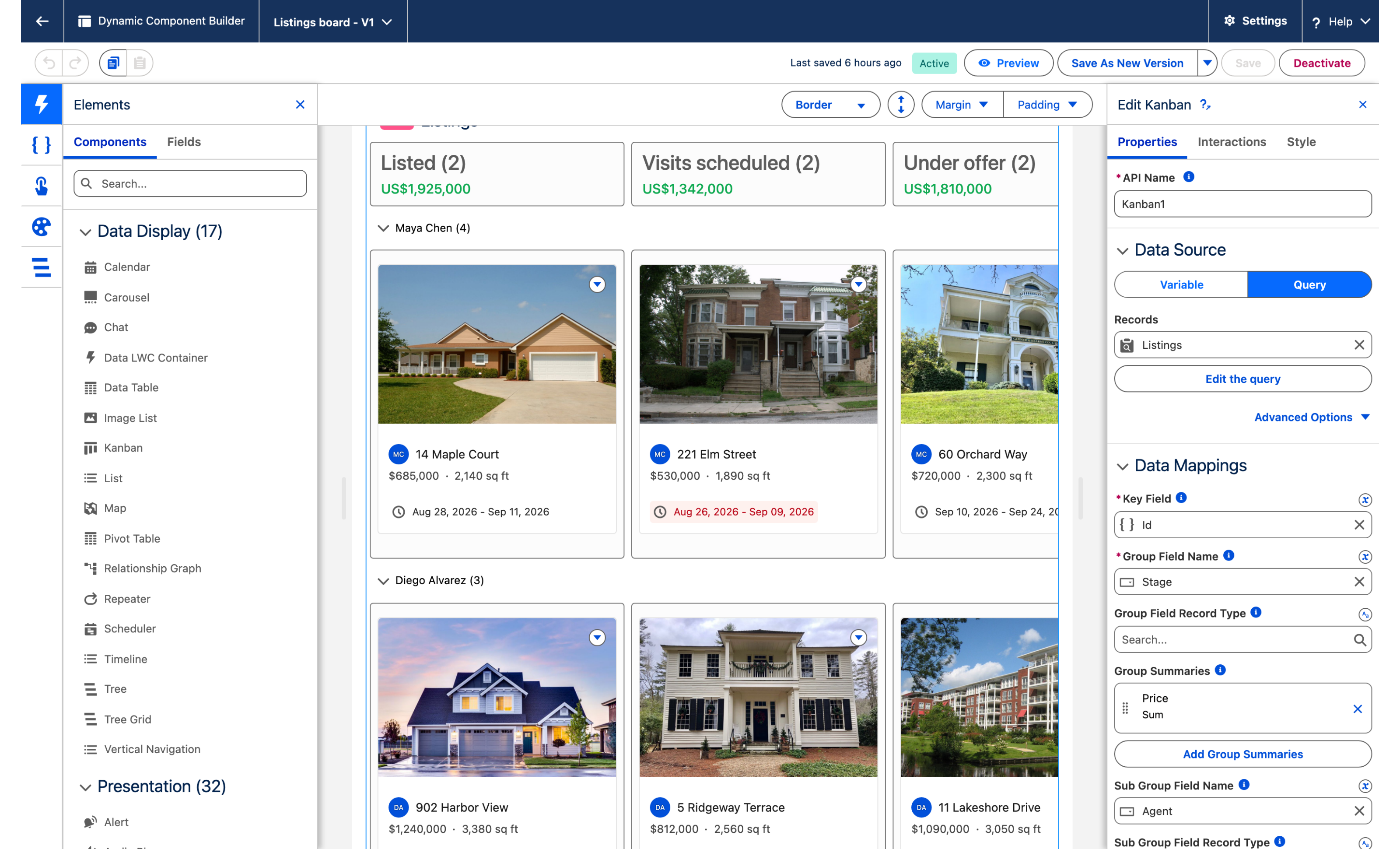
Avonni Kanban on a Lightning page: real estate listings grouped by stage, one swimlane per agent, photo on each card and a dollar total per column
  • Westside Realty has seven listings across two agents. Four columns, Listed, Visits scheduled, Under offer and Sold, each with its count and the sum of its asking prices at the top.

  • Two swimlanes cut across the columns: Maya Chen (4) and Diego Alvarez (3).

  • Each card carries the property photo, the agent's initials, the address, the asking price, the square footage and the listing window.

  • A window that has slipped past today turns red. In the figure that is 8 Willow Close, whose window ended on Sep 2, 2026.

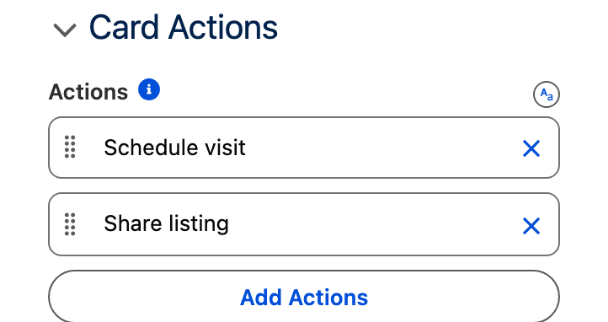
  • A search box sits in the header, and every card has a menu with Schedule visit and Share listing.

Before you start

Adapt this to your own org. The object and the fields below are what this tutorial creates, not what the component requires. If your listings already live somewhere, in a custom object of your own or in another object entirely, point the query at it and map your own fields at the same steps. What the board actually needs is a picklist to build the columns from, a second picklist for the lanes, and a Number, Currency or Percent field for the totals.

  • The Avonni Experience Components package, which carries Dynamic Components, is installed. Whoever builds the component needs the Avonni Experiences Admin permission set; the people who use the page need a license and Avonni Dynamic Components User. See Installation & Licenses Management.

  • A Lightning app with an app page for the board. The examples below use the Westside Realty app and its Listings tab.

  • A custom object for the listings. The board needs these fields:

Object
Field
Type
Role

Listing (Listing__c)

Name

Text

The address, 14 Maple Court. The card title.

Stage__c

Picklist: Listed, Visits scheduled, Under offer, Sold, in that order

One column per value, in picklist order

Agent__c

Picklist: Maya Chen, Diego Alvarez

One swimlane per value. A picklist, not a text or lookup field: the board builds its lanes from picklist values, see step 4

Price__c

Currency, 0 decimal places

The asking price, summed at the top of each column

Square_Feet__c

Number, 0 decimal places

The surface

Photo_URL__c

URL

The photo on the card

Window_Start__c

Date

The first day of the listing window

Window_End__c

Date

The last day. Once it is behind today, the window turns red

Agent_Initials__c

Formula (Text)

MC or DA on the card, see step 1

Price_Label__c

Formula (Text)

$685,000 on the card, see step 1

Area_Label__c

Formula (Text)

2,140 sq ft on the card, see step 1

Sample data. Seven listings:

Address
Stage
Agent
Price
Sq ft
Window start
Window end

14 Maple Court

Listed

Maya Chen

685,000

2,140

Aug 29, 2026

Sep 12, 2026

902 Harbor View

Listed

Diego Alvarez

1,240,000

3,380

Aug 31, 2026

Sep 14, 2026

5 Ridgeway Terrace

Visits scheduled

Diego Alvarez

812,000

2,560

Aug 25, 2026

Sep 8, 2026

221 Elm Street

Visits scheduled

Maya Chen

530,000

1,890

Aug 27, 2026

Sep 10, 2026

60 Orchard Way

Under offer

Maya Chen

720,000

2,300

Sep 11, 2026

Sep 25, 2026

11 Lakeshore Drive

Under offer

Diego Alvarez

1,090,000

3,050

Sep 16, 2026

Sep 30, 2026

8 Willow Close

Sold

Maya Chen

498,000

1,710

Aug 19, 2026

Sep 2, 2026

Each listing needs a photo the org can load: a static resource (/resource/Listing_Photos/maple-court.jpg), a Salesforce File, or an external URL your org's Trusted URLs allow. Use your own photos; the ones in the figure are not part of this tutorial.

Permissions. Users need Read on Listing and its fields. Dragging a card writes Stage (and Agent, when the card changes lane) to the record, so anyone who moves cards needs Edit on those two fields.

Build it

1

Create the object, the three formulas and the records

  1. In Setup, open Object Manager and create the Listing object with the fields listed above. Enter the picklist values of Stage and Agent in the order given: that order becomes the order of the columns and the lanes.

  2. Add the Agent Initials formula field (return type Text):

  1. Add the Price Label formula field (return type Text):

  1. Add the Area Label formula field (return type Text):

  1. Load the seven sample listings.

Why: the card's info line prints a field's value as it is stored, so a currency field mapped there reads 685000. The formulas hand the card $685,000 and 2,140 sq ft. The column total is different: the board formats it itself from the currency field, no formula needed.

2

Create the Dynamic Component and add the Kanban

  1. From the App Launcher, open the Avonni Components App and click New Component.

  2. Name it Listings board and leave Target Page Object empty: the board lives on an app page, not a record page.

  3. Drag Kanban onto the canvas and select it. The Edit Kanban panel opens on the right with the Properties, Interactions and Style tabs.

The Dynamic Component builder with the Kanban selected on the canvas and its Edit Kanban panel on the right
The Kanban on the canvas, its Edit Kanban panel on the right. The canvas already shows the seven listings because the query of step 3 is connected.
3

Connect the query

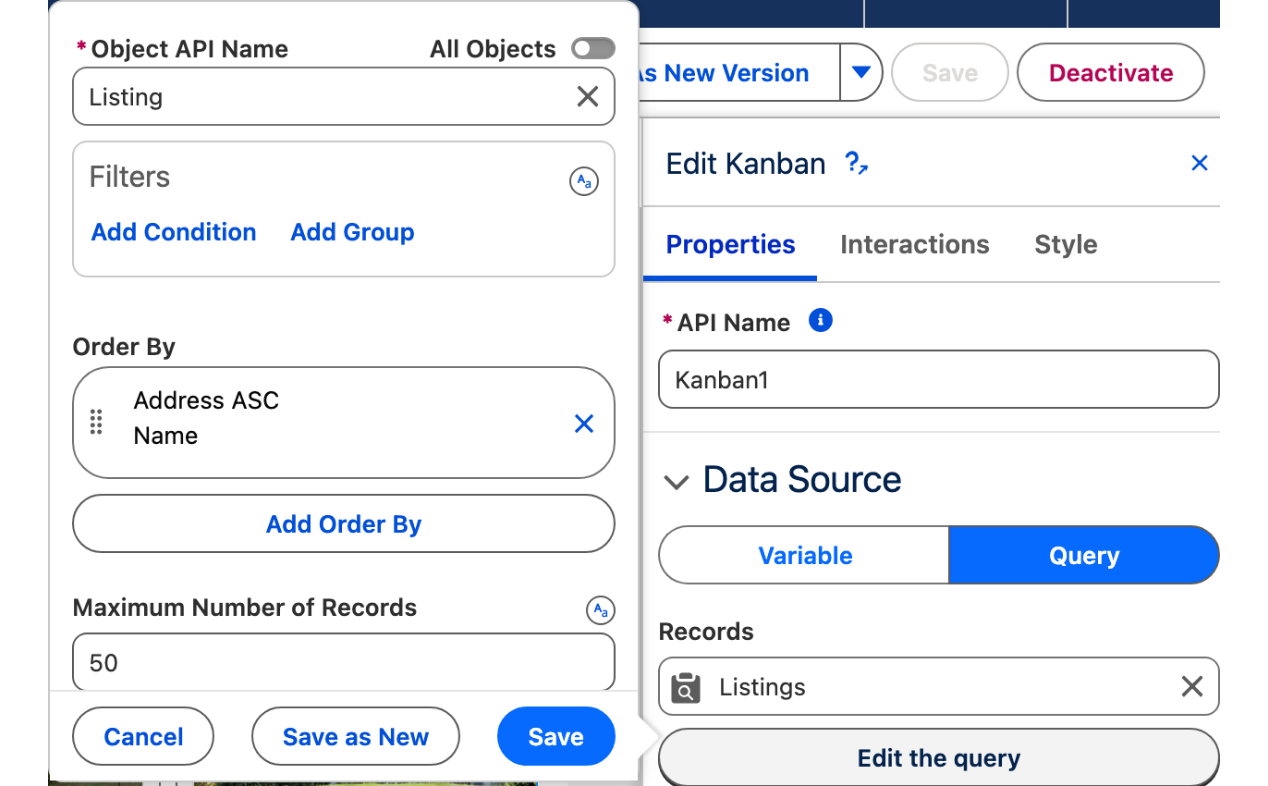
  1. In the Data Source section, select Query and click Create Query.

  2. Choose the Listing object.

  3. Set Order By to Name, ascending, and click Done.

Why: no filter. The board shows every listing of the office, and the columns and lanes do the sorting. See Query for filters when you want one board per office.

The query editor popover for the Listing object: no filter, Order By Address ascending, and the Data Source section behind it
The query editor, opened from Edit the query in the Data Source section.
4

Map the columns, the lanes and the total

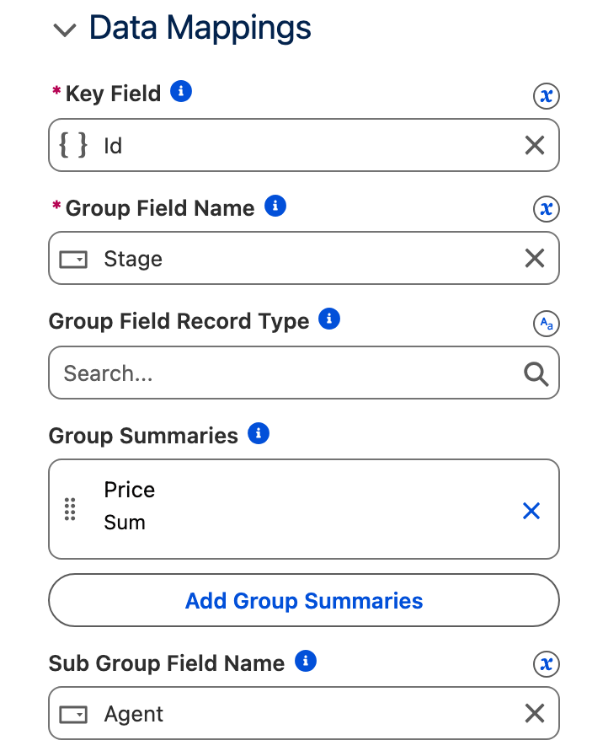
In the Data Mappings section:

  1. Leave Key Field on {{Record.Id}}.

  2. Set Group Field Name to Stage__c.

  3. Set Sub Group Field Name to Agent__c.

  4. Under Group Summaries, add an entry with Field Price__c and Measure Sum.

Why: the columns are the picklist values of the group field, in picklist order, and the lanes are the picklist values of the sub-group field. A text or lookup field gives the board nothing to build columns or lanes from, which is why Agent is a picklist. The summary adds up the mapped field for the cards of each column and formats it like the field: a Currency field with 0 decimal places reads $1,925,000.

The Data Mappings section: Key Field Id, Group Field Name Stage, Group Summaries Price Sum, Sub Group Field Name Agent
Columns from Stage, lanes from Agent, and the column total from a Price Sum entry under Group Summaries.
5

Map the card

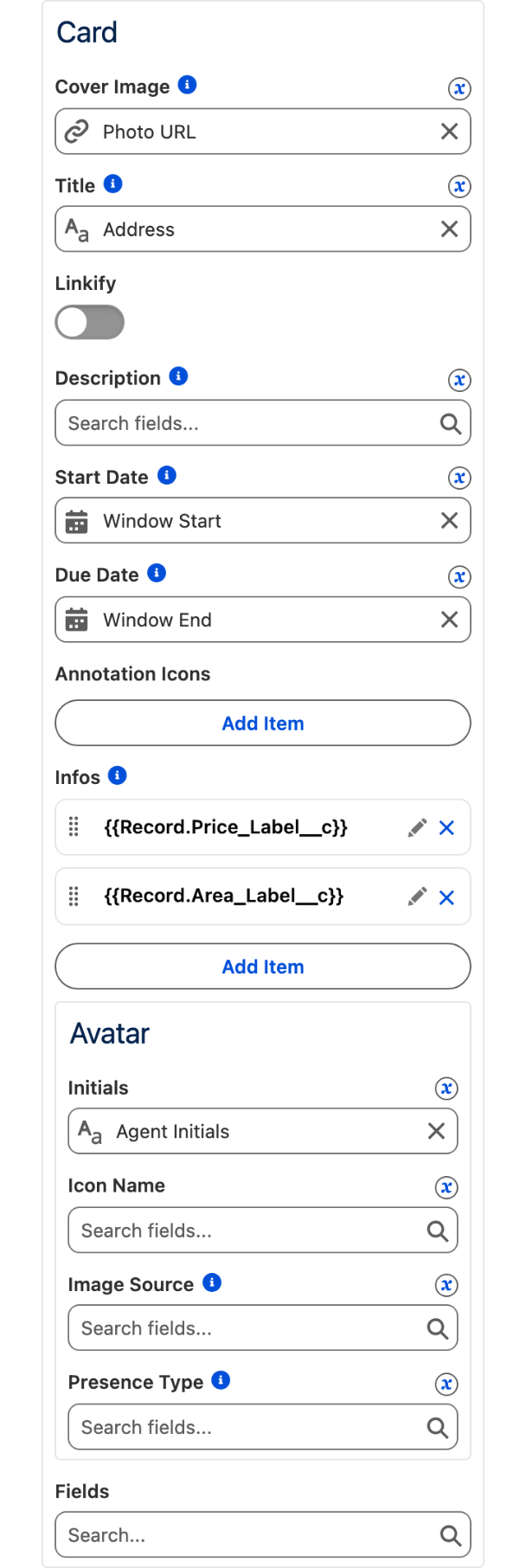
Still in Data Mappings, under Card:

  1. Cover Image: Photo_URL__c.

  2. Title: Name.

  3. Start Date: Window_Start__c. Due Date: Window_End__c.

  4. Infos: add two entries, the first with Label Price_Label__c, the second with Label Area_Label__c.

  5. Under Avatar, set Initials to Agent_Initials__c.

Why: map both dates, not one. The date row appears only when Start Date is set, and a card with no Due Date is treated as overdue, so Start Date alone paints every card red. With both, only a window that ended before today is red.

The Card block of Data Mappings: Cover Image Photo URL, Title Address, Start Date Window Start, Due Date Window End, two Infos entries and the Avatar Initials mapping
The card mappings. Both dates are mapped, so only a window that has passed turns red.
6
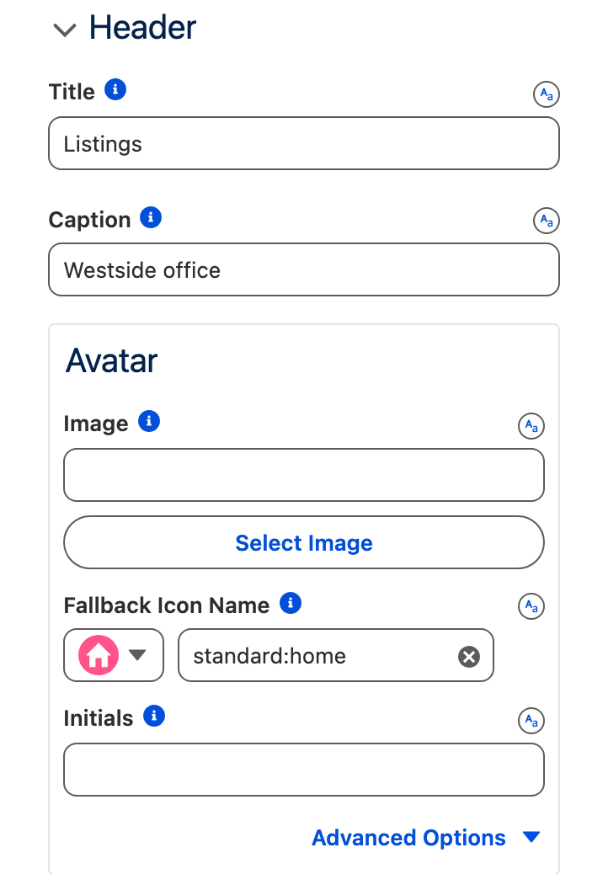
  1. In the Header section, set Title to Listings and Caption to Westside office. Under Avatar, set Fallback Icon Name to standard:home.

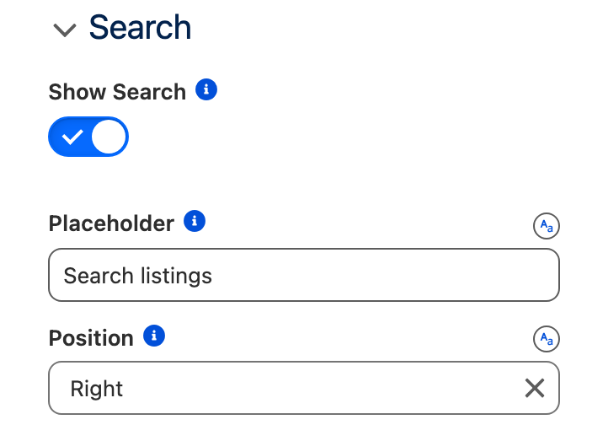
  2. In the Search section, turn on Show Search, set Placeholder to Search listings and Position to Right.

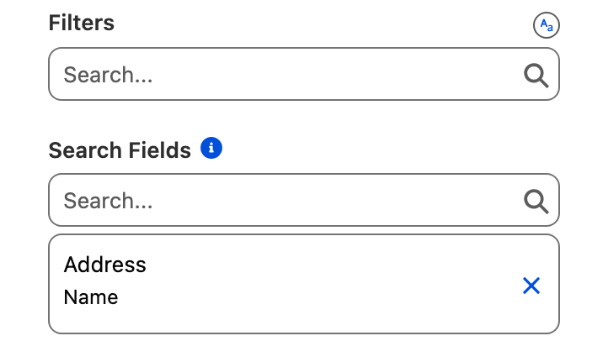
  3. Back in Data Mappings, set Search Fields to Name.

Why: the search box appears only when Show Search is on, and it searches the fields you list, so a board without Search Fields has a box that finds nothing.

The Header section: Title Listings, Caption Westside office, and the Avatar Fallback Icon Name standard:home
The Header section.
The Search section: Show Search on, Placeholder Search listings, Position Right
The Search section.
The Search Fields list in Data Mappings with Address and Name selected
Search Fields, back in Data Mappings. The capture lists Name (labeled Address in this org) and a second field; one is enough.
7

Finish the board settings

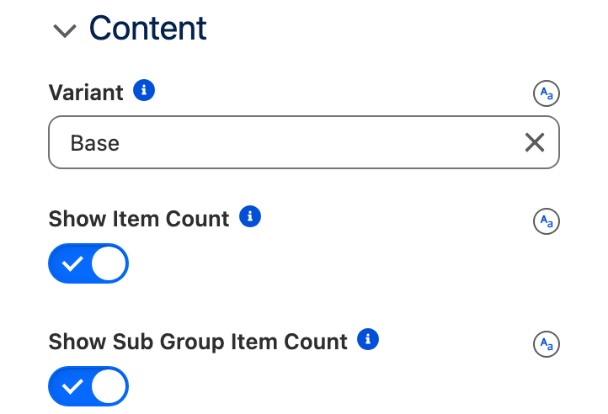
  1. In Content, turn on Show Item Count and Show Sub Group Item Count.

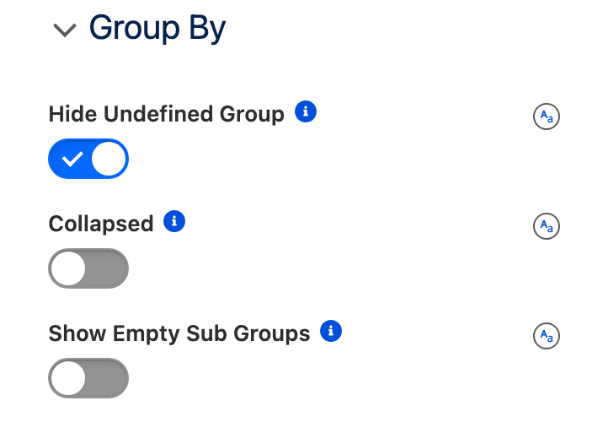
  2. In Group By, turn on Hide Undefined Group.

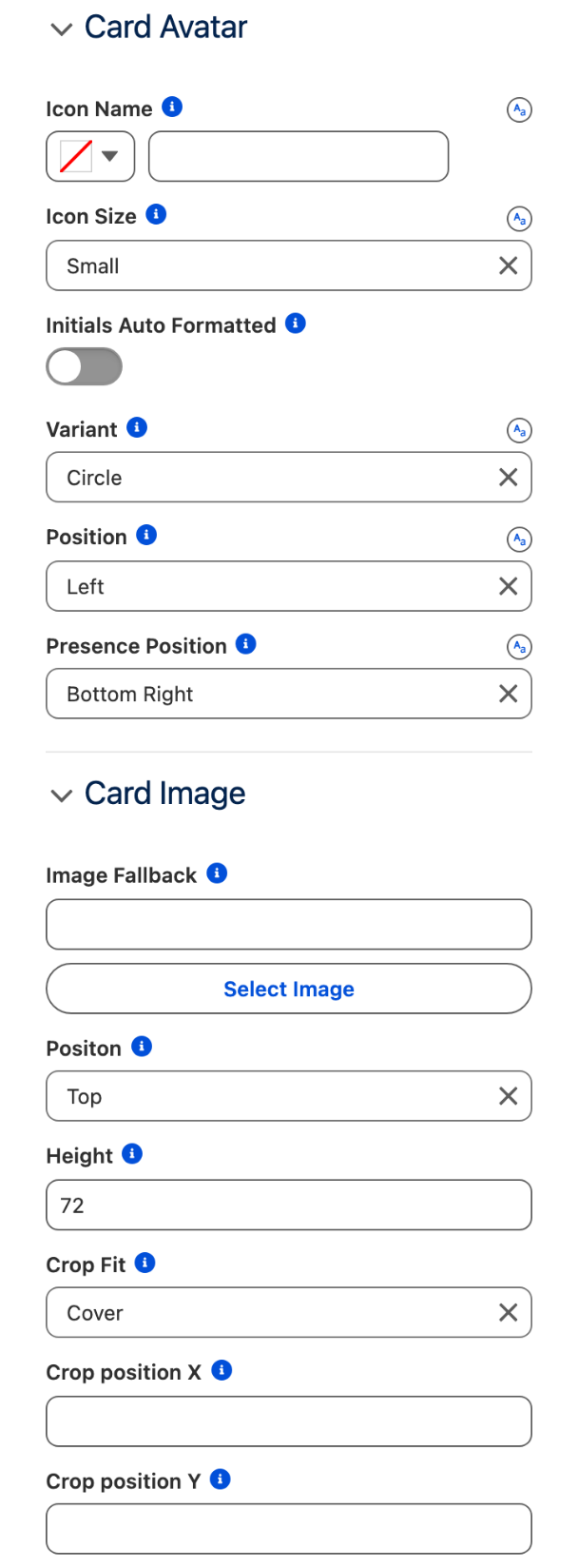
  3. In Card Avatar, set Variant to Circle, Icon Size to Small and Position to Left.

  4. In Card Image, set Position to Top, Height to 72 and Crop Fit to Cover.

Why: every listing has a stage. Without Hide Undefined Group, a fifth column named Undefined takes width from the four that matter whenever Stage is not a required field.

The Content section: Variant Base, Show Item Count on, Show Sub Group Item Count on
Content.
The Group By section: Hide Undefined Group on, Collapsed off, Show Empty Sub Groups off
Group By.
The Card Avatar section with Icon Size Small, Variant Circle and Position Left, and the Card Image section with Position Top, Height 72 and Crop Fit Cover
Card Avatar and Card Image.
8

Add the card actions

In Card Actions, add two actions:

  • Label Schedule visit, Name scheduleVisit

  • Label Share listing, Name shareListing

Why: the actions put the menu on every card. What each one does is wired on the Interactions tab, see Interactions below.

The Card Actions section listing Schedule visit and Share listing
The two card actions.
9

Save, activate, add to the page

  1. Click Save, then Activate.

  2. In Lightning App Builder, open the app page, drag AX - Dynamic Component onto it and select Listings board in its Properties Panel.

  3. Click Save, then Activate the page for the app. See Publishing your Dynamic Components.

The settings that matter

Setting
Value
Why

Group Field Name (groupFieldName)

Stage__c

One column per picklist value, in picklist order

Sub Group Field Name (subGroupFieldName)

Agent__c

One swimlane per agent, from the picklist values

Group Summaries (summarizeAttributes)

Price__c

The sum of the asking prices at the top of each column, formatted like the field

Cover Image (cardAttributes.coverImage) and Card Image Position (imageAttributes.position)

Photo_URL__c, Top

The photo becomes the card

Start Date and Due Date (cardAttributes.startDate, cardAttributes.dueDate)

Window_Start__c, Window_End__c

The listing window, red once it has passed

Interactions

The figure shows the board at rest: no interaction is configured in it. These are the ones the board is built for, with the trigger and action names as the Interactions tab lists them.

Trigger
Action
What to set

The end user drags a card to another column or lane

Built in: the board writes the new Stage (and Agent, across lanes) to the record before any interaction runs

Nothing. Edit access on the two fields decides whether the save goes through.

Item Drop

Leave the component list empty: the board itself refreshes. It re-reads its records after every drop, so a move Salesforce refused (a validation rule, missing access) puts the card back where the record really is.

Item Click

Page Reference Type Record Page, Object API Name Listing__c, Record Id {{Record.Id}}, Action Name view.

Item Action Click, Target Name scheduleVisit

The screen flow that books a visit, with {{Record.Id}} as its listing input variable.

Item Action Click, Target Name shareListing

Show Toast, or a flow of your own

A message such as Listing shared, until the sharing flow exists.

The drop is not a gate. A card the platform refuses to move (a validation rule, a required field) still shows in the target column until the board reloads, which is what the Item Drop refresh is for. To block a move, write a validation rule on Stage and keep the refresh.

Try it

  1. Open the Listings tab. Four columns with their counts and totals, Listed (2) $1,925,000, Visits scheduled (2) $1,342,000, Under offer (2) $1,810,000, Sold (1) $498,000, and two lanes, Maya Chen (4) and Diego Alvarez (3).

  2. Type Elm in Search listings: one card left, 221 Elm Street, in Maya Chen's Visits scheduled lane. Clear the search.

  3. Drag 60 Orchard Way from Under offer to Sold. Under offer reads (1) $1,090,000, Sold reads (2) $1,218,000, and the record's Stage is now Sold. Drag it back.

  4. Look at the dates. 8 Willow Close is red on any day after Sep 2, 2026, and each of the other windows turns red the day after its Window end.

Take it further

The same board exists on the other Avonni surfaces:

  • Kanban for Flow Screen Components, inside a screen flow.

  • AX - Kanban for Experience Sites.

  • Kanban for LWC Components, as the avonni-dd-kanban tag in your own component.

Three variations worth trying:

  • Switch Variant to Path in Content: the four stages become a horizontal path, and the board keeps its cards.

  • Add Agent__c under Filters in Data Mappings: a filter appears above the board, and the office can look at one agent's listings at a time.

  • Two cards in the figure carry a star. Under Card, Annotation Icons takes an icon name or a field: add a Checkbox Starred__c and a Text formula that returns utility:favorite when it is checked, and map the icon to that formula.

Troubleshooting

Problem
Cause
Fix

The board shows a single Undefined column, or no column at all

Group Field Name points to a text, number or lookup field. In a Query data source the columns are the picklist values of the group field.

Group by a picklist field, and enter its values in the order you want the columns.

The lanes are missing, or every card sits in one Undefined lane

Sub Group Field Name points to a field that is not a picklist. Lanes are built the same way as columns.

Make Agent a picklist with one value per agent.

Every card's date row is red, even for dates months away

Start Date is mapped and Due Date is not. A card without a due date counts as overdue.

Map Due Date to Window_End__c.

No dates on the cards although Due Date is mapped

The date row shows only when Start Date is mapped.

Map Start Date to Window_Start__c.

The column headers show the count but no total

Group Summaries is empty, or points to a field that is not a Number, Currency or Percent.

Map it to Price__c.

The cards show no photo

The URL in Photo_URL__c is not one the org can load: a wrong static resource path, or an external host that is not in your Trusted URLs.

Fix the URL, and set Image Fallback in Card Image so a missing photo still leaves a clean card.

Was this helpful?