> For the complete documentation index, see [llms.txt](https://docs.avonnicomponents.com/llms.txt). Markdown versions of documentation pages are available by appending `.md` to page URLs; this page is available as [Markdown](https://docs.avonnicomponents.com/projects/use-cases/boards-and-pipelines/field-service-dispatch-board.md).

# Field Service Dispatch Board

Put the technician timeline and the map of the day's jobs on one screen, from one query.

{% hint style="warning" %}

#### **Before you start**

This use case has configuration prerequisites, including work orders that carry a scheduled window, a technician and coordinates. Make sure you review the [**Set up**](#set-up) section of this page before building!
{% endhint %}

{% hint style="success" %}

#### **Learning focus points**

* Turning records into **technician rows** on a Scheduler timeline
* Reading **one query two ways**, as a schedule and as a map
* Handing a **dragged event** to a flow that does the reassignment
  {% endhint %}

## Objective

Give the dispatcher one screen instead of a spreadsheet and a phone.

A dispatcher balances two things at once: who is free, and how far away the job is. Salesforce answers the first question in a list view and the second in a map, on different pages, so the dispatcher keeps a spreadsheet of the day and rebuilds it every morning. The moment a job moves, the spreadsheet is wrong and nobody else knows.

Time and geography are the same decision. Splitting them across two screens is what makes dispatching feel like guesswork.

***

## Solution

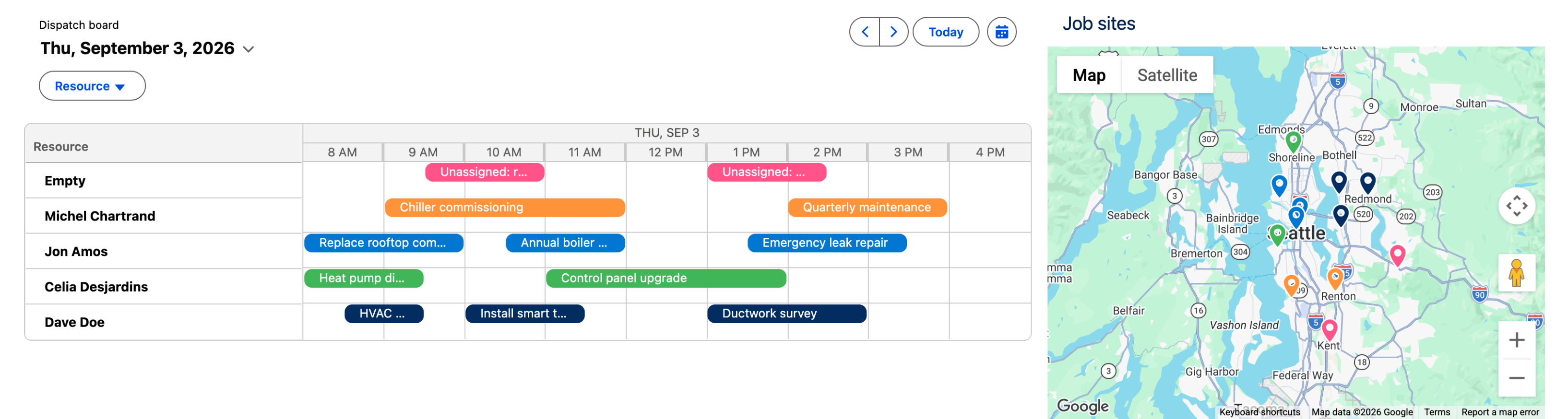
A board that answers both at once. On the left, a timeline with one row per technician and every job in its slot. On the right, the same jobs as pins, each in its technician's colour. Both read the same query, so they can never disagree about what is scheduled.

Everything here is built with **Avonni Dynamic Components** and no code.

<figure><img src="https://3857391697-files.gitbook.io/~/files/v0/b/gitbook-x-prod.appspot.com/o/spaces%2FdHOej9Pd5IxJNGEJMZKW%2Fuploads%2FZ9p8NQdGY9WCnP9lKMHn%2Fdispatch-board.png?alt=media" alt="A dispatch board: on the left a Scheduler timeline for Thursday September 3 with an unassigned row and four technician rows carrying twelve jobs between 8 AM and 4 PM, on the right a Google map of the Seattle area with one pin per job, each pin in the same colour as that technician&#x27;s bars on the timeline"><figcaption><p>One query, two views, one colour per technician across both. The timeline answers who is free, the map answers how far away, and the pink work at the top belongs to nobody yet.</p></figcaption></figure>

### How It Works (User Perspective)

1. The dispatcher opens the board on the day's date.
2. Each technician has a row, and each job sits in its scheduled window.
3. The jobs nobody owns yet sit in their own row at the top. That row is the queue the morning is spent emptying.
4. The map shows where those jobs actually are, in each technician's own colour, so a gap in someone's afternoon can be filled with the job nearest to them.
5. Dragging a job onto a technician, or to another time, opens a short flow that confirms the change and writes it back.

### What we'll create

* 1 **Avonni Dynamic Component** holding the board
* 1 **query** of the day's work orders, read by both halves
* 1 **Scheduler** in timeline view, one row per technician
* 1 **Map** of the same jobs, its pins coloured per technician
* 1 **formula field** holding that colour, read by both halves
* 1 **screen flow** that performs the reassignment

***

## Set up

### Prerequisites

**Work orders that can be scheduled and placed**

* The standard **Work Order** object is enough, and it exists without Field Service Lightning. You need a scheduled window (`StartDate` and `EndDate`), a technician, and latitude and longitude.
* Work Order carries its own address and coordinates, so the map plots the job itself rather than the customer's billing address.

**A technician the Scheduler can group by**

* The Scheduler builds its rows from one field on the record. `Owner` works if the assigned technician owns the job; a dedicated lookup or text field works too.
* Whatever you choose, that field is what a row *is*. Choose it before you build, because changing it later reshuffles the whole board.

**A reassignment flow**

* A screen flow that takes a work order, a technician and a time, confirms the change and saves it. The board calls it; it does not need to know the board exists.

### Build the board

{% stepper %}
{% step %}

#### **Create the Dynamic Component and its query**

Create a component named `Dispatch_Board`. Add a query on **Work Order** filtered to the day you want to dispatch, and give it a row limit.

Both halves of the board will read this one query. That is the point: two components, one source of truth.
{% endstep %}

{% step %}

#### **Split the canvas**

Add a **Columns Container** with two columns. Give the timeline the larger share, around **8** columns to the map's **4**. The schedule is what the dispatcher reads; the map is what they check.
{% endstep %}

{% step %}

#### **Add the Scheduler and map its fields**

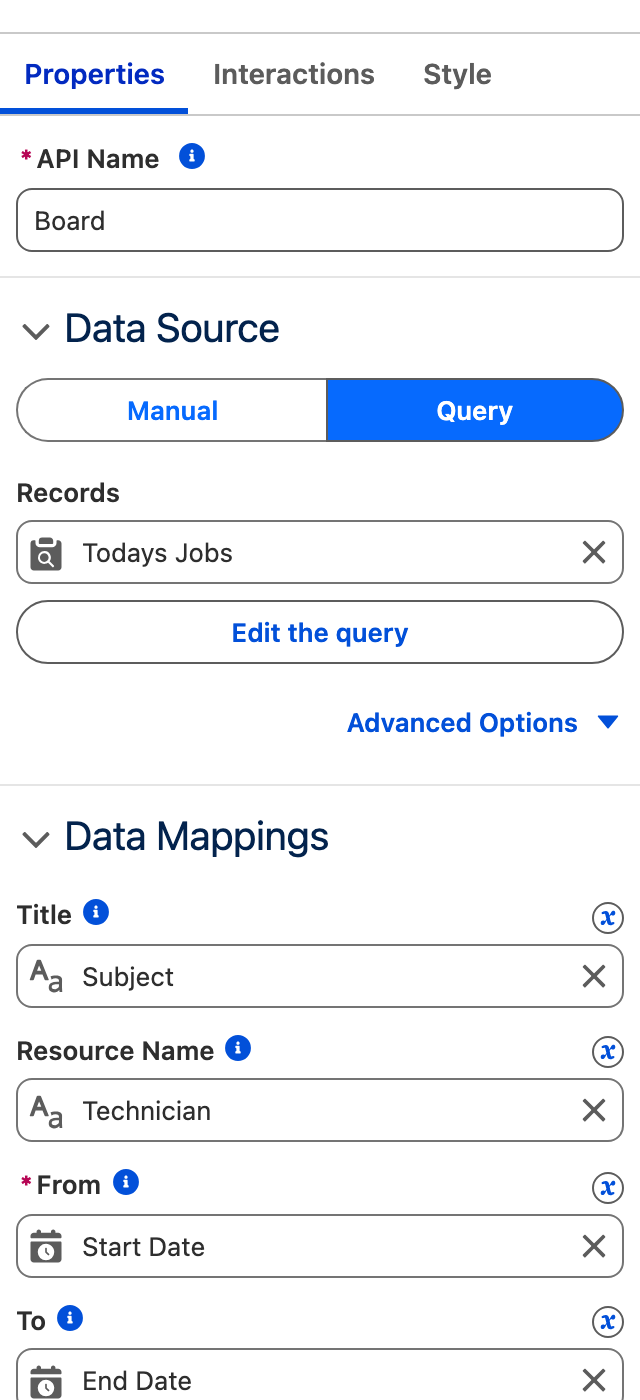
Drop a **Scheduler** in the left column and point its data source at the query. Then map the fields:

| Mapping       | Field                 | What it becomes           |
| ------------- | --------------------- | ------------------------- |
| Title         | Subject               | The label on the event    |
| Resource Name | your technician field | **The rows of the board** |
| From          | Start Date            | Where the event begins    |
| To            | End Date              | Where it ends             |

<figure><img src="https://3857391697-files.gitbook.io/~/files/v0/b/gitbook-x-prod.appspot.com/o/spaces%2FdHOej9Pd5IxJNGEJMZKW%2Fuploads%2FOh2e4weV6ZlIgh5ORB2K%2Fdispatch-scheduler-data.png?alt=media" alt="The Scheduler Properties tab showing the Query data source, the Todays Jobs record set, and the Data Mappings for Title, Resource Name, From and To" width="320"><figcaption><p>Resource Name is the mapping that turns a flat list of jobs into one row per technician.</p></figcaption></figure>

{% hint style="info" %}
Set the display to **timeline** and the time span to **day**. Agenda and calendar views answer "what is happening"; only the timeline answers "who is free", which is the dispatcher's actual question.
{% endhint %}
{% endstep %}

{% step %}

#### **Frame the working day**

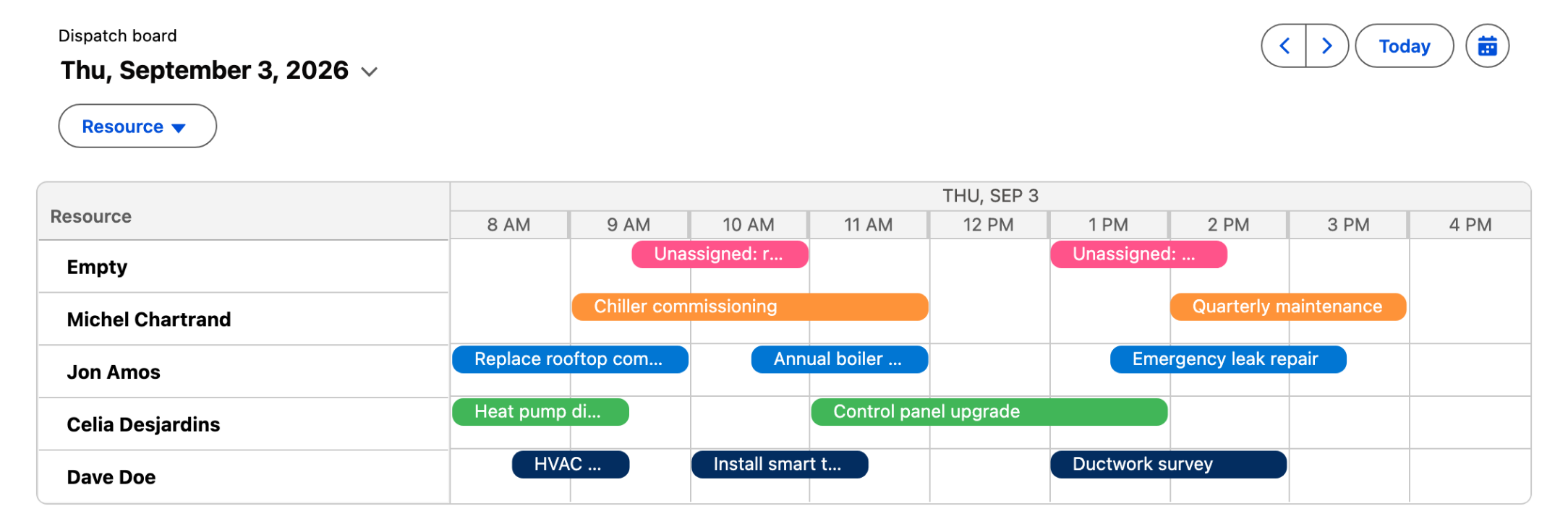
Set **Available time frames** to the hours your crews actually work, for example `07:00-17:00`.

Left alone, the timeline spans the full twenty four hours, so an eight hour day is squeezed into a third of the width and every job title truncates to three letters. This one setting is the difference between a board that is readable across the room and one nobody can use.

<figure><img src="https://3857391697-files.gitbook.io/~/files/v0/b/gitbook-x-prod.appspot.com/o/spaces%2FdHOej9Pd5IxJNGEJMZKW%2Fuploads%2F5k1IrlKZUA8AVIG1F39B%2Fdispatch-timeline.png?alt=media" alt="The Scheduler timeline alone: an unassigned row above Michel Chartrand, Jon Amos, Celia Desjardins and Dave Doe, each job showing its full name in a coloured bar between 8 AM and 4 PM"><figcaption><p>The same board framed to the working day. Every job now carries its own name.</p></figcaption></figure>

{% hint style="warning" %}

#### **Keep at least one job unassigned**

If your technician field is a plain **text** field, leave at least one record with it empty.

The Scheduler builds its rows from a grouped query and treats the first result as the "unassigned" placeholder, removing it before it draws. Rows from a text field all look like that placeholder, so with nothing genuinely unassigned in the data it deletes a real technician instead, and the board is short one row with no error anywhere. One empty record makes the placeholder real and every technician survives. A **lookup** field is not affected.

The row it adds is labelled "Empty" and that label is not configurable today. On a dispatch board it earns its place regardless: it is the queue.
{% endhint %}
{% endstep %}

{% step %}

#### **Colour both halves from one field**

Add a text **formula field** on the work order returning a hex colour per technician, for example `CASE(Technician__c, "Jon Amos", "#0176d3", ...)`.

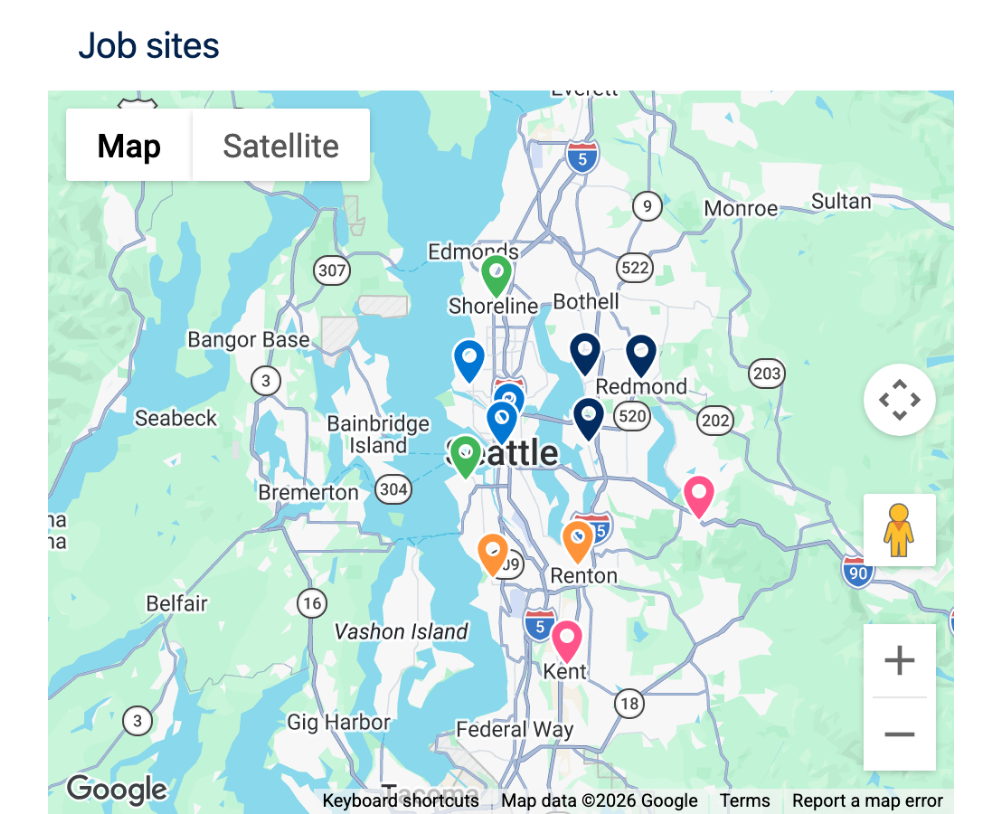
Point the Map's marker at it: set the marker **type** to `Pin` and bind **Fill colour** to the formula field. Every pin now takes its colour from the record, so the map is right by construction.

The Scheduler cannot do the same. Its event mapping accepts a title, a resource and two dates, and nothing else, so a row is painted `palette[position]` from **Events palette**. Order your palette to match your technicians and check it once on screen. If you later add a technician, check it again: the row order comes from a grouped query with no sort, so nothing guarantees it stays put.

{% hint style="info" %}
Give the unassigned row the loudest colour in the palette. It is the only row whose length is a problem rather than a fact.
{% endhint %}
{% endstep %}

{% step %}

#### **Add the map beside it**

Drop a **Map** in the right column and point it at the same query. Map the title to the job's subject and the location to the record's latitude and longitude.

Give every job its own coordinates. Two jobs on the same point render one pin on top of another, and the board silently under-reports the day.

Give it a zoom level that frames your service area. A dispatch map that opens on the whole country costs the dispatcher a scroll on every single job.

<figure><img src="https://3857391697-files.gitbook.io/~/files/v0/b/gitbook-x-prod.appspot.com/o/spaces%2FdHOej9Pd5IxJNGEJMZKW%2Fuploads%2FITzj6TFz6uURJ6PNl4iG%2Fdispatch-job-sites.png?alt=media" alt="A Google map of the Seattle area titled Job sites, with twelve pins spread from Shoreline to Kent: three navy, three blue, two green, two orange and two pink, matching the technician colours on the timeline"><figcaption><p>The day's jobs as pins. Same query as the timeline, same colour per technician, so the two halves always agree.</p></figcaption></figure>
{% endstep %}

{% step %}

#### **Hand the drag to a flow**

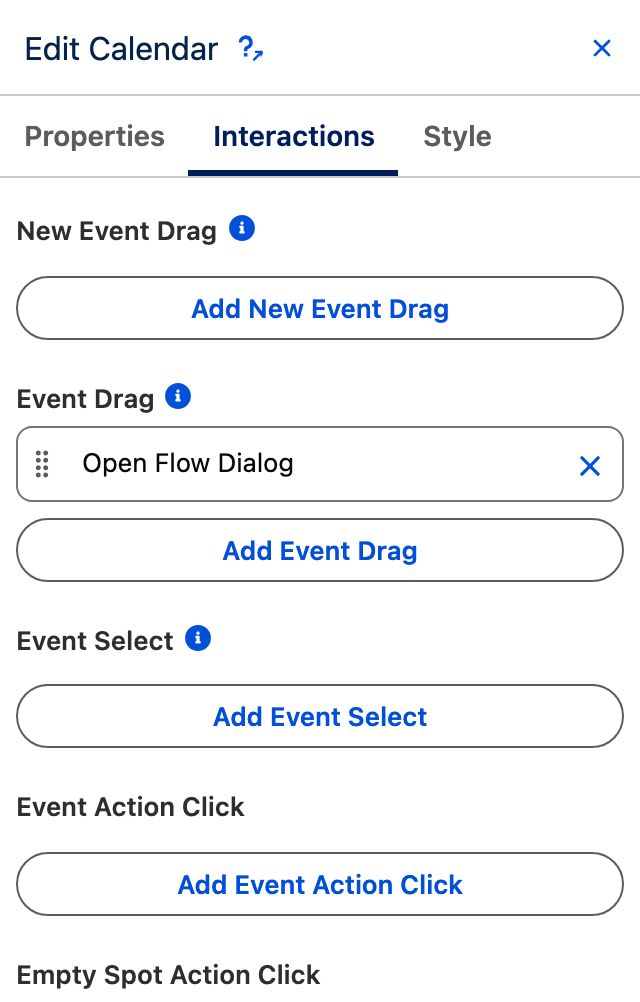
Select the Scheduler, open its **Interactions** tab and add an interaction on **Event Drag**. Choose **Open Flow Dialog** and point it at your reassignment flow.

<figure><img src="https://3857391697-files.gitbook.io/~/files/v0/b/gitbook-x-prod.appspot.com/o/spaces%2FdHOej9Pd5IxJNGEJMZKW%2Fuploads%2FZTM839fooVHUh8kG5bY8%2Fdispatch-event-drag.png?alt=media" alt="The Scheduler Interactions tab showing Event Drag carrying an Open Flow Dialog action, alongside the New Event Drag, Event Select and Event Action Click triggers" width="320"><figcaption><p>Event Drag is the trigger that fires when a dispatcher moves a job.</p></figcaption></figure>

The Scheduler exposes the dragged event and its new start and end, so the flow receives what changed and decides whether to accept it. Put a **Refresh Query** on the flow's finish so the board and the map both re-read once the record is saved.

{% hint style="info" %}
Doing the reassignment in a flow rather than writing the record directly is what lets you refuse a move. Travel time, skills and parts availability are business rules, and the drag is only a request.
{% endhint %}
{% endstep %}
{% endstepper %}

***

## Going further

**Empty the queue from the board.** An unassigned job dragged onto a technician's row is the assignment, and the flow behind Event Drag is where the rules live. That single gesture is most of a dispatcher's morning.

**Let the dispatcher see only their patch.** The Scheduler takes query fields as filters, so a territory or skill field becomes a filter menu above the board.

**Give a job somewhere to go.** Event actions add a context menu on each event, so a job can be opened, put on hold or marked complete without leaving the board.

**Close the loop from the map.** The Map exposes the selected marker's record, so clicking a pin can highlight the same job in a side panel.

**Related components**

* Scheduler
* Map
* Columns Container


---

# Agent Instructions
This documentation is published with GitBook. GitBook is the documentation platform designed so that both humans and AI agents can read, navigate, and reason over technical content effectively. Learn more at gitbook.com.

## Querying This Documentation
If you need additional information that is not directly available in this page, you can query the documentation dynamically by asking a question.

Perform an HTTP GET request on the current page URL with the `ask` query parameter, and the optional `goal` query parameter:

```
GET https://docs.avonnicomponents.com/projects/use-cases/boards-and-pipelines/field-service-dispatch-board.md?ask=<question>&goal=<endgoal>
```

`ask` is the immediate question: it should be specific, self-contained, and written in natural language.
`goal` is optional and describes the broader end goal you are ultimately trying to accomplish on behalf of the user. GitBook uses it to tailor the answer towards what is most useful for that goal.

The response will contain a direct answer to the question and relevant excerpts and sources from the documentation.

Use this mechanism when the answer is not explicitly present in the current page, you need clarification or additional context, or you want to retrieve related documentation sections.