> For the complete documentation index, see [llms.txt](https://docs.avonnicomponents.com/llms.txt). Markdown versions of documentation pages are available by appending `.md` to page URLs; this page is available as [Markdown](https://docs.avonnicomponents.com/projects/use-cases/account-map-in-one-tag.md).

# Account map in one tag

## Overview

The account tree under the highlights panel: subsidiaries, their contacts, their open deals, one click to drill. One tag in your LWC, one nested query. The whole map is one **Relationship Graph** (`avonni-dd-relationship-graph`) on the Account record page, reading three levels of records through a query that carries its own children. This tutorial rebuilds the Northwind Distribution page of the Sales app in your own org.

## What you build

![Avonni Relationship Graph in a Lightning Web Component on an Account record page: three subsidiaries, one selected, with its contacts and its open opportunity unfolding to the right](https://3857391697-files.gitbook.io/~/files/v0/b/gitbook-x-prod.appspot.com/o/spaces%2FdHOej9Pd5IxJNGEJMZKW%2Fuploads%2F0n2zJGDtX66s0gLenqAe%2Fuc-09-account-map-lwc.png?alt=media)

* Open Northwind Distribution and the map sits under the highlights panel. The account is the root label of the graph; **New contact** and **New opportunity** hang off it.
* **Accounts (3)** in the first column: Northwind Canada (Montréal), Northwind Iberia (Lisbon), Northwind Nordics (Stockholm), all Furniture retail, each with its city and industry under the name.
* Select Northwind Nordics and its **Contacts (2)** (Tomas Berg, CFO; Jonas Lindqvist, IT director) and **Opportunities (1)** (Nordics showroom refit, $126,500.00, Proposal) unfold to the right, the deal highlighted.
* **Add** on every group, a menu with **Open** on every card.

## Before you start

{% hint style="info" %}
**Adapt this to your own org.** This one runs on standard objects, so what to check is the shape of your data rather than a list of fields to create. The map is drawn from two lookups, `ParentId` on Account and `AccountId` on the children: if your subsidiaries hang off something else, point the root query and the `relationshipField` of each child at your own fields. The stage names on the cards are your own picklist values.
{% endhint %}

* The [Avonni LWC Components](https://appexchange.salesforce.com/appxListingDetail?listingId=a0N4V00000FiERkUAN) package is installed, and the sales users hold a license and the package permission set. See [Installation & Licenses Management](https://docs.avonnicomponents.com/lwc-components/getting-started/installation-and-licenses-management).
* The Account record page of the app where the map goes. The examples below use Northwind Distribution, a furniture retailer, in the Sales app.
* Standard objects only. The graph reads these fields:

| Object      | Field                     | Type                   | Role                                                         |
| ----------- | ------------------------- | ---------------------- | ------------------------------------------------------------ |
| Account     | `Name`                    | Text                   | The card label                                               |
|             | `ParentId`                | Lookup (Account)       | Makes an account a subsidiary. The root query filters on it. |
|             | `BillingCity`, `Industry` | Text, Picklist         | The two facts under each subsidiary                          |
| Contact     | `Name`, `AccountId`       | Text, Lookup (Account) | The label and the link to the subsidiary                     |
|             | `Title`                   | Text                   | The fact under each contact                                  |
| Opportunity | `Name`, `AccountId`       | Text, Lookup (Account) | The label and the link to the subsidiary                     |
|             | `Amount`, `StageName`     | Currency, Picklist     | The two facts under each deal                                |

**Sample data.** One account, **Northwind Distribution** (Type Partner, Industry Furniture retail), and three accounts whose **Parent Account** is Northwind Distribution, each with its contacts and one open opportunity:

| Subsidiary        | Billing City | Industry         | Contacts (Title)                                | Opportunity (Amount, Stage, Close Date)                      |
| ----------------- | ------------ | ---------------- | ----------------------------------------------- | ------------------------------------------------------------ |
| Northwind Canada  | Montréal     | Furniture retail | Priya Nair (Store operations)                   | Spring catalog renewal (84,000, Negotiation, Oct 16, 2026)   |
| Northwind Iberia  | Lisbon       | Furniture retail | Maya Chen (Procurement lead)                    | E-commerce integration (42,000, Qualification, Nov 20, 2026) |
| Northwind Nordics | Stockholm    | Furniture retail | Tomas Berg (CFO), Jonas Lindqvist (IT director) | Nordics showroom refit (126,500, Proposal, Nov 6, 2026)      |

Use the stage names of your org. The org in the figure had `Proposal` and `Negotiation` added to the Opportunity **Stage** picklist; a default org has `Proposal/Price Quote` and `Negotiation/Review` instead, and the cards show whichever value the record holds.

**Permissions.** The Avonni query follows Salesforce sharing and field-level security: a user sees the subsidiaries, contacts and deals they can read, and nothing else. Creating a contact or a deal from the root actions needs Create on those objects.

## Build it

{% stepper %}
{% step %}

### Create the records

1. Create **Northwind Distribution**, then the three subsidiaries with **Parent Account** set to it, then the four contacts and the three opportunities on the subsidiaries.
2. Check the hierarchy from the account: the standard **View Account Hierarchy** action lists the three children.

*Why:* the graph is drawn from `ParentId`, `AccountId` and nothing else. If the hierarchy is right, the map is right.
{% endstep %}

{% step %}

### Create the component and place the tag

Create a Lightning web component named `accountMap`. The template is one tag:

```html
<!-- accountMap.html -->
<template>
    <avonni-dd-relationship-graph
        label={accountName}
        avatar-attributes={avatarAttributes}
        actions={actions}
        group-actions={groupActions}
        item-actions={itemActions}
        query={query}
        mapping={mapping}
        onactionclick={handleAction}
        ongroupactionclick={handleGroupAction}
        onitemactionclick={handleItemAction}
    ></avonni-dd-relationship-graph>
</template>
```

`variant` stays on its default, `horizontal`, and `hide-items-count` on its default, off: the groups unfold to the right and carry their counts.
{% endstep %}

{% step %}

### Read the record id and write the nested query

On a record page the component receives the account id through `@api recordId`. Build the query from it once the component is connected:

```js
// accountMap.js
import { LightningElement, api, wire } from 'lwc';
import { getRecord, getFieldValue } from 'lightning/uiRecordApi';
import { NavigationMixin } from 'lightning/navigation';
import NAME_FIELD from '@salesforce/schema/Account.Name';

export default class AccountMap extends NavigationMixin(LightningElement) {
    @api recordId;
    query;

    connectedCallback() {
        this.query = {
            objectApiName: 'Account',
            filter: `ParentId = '${this.recordId}'`,
            orderBy: 'Name ASC',
            children: [
                { objectApiName: 'Contact', relationshipField: 'AccountId', orderBy: 'LastName ASC' },
                { objectApiName: 'Opportunity', relationshipField: 'AccountId', orderBy: 'Amount DESC' }
            ]
        };
    }
```

*Why:* the first level of the graph is the result of the root query. Querying the subsidiaries (`ParentId = <this account>`) puts them in the first column. Querying the account itself would add a level, **Accounts (1)**, holding one card that repeats the root label. Each child query names the lookup that points from the child to the parent level: `Contact.AccountId`, `Opportunity.AccountId`. `filter` is a SOQL WHERE clause without the keyword, `orderBy` a SOQL ORDER BY without the keyword.
{% endstep %}

{% step %}

### Map the three objects

```js
    mapping = {
        Account: { label: '{{Record.Name}}', name: '{{Record.Id}}', fields: ['BillingCity', 'Industry'] },
        Contact: { label: '{{Record.Name}}', name: '{{Record.Id}}', fields: ['Title'] },
        Opportunity: { label: '{{Record.Name}}', name: '{{Record.Id}}', fields: ['Amount', 'StageName'] }
    };
```

*Why:* the mapping is keyed by object API name, one entry per level, and `fields` lists what shows under the card label. `name` set to the record id is what makes the item actions useful: the event carries it back as `targetName`.
{% endstep %}

{% step %}

### Label the root and add the actions

```js
    @wire(getRecord, { recordId: '$recordId', fields: [NAME_FIELD] })
    account;

    get accountName() {
        return this.account.data ? getFieldValue(this.account.data, NAME_FIELD) : '';
    }

    avatarAttributes = { fallbackIconName: 'standard:account' };
    actions = [
        { name: 'newContact', label: 'New contact' },
        { name: 'newOpp', label: 'New opportunity' }
    ];
    groupActions = [{ name: 'add', label: 'Add', iconName: 'utility:add' }];
    itemActions = [{ name: 'open', label: 'Open', iconName: 'utility:open' }];
```

*Why:* the root of the graph is the record the page is on, so its `label` is read from the record rather than typed. `actions` sit under the root, `group-actions` in the header of every group, `item-actions` in the menu of every card.
{% endstep %}

{% step %}

### Handle the events

```js
    handleAction(event) {
        const objectApiName = event.detail.name === 'newContact' ? 'Contact' : 'Opportunity';
        this[NavigationMixin.Navigate]({
            type: 'standard__objectPage',
            attributes: { objectApiName, actionName: 'new' },
            state: { defaultFieldValues: `AccountId=${this.recordId}` }
        });
    }

    handleGroupAction(event) {
        const { name, targetName } = event.detail;
        // 'add': open your own create form. targetName is the group's internal name.
    }

    handleItemAction(event) {
        if (event.detail.name === 'open') {
            this[NavigationMixin.Navigate]({
                type: 'standard__recordPage',
                attributes: { recordId: event.detail.targetName, actionName: 'view' }
            });
        }
    }
}
```

*Why:* the component draws and the code decides. `actionclick` carries the action `name`; `itemactionclick` carries the `name` and the item's `targetName`, which is the record id set in the mapping, so **Open** is a navigation call. `groupactionclick` carries the group's internal name, not the object name, so a group action works best when it means the same thing on every group.
{% endstep %}

{% step %}

### Expose the component and place it on the record page

1. In `accountMap.js-meta.xml`, expose the component for record pages of Account:

```xml
<?xml version="1.0" encoding="UTF-8"?>
<LightningComponentBundle xmlns="http://soap.sforce.com/2006/04/metadata">
    <apiVersion>66.0</apiVersion>
    <isExposed>true</isExposed>
    <masterLabel>Account Map</masterLabel>
    <targets>
        <target>lightning__RecordPage</target>
    </targets>
    <targetConfigs>
        <targetConfig targets="lightning__RecordPage">
            <objects>
                <object>Account</object>
            </objects>
        </targetConfig>
    </targetConfigs>
</LightningComponentBundle>
```

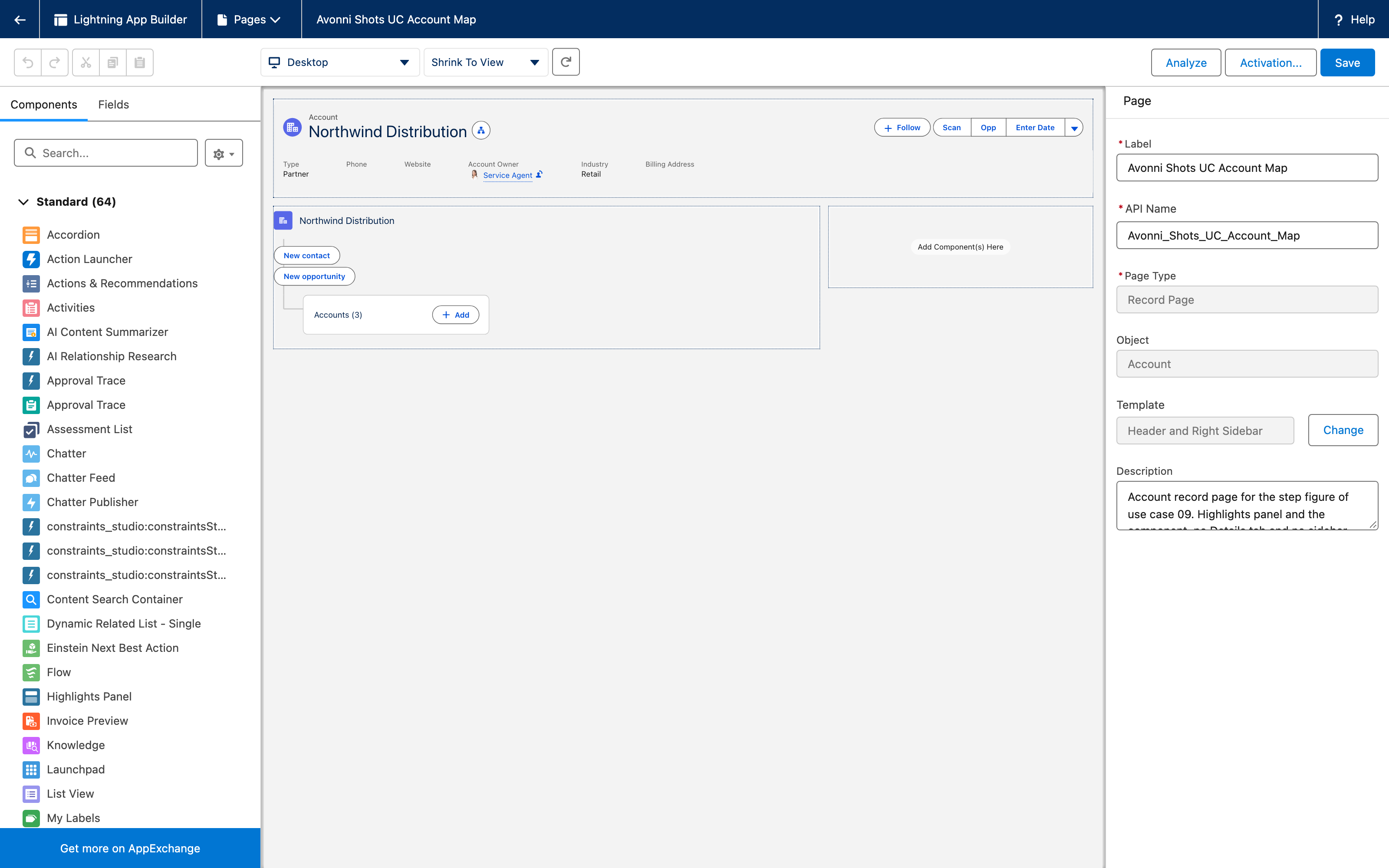
2. Deploy, open Northwind Distribution, then **Edit Page** in **Lightning App Builder**. Drag **Account Map** into the main region under the highlights panel and **Save**, then **Activate** the page for the Sales app.

*Why:* the figure uses a page with the highlights panel and the map, no **Details** tab and no sidebar, so the three columns of the graph have the full width.
{% endstep %}
{% endstepper %}

## The settings that matter

| Setting                              | Value                                                     | Why                                                                                                                                                     |
| ------------------------------------ | --------------------------------------------------------- | ------------------------------------------------------------------------------------------------------------------------------------------------------- |
| `query.filter`                       | `ParentId = '<this account>'`                             | The root of the graph is the query result. Aiming at the children puts the subsidiaries in the first column, with no extra level repeating the account. |
| `query.children[].relationshipField` | `AccountId` on Contact and on Opportunity                 | The lookup from the child level to the parent level. That one field is the whole join.                                                                  |
| `mapping.<Object>.fields`            | `BillingCity`, `Industry`; `Title`; `Amount`, `StageName` | Two facts per card, read from the record and labeled with the field label.                                                                              |
| `variant`                            | `horizontal` (default)                                    | Three columns of groups that unfold to the right, which fits under a highlights panel.                                                                  |

## Interactions

| Event              | Payload              | What to do with it                                                                                  |
| ------------------ | -------------------- | --------------------------------------------------------------------------------------------------- |
| `actionclick`      | `name`               | `newContact`, `newOpp`: open the create form with the account prefilled.                            |
| `groupactionclick` | `name`, `targetName` | `add`: open your create form. `targetName` is the group's internal identifier, not the object name. |
| `itemactionclick`  | `name`, `targetName` | `open`: navigate to `targetName`, the record id from the mapping.                                   |
| `select`           | `record`             | Fires when a card is selected or unselected, with the record behind it.                             |

## Try it

1. Open Northwind Distribution. Under the highlights panel: the root label with its account icon, **New contact** and **New opportunity**, and **Accounts (3)** collapsed.
2. Expand **Accounts (3)** and select **Northwind Nordics**: **Contacts (2)** and **Opportunities (1)** appear to its right. Expand both, then select **Nordics showroom refit**: the card takes a blue border and Northwind Nordics shows the blue corner that marks the selected path.
3. Open the menu on **Tomas Berg** and click **Open**: the contact record opens.
4. Click **New contact**: a new Contact form opens with **Account Name** set to Northwind Distribution.

## Take it further

The same component exists as [Relationship Graph](https://docs.avonnicomponents.com/dynamic-components/components/relationship-graph) for Dynamic Components, on a Lightning page with no code. Flow Screen Components and Experience Sites have no equivalent.

Variations worth trying:

* A fourth level: add `children` to the Contact query (`{ objectApiName: 'Event', relationshipField: 'WhoId' }`) and an `Event` entry in the mapping.
* Cards that open on click: add `linkify: true` to a mapping entry and the card navigates to its record without an action.
* A vertical map: `variant="vertical"` stacks the levels top to bottom. It needs more height than the horizontal layout, which matters under a highlights panel.

## Troubleshooting

| Problem                                                                | Cause                                                                                                                                                                                                                                       | Fix                                                                                                                       |
| ---------------------------------------------------------------------- | ------------------------------------------------------------------------------------------------------------------------------------------------------------------------------------------------------------------------------------------- | ------------------------------------------------------------------------------------------------------------------------- |
| The first column reads **Accounts (1)** and holds the account itself   | The root query targets the account (`Id = ...`) instead of its children.                                                                                                                                                                    | Filter the root query on `ParentId`. The root label already names the account.                                            |
| A `filter` on a child query has no effect                              | The component builds each child query from `objectApiName`, `relationshipField`, `orderBy`, `limit` and `children` only; a child `filter` is documented on the type but not applied (checked in the component source on September 6, 2026). | Filter at the root level, or accept all children. "Open opportunities only" cannot be expressed on the child level today. |
| Every group shows a single card, whatever the count says               | A `limit` on the root query is applied to the child queries as well (observed on September 5, 2026).                                                                                                                                        | Remove the root `limit`, or set a `limit` on each child query instead.                                                    |
| The group reads **Accounts (3)** where you wanted **Subsidiaries (3)** | Group labels are the object's plural label. There is no property to rename them (September 5, 2026).                                                                                                                                        | Keep the object labels, or rename the object's plural label in **Object Manager** if the whole org agrees.                |
| **Amount** shows two decimals (`$126,500.00`)                          | The card renders the field in its currency format; the mapping has no format option (September 5, 2026).                                                                                                                                    | Accept it, or point `fields` at a formula text field that formats the amount the way you want.                            |
| The **Add** handler cannot tell Contacts from Opportunities            | `groupactionclick` carries the group's internal name, not the object name.                                                                                                                                                                  | Give the action one meaning for every group, or drop `group-actions` and keep the root actions.                           |


---

# Agent Instructions
This documentation is published with GitBook. GitBook is the documentation platform designed so that both humans and AI agents can read, navigate, and reason over technical content effectively. Learn more at gitbook.com.

## Querying This Documentation
If you need additional information that is not directly available in this page, you can query the documentation dynamically by asking a question.

Perform an HTTP GET request on the current page URL with the `ask` query parameter, and the optional `goal` query parameter:

```
GET https://docs.avonnicomponents.com/projects/use-cases/account-map-in-one-tag.md?ask=<question>&goal=<endgoal>
```

`ask` is the immediate question: it should be specific, self-contained, and written in natural language.
`goal` is optional and describes the broader end goal you are ultimately trying to accomplish on behalf of the user. GitBook uses it to tailor the answer towards what is most useful for that goal.

The response will contain a direct answer to the question and relevant excerpts and sources from the documentation.

Use this mechanism when the answer is not explicitly present in the current page, you need clarification or additional context, or you want to retrieve related documentation sections.
