> For the complete documentation index, see [llms.txt](https://docs.avonnicomponents.com/llms.txt). Markdown versions of documentation pages are available by appending `.md` to page URLs; this page is available as [Markdown](https://docs.avonnicomponents.com/flow/tutorials/reactive-query-tutorials/building-a-dynamic-metrics-dashboard-with-the-data-table.md).
# Building a Dynamic Metrics Dashboard with the Data Table
## Overview
This tutorial guides you through building a reactive dashboard in Avonni Flow, featuring dynamic metrics that respond to data table selections.
### **Example scenario**
Imagine a dashboard displaying a list of accounts in a data table. As users select accounts, the metrics at the top dynamically update to show total revenue, the number of open opportunities, and the total value of those opportunities for the selected accounts. This empowers users to analyze and understand key performance indicators quickly.
## Guided Steps
This tutorial will walk you through creating an interactive dashboard in Avonni Flow, where metrics dynamically update based on selections made in a data table.
### **1. Set Up the Data Table**
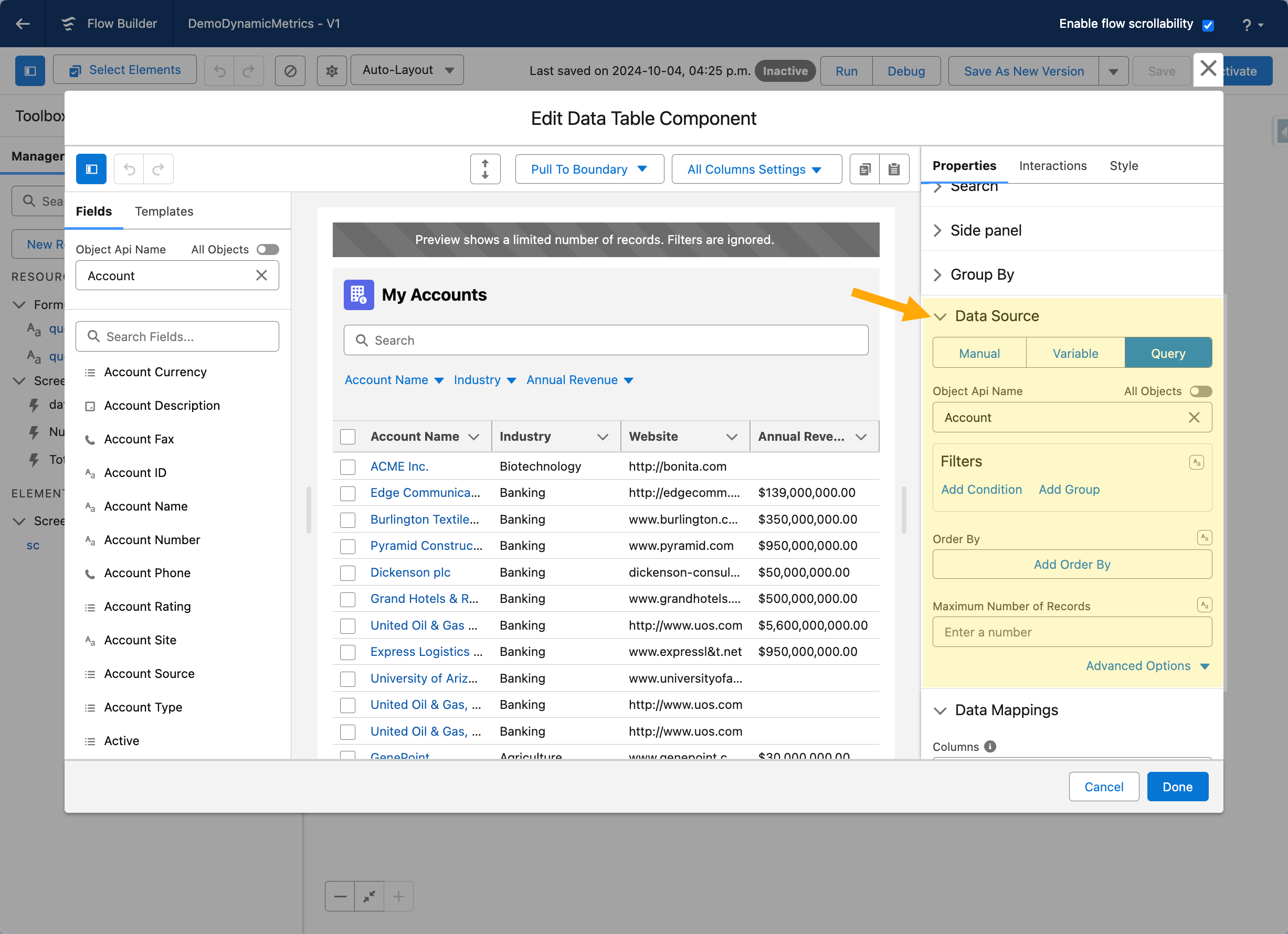
* **Drag and Drop:** From the Avonni Components palette in Flow Builder, drag the "Data Table" component onto your screen.
* **Configure Data Source:** Select your desired data source. This could be a Salesforce object (e.g., Account, Opportunity) or a collection variable from a previous step in your flow.
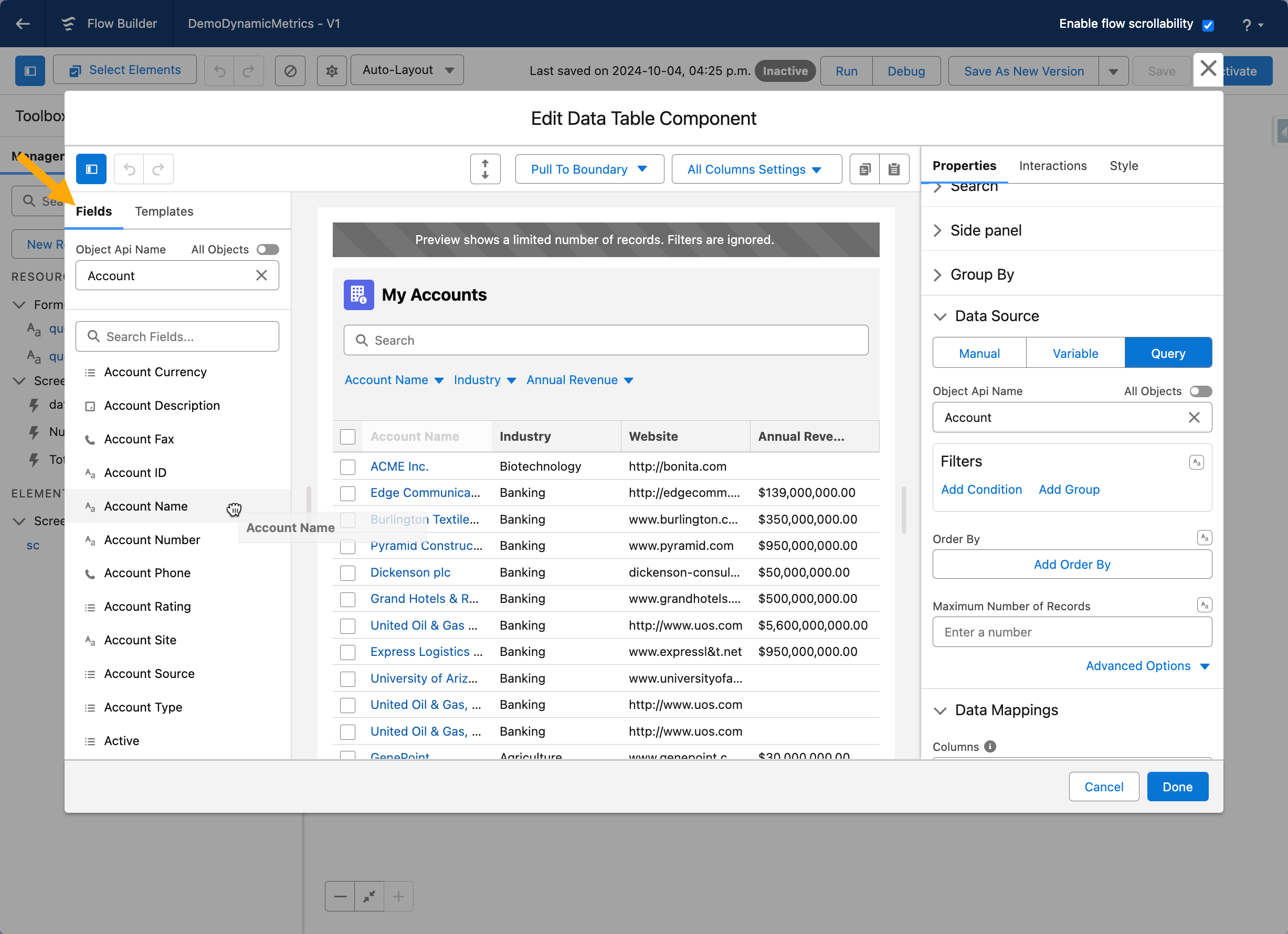
* **Add Columns:** Drag the relevant fields from your data source onto the data table to create columns—Configure column settings (labels, formatting, etc.) as needed.
### **2. Create the Metrics Section**
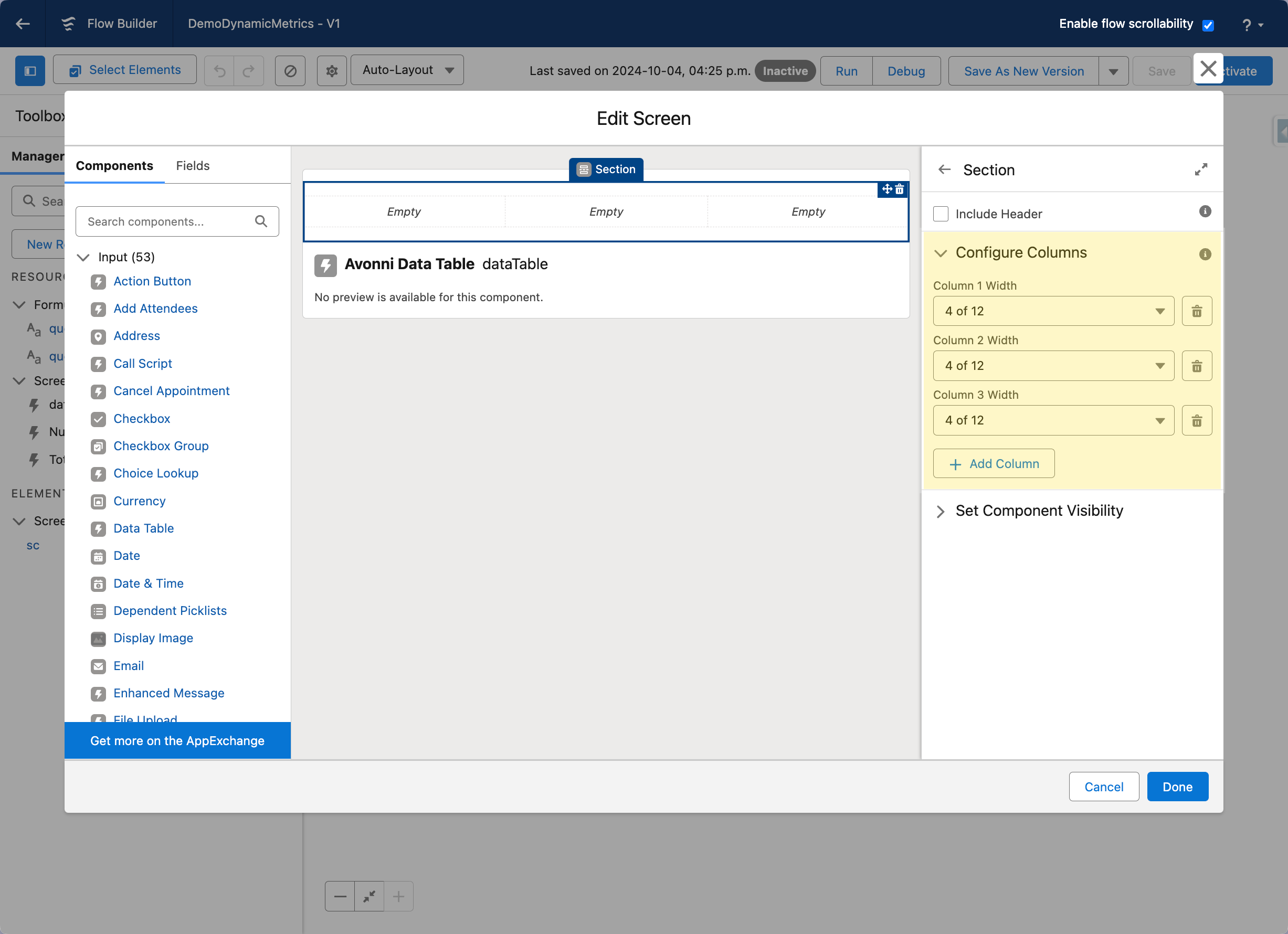
* **Add a Section:** Drag a "Section" component onto your screen and configure it to have three columns. This will provide a structured layout for your metrics.
* **Add Metric Components:** Drag three "Metric" components into the section, one per column.
### **3. Configure the First Metric**
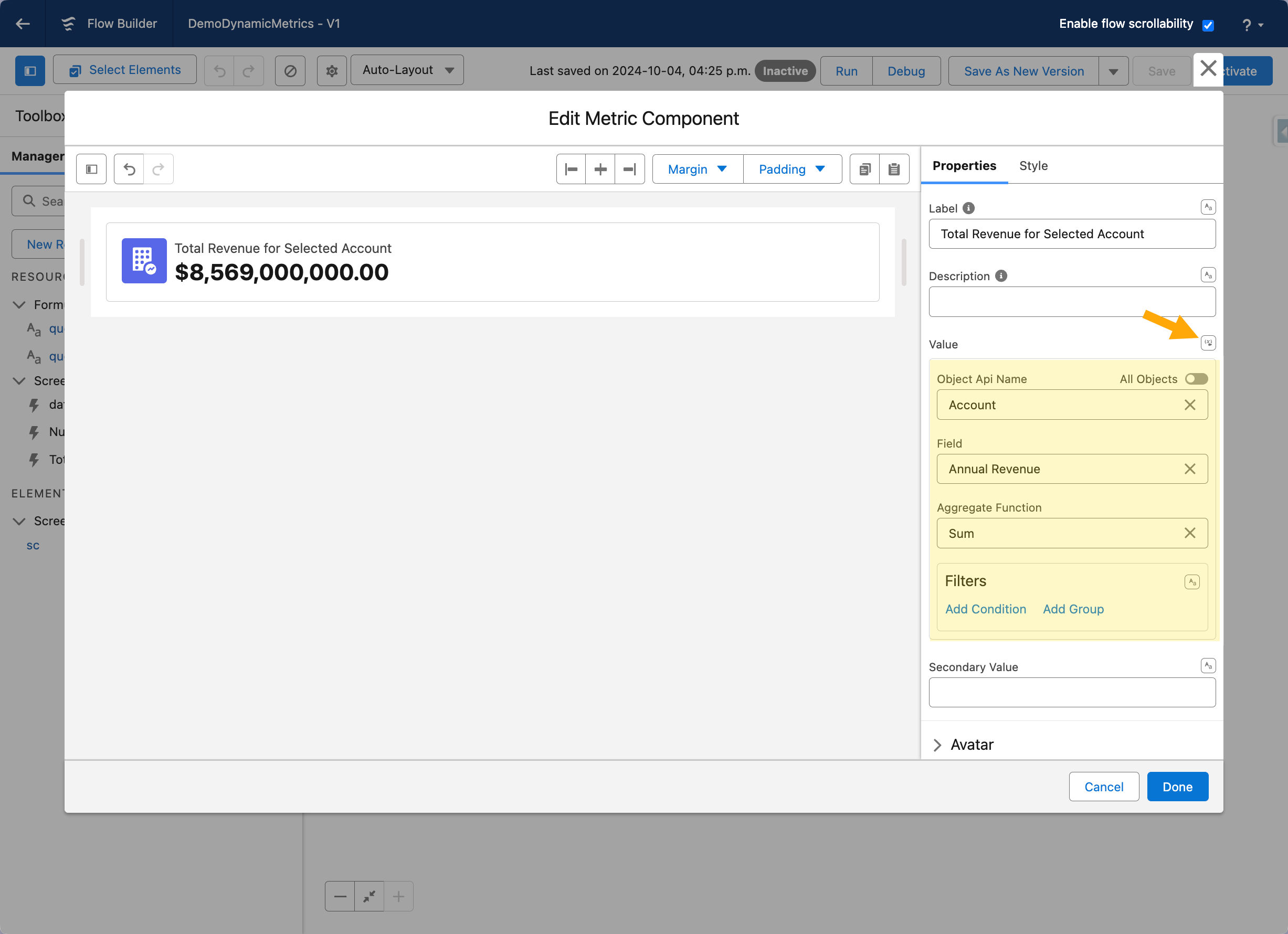
* **Set Query Value:** In the first metric component, choose "Query" as the value source.
* **Select Object and Field:** Select the relevant Salesforce object (e.g., Opportunity) and the field you want to aggregate (e.g., Amount).
* **Choose Aggregate Function:** To calculate the metric value, select the appropriate aggregate function (e.g., SUM, AVG, COUNT).
### **4. Make the Metric Reactive**
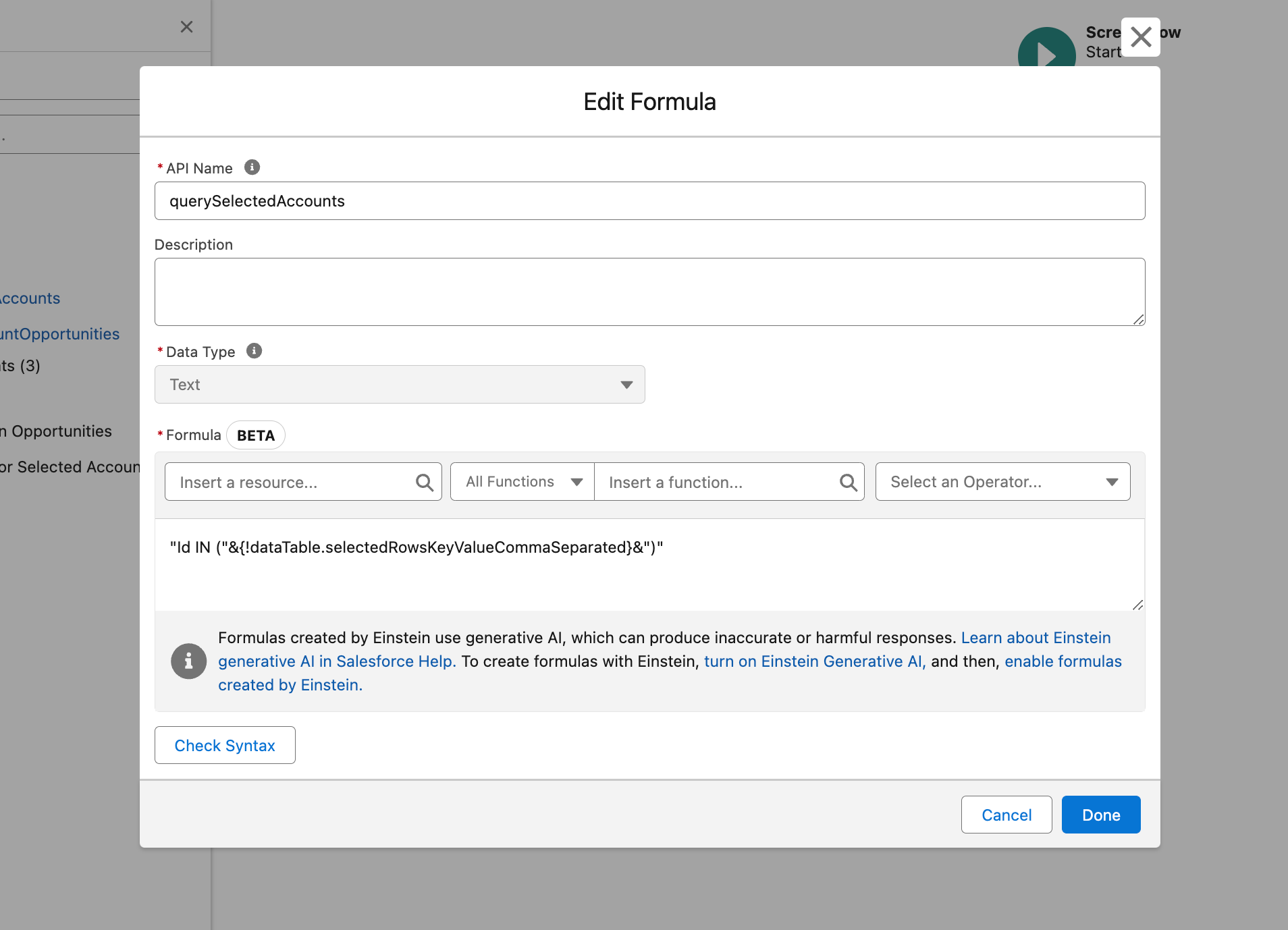
* **Create a Formula Text Variable:** In your flow, create a new resource of type "Formula Text." This variable will filter the metric's query dynamically based on the data table selection.
* **Formula Syntax:** Use the following syntax for the formula:
```
"Id IN ("&{!dataTable.selectedRowsKeyValueCommaSeparated}&")"
```
This formula constructs a string that filters records by their IDs, matching the IDs of the rows selected in the data table. `{!dataTable.selectedRowsKeyValueCommaSeparated}` retrieves the selected row IDs.
* **Connect the Formula to the Metric:** Use the formula text variable in the "Where Clause" field in the metric component's query configuration.
### **5. Repeat for Other Metrics**
Repeat steps 3 and 4 for the remaining two metric components, adjusting the object, field, and aggregate function as needed.
### **6. Test and Refine**
Save your flow and test it. Observe how the metrics dynamically update as you select different rows in the data table. Refine the formatting and layout of your dashboard to ensure clarity and visual appeal.
Following these steps, you'll create a dynamic and interactive dashboard that empowers users to explore data and gain valuable insights in real-time.
---
# Agent Instructions
This documentation is published with GitBook. GitBook is the documentation platform designed so that both humans and AI agents can read, navigate, and reason over technical content effectively. Learn more at gitbook.com.
## Querying This Documentation
If you need additional information that is not directly available in this page, you can query the documentation dynamically by asking a question.
Perform an HTTP GET request on the current page URL with the `ask` query parameter, and the optional `goal` query parameter:
```
GET https://docs.avonnicomponents.com/flow/tutorials/reactive-query-tutorials/building-a-dynamic-metrics-dashboard-with-the-data-table.md?ask=&goal=
```
`ask` is the immediate question: it should be specific, self-contained, and written in natural language.
`goal` is optional and describes the broader end goal you are ultimately trying to accomplish on behalf of the user. GitBook uses it to tailor the answer towards what is most useful for that goal.
The response will contain a direct answer to the question and relevant excerpts and sources from the documentation.
Use this mechanism when the answer is not explicitly present in the current page, you need clarification or additional context, or you want to retrieve related documentation sections.
.gif?alt=media)
.gif?alt=media)