> For the complete documentation index, see [llms.txt](https://docs.avonnicomponents.com/llms.txt). Markdown versions of documentation pages are available by appending `.md` to page URLs; this page is available as [Markdown](https://docs.avonnicomponents.com/flow/tutorials/components/timeline/create-a-horizontal-activity-timeline.md).
# Create a horizontal activity timeline
## Overview
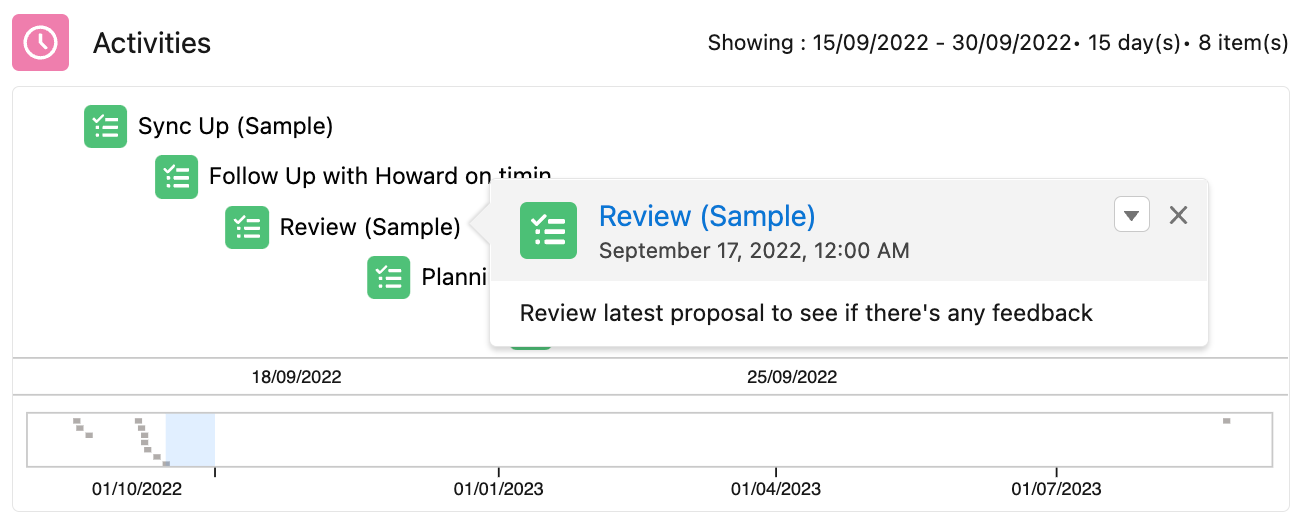
This page walks you through building an activity timeline that shows a list of tasks using the horizontal orientation. The users can scroll, zoom, hover and click to visualize related data.
## Result
The final result looks like this:
## Steps
The steps to build a horizontal activity timeline that displays a list of tasks are as follows:
### 1. Create the Get Records collection
The very first step starts with creating our Get Records collection to ask Flow Builder to fetch all the Task records by following the below steps:
* **Add a Get Records** element to fetch all tasks data
* Enter a collection Label
* Add the **Task Object**
* Select "**`None - Get all Task Records`**" in the condition requirements field
* Select "**`All Records`**" regarding the number of records to display
* Click "**Done**"
{% @arcade/embed url="" flowId="De6OSS81OekRdCpCm6Bz" %}
### 2. Add the Activity Timeline component
* Drag the **Activity Timeline component** from the components list to our screen flow (located under the custom section)
* Enter an **API Name**. For example, *ActivityTimeline*.
{% @arcade/embed url="" flowId="xaNh8CS4qf5C1H8QdZmQ" %}
### 3. Configure the Activity Timeline
* Click on the **Open Component Builder** button to access all the settings for the Activity Timeline component
* **Enter a title** for the component (e.g: Tasks)
* **Set the Orientation** to **`Horizontal`**.
* Under the Data Source section, **select Variable** to assign our previously created Get Records collection
* Under Source Collection, **click on the GetTask collection** we created in step 1
* Under the Data Mapping section, let's do our fields mapping
* **Title** => Task.Subject
* **Description** => Task.Description
* **Name** => [Task.Id](http://task.id/) (Activity ID)
* **Icon Name** => standard:task (switch to Manual to select an icon manually)
* **Date** => Task.DueDate
{% @arcade/embed url="" flowId="Ug2cTeIgWc7OiswwROpo" %}
---
# Agent Instructions
This documentation is published with GitBook. GitBook is the documentation platform designed so that both humans and AI agents can read, navigate, and reason over technical content effectively. Learn more at gitbook.com.
## Querying This Documentation
If you need additional information that is not directly available in this page, you can query the documentation dynamically by asking a question.
Perform an HTTP GET request on the current page URL with the `ask` query parameter, and the optional `goal` query parameter:
```
GET https://docs.avonnicomponents.com/flow/tutorials/components/timeline/create-a-horizontal-activity-timeline.md?ask=&goal=
```
`ask` is the immediate question: it should be specific, self-contained, and written in natural language.
`goal` is optional and describes the broader end goal you are ultimately trying to accomplish on behalf of the user. GitBook uses it to tailor the answer towards what is most useful for that goal.
The response will contain a direct answer to the question and relevant excerpts and sources from the documentation.
Use this mechanism when the answer is not explicitly present in the current page, you need clarification or additional context, or you want to retrieve related documentation sections.