> For the complete documentation index, see [llms.txt](https://docs.avonnicomponents.com/llms.txt). Markdown versions of documentation pages are available by appending `.md` to page URLs; this page is available as [Markdown](https://docs.avonnicomponents.com/flow/tutorials/components/progress-indicator/how-to-change-the-appearance-of-your-progress-indicator-using-a-variable.md).
# How to Change the Appearance of Your Progress Indicator using a variable
This tutorial guides you through creating and utilizing the "Progress Type" variable in your [Avonni progress indicator component](/flow/flow-components/progress-indicator.md). This variable empowers you to modify your progress indicator's look and feel quickly.
Here's a breakdown of the process:
## 1. Creating the "Progress Type" Variable
* Access the settings for your Avonni progress indicator component.
* Locate the section for variables (This might be named differently depending on the specific Avonni framework you're using).
* Click on "Create Variable" or a similar option.
* In the name field, enter "Progress Type".
* Choose "Text" as the data type for this variable.
## 2. Setting the Default Value
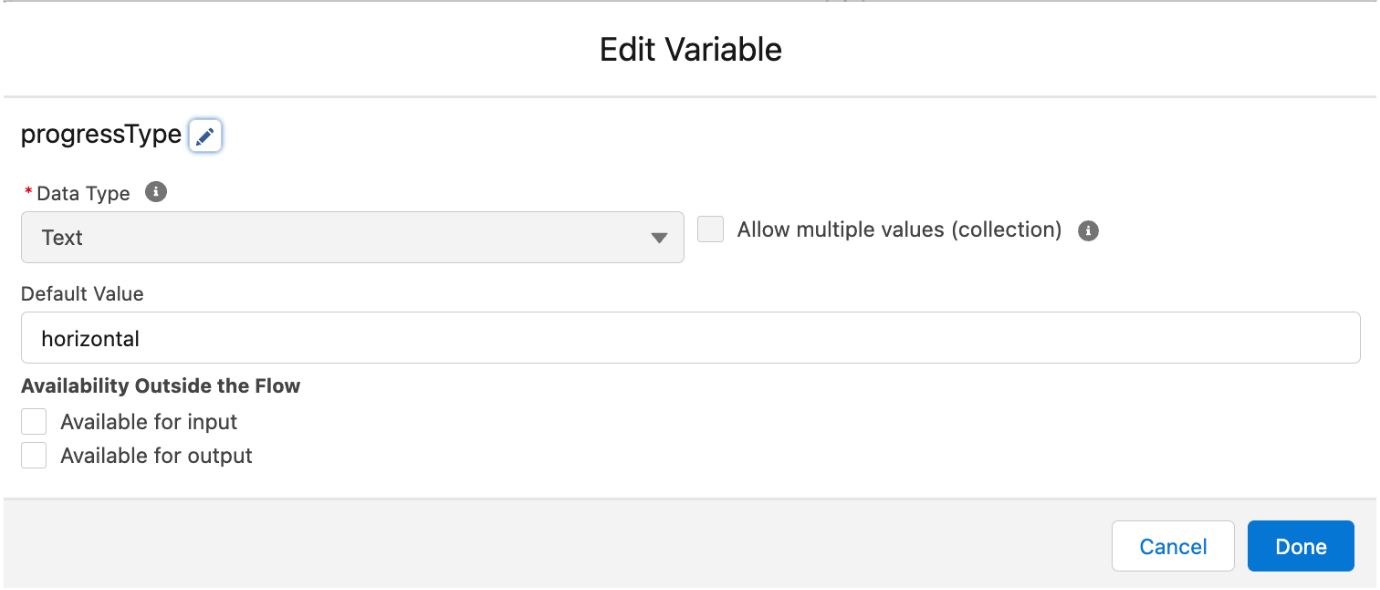
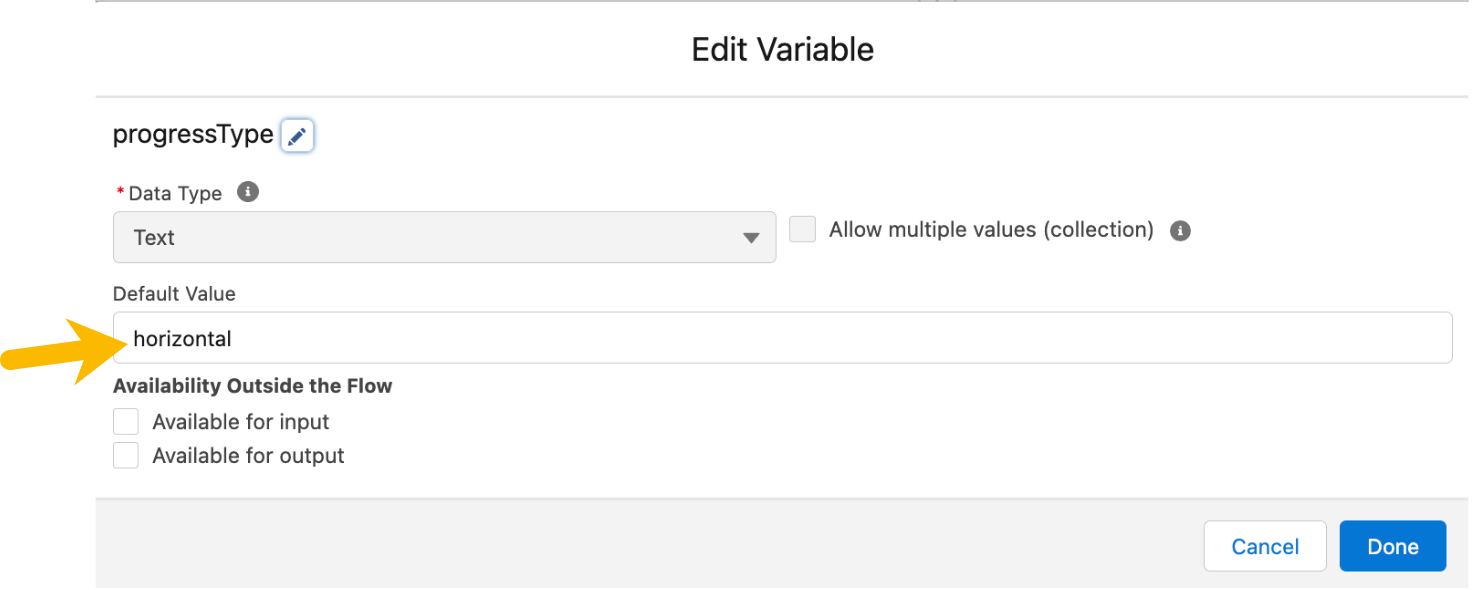
* In the "Default Value" field, enter "horizontal". This establishes the classic left-to-right progress bar as the default style.
## 3. Using the Variable's Power
Here's where things get exciting! The "Progress Type" variable controls the visual style of your progress indicator.
* **Add the Avonni Progress Indicator component to your screen flow.**
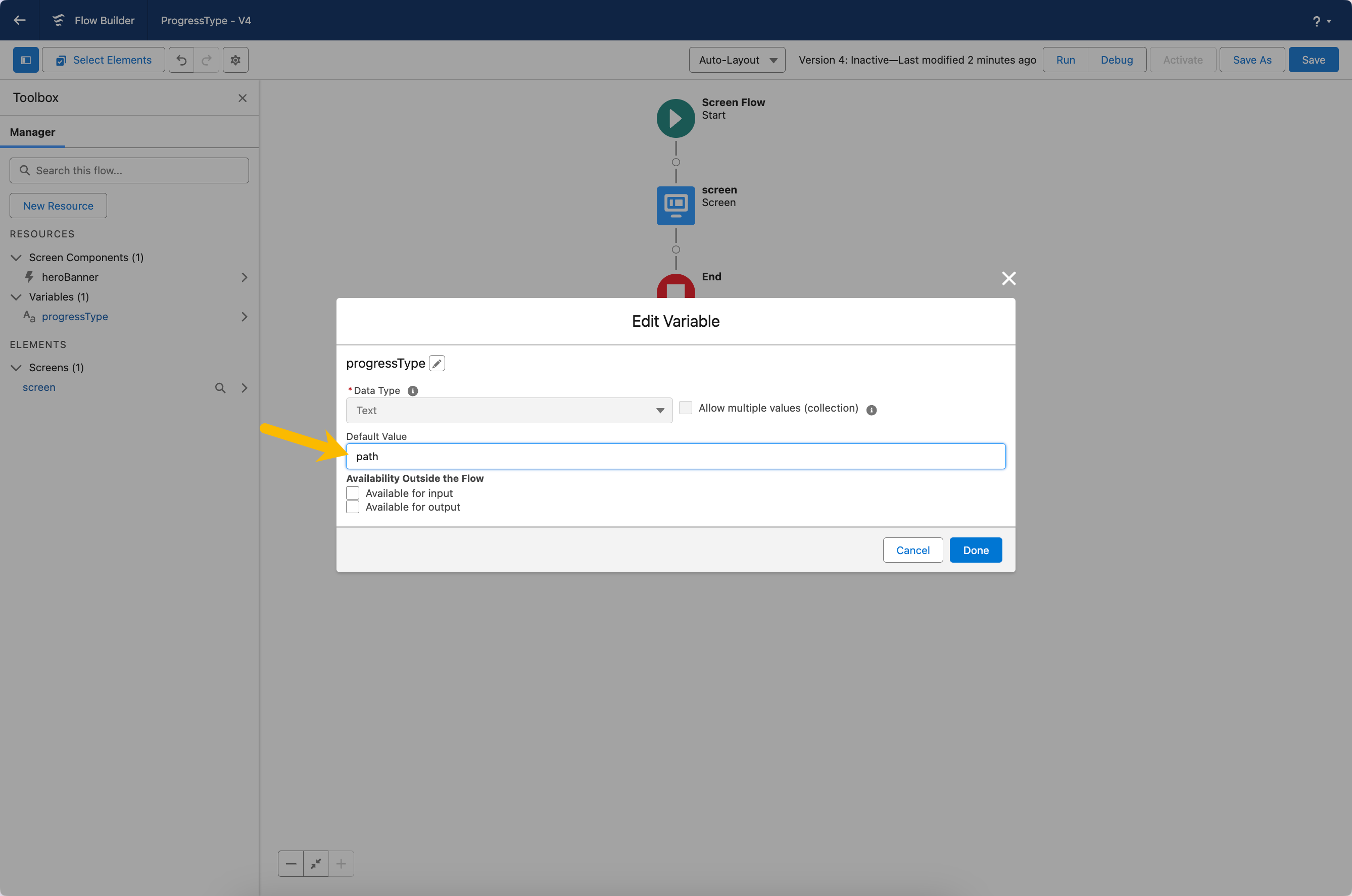
* **Assign the variable to the Progress Indicator type attribute:** We control its appearance by linking it to the progress indicator's 'Type' setting with a single change. If we ever want to change our entire flow to use the 'path' style, we only need to update this variable, and all our progress indicators will change automatically.
* **Changing the Type:** Suppose you want a progress indicator that follows a path connecting steps, rather than the default horizontal bar. Edit the "Progress Type" variable's default value to "Path".
* **Automatic Update:** The magic happens here! All progress indicator components linked to the "Progress Type" variable on your screen flow will automatically update to reflect the new style ("Path" in this case). You won't need to modify any other code!
This variable streamlines your workflow by allowing you to manage the appearance of your progress indicators from a central location. You can effortlessly switch between styles like "horizontal", "path", or potentially other Avonni-supported types (vertical, bar, circle...).
**In essence, the "Progress Type" variable grants you significant flexibility and time-saving benefits when customizing the look of your progress indicators.**
---
# Agent Instructions
This documentation is published with GitBook. GitBook is the documentation platform designed so that both humans and AI agents can read, navigate, and reason over technical content effectively. Learn more at gitbook.com.
## Querying This Documentation
If you need additional information that is not directly available in this page, you can query the documentation dynamically by asking a question.
Perform an HTTP GET request on the current page URL with the `ask` query parameter, and the optional `goal` query parameter:
```
GET https://docs.avonnicomponents.com/flow/tutorials/components/progress-indicator/how-to-change-the-appearance-of-your-progress-indicator-using-a-variable.md?ask=&goal=
```
`ask` is the immediate question: it should be specific, self-contained, and written in natural language.
`goal` is optional and describes the broader end goal you are ultimately trying to accomplish on behalf of the user. GitBook uses it to tailor the answer towards what is most useful for that goal.
The response will contain a direct answer to the question and relevant excerpts and sources from the documentation.
Use this mechanism when the answer is not explicitly present in the current page, you need clarification or additional context, or you want to retrieve related documentation sections.
.gif?alt=media)