> For the complete documentation index, see [llms.txt](https://docs.avonnicomponents.com/llms.txt). Markdown versions of documentation pages are available by appending `.md` to page URLs; this page is available as [Markdown](https://docs.avonnicomponents.com/flow/tutorials/components/list/create-a-grid-list-with-images.md).
# Create a grid list with images
## Overview
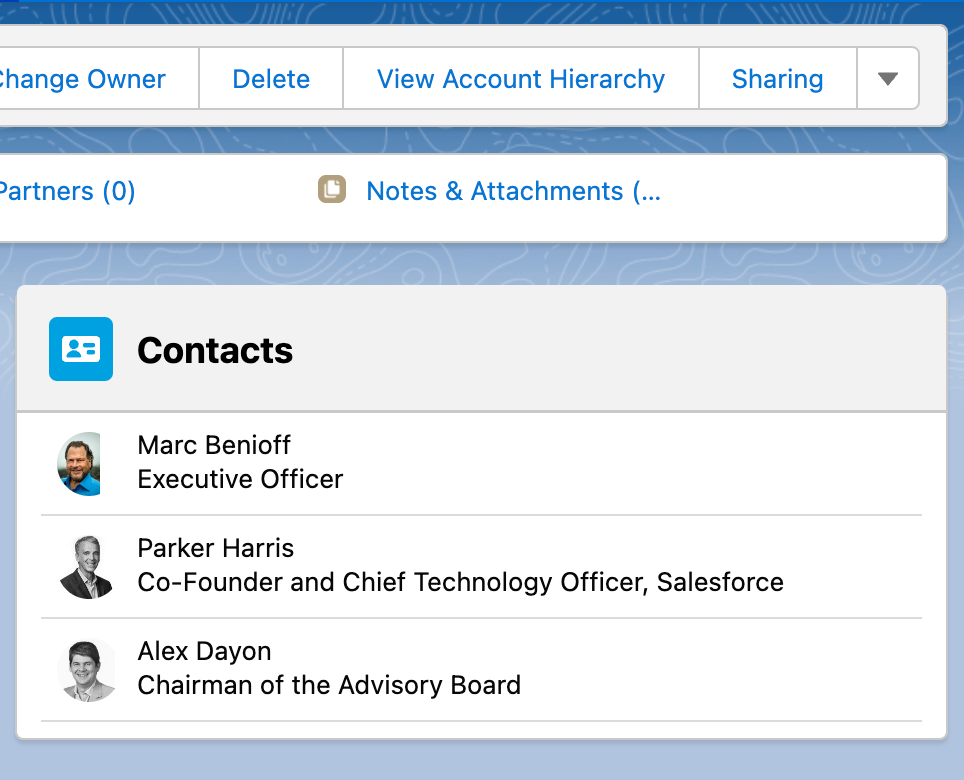
In this tutorial, we'll show you how to create a grid list of images using the [Avonni List flow screen component](/flow/flow-components/list.md). This component makes it easy to display a collection of items in a grid format.
We'll start by showing you how to set up the Avonni List component, including how to choose the number of columns, adjust the size of the images, and customize the grid's appearance. Then, we'll guide you through adding images to the grid using our source collection.
By the end of this tutorial, you'll have a fully functional grid list of images you can use in your flows. So let's get started!
## Result
## Steps
### 1. Create an input variable
We're setting up a variable to hold the current recordID information. We're doing this because we only want to show contacts connected to the account object for this example. To achieve this, we need to use this variable as a filter when we create a Get Records collection to retrieve records.
* Create a new Screen Flow
* Click on the "**New Resource**" button
* Resource type => **Variable**
* API name => **RecordID** (or your API Name)
* Data Type => **Record**
* Object => **Account** (or any other object that match your use case)
* Check "**Available for input**"
{% @arcade/embed url="" flowId="4Q3ZvbW8wQWjDCRjpMd8" %}
### 2. Create the Get Records collection
We are adding a Get Records element to retrieve records from the Salesforce Contact object based on specified criteria.
* Add a **`Get Records`** collection
* Enter a Label name: GetContacts
* Select an object > Contact
* Filter by condition to only displays that belong to the current Account
* Field: Account ID
* Operator: Equal
* Value: {!recordID.Id}
* Store: All Records
{% @arcade/embed url="" flowId="GqXkiIm54OleQ1mdQ0Ix" %}
### 3. Add a Screen Element and the Avonni List
* Add a Screen Element
* Enter an API name
* Hide Header and Footer (if needed)
* Drag the Avonni List
* Click on the "**Open Component Builder**" button to access all the Avonni List component's settings
{% @arcade/embed url="" flowId="Hlzmse4kQAJH5kJ6pRp9" %}
### 4. Configure the Avonni List
* **Variant** : Base
* **Divider** : Bottom
* **Layout**: 1 column
* **Data Source**: Variable
* **Source Collection** : GetContacts (created in the [step 2](#2.-create-the-get-records-collection))
#### Data Mapping
* **Label**: Full Name
* **Name**: Contact ID
#### Avatar
* **Variant**: Square
* **Icon Size**: X Small
* **Image Source**: Picture URL (or your field used to store the image)
{% @arcade/embed url="" flowId="bous8UTfprfUZQnmL9XN" %}
---
# Agent Instructions
This documentation is published with GitBook. GitBook is the documentation platform designed so that both humans and AI agents can read, navigate, and reason over technical content effectively. Learn more at gitbook.com.
## Querying This Documentation
If you need additional information that is not directly available in this page, you can query the documentation dynamically by asking a question.
Perform an HTTP GET request on the current page URL with the `ask` query parameter, and the optional `goal` query parameter:
```
GET https://docs.avonnicomponents.com/flow/tutorials/components/list/create-a-grid-list-with-images.md?ask=&goal=
```
`ask` is the immediate question: it should be specific, self-contained, and written in natural language.
`goal` is optional and describes the broader end goal you are ultimately trying to accomplish on behalf of the user. GitBook uses it to tailor the answer towards what is most useful for that goal.
The response will contain a direct answer to the question and relevant excerpts and sources from the documentation.
Use this mechanism when the answer is not explicitly present in the current page, you need clarification or additional context, or you want to retrieve related documentation sections.