> For the complete documentation index, see [llms.txt](https://docs.avonnicomponents.com/llms.txt). Markdown versions of documentation pages are available by appending `.md` to page URLs; this page is available as [Markdown](https://docs.avonnicomponents.com/flow/tutorials/components/date-time-picker/how-to-create-collection-variables-for-startdatetime-and-enddatetime.md).
# How to create Collection Variables for StartDateTime and EndDateTime
{% hint style="info" %}
This tutorial is currently a work in progress and provides you with a foundational approach for handling **`StartDateTime`** and **`EndDateTime`** collection variables in Salesforce's Event object using Flow Builder. We are expanding this tutorial to include a specific use case integrating with the [Avonni Date Time Picker](/flow/flow-components/date-time-picker.md) component. Stay tuned for updates!
{% endhint %}
## Introduction:
This tutorial walks you through the steps of using Salesforce Flow Builder to create collection variables for **`StartDateTime`** and **`EndDateTime`** from the Event object in Salesforce. This technique allows you to dynamically manipulate or assess these date-time ranges for various use cases, such as populating date-time picker components, running analytics, or setting automated reminders.
***
## Step 1: Initialize Variables
**Why This Step:**
Initializing variables is essential for setting the groundwork. These variables will store date-time data from Salesforce's Event object.
**Actions in Flow Builder:**
* Click on "Manager" to go to the variable management screen.
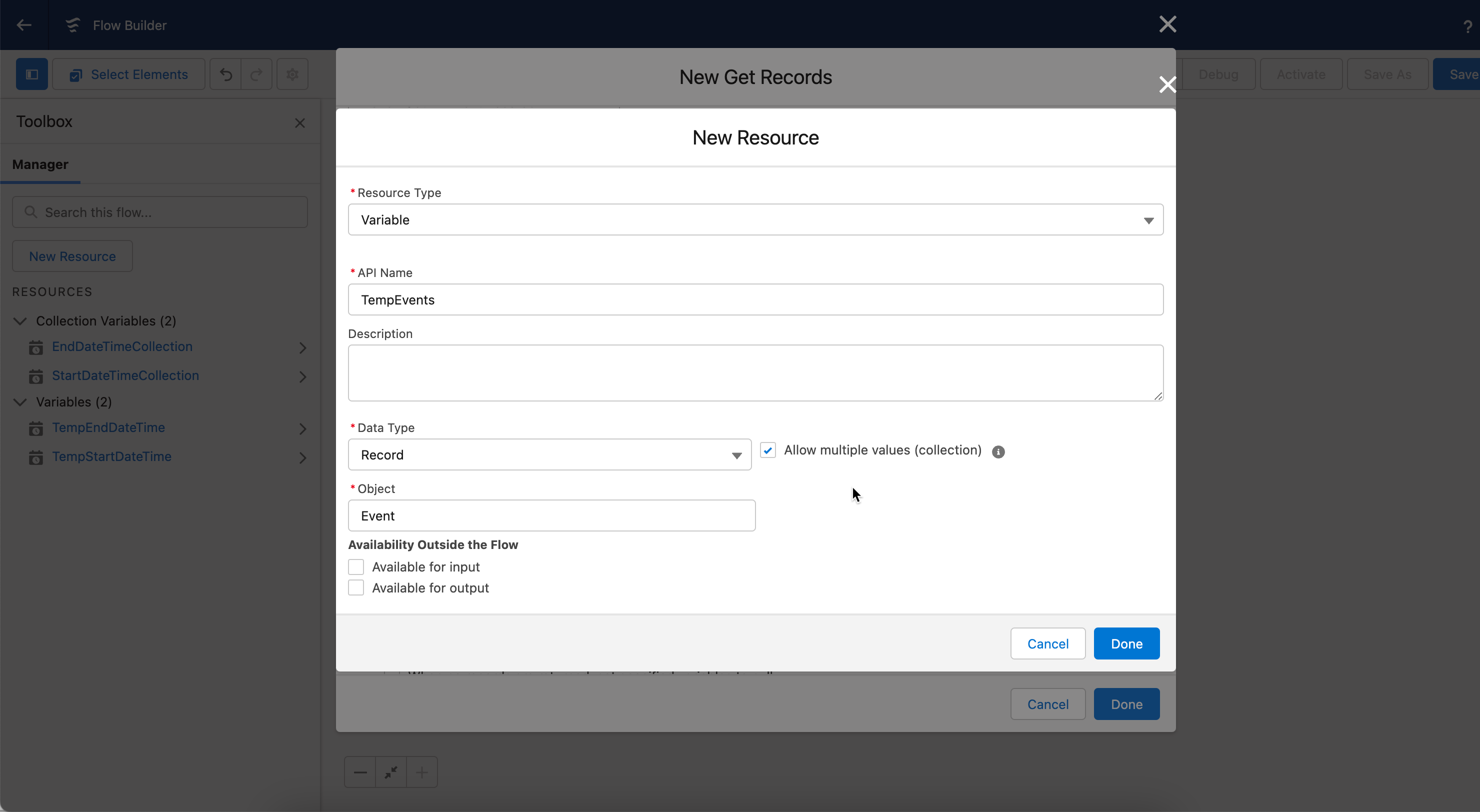
* Create four variables: **`StartDateTimeCollection`**, **`EndDateTimeCollection`**, **`TempStartDateTime`**, and **`TempEndDateTime`**.
* Set their Data Types to DateTime.
* For **`StartDateTimeCollection`** and **`EndDateTimeCollection`**, check the "Allow multiple values" box.
***
## Step 2: Get Records (Fetch Events)
**Why This Step:**
To collect date-time data, you must query Salesforce's Event object to fetch relevant records.
**Actions in Flow Builder:**
* Drag and drop a "**Get Records**" element onto the canvas.
* Choose the "**Event**" object as the target object.
* Set the filters to fetch records as per your requirement.
* Save these records into a new variable, name it **`TempEvents`** (Allow multiple values)
* Store the **`StartDateTime`** and **`EndDateTime`** fields.
***
## Step 3: Loop Through Events
**Why This Step:**
A loop enables you to process each event one by one, extracting its **`StartDateTime`** and **`EndDateTime`**.
**Actions in Flow Builder:**
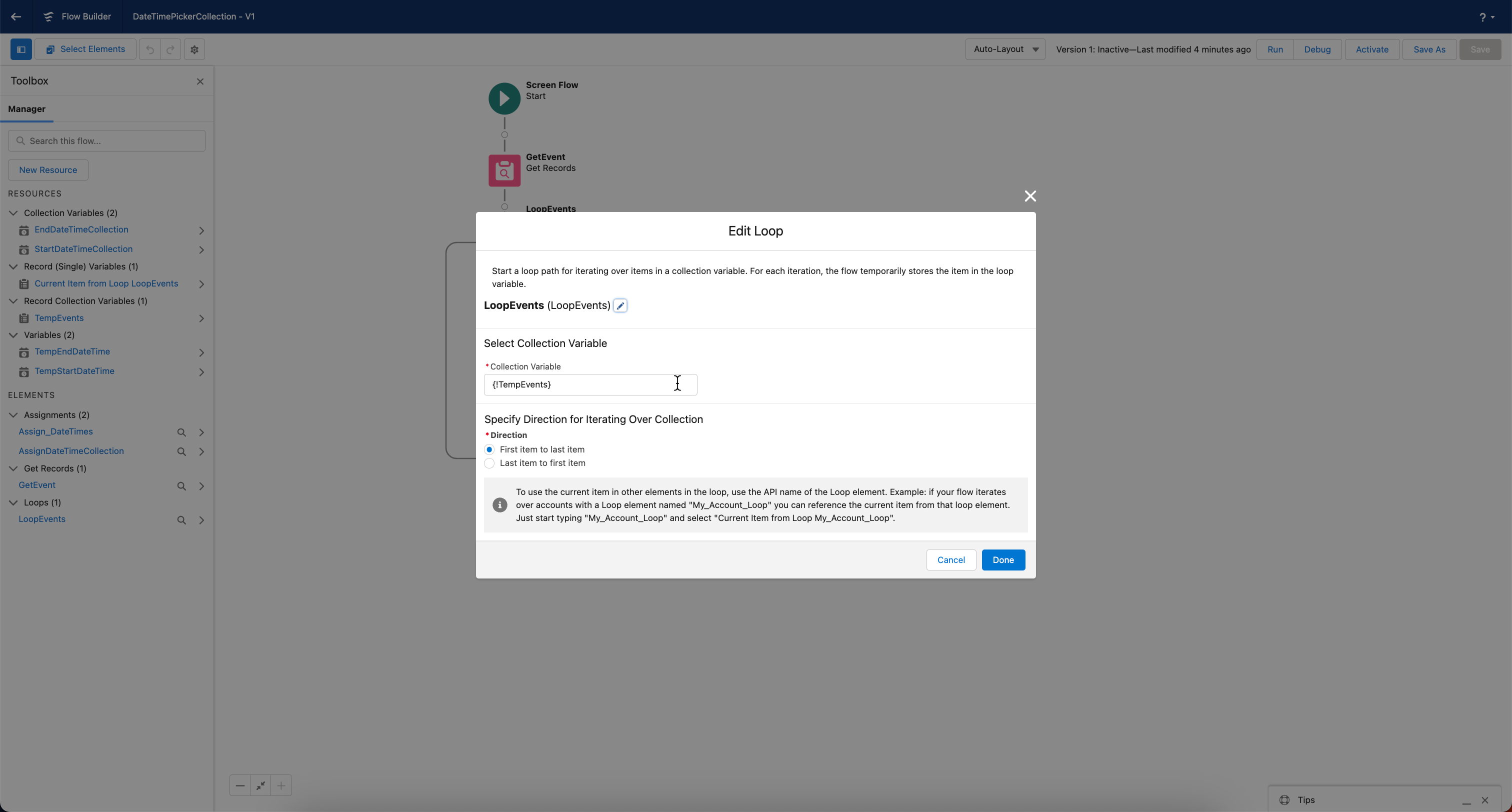
* Drag and drop a "**Loop**" element onto the canvas.
* Connect this Loop to the "Get Records" element.
* Set **`TempEvents`** as the collection variable for the loop.
***
## Step 4: Assign DateTimes to Temp Variables (Inside Loop)
**Why This Step:**
You need temporary variables to process each event's individually **`StartDateTime`** and **`EndDateTime`**.
**Actions in Flow Builder:**
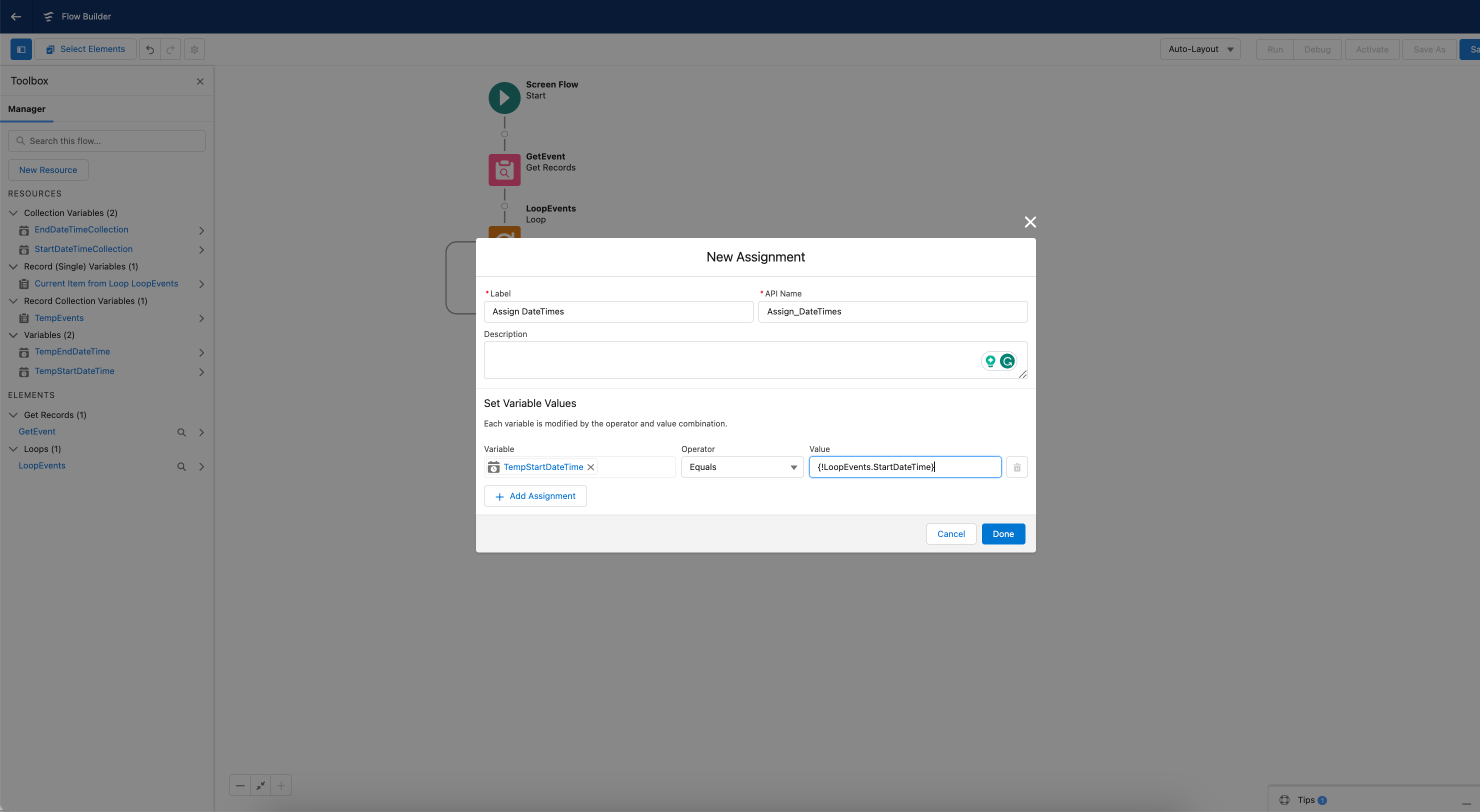
* Inside the loop, drag and drop an "Assignment" element.
* Assign **`StartDateTime`** from **`TempEvents`** to **`TempStartDateTime`**.
* Similarly, assign **`EndDateTime`** from **`TempEvents`** to **`TempEndDateTime`**.
***
## Step 5: Add DateTimes to Collection Variables (Inside Loop)
**Why This Step:**
The collection variables are where you'll store each event's **`StartDateTime`** and **`EndDateTime`**, which can later be used for multiple purposes.
**Actions in Flow Builder:**
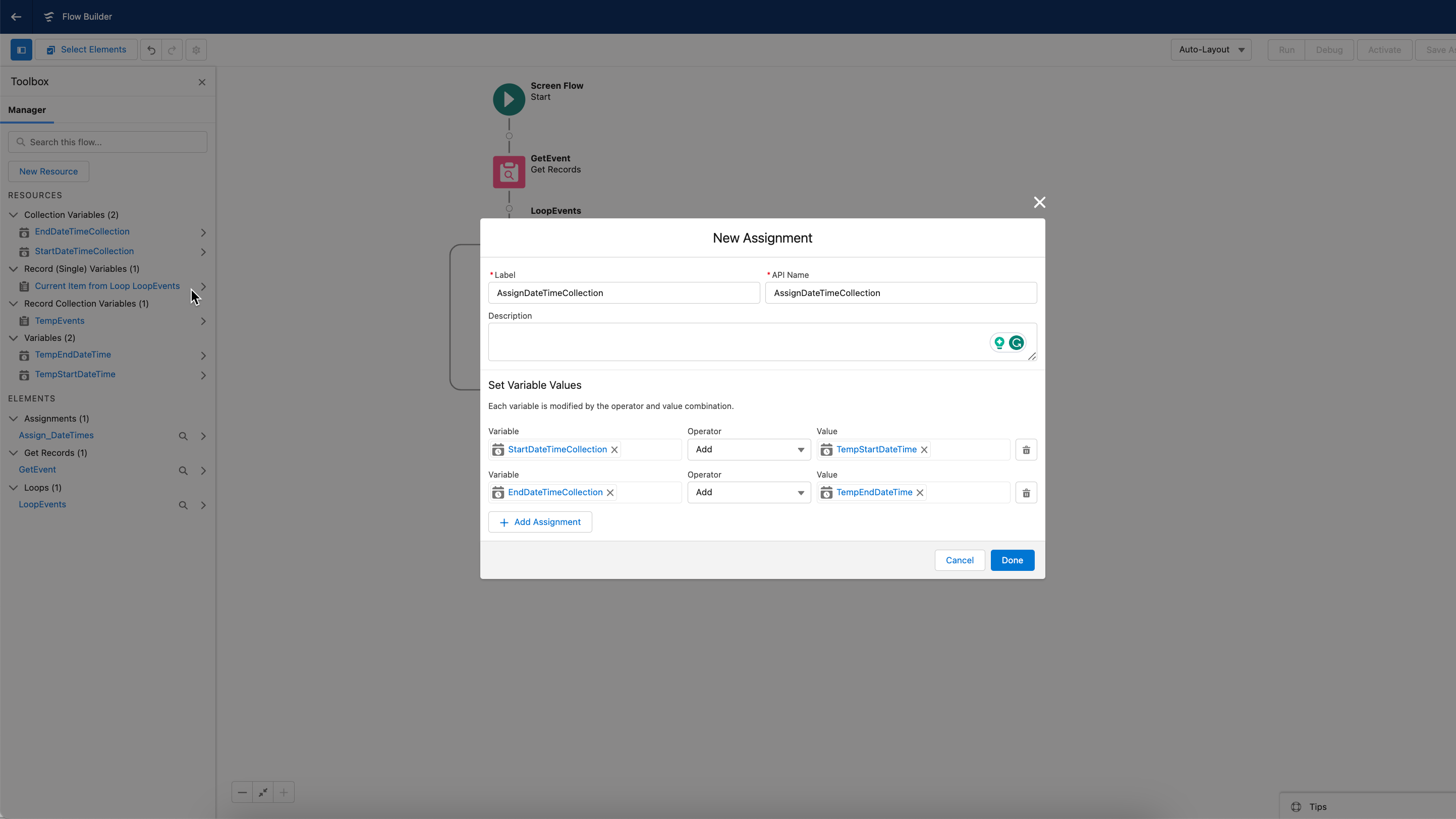
* Inside the loop, add another "Assignment" element.
* Use this to **add** **`TempStartDateTime`** to **`StartDateTimeCollection`**.
* Do the same for **`TempEndDateTime`** and **`EndDateTimeCollection`**.
***
## Step 6: Close Loop
**Why This Step:**
The loop must be closed to finalize the collection variables, making them ready for use in downstream operations.
**Actions in Flow Builder:**
* Drag and drop a "Loop End" element to the canvas and connect it to signify the end of the loop.
***
By following these steps, you will have successfully created collection variables for **`StartDateTime`** and **`EndDateTime`** in the Event object of Salesforce. These collections can now be used for various operations and manipulations.
---
# Agent Instructions
This documentation is published with GitBook. GitBook is the documentation platform designed so that both humans and AI agents can read, navigate, and reason over technical content effectively. Learn more at gitbook.com.
## Querying This Documentation
If you need additional information that is not directly available in this page, you can query the documentation by asking a question.
Perform an HTTP GET request on the following URL with the `ask` and `goal` query parameters:
```
GET https://docs.avonnicomponents.com/flow/tutorials/components/date-time-picker/how-to-create-collection-variables-for-startdatetime-and-enddatetime.md?ask=&goal=
```
`ask` is the immediate question: it should be specific, self-contained, and written in natural language.
`goal` is what the user is ultimately trying to achieve, the reason they need the answer. Sharing it helps GitBook give you a better, more relevant answer. A goal is most helpful when it describes the outcome the user wants rather than restating the question. For example, with `ask=how do I create an API token`, a goal like `automate deployments from our CI pipeline` lets GitBook tailor the answer to that use case.
The response will contain a direct answer to the question and relevant excerpts and sources from the documentation.
Use this mechanism when the answer is not explicitly present in the current page, you need clarification or additional context, or you want to retrieve related documentation sections.
.png?alt=media)
.gif?alt=media)
.png?alt=media)