> For the complete documentation index, see [llms.txt](https://docs.avonnicomponents.com/llms.txt). Markdown versions of documentation pages are available by appending `.md` to page URLs; this page is available as [Markdown](https://docs.avonnicomponents.com/flow/tutorials/components/data-table/work-with-selected-rows.md).
# Work with Selected Rows
Let a sales manager tick up to three deals in a screen flow Data Table, require a pick, then reassign every selected deal with one Loop and Update Records.
Every Monday a sales manager rebalances her team's pipeline: she moves at most three open deals to the rep with the most room. The Data Table lets her tick those deals, stops at three, and refuses to move on with none. On the next screen she picks the new owner, and the flow reassigns every ticked deal in one update.
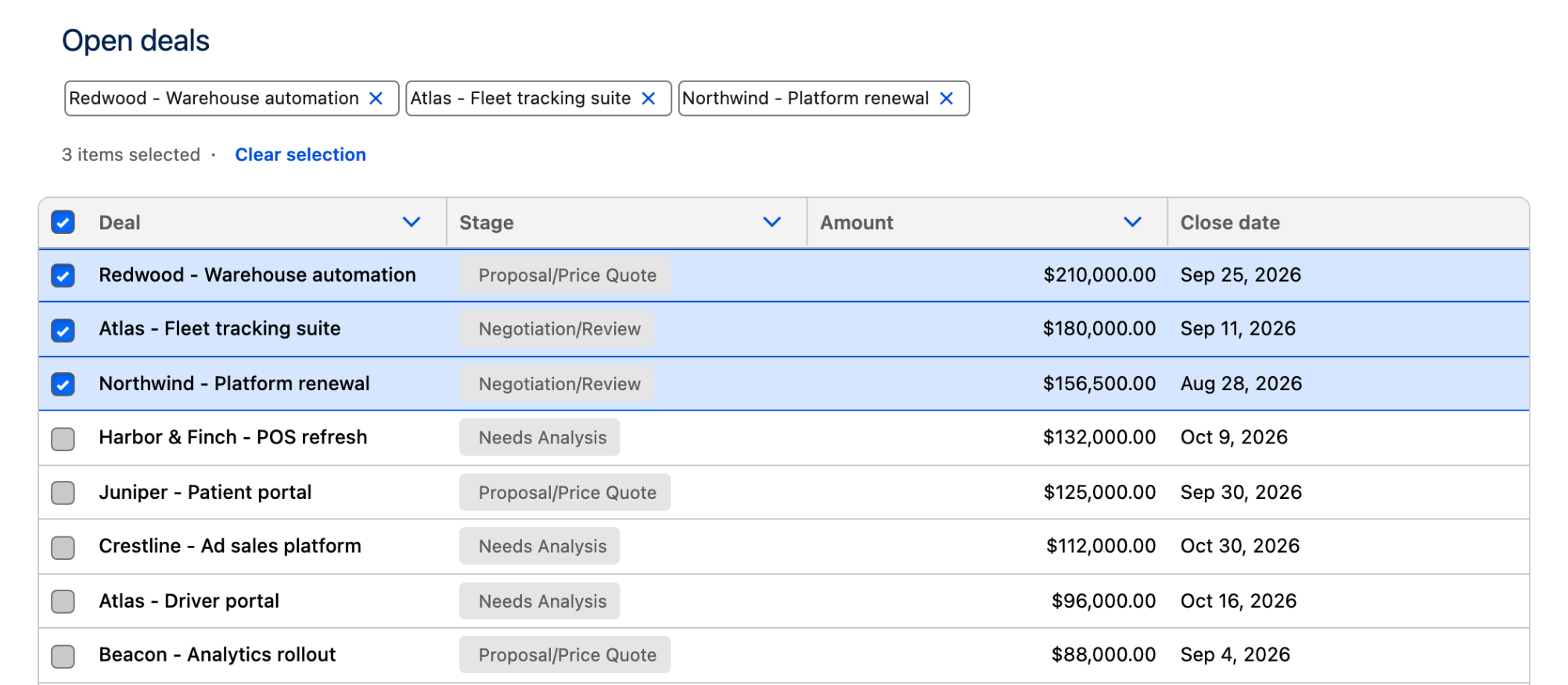
Max Row Selection set to 3, with the picks shown as pills.
## Before you start
* A screen with an Avonni Data Table on Opportunity, fed by a **Query** or a **Variable** (Get Records) data source. [Learn the Basics](/flow/tutorials/components/data-table/learn-the-basics.md) sets one up.
* The examples use the API Name `DealsTable`. Replace it with yours in every reference.
## Steps
{% stepper %}
{% step %}
### Keep the checkbox column
Selection happens in the checkbox column, shown by default. In the **Properties** tab, leave **Hide Checkbox Column** off. When it is on, users cannot tick rows and every selection output stays empty.
{% endstep %}
{% step %}
### Set the selection rules
Still in the **Properties** tab:
* **Max Row Selection**: `3`. Once three rows are ticked, the user clears one before ticking another. With `1`, picking a row replaces the previous pick.
* **Required**: on. If the user clicks **Next** with no row ticked, the screen stays open and shows "Please select minimum 1 row."
* **Rows Selection Disabled**: the Key Field values (record Ids by default) of rows that cannot be ticked, such as deals locked by an approval. Type them, or map a text collection the flow built earlier.
**Required** only applies while the checkbox column is visible. If users also edit cells in this table, **Max Row Edit and Selection** (under **Advanced Options**) caps edited and selected rows together, and a row that is both counts once.
The selection settings in the Properties tab.
{% endstep %}
{% step %}
### Keep the selection in sight
On a long table, ticked rows scroll out of view. Two settings keep them visible:
* **Show Number of Items Selected** prints the count with a **Clear selection** link ("3 items selected").
* In the **Pill Container** group, turn on **Show Pill Container Selected Item** and set **Label Field** to the opportunity name. Left empty, each pill shows the record Id. **Sortable** lets the user reorder the pills, **Single Line** keeps them on one row.
Removing a pill unticks its row, so the user does not have to scroll back to it.
{% endstep %}
{% step %}
### Pre-select rows when the screen opens
Two ways, depending on the data source:
* With a **Variable** source, set **Default Selection Collection** in the **Fields** tab to another record collection, for example the deals the flow already flagged.
* With any source, set the **Selected Rows Key Field Value** input to the Key Field values (usually record Ids) of the rows to tick.
{% endstep %}
{% step %}
### Pick the output you need
Every element after the screen can read the outputs of `DealsTable`. The three this flow needs:
* **Selected Rows** (`{!DealsTable.selectedRows}`): the ticked records, for a Loop or an Update Records.
* **Number of Selected Rows** (`{!DealsTable.nbSelectedRows}`): for a Decision on how many rows were ticked.
* **Selected Rows Key Field Value** (`{!DealsTable.selectedRowsKeyValue}`): the record Ids, for a subflow or an action that takes Ids.
The comma separated variant of the Ids wraps each one in single quotes, the shape a SOQL `IN (...)` clause expects, so an Apex action can take it as is. Every selection output, with its API name, is in the [Data Table reference](/flow/flow-components/data-table.md#row-selection).
{% endstep %}
{% step %}
### Ask for the new owner
Add a second **Screen** after the table screen, with a standard **Lookup** component:
* **API Name**: `New_Owner`
* **Object API Name**: `Opportunity`
* **Field API Name**: `OwnerId`
* **Label**: `New owner`
The Lookup then searches users, the same way the Owner field does on an opportunity.
{% endstep %}
{% step %}
### Reassign the selected deals
1. Add a **Loop** over `{!DealsTable.selectedRows}`, named `Loop_Deals`.
2. Inside the loop, an **Assignment**: `{!Loop_Deals.OwnerId}` **Equals** `{!New_Owner.recordId}`, then **Add** `{!Loop_Deals}` to a new Opportunity record collection, `DealsToUpdate`.
3. After the loop (**After Last Item**), one **Update Records** on `DealsToUpdate`.
Updating once after the loop keeps the flow to a single database update, however many deals were ticked.
To hand the deals to another flow instead, pass `{!DealsTable.selectedRowsKeyValue}` ([Passing multiple record IDs to another flow](/flow/tutorials/components/data-table/tips-and-tricks/passing-multiple-record-ids-to-another-flow.md)).
{% endstep %}
{% step %}
### Save and test
Run the flow with **Debug**. Tick three deals: the table shows "3 items selected", three pills appear, and a fourth row cannot be ticked. Clear them all and click **Next**: "Please select minimum 1 row." appears. Tick two, click **Next**, pick a user in **New owner** and finish. Both opportunities now show that user as owner.
{% endstep %}
{% endstepper %}
## Troubleshooting
Selected Rows is empty after the screen
**Selected Rows** and **First Selected Row** return records only with a **Query** or **Variable** data source. With **Manual**, read **Selected Rows Key Field Value** instead. If the source is right, the user ticked nothing or **Hide Checkbox Column** is on: turn on **Required**, or add a Decision on **Number of Selected Rows** before the Loop.
First Selected Row is not the row whose button was clicked
First Selected Row follows the checkboxes, not row buttons. For the row an action was clicked on, use **Clicked Row Action Row** or **Clicked Row Action Key Field Value** ([Creating Row Actions](/flow/tutorials/components/data-table/creating-row-actions.md)).
The ticks are gone when the user comes back with Previous
Flow rebuilds a screen's components when the user navigates. [Component Lifecycle in Flow](/flow/help/component-lifecycle-in-flow.md) explains what survives and how to keep the selection in a flow variable.
The Key Field values are not record Ids
They come from the **Key Field** setting, which defaults to `Id`. If someone changed it, the outputs return that field instead.
## Related tutorials
* [Passing multiple record IDs to another flow](/flow/tutorials/components/data-table/tips-and-tricks/passing-multiple-record-ids-to-another-flow.md): act on the selection in a dialog, without leaving the screen.
* [How to Grayscale Header Actions Dynamically](/flow/tutorials/components/data-table/tips-and-tricks/how-to-grayscale-header-actions-dynamically-in-avonni-data-table.md): keep header buttons disabled until a row is ticked.
* [Column Header Actions and Default Filters](/flow/tutorials/components/data-table/column-header-actions-and-default-filters.md): act on the ticked deals from a column header menu.
* [Implementing a bulk edit on the Data Table](/flow/tutorials/projects/implementing-a-bulk-edit-on-the-data-table.md): change one field on many selected rows at once.
---
# Agent Instructions
This documentation is published with GitBook. GitBook is the documentation platform designed so that both humans and AI agents can read, navigate, and reason over technical content effectively. Learn more at gitbook.com.
## Querying This Documentation
If you need additional information that is not directly available in this page, you can query the documentation by asking a question.
Perform an HTTP GET request on the following URL with the `ask` and `goal` query parameters:
```
GET https://docs.avonnicomponents.com/flow/tutorials/components/data-table/work-with-selected-rows.md?ask=&goal=
```
`ask` is the immediate question: it should be specific, self-contained, and written in natural language.
`goal` is what the user is ultimately trying to achieve, the reason they need the answer. Sharing it helps GitBook give you a better, more relevant answer. A goal is most helpful when it describes the outcome the user wants rather than restating the question. For example, with `ask=how do I create an API token`, a goal like `automate deployments from our CI pipeline` lets GitBook tailor the answer to that use case.
The response will contain a direct answer to the question and relevant excerpts and sources from the documentation.
Use this mechanism when the answer is not explicitly present in the current page, you need clarification or additional context, or you want to retrieve related documentation sections.