> For the complete documentation index, see [llms.txt](https://docs.avonnicomponents.com/llms.txt). Markdown versions of documentation pages are available by appending `.md` to page URLs; this page is available as [Markdown](https://docs.avonnicomponents.com/flow/tutorials/components/data-table/tips-and-tricks/how-to-grayscale-header-actions-dynamically-in-avonni-data-table.md).
# How to Grayscale Header Actions Dynamically in Avonni Data Table
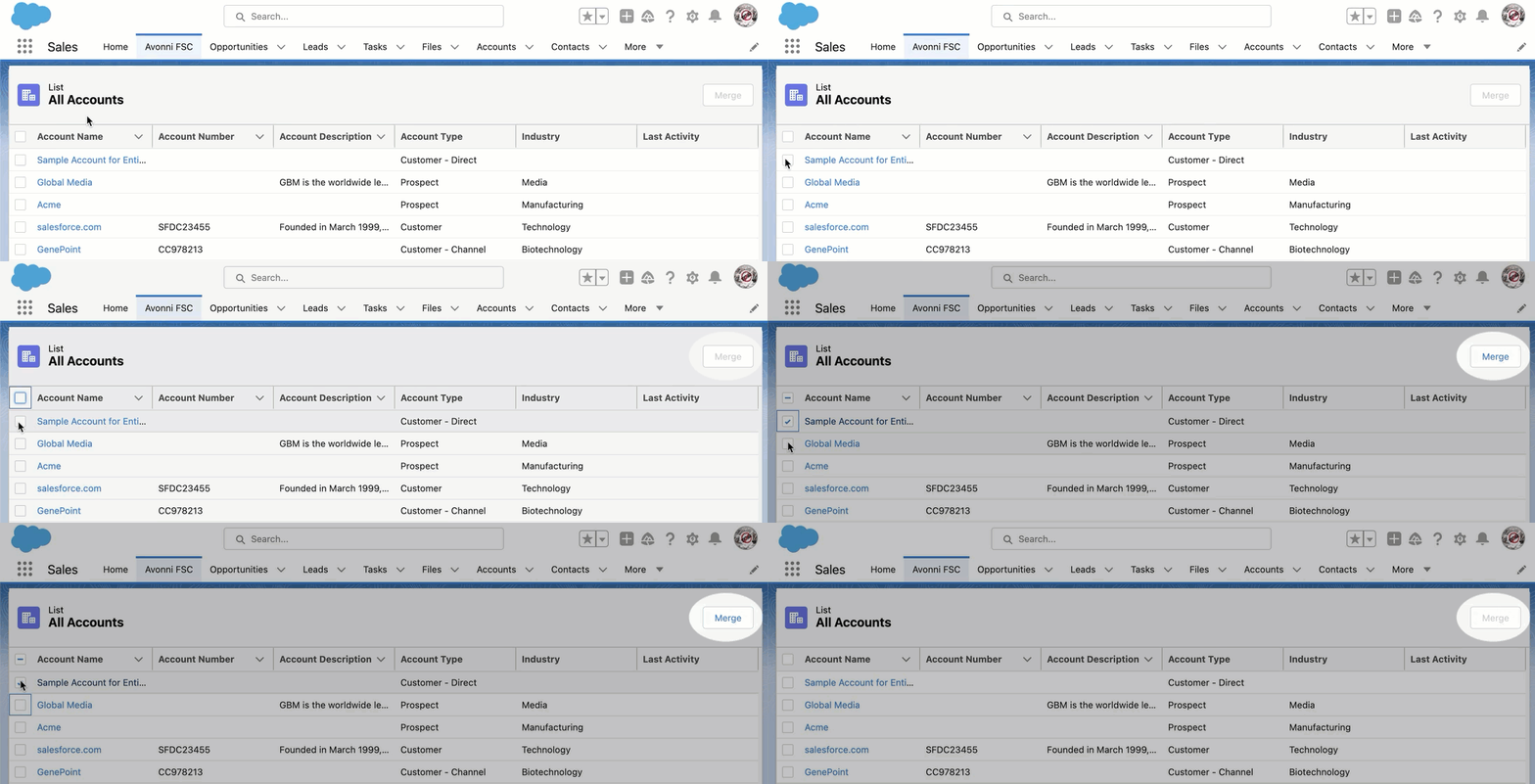
Sometimes, you may want to restrict actions within your [Avonni Data Table](/flow/flow-components/data-table.md) until the user has selected at least one record. For instance, a "Delete Selected" header action should only be available when rows are chosen.
{% hint style="warning" %}
#### Flow Builder Limitation with Multiple Header Buttons
Flow Builder has a limitation: if your Data Table header contains multiple buttons, you can’t disable just one of them while keeping the others active. This use case isn’t supported in Flow Builder. To achieve it, we recommend using the [**Avonni Dynamic Components App**](/dynamic-components/getting-started/installation-and-licenses-management.md#installation), which fully supports this functionality.
{% endhint %}
## **In this tutorial, you'll learn how to**
* Dynamically disable or enable header actions depending on whether records are selected.
* Prevent users from attempting actions that don't apply to the current data selection.
* Improve user experience by providing clear visual cues for available actionsoffering clear visual cues about what actions are available.
## Guided Steps
{% stepper %}
{% step %}
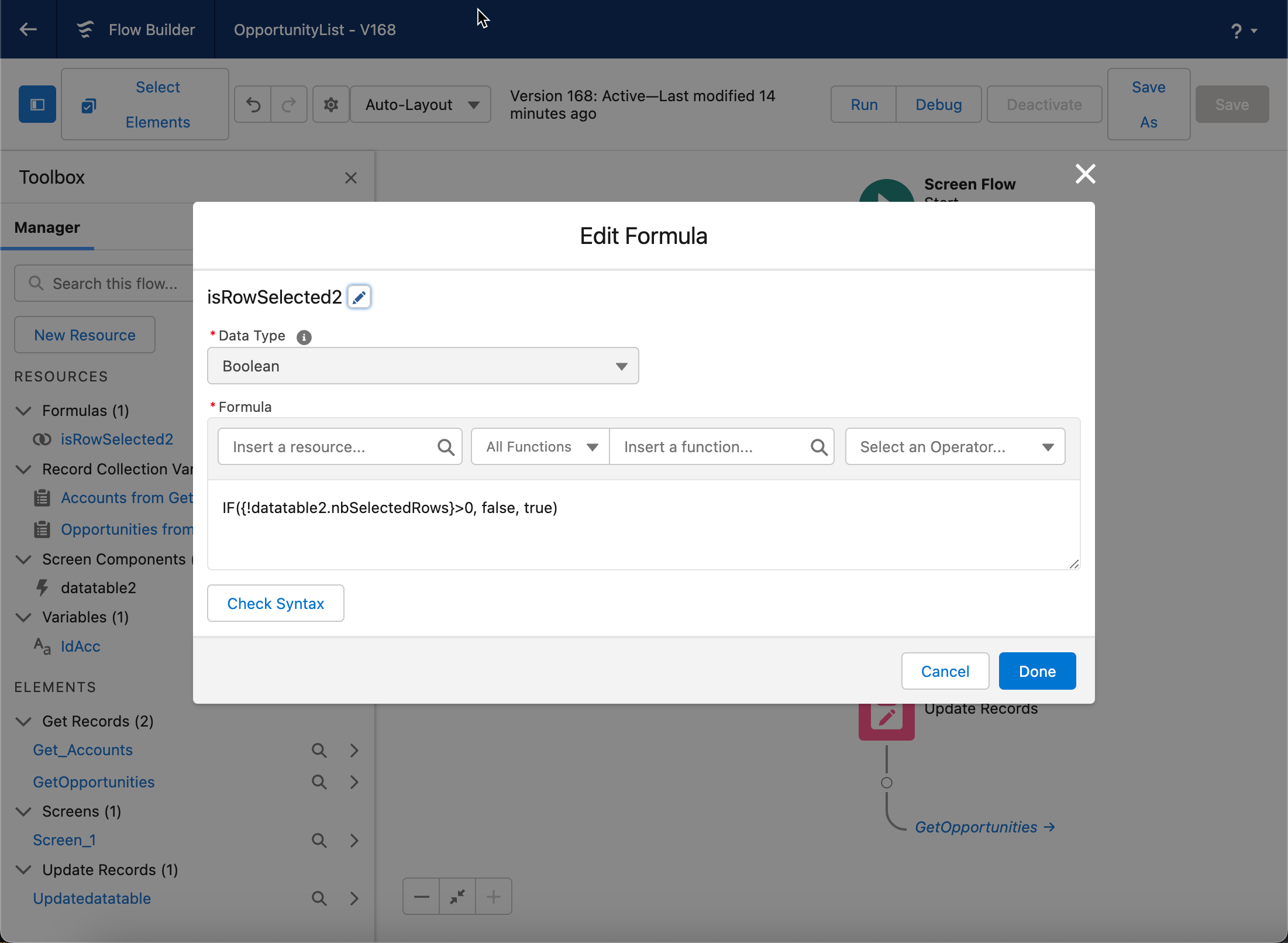
### Create "isRowSelected" Formula
* Create a new resource and select Formula as a resource type.
* Name your formula "isRowSelected".
* Data Type: select > **`Boolean`**.
* In the formula input field, write the following formula:
```html
IF({!YourDataTableApiName.nbSelectedRows}>0, false, true)
```
This formula checks if any row is selected in the data table. If one or more rows are selected (`{!YourDataTableApiName.nbSelectedRows}>0`), the formula returns `false`, otherwise, it returns `true`.
{% hint style="danger" %}
#### **➡️ IMPORTANT: Replace `YourDataTableApiName`! ⬅️**
* You **must** replace `YourDataTableApiName` in the formula above with the *actual API Name* of **your** Data Table component on the canvas.
* To find the API Name: Click on your Data Table component on your screen element. Look in the **Properties Panel** (right side) for the `API Name` field. Use that exact name in the formula.
{% endhint %}
* Click "Save" to save your formula.
{% endstep %}
{% step %}
### Map "isRowSelected" to Disabled Actions
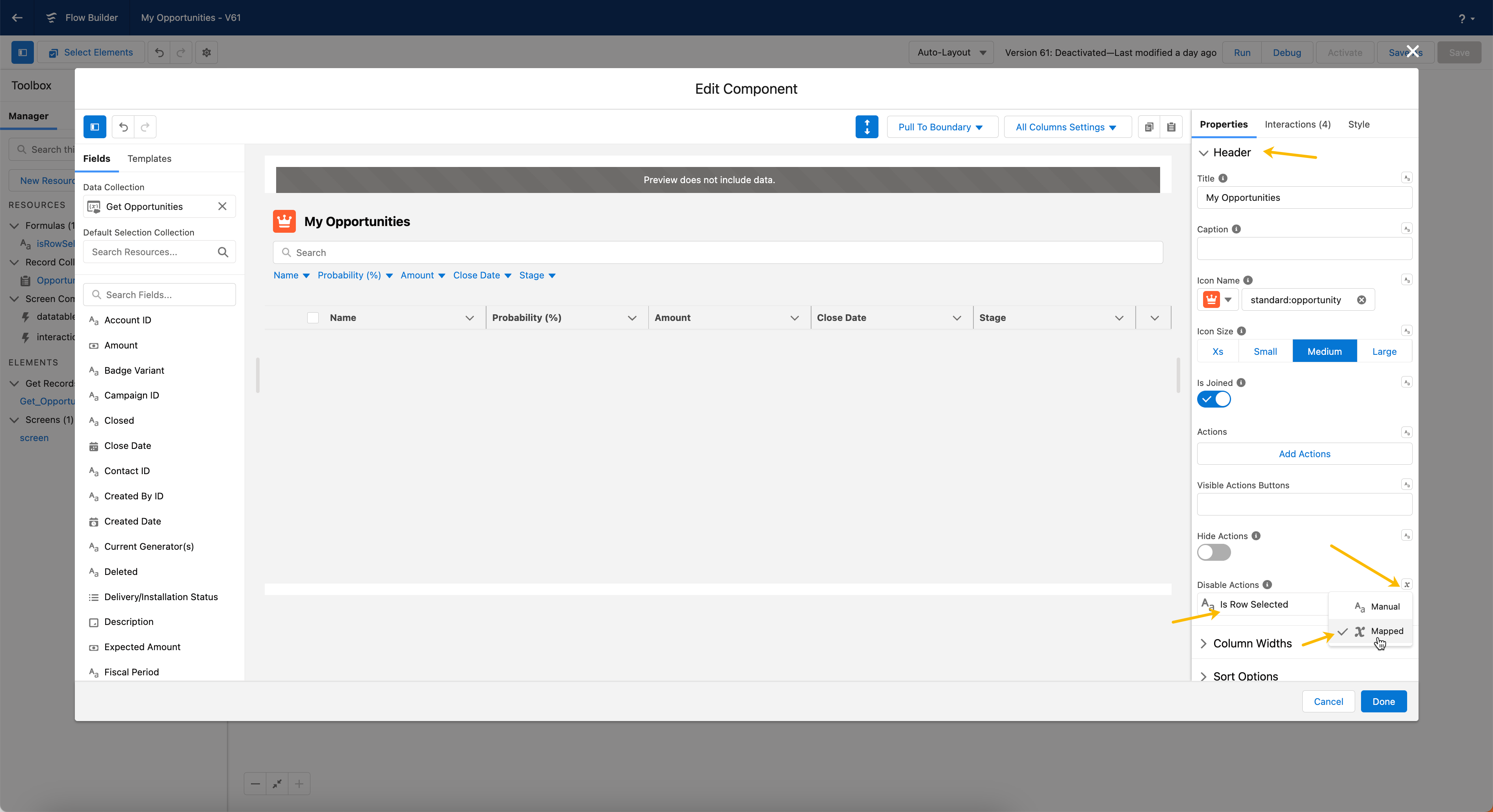
Now, we'll link the formula we created to the Data Table's setting that controls whether header actions are enabled or disabled.
1. **Select the Data Table:** Click on your Data Table component on the canvas.
2. **Find Header Action Settings:** In the **Properties Panel**, expand the **Header** section.
3. **Locate "Disable Header Actions":** Find the property specifically designed to disable *all* header actions. This might be labeled **Disable Header Actions**, **Disable Actions Toggle**, or similar.
* ***IMPORTANT****:*** Ensure you are configuring the setting for *all header actions* in the main Header section, **not** the individual "Disabled" property found within the configuration of *each specific action button* you might add later.
4. **Bind to Formula:**
* Click the **resource selector icon** next to the **Disable Header Actions** property.
* Select the `noRowsSelected` **Formula resource** you created in Step 1.
5. **Save Your Component:** Save your Dynamic Component.
{% endstep %}
{% endstepper %}
When no rows are selected in your data table, the Header Actions are disabled. They are enabled only when one or more rows are selected.
---
# Agent Instructions
This documentation is published with GitBook. GitBook is the documentation platform designed so that both humans and AI agents can read, navigate, and reason over technical content effectively. Learn more at gitbook.com.
## Querying This Documentation
If you need additional information that is not directly available in this page, you can query the documentation dynamically by asking a question.
Perform an HTTP GET request on the current page URL with the `ask` query parameter, and the optional `goal` query parameter:
```
GET https://docs.avonnicomponents.com/flow/tutorials/components/data-table/tips-and-tricks/how-to-grayscale-header-actions-dynamically-in-avonni-data-table.md?ask=&goal=
```
`ask` is the immediate question: it should be specific, self-contained, and written in natural language.
`goal` is optional and describes the broader end goal you are ultimately trying to accomplish on behalf of the user. GitBook uses it to tailor the answer towards what is most useful for that goal.
The response will contain a direct answer to the question and relevant excerpts and sources from the documentation.
Use this mechanism when the answer is not explicitly present in the current page, you need clarification or additional context, or you want to retrieve related documentation sections.