> For the complete documentation index, see [llms.txt](https://docs.avonnicomponents.com/llms.txt). Markdown versions of documentation pages are available by appending `.md` to page URLs; this page is available as [Markdown](https://docs.avonnicomponents.com/flow/tutorials/components/data-table/tips-and-tricks/how-to-conditionally-color-cells.md).
# How to Conditionally Color Cells
## Overview
This tutorial explains how to customize the appearance of cells within an Avonni Data Table component in Salesforce Screen Flows using SLDS classes. You'll learn two distinct approaches to styling:
1. **Static Styling**: Applying a consistent, uniform look to every cell in a specific column (e.g., making all "Amount" values bold).
2. **Dynamic Conditional Styling**: Implementing row-by-row formatting where each cell's appearance changes based on its data. You will learn how to achieve this by leveraging Salesforce Formula Fields created directly on your objects.
#### Example Scenario
Imagine displaying a list of Opportunities in a data table. To help users quickly identify the health of a deal, you want the Stage column to be color-coded based on its value:
* Closed Won appears with a **green background**.
* Closed Lost appears with a **red background**.
* Needs Analysis appears with a **yellow background**.
Instead of manual configuration for each row, the Data Table reads a "Style" formula field from the Opportunity record to automatically determine the correct color.
{% hint style="info" %}
#### Note
While this tutorial uses Opportunity Stages as the primary example, this technique is the standard approach for any field where visual indicators are needed, such as Case Priorities, Project Statuses, or Lead Ratings
{% endhint %}
***
## What You'll Learn
By the end of this tutorial, you'll know how to:
* **Apply Static Styling**: Make all cells in a column look the same (e.g., all bold or all centered).
* **Create Object-Level Logic**: Build a formula field on a Salesforce Object specifically for styling.
* **Use SLDS Classes**: Master the class names that control colors, backgrounds, and text styles.
* **Map Dynamic Data**: Connect your Salesforce-style formula to the Data Table to automatically update for every row.
***
### Prerequisites
Before starting this tutorial, you should have:
* An Avonni Data Table component is already configured in your flow.
* Data displayed in the table from a Record Collection or query.
* Permissions to create fields in the Salesforce Object Manager (or an existing styling formula field ready to use).
* Basic familiarity with Salesforce Flow Builder.
***
## Understanding the SLDS Cell Class Attribute
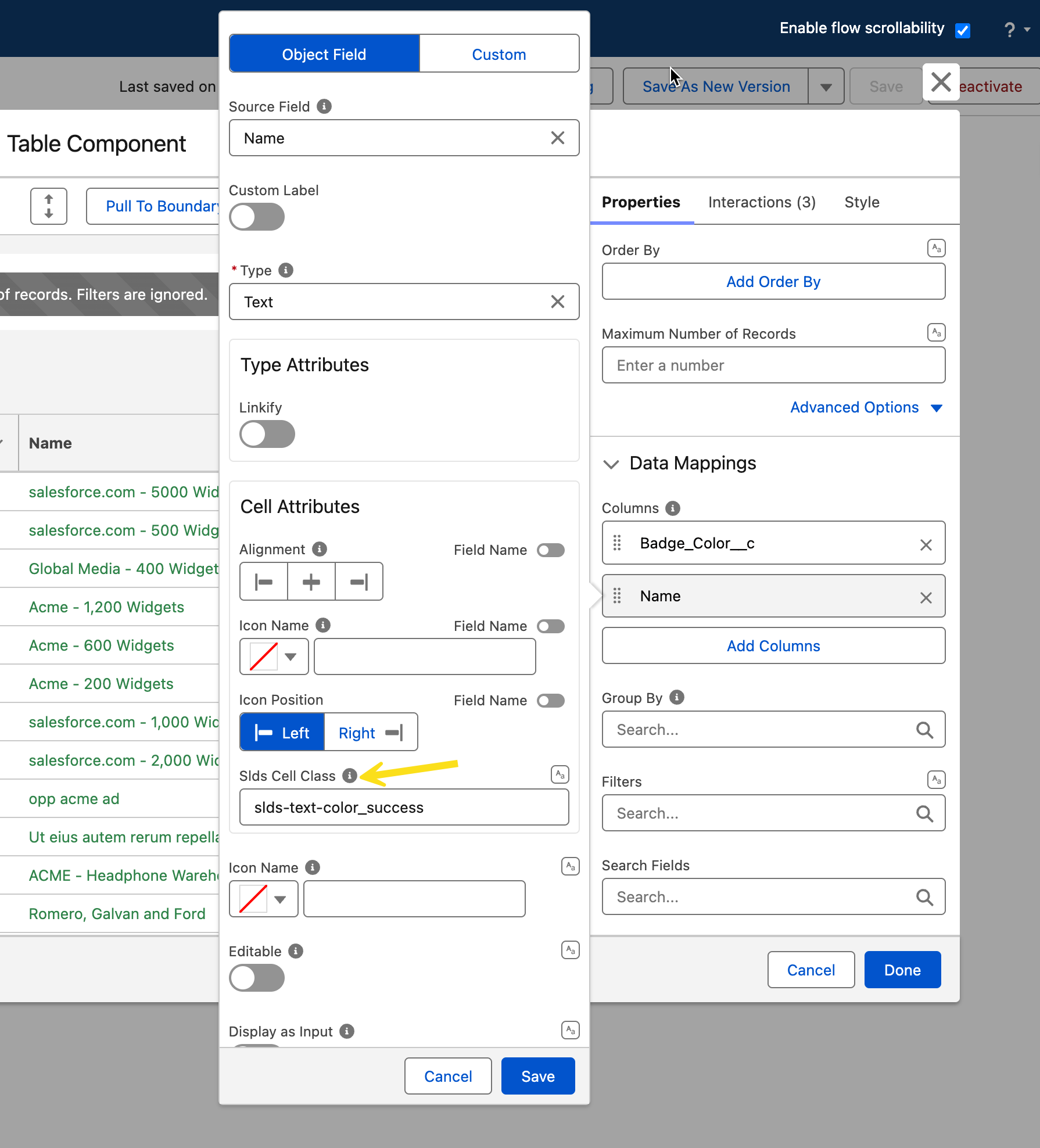
The key to styling cells is the SLDS Cell Class attribute, found in each column's configuration.
**How to access it**
1. Select your Avonni Data Table component in the flow.
2. In the properties panel, find the Columns section.
3. Click to expand or edit a specific column (e.g., the "Stage" column).
4. Look for Cell Attributes or Advanced Settings.
5. Locate the SLDS Cell Class input field.
This field accepts Salesforce Lightning Design System (SLDS) class names. You can either enter static class names (to style the whole column) or map the field to a Formula Field from your Object to change the style dynamically row-by-row.
***
## Choosing Your Styling Method
There are two ways to use the SLDS Cell Class attribute, depending on your goals. You can either enter static class names manually or map the field to a Formula Field from your Object to change the style dynamically row-by-row.
* [**Use Method 1 (Static)**](#method-1-static-styling-uniform-style-for-all-rows) if you want the entire column to use a singleshare one fixed style.
* [**Use Method 2 (Dynamic)**](#method-2-dynamic-conditional-styling-style-per-row) if you want colors and styles to change automatically based on each record's data.
***
## Method 1: Static Styling (Uniform Style for All Rows)
Use this method when you want every cell in a specific column to have the same appearance, regardless of the data value.
#### When to Use Static Styling
* Emphasizing an entire column (e.g., making all monetary values bold)
* Creating visual hierarchy (e.g., headers or totals with different backgrounds)
* Applying consistent branding (e.g., all status fields in a specific color)
#### Step-by-Step Instructions
1. **Select Your Column**
* Click on your Avonni Data Table component
* Navigate to the **Columns** section in properties
* Select the column you want to style
2. **Enter SLDS Classes**
* Find the **SLDS Cell Class** field
* Type the SLDS class names directly (separate multiple classes with spaces)
**Example 1 - Green bold text:**
```
slds-text-color_success slds-text-heading_small
```
**Example 2 - Light grey background with capitalized text:**
```
slds-theme_shade slds-text-title_caps
```
**Example 3 - Red text for a critical column:**
```
slds-text-color_error slds-text-body_regular
```
3. **Save and Test**
* Click **Done** for the column configuration
* Save your flow and run it
* Verify that all cells in the column display the styling
#### Useful SLDS Classes Reference
Here are commonly used SLDS classes you can combine (separate with spaces)
Background Colors
* `slds-theme_success` - Green background
* `slds-theme_error` - Red background
* `slds-theme_warning` - Yellow background
* `slds-theme_info` - Blue background
* `slds-theme_shade` - Light grey background
* `slds-theme_alt-inverse` - Dark grey background
* `slds-theme_inverse` - Dark blue/grey background
Text Colors
* `slds-text-color_success` - Green text
* `slds-text-color_error` - Red text
* `slds-text-color_warning` - Dark yellow/orange text
* `slds-text-color_inverse` - White text (for dark backgrounds)
* `slds-text-color_default` - Standard text color
* `slds-text-color_weak` - Grey text
Text Styles
* `slds-text-title_caps` - ALL CAPS TEXT
* `slds-text-heading_small` - Bold text (heading style)
* `slds-text-body_regular` - Regular body text
* `slds-truncate` - Truncate long text with ellipsis
{% hint style="success" %}
#### Pro Tip
You can combine background and text colors. For readability, use `slds-text-color_inverse` (white text) with dark backgrounds like `slds-theme_error`.
{% endhint %}
***
## Method 2: Dynamic Conditional Styling (Style Per Row)
This approach allows each cell's appearance to change based on its specific data value (e.g., color-coding risk levels or statuses). To achieve this, you use a Formula Field created directly on the Salesforce Object.
### **Understanding How Object-Level Styling Works**
Instead of writing logic inside the Flow, you create a "Style" field on your object (like Opportunity or Case) in the Salesforce Object Manager. This field calculates which SLDS classes to apply based on other values in the record. The Avonni Data Table then reads this string for every row and applies the styling automatically.
### Step-by-Step: Highlighting Opportunity Stages
{% stepper %}
{% step %}
#### Create the Formula Field in Salesforce
1. Go to **Setup** > **Object Manager** > **Opportunity**.
2. Click **Fields & Relationships** > **New**.
3. Select **Formula** and click Next.
4. Field Label: `Stage Style Class` (API Name: `Stage_Style_Class__c`).
5. Formula Return Type: **Must be Text**.
6. Enter the following formula:
```
CASE(
StageName,
"Closed Won", "slds-theme_shade slds-theme_success",
"Closed Lost", "slds-theme_shade slds-theme_error slds-text-color_inverse",
"Needs Analysis", "slds-theme_shade slds-theme_warning",
"Prospecting", "slds-theme_shade",
""
)
```
{% endstep %}
{% step %}
#### Map the Field in your Flow
Once the field is created, you need to tell the Avonni Data Table to use it for styling.
1. Open your Flow and select the Avonni Data Table component.
2. Go to the Columns section and select the Stage column.
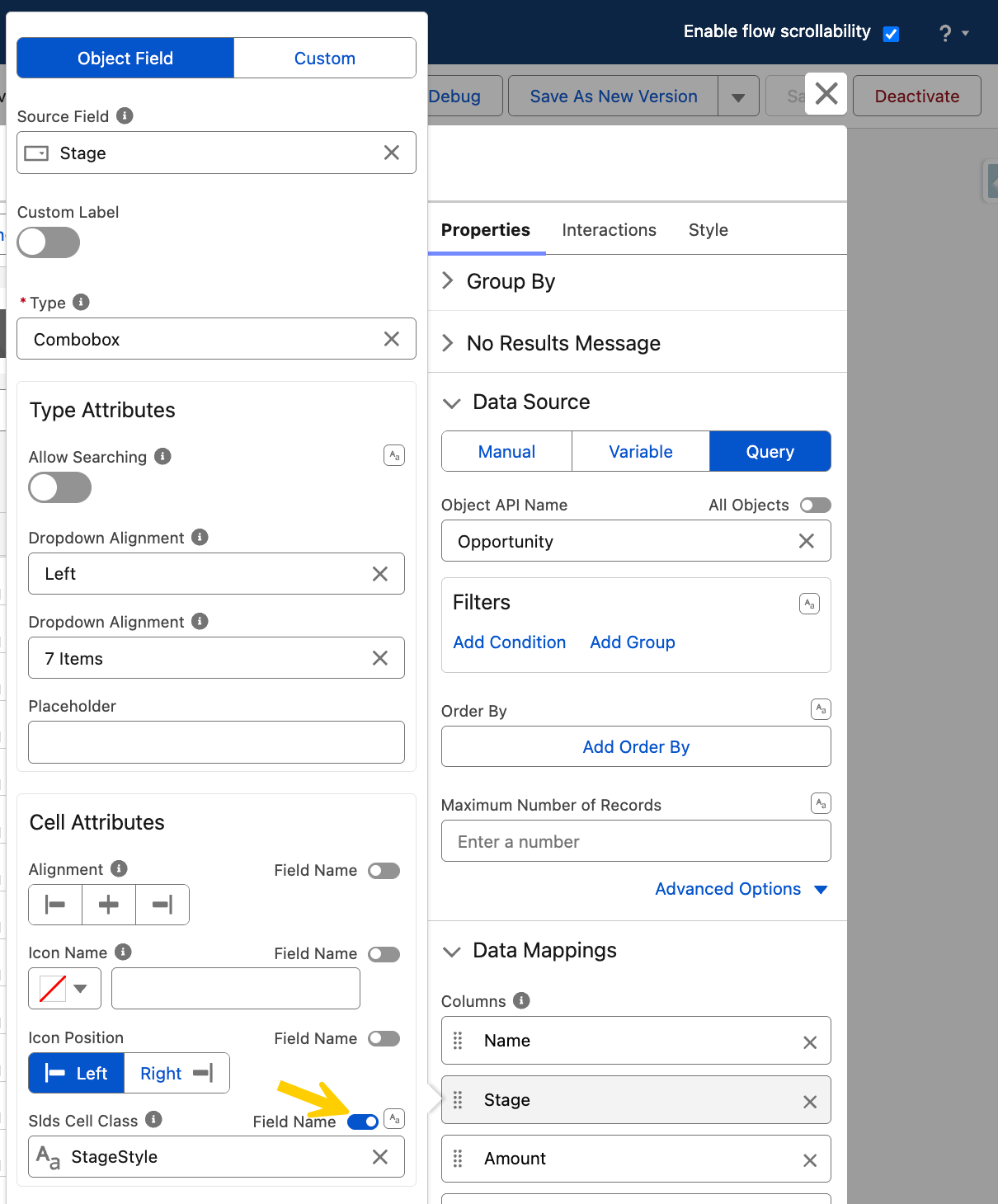
3. Locate the SLDS Cell Class input field.
4. **Important**: Toggle the Field Name option to select the field to map for the SLDS Cell Class. Then, select the API name of the formula field you just created on your object
5. Select your new formula field from the list
{% endstep %}
{% endstepper %}
**What the Data Table Does:**
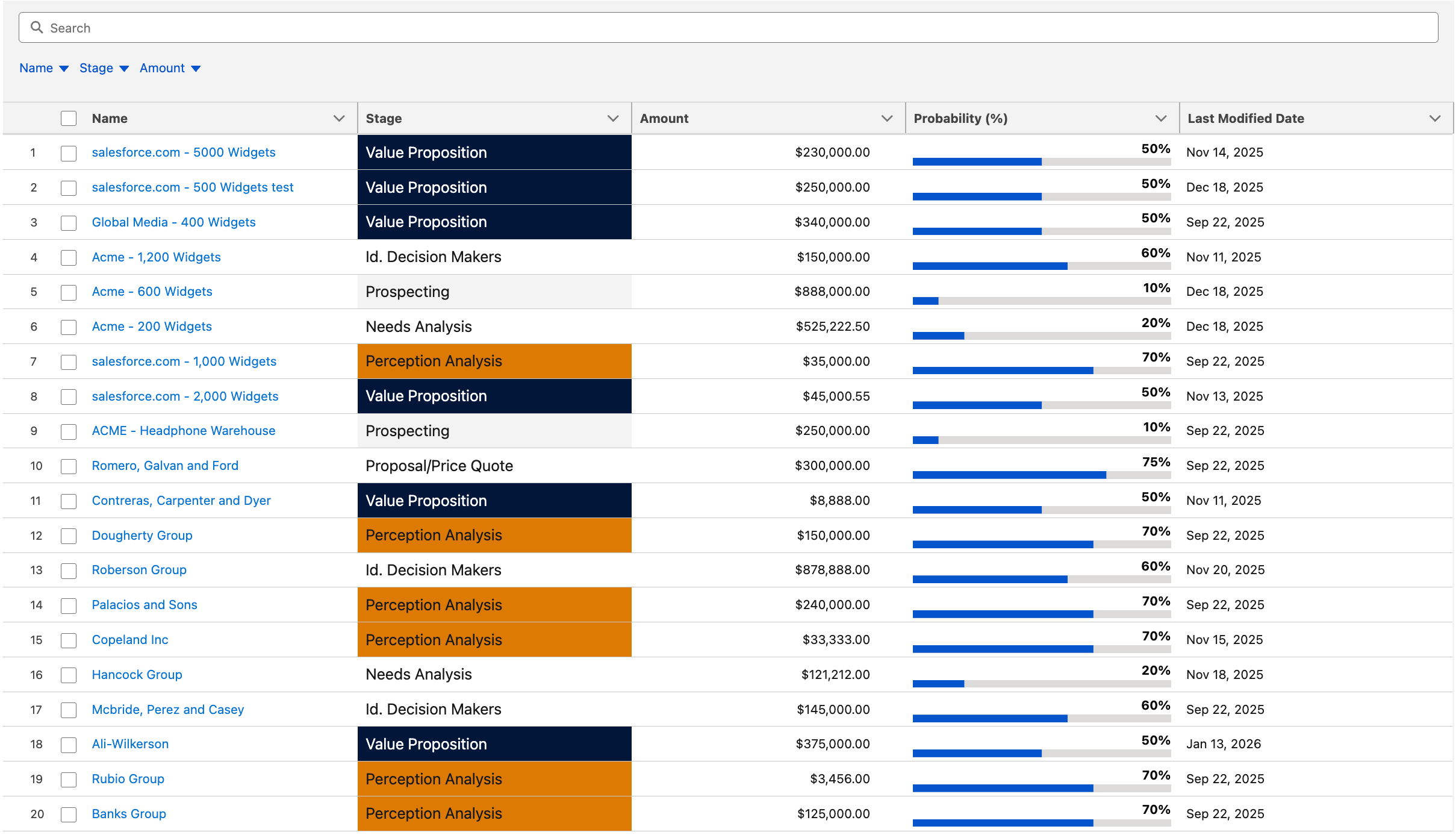
* For Rows 1, 2, and 3: The table identifies the Value Proposition stage for these records. Based on your `CASE` formula, it retrieves the `slds-theme_inverse` class and renders these cells with a dark navy background and white text.
***
## Troubleshooting
The formula doesn't seem to evaluate - all cells look the same
* Verify you select the formula field name rather than typing text
* Check that the field API name in your formula exactly matches the column's field name
* Ensure the formula data type is set to "Text"
* Look for syntax errors in the formula (mismatched parentheses, incorrect field references)
I get an error: "Field does not exist"
* The field API name in your formula doesn't match your object's actual field
* Double-check the field API name in Object Manager
* Remember to include `__c` for custom fields
* Verify you're using the correct field from the correct object
The styling appears but the colors are wrong
* Review the SLDS class names you're returning in the formula
* Some classes require others (e.g., `slds-theme_error` works best with `slds-theme_shade`)
* Try the classes individually first to test them
Some rows show styling, others don't
* Your formula might not account for all possible values
* Add an else condition to handle unexpected values
* Check for null or blank values in your data
The formula syntax shows an error
* Count your opening and closing parentheses - they must match
* Verify you're using straight quotes (") not curly quotes ("")
* Check for typos in field API names
* Ensure proper spacing and comma placement
***
### Advanced Techniques
Once you are comfortable with basic stage-based styling, you can create more sophisticated logic within your Salesforce Object Formula Field to handle complex business requirements. These examples use standard Salesforce objects and functions to show what is possible.
***
#### Styling Based on Multiple Fields
You can evaluate two or more fields at once to create a "Critical" alert style. For example, on the Case object, you might want to highlight cases that are both "High Priority" and "New".
**Example**
```
IF(
AND(ISPICKVAL(Priority, "High"), ISPICKVAL(Status, "New")),
"slds-theme_error slds-text-color_inverse slds-text-heading_small",
IF(
ISPICKVAL(Priority, "High"),
"slds-theme_warning",
""
)
)
```
**Result**: High-priority new cases get a red background with bold white text; other high-priority cases just get a yellow background.
***
#### Using CASE() for Clean Logic
For picklist fields with many options, like Lead Status, a `CASE()` function is much easier to read and maintain than nested `IF()` statements.
**Example**
```
CASE(
Status,
"Open - Not Contacted", "slds-theme_info",
"Working - Contacted", "slds-theme_warning",
"Closed - Converted", "slds-theme_success slds-text-color_inverse",
"Closed - Not Converted", "slds-theme_shade",
""
)
```
**Result**: Each lead status is assigned a distinct color (blue, yellow, green, or grey) based on its current value.
***
#### Percentage and Range-Based Color Coding
You can create "heat maps" based on numeric fields, such as the Probability percentage on an Opportunity.
**Example**
```
IF(
Probability >= 0.75,
"slds-theme_success slds-text-color_inverse",
IF(
Probability >= 0.40,
"slds-theme_warning",
"slds-theme_error slds-text-color_inverse"
)
)
```
**Result**: High probability (75%+) is green, medium probability is yellow, and low probability is red.
***
#### Combining Text and Background Styling
Use multiple SLDS classes to create a high-impact visual hierarchy for your most important data, such as large Opportunity Amounts.
**Example**
```
IF(
Amount > 500000,
"slds-theme_inverse slds-text-heading_small slds-text-title_caps",
"slds-text-body_regular"
)
```
**Result**: Opportunities over $500,000 appear in a dark navy "inverse" theme with bold, capitalized text to ensure they stand out to the user.
***
## Need More Help?
If you have questions about implementing conditional cell styling for your specific use case, or if you encounter issues with formulas or styling, [**don't hesitate to reach out**](/flow/help/support-and-troubleshooting.md). We're here to help you create visually effective and user-friendly data tables with Avonni components.
---
# Agent Instructions
This documentation is published with GitBook. GitBook is the documentation platform designed so that both humans and AI agents can read, navigate, and reason over technical content effectively. Learn more at gitbook.com.
## Querying This Documentation
If you need additional information that is not directly available in this page, you can query the documentation dynamically by asking a question.
Perform an HTTP GET request on the current page URL with the `ask` query parameter, and the optional `goal` query parameter:
```
GET https://docs.avonnicomponents.com/flow/tutorials/components/data-table/tips-and-tricks/how-to-conditionally-color-cells.md?ask=&goal=
```
`ask` is the immediate question: it should be specific, self-contained, and written in natural language.
`goal` is optional and describes the broader end goal you are ultimately trying to accomplish on behalf of the user. GitBook uses it to tailor the answer towards what is most useful for that goal.
The response will contain a direct answer to the question and relevant excerpts and sources from the documentation.
Use this mechanism when the answer is not explicitly present in the current page, you need clarification or additional context, or you want to retrieve related documentation sections.