> For the complete documentation index, see [llms.txt](https://docs.avonnicomponents.com/llms.txt). Markdown versions of documentation pages are available by appending `.md` to page URLs; this page is available as [Markdown](https://docs.avonnicomponents.com/flow/tutorials/components/data-table/making-a-field-editable.md).
# Making a field editable
## Overview
This feature empowers users to edit information directly within the table cells, streamlining data management and saving valuable time.
Two Editing Modes come with the [Avonni Data Table](/flow/flow-components/data-table.md):
* **Inline Editing (Pencil Icon):** When you activate inline editing for a field, a pencil icon appears next to the data. Users click the icon to edit.
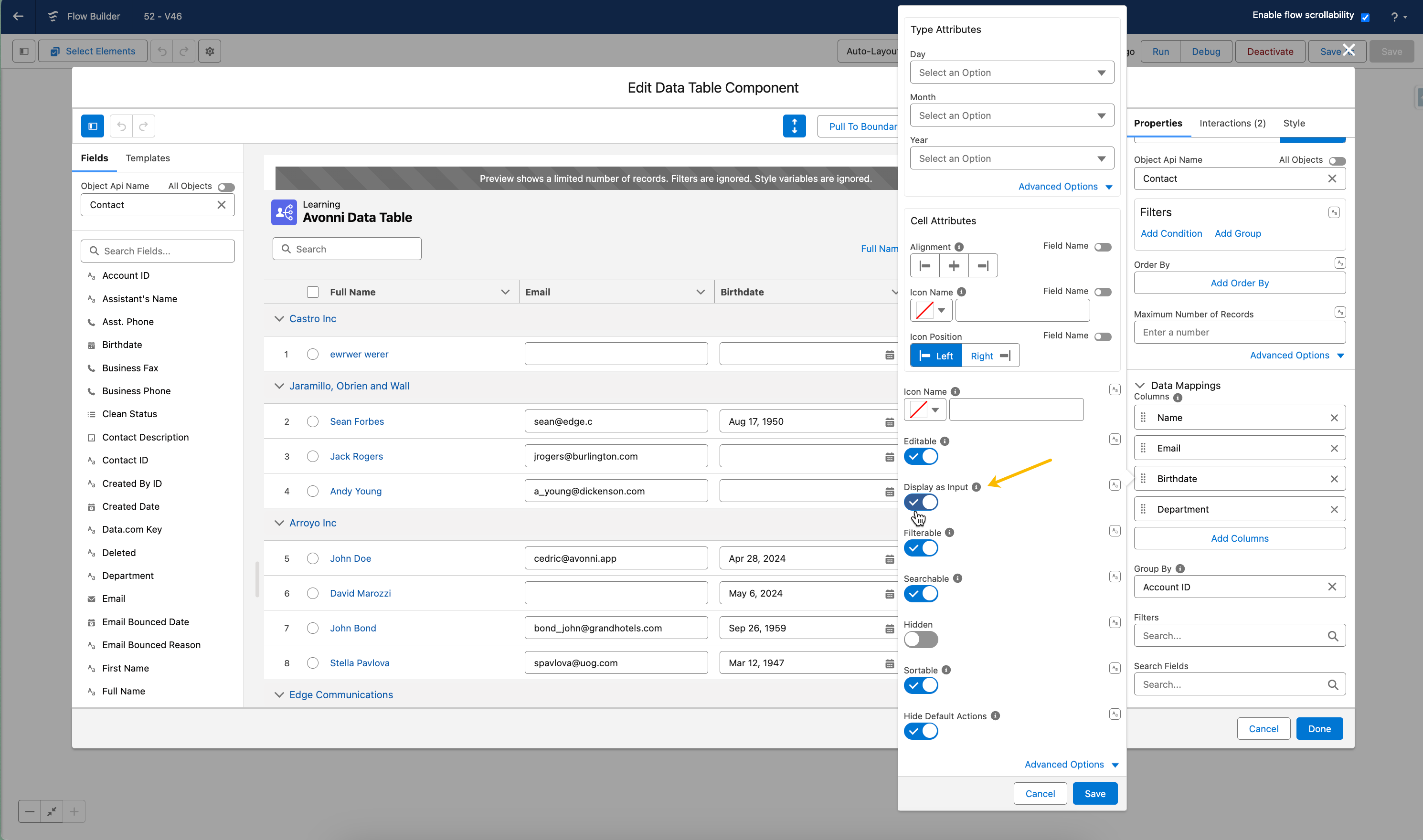
* **Direct Cell Editing:** For even faster edits, choose "Display as Input." This transforms the field into an editable input box, eliminating the need for extra clicks.
{% hint style="info" %}
#### Inline editing: the full picture
For the bigger picture on inline editing in Screen Flows, read [The Salesforce Flow Data Table just got inline editing: here's the full picture](https://www.avonni.app/blog-posts/the-salesforce-flow-data-table-just-got-inline-editing-heres-the-full-picture).
{% endhint %}
## How to activate Inline Editing (Pencil Icon)
* Go to the **Data Mapping section**
* **Click on the column** of the field you want to make editable
* Scroll down and toggle the **`Editable`** attribute.
## How to activate Direct Cell Editing
This transforms the field into an editable input box, eliminating the need for extra clicks.
* Click on a column located in the Data Mappings section
* Toggle the "**Display as Input**" setting.
## How to make all fields editable at once
To quickly make all fields editable in your Data Table, activate the "Editable" option in the "All Columns Settings" section
## **Saving Inline Edits in Avonni Data Table**
When you make fields editable, setting up an "**On Save**" interaction is vital to ensure those changes are properly stored in Salesforce. Without this, edits made in the Data Table won't be permanent.
Here's how to configure this:
* **Access the Interactions Panel:** Click the "**`Interactions`**" panel to manage how your Data Table handles user interactions.
* **Initiate the Save Interaction:** Click the "**`Add Save`**" button to create a new save interaction.
* **Choose the 'Update Records' Option:** Select "**`Update Records`**" to ensure that changes made by the user are saved to your database.
* **Finalize the Interaction:** Click "**`Save`**" or a similar button to confirm the changes to your save interaction.
Steps to activate the Save Interaction
---
# Agent Instructions
This documentation is published with GitBook. GitBook is the documentation platform designed so that both humans and AI agents can read, navigate, and reason over technical content effectively. Learn more at gitbook.com.
## Querying This Documentation
If you need additional information that is not directly available in this page, you can query the documentation by asking a question.
Perform an HTTP GET request on the following URL with the `ask` and `goal` query parameters:
```
GET https://docs.avonnicomponents.com/flow/tutorials/components/data-table/making-a-field-editable.md?ask=&goal=
```
`ask` is the immediate question: it should be specific, self-contained, and written in natural language.
`goal` is what the user is ultimately trying to achieve, the reason they need the answer. Sharing it helps GitBook give you a better, more relevant answer. A goal is most helpful when it describes the outcome the user wants rather than restating the question. For example, with `ask=how do I create an API token`, a goal like `automate deployments from our CI pipeline` lets GitBook tailor the answer to that use case.
The response will contain a direct answer to the question and relevant excerpts and sources from the documentation.
Use this mechanism when the answer is not explicitly present in the current page, you need clarification or additional context, or you want to retrieve related documentation sections.