> For the complete documentation index, see [llms.txt](https://docs.avonnicomponents.com/llms.txt). Markdown versions of documentation pages are available by appending `.md` to page URLs; this page is available as [Markdown](https://docs.avonnicomponents.com/flow/tutorials/components/data-table/creating-row-actions.md).
# Creating Row Actions
## Overview
This guide will show you how to add action buttons to each row of an [Avonni Data Table](/flow/flow-components/data-table.md). We'll focus on setting up a dropdown menu with extra options that appear when someone clicks on a row. This is useful because it lets you give users quick access to everyday actions they might want to perform on each opportunity, right from the table itself, without having to navigate to a separate page.
**Some examples of actions you might want to include:**
* **Edit:** Open a form to edit the opportunity details
* **Delete:** Remove the opportunity from the list
* **Change Owner:** Update the opportunity's owner
* **View Details:** Open a page with more information about the opportunity
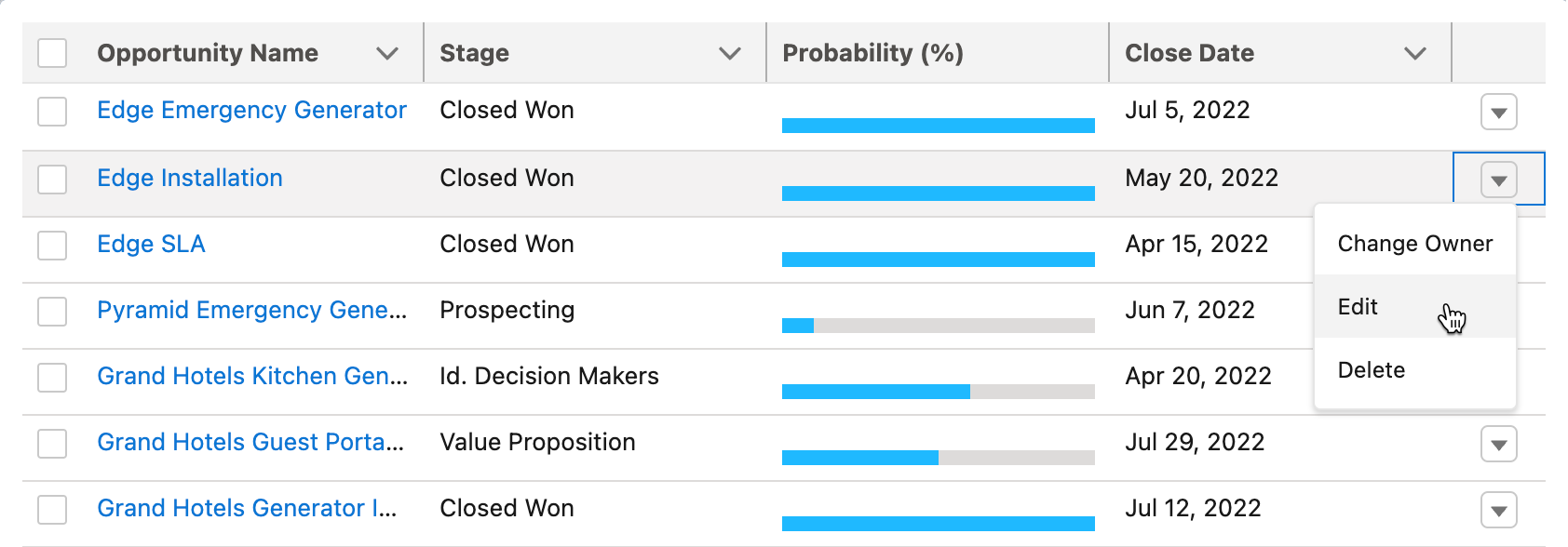
**Here's what the final result will look like**
## Guided Steps
### 1. Add Action Buttons to Each Row
* **Make sure your Data Table is set up:** First, double-check that you've already connected your Data Table to a data source (like a list of opportunities) and added the columns (fields) you want to show.
* **Add a new column for the actions:** In the "Data Mappings" section, click the "Add Column" button.
* **Choose the 'Action' type:** In the "Type" dropdown, select "Action."
* **Add your first action:** A new "Type Attributes" section will appear. Click the "Add Item" button in the "Row Action" area to create your first action button.
* **Give it a name:** Enter a clear title for your row action (like "Edit" or "Delete").
* **Add more actions (if needed):** If you want multiple action buttons in the dropdown, click "Add Item" again to create more.
### 2. Make the Row Actions Work
Creating the action buttons is just the first part. We need to tell them what to do when someone clicks on them. We do this in the "Interaction" tab.
Here's how to make your row action buttons functional:
* Go to the **`interaction tab`**
* Click on the "**`Add Row Action`**" button to create your first interaction on row action items.
* Select the **`Target name`** (your row action item) on which you would like to create your interaction.
* Select the **`Type`** of interaction. [Learn more about interactions](/flow/component-builder/interactions-panel.md).
* Click **`Save`**.
{% hint style="info" %}
You can assign multiple interactions to a single Row Action item, which can be mixed and matched. If you set up multiple interactions for the same action type, they will execute in the sequence in which they were defined.
{% endhint %}
{% @arcade/embed url="" flowId="4tc0NJjhtbfptEF10Ow7" %}
## Interactions Examples
Here are some examples of defining interactions on row actions.
### Interaction to change the record's owner
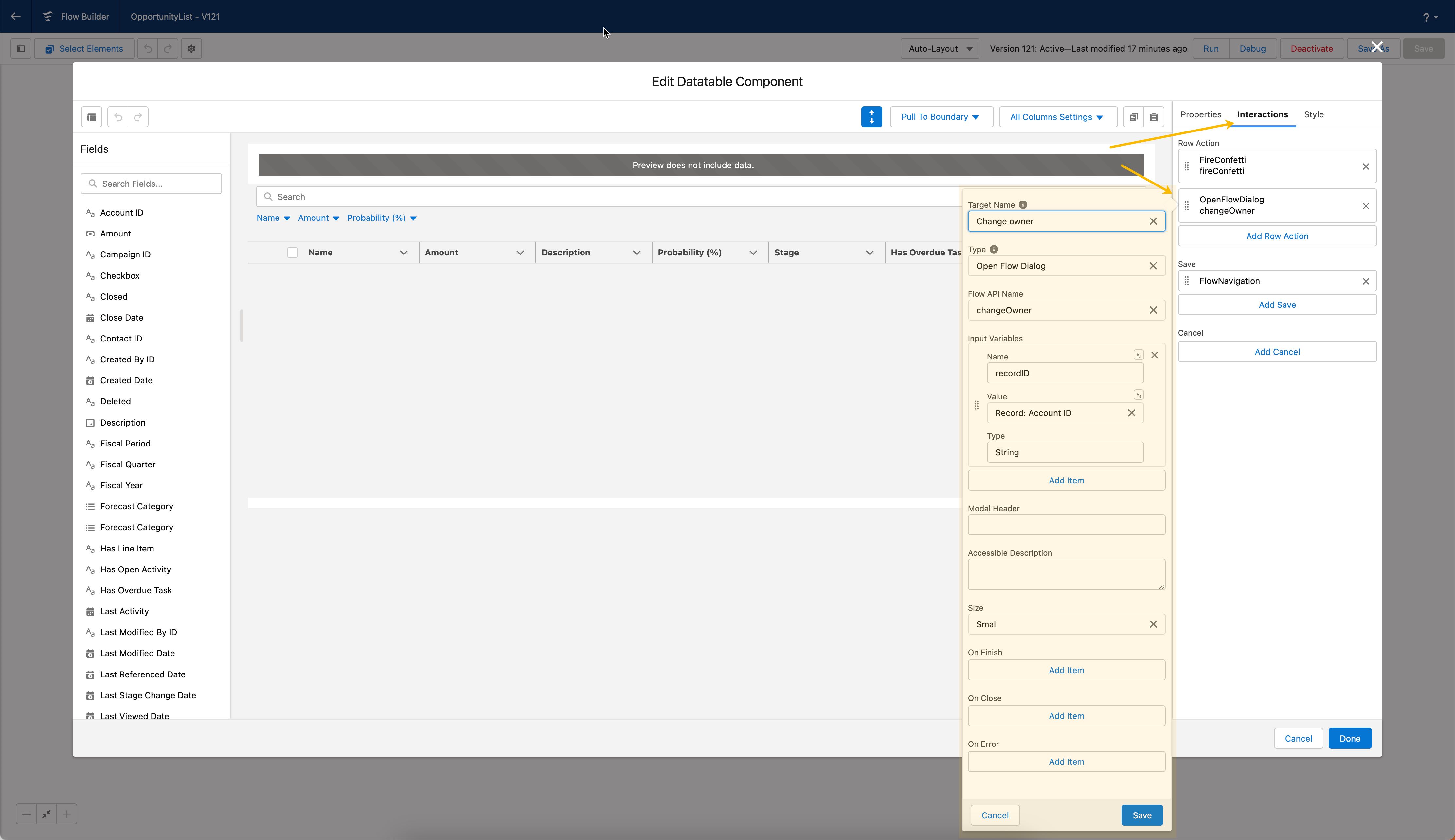
In this step, we'll demonstrate how to create an interaction using a row action that opens another flow. Specifically, we'll launch a flow to change the opportunity owner.
1. **Open the Component Builder** from the Data Table component.
2. Click on the **Interactions Tab**.
3. Choose the target name (in this case, "Change Owner").
4. Select "**Open Flow Dialog**" as the interaction type.
5. Pick the flow you want to run when users click the action button. In our example, we'll create a new flow for changing the opportunity owner.
6. Pass the Opportunity ID: We need to tell the new flow which opportunity to work with. So, we'll add an input variable and pass the Opportunity's Record ID to the new flow. This way, the new flow knows exactly which opportunity to update.
7. Add an "On Finish" item if needed. This can be used to reload the initial flow after the launched flow is completed.
## Learn more
{% content-ref url="/pages/3mEBbcBX08C5VNjwjUe9" %}
[How to create an interaction to open another flow](/flow/tutorials/interactions/how-to-create-an-interaction-to-open-another-flow.md)
{% endcontent-ref %}
{% content-ref url="/pages/CXxZsCmnkuGQnLfG7mJM" %}
[Enabling auto-refresh for queries after the Flow Dialog ends](/flow/tutorials/interactions/enabling-auto-refresh-for-queries-after-the-flow-dialog-ends.md)
{% endcontent-ref %}
---
# Agent Instructions
This documentation is published with GitBook. GitBook is the documentation platform designed so that both humans and AI agents can read, navigate, and reason over technical content effectively. Learn more at gitbook.com.
## Querying This Documentation
If you need additional information that is not directly available in this page, you can query the documentation dynamically by asking a question.
Perform an HTTP GET request on the current page URL with the `ask` query parameter, and the optional `goal` query parameter:
```
GET https://docs.avonnicomponents.com/flow/tutorials/components/data-table/creating-row-actions.md?ask=&goal=
```
`ask` is the immediate question: it should be specific, self-contained, and written in natural language.
`goal` is optional and describes the broader end goal you are ultimately trying to accomplish on behalf of the user. GitBook uses it to tailor the answer towards what is most useful for that goal.
The response will contain a direct answer to the question and relevant excerpts and sources from the documentation.
Use this mechanism when the answer is not explicitly present in the current page, you need clarification or additional context, or you want to retrieve related documentation sections.
.gif?alt=media)