> For the complete documentation index, see [llms.txt](https://docs.avonnicomponents.com/llms.txt). Markdown versions of documentation pages are available by appending `.md` to page URLs; this page is available as [Markdown](https://docs.avonnicomponents.com/flow/tutorials/components/data-table/choose-the-right-data-source.md).
# Choose the right data source
Decide where a screen flow Data Table gets its rows (a Get Records collection, its own Query, or typed rows) and what to do when your data comes from Apex.
A sales manager's screen lists open deals. The flow may already hold them from a **Get Records**, or the table can fetch them itself and reload them after a change. The choice decides which features the table offers, so make it before you build the columns.
The three data sources of the Data Table.
## Before you start
* A screen with an **Avonni Data Table**, opened in the Component Builder. [Learn the Basics](https://docs.avonnicomponents.com/flow/tutorials/components/data-table/learn-the-basics.md) shows how.
## Steps
{% stepper %}
{% step %}
### Compare the three sources
In the **Properties** tab, the **Data Source** section (near the bottom of the tab) offers three buttons. A new Data Table starts on **Variable**.
| | **Variable** | **Query** | **Manual** |
| --------------------------------------------------------- | ---------------------------------------------------------------------- | ------------------------------------------------------------- | ----------------------------------- |
| Rows come from | A record collection variable of the flow, usually from **Get Records** | Records the table queries itself when the screen opens | Rows typed in the Component Builder |
| Best for | The flow already has the records, or prepares them first | The table should reload after a change, or show parent fields | A short list that never changes |
| Group By, Filters, Search Fields, Export To Fields | Yes | Yes | No |
| Edits saved by the table, **Edited Rows** output | Yes | Yes | No |
| Rows ticked at load with **Default Selection Collection** | Yes | No | No |
| Reload with the **Refresh Query** interaction | No | Yes | No |
| Fields of a parent record, such as the account name | Only through a formula field | Yes | No |
| {% endstep %} | | | |
{% step %}
### Use a Variable when the flow already has the records
> **Example:** A flow on the account page runs a **Get Records** of the account's open opportunities, then shows them in the table.
1. Before the screen, add a **Get Records** element that stores all records in a record collection variable, for example `OpenDeals`.
2. In the Component Builder, keep **Variable** selected and set **Data Collection** to `OpenDeals`.
3. Drag the fields you want onto the preview to create the columns.
The table shows the collection exactly as the flow left it, so the flow can sort it or change values in an **Assignment** before the screen. It holds only the fields the Get Records stored, and a Get Records stores the fields of its own object, never those of a parent record. For the account name on a deal, use **Query**, or a formula field on Opportunity that returns `Account.Name`.
{% endstep %}
{% step %}
### Use a Query when the table should load its own records
> **Example:** A sales manager's screen lists every open opportunity, and a button reloads the list after a change.
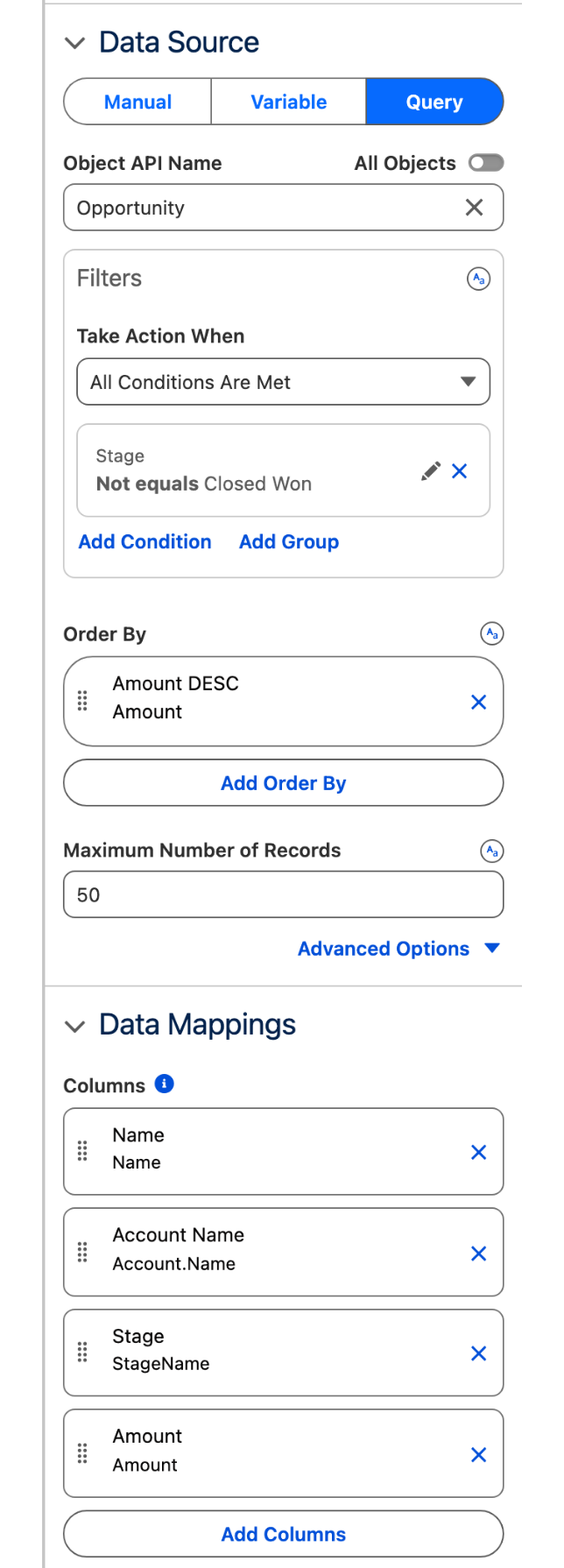
1. In **Data Source**, click **Query** and pick the object in **Object API Name**, here Opportunity.
2. Under **Filters**, add a condition, for example **Stage** not equals `Closed Won`. A filter value can be a flow variable such as `{!recordId}` ([example](https://docs.avonnicomponents.com/flow/tutorials/tips-and-tricks/filter-a-data-table-or-map-by-the-current-record.md)).
3. Under **Order By**, sort by Amount, descending, and set **Maximum Number of Records** to keep the table short.
4. Drag fields onto the preview to create the columns. Fields of parent records, such as **Account > Account Name**, are in the list too.
No **Get Records** is needed: the table runs the query when the screen opens and loads the rows a page at a time, as users page or scroll.
The query runs in user mode: it returns only the records and fields the running user can read, following sharing and field-level security. Its advanced options hold **System Mode**, which runs it without those checks, **Strip Inaccessible Fields** and **Additional fields** (fields the query loads without showing a column).
To reload the rows after an action, use the [Refresh Query interaction](https://docs.avonnicomponents.com/flow/tutorials/components/data-table/tips-and-tricks/enabling-auto-refresh-on-the-data-table-when-pressing-a-button.md). To filter on another component of the same screen, see [How to make Data Tables reactive](https://docs.avonnicomponents.com/flow/tutorials/reactive-query-tutorials/how-to-make-data-tables-reactive.md).
A Query source: object, filters, order and the mapped columns, including a field from the parent account.
{% endstep %}
{% step %}
### Use Manual for a short fixed list
Click **Manual** to type the columns and rows in the Component Builder. Use it for content that does not live in records, such as a short list of service tiers. Grouping, filters, search fields, export fields and saved edits need a Variable or Query source, so start there if you will need them.
{% endstep %}
{% step %}
### When the rows come from Apex
The Variable source accepts record collections only. An invocable Apex action that returns a collection of an Apex class (an Apex-defined type) never appears in **Data Collection**. Two routes work:
1. Have the action return the records themselves, then pick that record collection as the Variable source.
2. If the data is calculated and does not exist as records, build a record collection of a suitable object in the flow, with a **Loop** and an **Assignment**. The records never need to be saved.
When the rows exist as records anyway, a **Query** is often simpler than either route.
{% endstep %}
{% step %}
### Save and test
Run the flow with **Debug**. With Variable, the table shows the records of the collection, in the collection's order. With Query, it shows the records that match the filters, sorted by your **Order By**, up to **Maximum Number of Records**.
{% endstep %}
{% endstepper %}
## What the standard Data Table already does, and where Avonni's adds
Salesforce's standard Data Table reads a record collection your flow already holds. For a plain list fed by a Get Records, that may be all you need.
The Avonni Data Table reads the same collection with **Variable**, and adds **Query**: the table fetches its own records, with filters that can read flow variables, parent fields, a page of rows at a time, and a reload with **Refresh Query** without leaving the screen. Either source then unlocks grouping with totals, filters, export and edits saved by the table: the [Data Table reference](https://docs.avonnicomponents.com/flow/flow-components/data-table.md) covers each one.
## Troubleshooting
My collection is not in the Data Collection list
Only record collection variables are listed. A text collection, a single record variable or an Apex-defined collection is not offered. Store the records in a record collection (the **Get Records** option "All records"), or switch to **Query**.
The table is empty at runtime
With Variable, the collection is empty at that screen: check that the **Get Records** runs before it and finds records. With Query, check the filters, and that a filter reading a flow variable such as `{!recordId}` receives a value. A Query also returns only the records the running user can read.
A parent field stays blank with a Variable source
The Get Records did not store it, and it cannot: it stores the fields of its own object only. Switch to **Query**, or add a formula field on the object that returns the parent field and store that formula.
## Related tutorials
* [Learn the Basics](https://docs.avonnicomponents.com/flow/tutorials/components/data-table/learn-the-basics.md): the full Get Records, table and selection pattern with a Variable source.
* [Group rows and show totals](https://docs.avonnicomponents.com/flow/tutorials/components/data-table/group-rows-and-show-totals.md): a Query source with a subtotal per stage.
* [How to make Data Tables reactive](https://docs.avonnicomponents.com/flow/tutorials/reactive-query-tutorials/how-to-make-data-tables-reactive.md): a Query that follows another component on the same screen.
---
# Agent Instructions
This documentation is published with GitBook. GitBook is the documentation platform designed so that both humans and AI agents can read, navigate, and reason over technical content effectively. Learn more at gitbook.com.
## Querying This Documentation
If you need additional information that is not directly available in this page, you can query the documentation by asking a question.
Perform an HTTP GET request on the following URL with the `ask` and `goal` query parameters:
```
GET https://docs.avonnicomponents.com/flow/tutorials/components/data-table/choose-the-right-data-source.md?ask=&goal=
```
`ask` is the immediate question: it should be specific, self-contained, and written in natural language.
`goal` is what the user is ultimately trying to achieve, the reason they need the answer. Sharing it helps GitBook give you a better, more relevant answer. A goal is most helpful when it describes the outcome the user wants rather than restating the question. For example, with `ask=how do I create an API token`, a goal like `automate deployments from our CI pipeline` lets GitBook tailor the answer to that use case.
The response will contain a direct answer to the question and relevant excerpts and sources from the documentation.
Use this mechanism when the answer is not explicitly present in the current page, you need clarification or additional context, or you want to retrieve related documentation sections.