> For the complete documentation index, see [llms.txt](https://docs.avonnicomponents.com/llms.txt). Markdown versions of documentation pages are available by appending `.md` to page URLs; this page is available as [Markdown](https://docs.avonnicomponents.com/flow/tutorials/components/combobox/use-a-combobox-selection-in-a-query-or-flow.md).
# Use a Combobox Selection in a Query or Flow
Pass what an agent picks in a Combobox to Get Records, another component's query, a flow dialog or a record update, using the right value output.
A support agent picks the customer's account in a Combobox. The rest of the flow depends on that choice: the contact list narrows to that account, a later Get Records finds its open cases, a flow dialog logs a new case for it, and the new case is saved against it. Each destination expects the selection in a specific shape, and the Combobox offers one output per shape.
One selection, three shapes of the same value.
## Before you start
* A Combobox with its options set up. See [Build Combobox Options](/flow/tutorials/components/combobox/build-combobox-options.md).
* The Combobox's API Name. This page uses `AccountPicker`.
## Which output to use
Every output below updates each time the agent changes the selection. The examples assume a multi-select Combobox on Case priorities where the agent picked High, then Medium.
| Output | Type | Holds | Use it for |
| ------------------------------------------ | -------------------------- | ------------------------------ | -------------------------------------------------------------------------------------------------------------------------------- |
| **Value** | Text | `Medium;High` | One value for a filter with Equals, a record field, a subflow or dialog input. Also the format of a multi-select picklist field. |
| **Value Collection** | Text collection | Two items: `Medium`, `High` | A Get Records filter with the In operator, a Loop, a collection input. |
| **Value Comma Separated** | Text | `'Medium','High'` | A query filter built in a formula, with `IN`. Output only. |
| **Value Collection Serialized** | Text | `["Medium","High"]` | An element that expects the list as JSON text. Rarely needed: **Value** already holds a multi-selection in one text. |
| **Selected Option** / **Selected Options** | Record / Record collection | The selected record or records | Query and Variable data sources, when the next element needs the record itself. |
A few rules that explain most surprises:
* **Value** holds each option's value, never its label. For a Picklist data source that is the picklist API value. For a Query data source it is the field mapped to **Value** in **Data Mappings**, the record Id by default.
* The most recent pick comes first.
* On a single-select Combobox, each output holds one value: **Value** is `High`, **Value Collection** has one item, **Value Comma Separated** is `'High'`.
* **Value Comma Separated** wraps each value in single quotes and escapes any apostrophe inside a value (`'O\'Brien'`). The quotes are part of the text, so it only fits inside a query condition.
## Steps
Step 1 sets up the account picker. Steps 2 to 5 are independent: build the ones your flow needs.
{% stepper %}
{% step %}
### Set up the account picker
1. Add **Avonni Combobox** to a screen and set its API Name to `AccountPicker`.
2. In the Component Builder, set **Label** to `Account` and **Data Source** to **Query** on the **Account** object.
3. In **Data Mappings**, map **Label** to the account Name and **Value** to its Id.
4. Turn on **Show Search** so the agent can type a name.
**Value** now holds the Id of the picked account.
{% endstep %}
{% step %}
### Filter another component's query on the same screen
The contact Combobox below the account picker should list only that account's contacts.
1. Create a Text formula resource named `ContactFilter`:
```
IF(
ISBLANK({!AccountPicker.value}),
"Id = null",
"AccountId = '" & {!AccountPicker.value} & "'"
)
```
2. Add a second Combobox with a **Query** data source on **Contact**.
3. In its **Filters**, open the value type menu, choose **Mapped**, and select `ContactFilter`.
The contact list stays empty until an account is picked, then reloads on every change. When the first Combobox is multi-select, use `"AccountId IN (" & {!AccountPicker.valueCommaSeparated} & ")"` instead. [Filter Data Tables with Multi-Select Comboboxes](/flow/tutorials/components/combobox/filter-data-tables-with-multi-select-comboboxes.md) builds the same pattern for a Data Table.
{% endstep %}
{% step %}
### Use the selection in Get Records
After the screen, add a **Get Records** element on **Case**:
* Single selection: **Account ID** Equals `{!AccountPicker.value}`.
* Multiple selection: **Account ID** In `{!AccountPicker.valueCollection}`.
Need another field of the picked account, its Industry for example? Run Get Records on **Account** with **Id** Equals `{!AccountPicker.value}` and read the field from that record.
{% endstep %}
{% step %}
### Open a flow dialog with the selection
To log a case as soon as the agent picks an account:
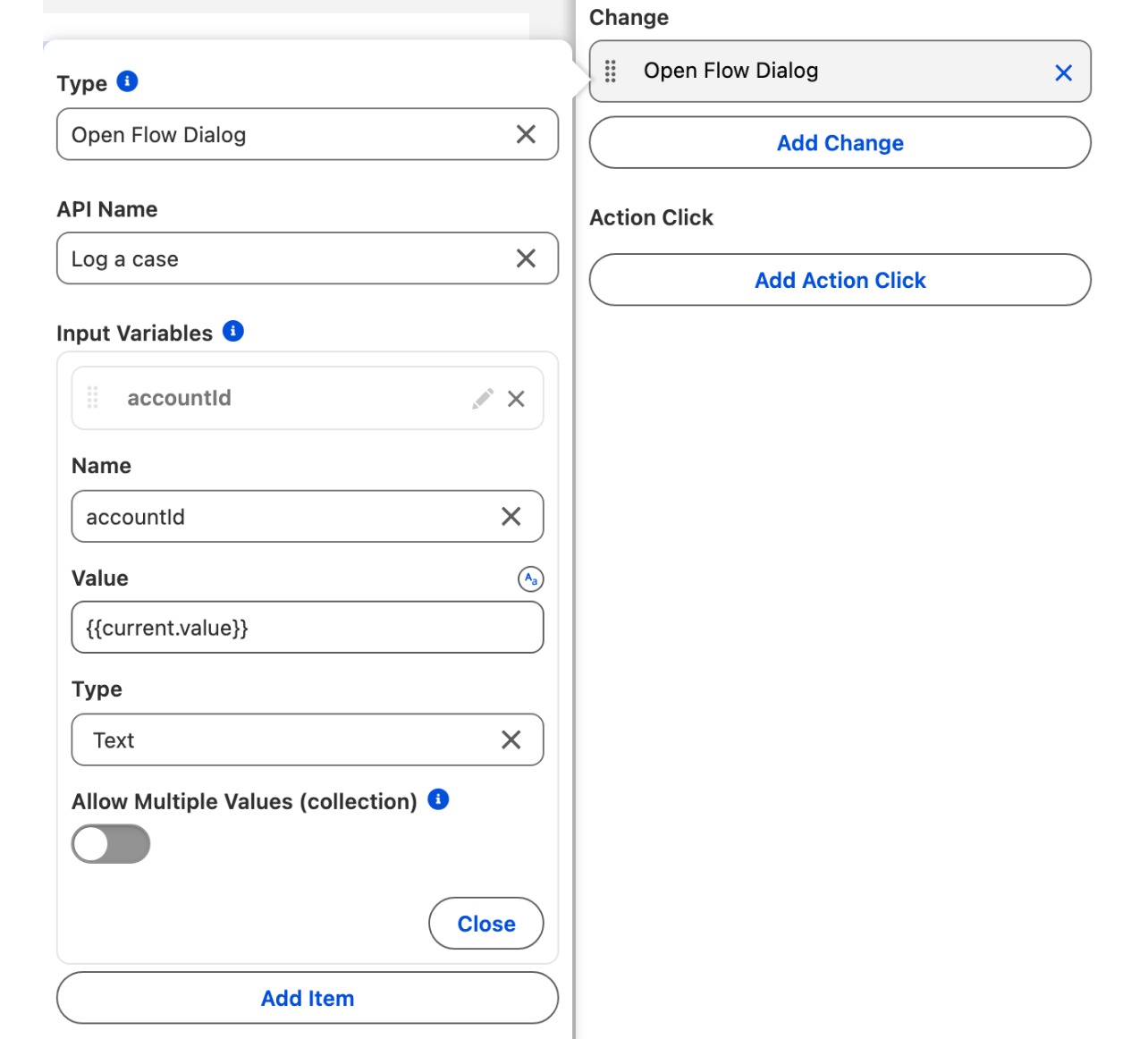
1. In the Component Builder, open the **Interactions** tab and add a **Change** interaction of type **Open Flow Dialog**.
2. In **API Name**, select the flow to open. It needs a Text input variable, here `accountId`.
3. Under **Input Variables**, set **Name** to `accountId`, type `{{current.value}}` in **Value** (as text, with the resource toggle off), and set **Type** to Text.
The dialog input reads the value at the moment of the pick.
`{{current.value}}` is read at the moment the agent picks. A flow resource such as `{!AccountPicker.value}` in this field is read when the screen loads, before any pick, so the dialog would receive an empty value. [Open Flow Dialog](/flow/component-builder/interactions-panel/open-flow-dialog.md) covers the other dialog settings.
{% endstep %}
{% step %}
### Pass the selection to a subflow or a record update
After the screen, the selection is an ordinary flow value:
* **Subflow**: set the subflow's Text input variable to `{!AccountPicker.value}`, or its Text collection input to `{!AccountPicker.valueCollection}`.
* **Update Records** or **Create Records**: set the case's **Account ID** to `{!AccountPicker.value}`.
* A multi-select picklist field takes **Value** directly, since it stores its values separated by semicolons too.
{% endstep %}
{% step %}
### Save and test
Run the flow in **Debug** and pick an account. The contact Combobox lists that account's contacts, the dialog opens with the account Id in `accountId`, and the debug panel shows the Id in the Get Records filter and in the saved case.
{% endstep %}
{% endstepper %}
## Troubleshooting
The flow dialog receives an empty value
The interaction's **Value** points to a flow resource such as `{!AccountPicker.value}`, which Flow reads when the screen loads. Type `{{current.value}}` in **Value** instead, with the resource toggle off.
The Combobox shows "Enter a valid value" after a pick
The Combobox's own **Value** property is mapped to its **Value Comma Separated** output. The quotes come back in, and no option matches `'001...'`. Clear **Value**, or map it to a variable that holds **Value**.
Get Records finds nothing
The filter uses **Value Comma Separated**, whose quotes are part of the text. Use **Value** with Equals, or **Value Collection** with In. Also check that the Combobox's **Value** mapping holds the field you compare: an account Id for **Account ID**, not the account Name.
## Related tutorials
* [Filter Data Tables with Multi-Select Comboboxes](/flow/tutorials/components/combobox/filter-data-tables-with-multi-select-comboboxes.md): the Data Table filter, with the empty selection handled.
* [Keep Combobox Selections When Users Go Back](/flow/tutorials/components/combobox/keep-combobox-selections-when-users-go-back.md): store the selection in a variable and bring it back on a revisit.
* [Implement Dependent Picklists in Comboboxes](/flow/tutorials/components/combobox/implement-dependent-picklists-in-comboboxes.md): link two picklist comboboxes without a formula.
* [Expression Syntax in Interactions](/flow/tutorials/interactions/expression-syntax-in-interactions.md): the dynamic values interaction fields accept.
---
# Agent Instructions
This documentation is published with GitBook. GitBook is the documentation platform designed so that both humans and AI agents can read, navigate, and reason over technical content effectively. Learn more at gitbook.com.
## Querying This Documentation
If you need additional information that is not directly available in this page, you can query the documentation by asking a question.
Perform an HTTP GET request on the following URL with the `ask` and `goal` query parameters:
```
GET https://docs.avonnicomponents.com/flow/tutorials/components/combobox/use-a-combobox-selection-in-a-query-or-flow.md?ask=&goal=
```
`ask` is the immediate question: it should be specific, self-contained, and written in natural language.
`goal` is what the user is ultimately trying to achieve, the reason they need the answer. Sharing it helps GitBook give you a better, more relevant answer. A goal is most helpful when it describes the outcome the user wants rather than restating the question. For example, with `ask=how do I create an API token`, a goal like `automate deployments from our CI pipeline` lets GitBook tailor the answer to that use case.
The response will contain a direct answer to the question and relevant excerpts and sources from the documentation.
Use this mechanism when the answer is not explicitly present in the current page, you need clarification or additional context, or you want to retrieve related documentation sections.