> For the complete documentation index, see [llms.txt](https://docs.avonnicomponents.com/llms.txt). Markdown versions of documentation pages are available by appending `.md` to page URLs; this page is available as [Markdown](https://docs.avonnicomponents.com/flow/tutorials/components/combobox/search-large-lists-in-a-combobox.md).
# Search Large Lists in a Combobox
Let users find one account among thousands by typing a few letters, with a Combobox that queries Salesforce on each search instead of loading every record.
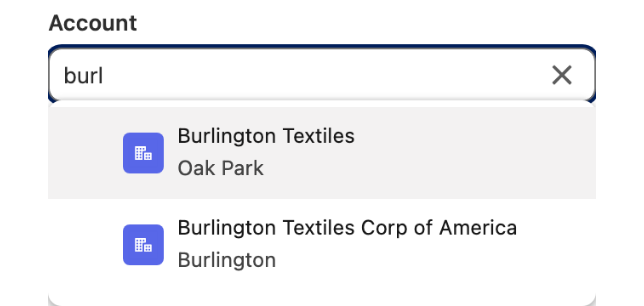
A support agent logging a case needs the customer's account, and the org holds tens of thousands of them, far too many to scroll. With a Query data source and search turned on, the agent types "burl", the Combobox asks Salesforce for matching accounts, and shows a short list with the city under each name.
Typing a few letters queries matching accounts.
## Before you start
* A screen flow with an Avonni [Combobox](/flow/flow-components/combobox.md) on a screen.
* Users who run the flow can read the Account records they need to find. The query runs with their access unless **System Mode** is on.
## Steps
{% stepper %}
{% step %}
### Query the accounts
1. Open the **Edit Combobox Component** panel and, at the bottom of the **Properties** tab, set **Data Source** to **Query**.
2. Select the **Account** object.
3. Add **Filters** only if the list must be narrower, for example **Type** Equals `Customer - Direct`.
4. Leave **Maximum Number of Records** empty to let the search reach every account. A number here caps how many records the Combobox loads in total.
A query on Account, with the fields the search will look in.
{% endstep %}
{% step %}
### Map the fields people search on
In **Data Mappings**:
* **Label**: `Name`.
* **Value**: `Id`, so the selection is the account Id that the rest of the flow needs.
* **Secondary Text**: `BillingCity`, so two accounts with the same name can be told apart.
* **Avatar**: an **Icon Name** such as `standard:account`.
The search looks only in the mapped fields. Here, typing a name or a city both work.
{% endstep %}
{% step %}
### Turn on search
1. Turn on **Show Search**.
2. Turn on **Hide Options Until Search**. The dropdown stays empty until the agent types, and nothing is queried before that.
3. Set **Dropdown Length** to **10 Items**. With **Hide Options Until Search**, it is also the number of matches each search returns.
4. Set a **Placeholder** that says what to type, such as `Type an account name or a city`.
| | **Hide Options Until Search** off | **Hide Options Until Search** on |
| ----------------------- | ------------------------------------------------ | ------------------------------------------- |
| When the dropdown opens | The first records, more load as the user scrolls | Nothing until the user types |
| When the user types | A new query with the search term | A new query with the search term |
| Matches shown | All, loaded as the user scrolls | Up to **Dropdown Length** (5, 7, or 10) |
| Best for | A few hundred records people browse | Thousands of records people look up by name |
| {% endstep %} | | |
{% step %}
### Save and test
Save the flow and click **Debug**. Click the Combobox: the dropdown shows no account yet. Type `burl`: after a moment, up to ten accounts whose name or billing city contains "burl" appear, each with its city underneath. Pick one. The **Value** output holds its Id and **Selected Option** holds the account record.
Test the search in the debug run. The Component Builder preview of a Query Combobox ignores filters and search, and shows at most 20 records.
{% endstep %}
{% endstepper %}
{% hint style="info" %}
When the screen opens with a value already set (for example **Value** set to `{!Case.AccountId}`), the Combobox looks that record up and shows its name, even with **Hide Options Until Search** on.
{% endhint %}
## Troubleshooting
Typing a word finds nothing, though the record exists
The search only matches fields mapped in **Data Mappings**. A word that only appears in an unmapped field, such as the account's phone number, returns nothing. Map that field to **Secondary Text**, or ask users to type the name. Check also the query **Filters**, and that the user can read the record.
The account users want is not in the list
With **Hide Options Until Search** on, a search returns at most **Dropdown Length** matches. A short term such as `a` matches hundreds of accounts and shows only the first ones. Type more letters, or sort the query with **Order By** so the most likely records come first.
Scrolling stops after a fixed number of accounts
**Maximum Number of Records** is set. It caps the total number of records loaded. Clear it, or raise it.
## Related tutorials
* [Build Combobox Options](/flow/tutorials/components/combobox/build-combobox-options.md): when the options are a short list rather than records.
* [Add a Create New Action to a Combobox](/flow/tutorials/components/combobox/add-a-create-new-action-to-a-combobox.md): let the agent create the account when the search finds nothing.
* [Use a Combobox Selection in a Query or Flow](/flow/tutorials/components/combobox/use-a-combobox-selection-in-a-query-or-flow.md): pass the picked account Id to a Get Records or a subflow.
---
# Agent Instructions
This documentation is published with GitBook. GitBook is the documentation platform designed so that both humans and AI agents can read, navigate, and reason over technical content effectively. Learn more at gitbook.com.
## Querying This Documentation
If you need additional information that is not directly available in this page, you can query the documentation by asking a question.
Perform an HTTP GET request on the following URL with the `ask` and `goal` query parameters:
```
GET https://docs.avonnicomponents.com/flow/tutorials/components/combobox/search-large-lists-in-a-combobox.md?ask=&goal=
```
`ask` is the immediate question: it should be specific, self-contained, and written in natural language.
`goal` is what the user is ultimately trying to achieve, the reason they need the answer. Sharing it helps GitBook give you a better, more relevant answer. A goal is most helpful when it describes the outcome the user wants rather than restating the question. For example, with `ask=how do I create an API token`, a goal like `automate deployments from our CI pipeline` lets GitBook tailor the answer to that use case.
The response will contain a direct answer to the question and relevant excerpts and sources from the documentation.
Use this mechanism when the answer is not explicitly present in the current page, you need clarification or additional context, or you want to retrieve related documentation sections.