> For the complete documentation index, see [llms.txt](https://docs.avonnicomponents.com/llms.txt). Markdown versions of documentation pages are available by appending `.md` to page URLs; this page is available as [Markdown](https://docs.avonnicomponents.com/flow/tutorials/components/combobox/build-combobox-options.md).
# Build Combobox Options
Choose how to fill a Combobox without a query: typed options, a converted Text Collection, or an option collection built by an action.
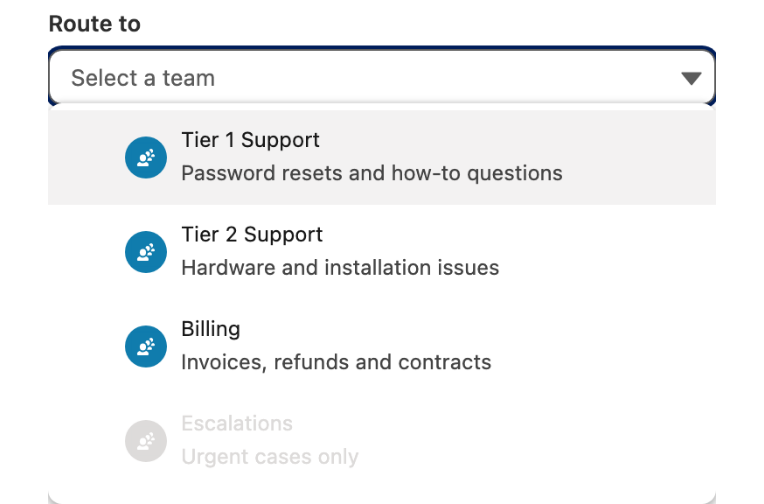
A support agent routing a case picks a team from a short list: Tier 1 Support, Tier 2 Support, Billing, Escalations. Each option carries a line of context and an icon, and Escalations is greyed out unless the case is urgent. This page shows the three ways to build that kind of list, and when a picklist field or a query does the job better.
Typed options with secondary text, icons, and one disabled option.
## Before you start
* A screen flow with an Avonni [Combobox](/flow/flow-components/combobox.md) on a screen.
* For the Escalations example: the case in a record variable (here `{!Case}`, from a Get Records before the screen).
* For the Text Collection route: a Text Collection variable that holds values when the screen opens.
## Steps
{% stepper %}
{% step %}
### Choose where the options come from
| Your options | Use | Why |
| ---------------------------------------------------------------------- | --------------------------------------------------------------------------------------------------------------------------------------------- | ----------------------------------------------------------------------------------------------------------------------------------------------------------------------- |
| A short, fixed list you can type | **Manual** data source | Everything is set in the Combobox, including **Disabled**. |
| A Text Collection the flow already holds | [Text Collection to Combobox Options](/flow/actions/data-conversion-and-formatting/text-collection-to-combobox-options.md), then **Variable** | A Text Collection cannot be a **Variable** source on its own. |
| A list the flow builds before the screen, or reuses on several screens | [New Combobox Option Collection](/flow/actions/ui-and-navigation/new-combobox-option-collection.md), then **Variable** | One collection, built once, used by any Combobox. |
| The values of a picklist field | **Picklist** data source | The list follows the field, its record types, and its controlling field. |
| Salesforce records | **Query** data source | The component queries the records and can search them. See [Search Large Lists in a Combobox](/flow/tutorials/components/combobox/search-large-lists-in-a-combobox.md). |
Picklist and Query need no options to build, so the next steps cover the first three routes.
{% endstep %}
{% step %}
### Type the options (Manual)
1. Open the **Edit Combobox Component** panel and, at the bottom of the **Properties** tab, set **Data Source** to **Manual**.
2. In **Options**, add one item per team. Fill **Label** (`Tier 2 Support`) and **Value** (`tier2`). **Value** is required and must be unique.
3. Add **Secondary Text** for the context line, for example `Hardware and installation issues`.
4. Under **Avatar**, set **Icon Name** (for example `standard:queue`) and a **Variant** (**Circle** or **Square**).
5. To block an option, turn on **Disabled**. Map it to a formula resource, such as `NOT(ISPICKVAL({!Case.Priority}, "High"))` on the Escalations option, to grey it out only for non-urgent cases.
Each Manual option carries its own label, value, context line, and avatar.
{% endstep %}
{% step %}
### Or convert a Text Collection
Use this when the values already sit in a Text Collection. Example: on screen 1 the agent ticks every case **Reason** that applies (New problem, Existing problem). On screen 2 a second Combobox asks for the primary reason among those picks.
1. Add an Action element before screen 2 and pick **Text Collection to Combobox Options**.
2. Set **Source Collection** to the Text Collection, here the **Value Collection** of the first Combobox.
3. Store the output in a collection variable of the Apex-defined type `ComboboxOption`.
4. On the second Combobox, set **Data Source** to **Variable** and select that collection.
Each text becomes one option, used as both the label and the value. There is no secondary text or avatar on this route.
{% endstep %}
{% step %}
### Or build an option collection with an action
Use this when several Combobox components, or several screens, share one list, or when a Decision chooses between two lists. Example: urgent cases get a list that includes Escalations, other cases get one without it.
1. Add an Action element and pick **New Combobox Option Collection**.
2. In **Combobox Options**, add one item per option with **Label** and **Value**. Both accept flow resources.
3. Open the advanced options of an item to add **Secondary Text** and the avatar fields: **Avatar Variant**, **Avatar Initials**, **Avatar Fallback Icon Name**, and **Avatar Src** (an image URL).
4. Store the output in a collection variable of the Apex-defined type `ComboboxOption`. In the other branch of the Decision, store the second action's output in the same variable.
5. On the Combobox, set **Data Source** to **Variable** and select that collection. No data mapping is needed.
This route has no **Disabled** field. To grey out an option, use **Manual**.
{% endstep %}
{% step %}
### Save and test
Save the flow and click **Debug**. Open the Combobox: each team shows its label, its context line, and its icon. On a case whose **Priority** is not High, Escalations is greyed out and cannot be picked. Pick Tier 2 Support: the Combobox **Value** output is `tier2`, the value you set, not the label.
{% endstep %}
{% endstepper %}
## Troubleshooting
The collection does not appear in the Variable list
The **Variable** list offers record collections and `ComboboxOption` collections only. A Text Collection is not offered: convert it with **Text Collection to Combobox Options** first. Check also that the variable has **Allow multiple values (collection)** selected.
The flow fails with "You provided an empty value for the combobox options"
**New Combobox Option Collection** ran while **Combobox Options** had no value. Add at least one item, or skip the action on that path.
An option shows an empty label
With **Text Collection to Combobox Options**, an empty entry in the Text Collection becomes an option with an empty label and value. Remove empty entries before the action, for example in a Loop.
## Related tutorials
* [Search Large Lists in a Combobox](/flow/tutorials/components/combobox/search-large-lists-in-a-combobox.md): when the options are records and there are too many to scroll.
* [Implement Dependent Picklists in Comboboxes](/flow/tutorials/components/combobox/implement-dependent-picklists-in-comboboxes.md): when the options of one Combobox depend on another.
* [Use a Combobox Selection in a Query or Flow](/flow/tutorials/components/combobox/use-a-combobox-selection-in-a-query-or-flow.md): what to do with the value once it is picked.
---
# Agent Instructions
This documentation is published with GitBook. GitBook is the documentation platform designed so that both humans and AI agents can read, navigate, and reason over technical content effectively. Learn more at gitbook.com.
## Querying This Documentation
If you need additional information that is not directly available in this page, you can query the documentation by asking a question.
Perform an HTTP GET request on the following URL with the `ask` and `goal` query parameters:
```
GET https://docs.avonnicomponents.com/flow/tutorials/components/combobox/build-combobox-options.md?ask=&goal=
```
`ask` is the immediate question: it should be specific, self-contained, and written in natural language.
`goal` is what the user is ultimately trying to achieve, the reason they need the answer. Sharing it helps GitBook give you a better, more relevant answer. A goal is most helpful when it describes the outcome the user wants rather than restating the question. For example, with `ask=how do I create an API token`, a goal like `automate deployments from our CI pipeline` lets GitBook tailor the answer to that use case.
The response will contain a direct answer to the question and relevant excerpts and sources from the documentation.
Use this mechanism when the answer is not explicitly present in the current page, you need clarification or additional context, or you want to retrieve related documentation sections.