> For the complete documentation index, see [llms.txt](https://docs.avonnicomponents.com/llms.txt). Markdown versions of documentation pages are available by appending `.md` to page URLs; this page is available as [Markdown](https://docs.avonnicomponents.com/flow/tutorials/components/calendar/how-to-customize-the-right-click-menu.md).
# How to Customize the Right-Click Menu
## Overview
This guide walks you through the steps to refine your users' experience with the [Avonni Calendar](/flow/flow-components/calendar.md) by customizing the right-click menu. Learn how to adjust the menu options precisely for your users, ensuring that the most practical and essential features are readily available at a simple right-click.
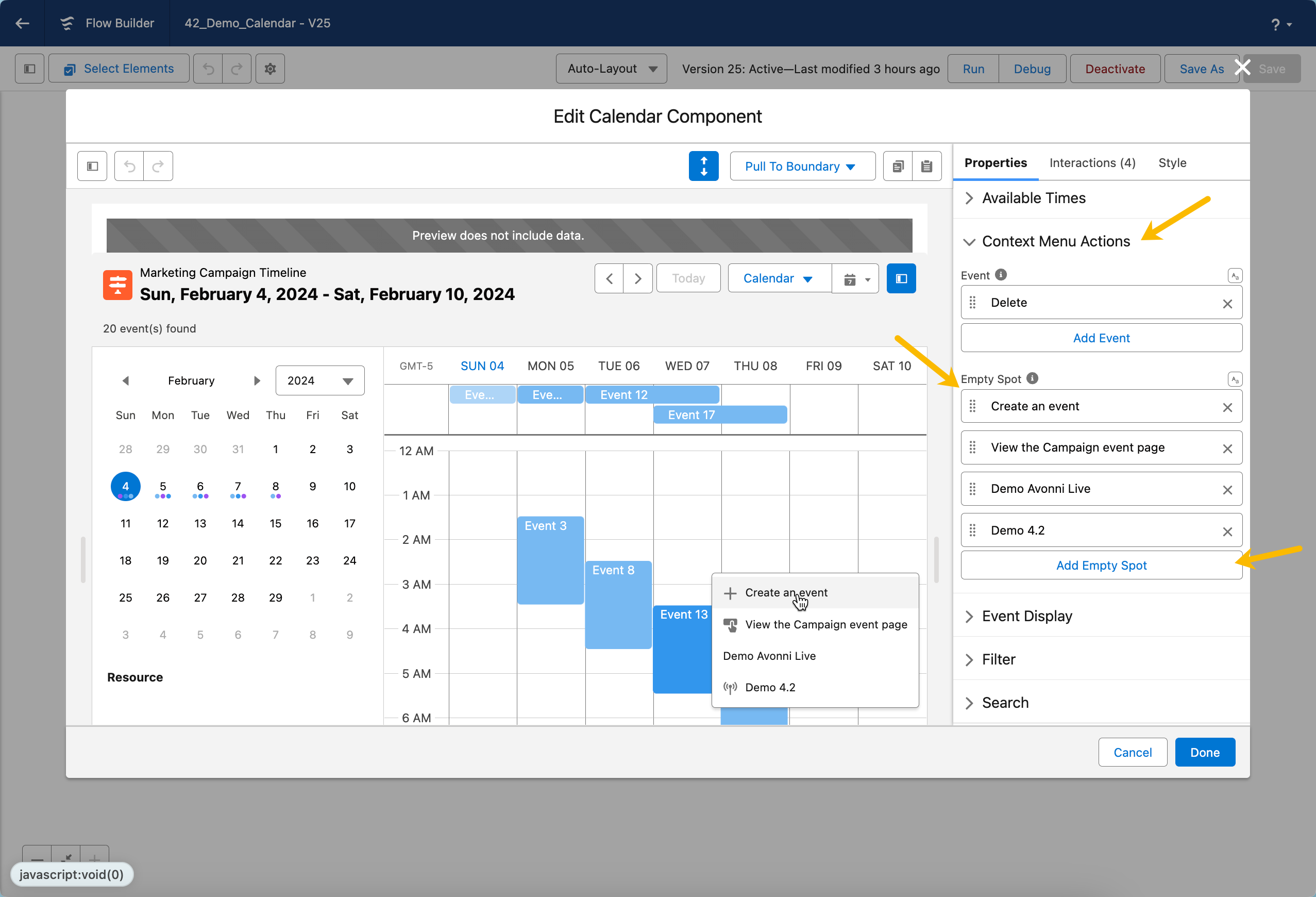
Example of the 'Empty Spot Context Action' being used within the Calendar interface.
## Guided Steps
### Step 1: Access the Content Menu Actions
Begin by navigating to the Context Menu Actions in the Avonni Calendar component builder. Scroll down until you find the "Context Menu Actions" section and click to expand it. This is where you'll start setting up actions for the empty event sections of your calendar.
### Step 2: Define Actions for Empty Calendar Spots
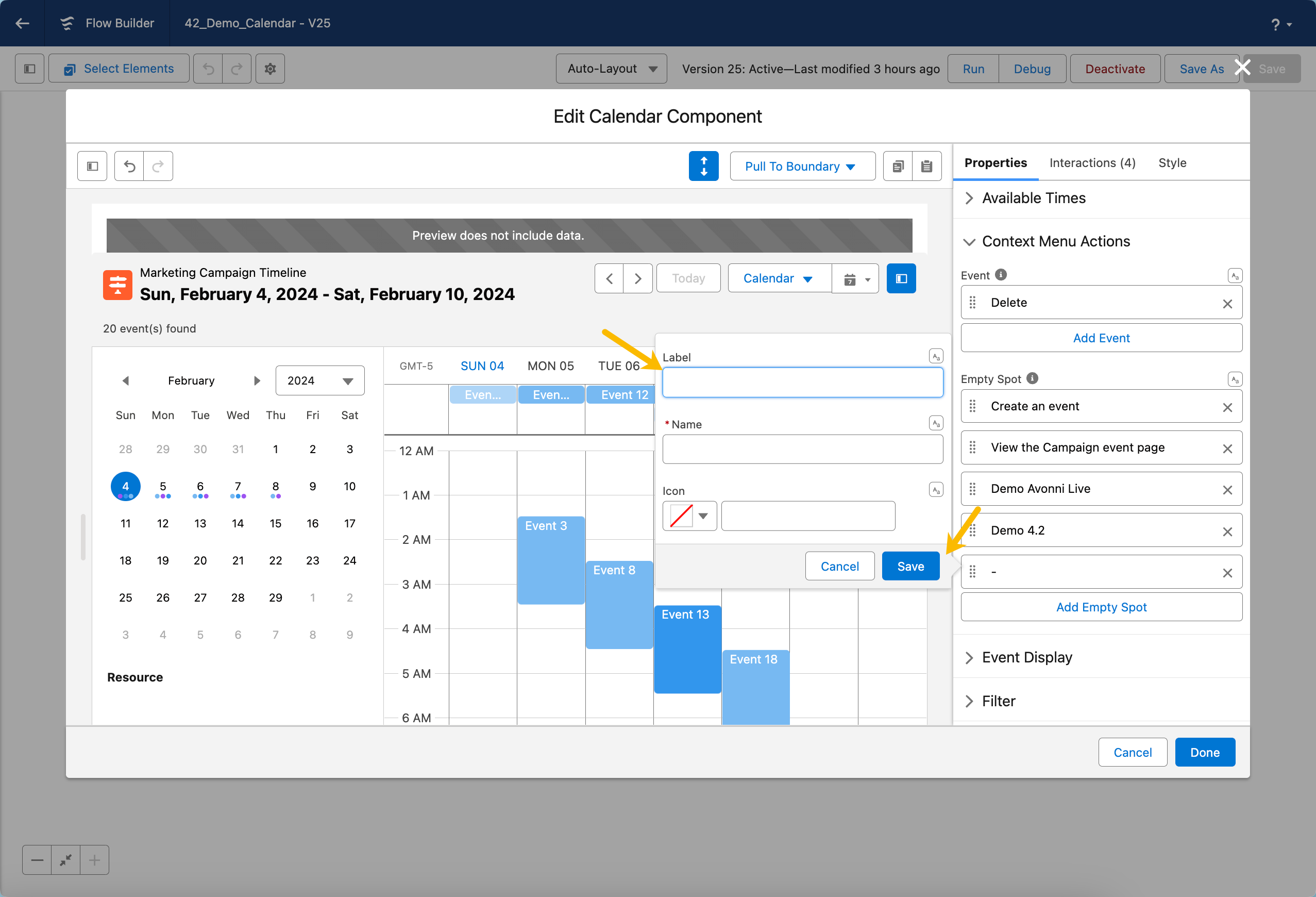
In this step, you'll configure what happens when users right-click on an empty spot in the calendar. You'll specify details like the action's label, name, and, optionally, an icon. Click on the 'Add Empty Spot' button to establish and define this empty spot action.
### Step 3: Establish the Action's Functionality
Previously, we outlined the parameters of the empty spot action. Now, it's time to make it operational.
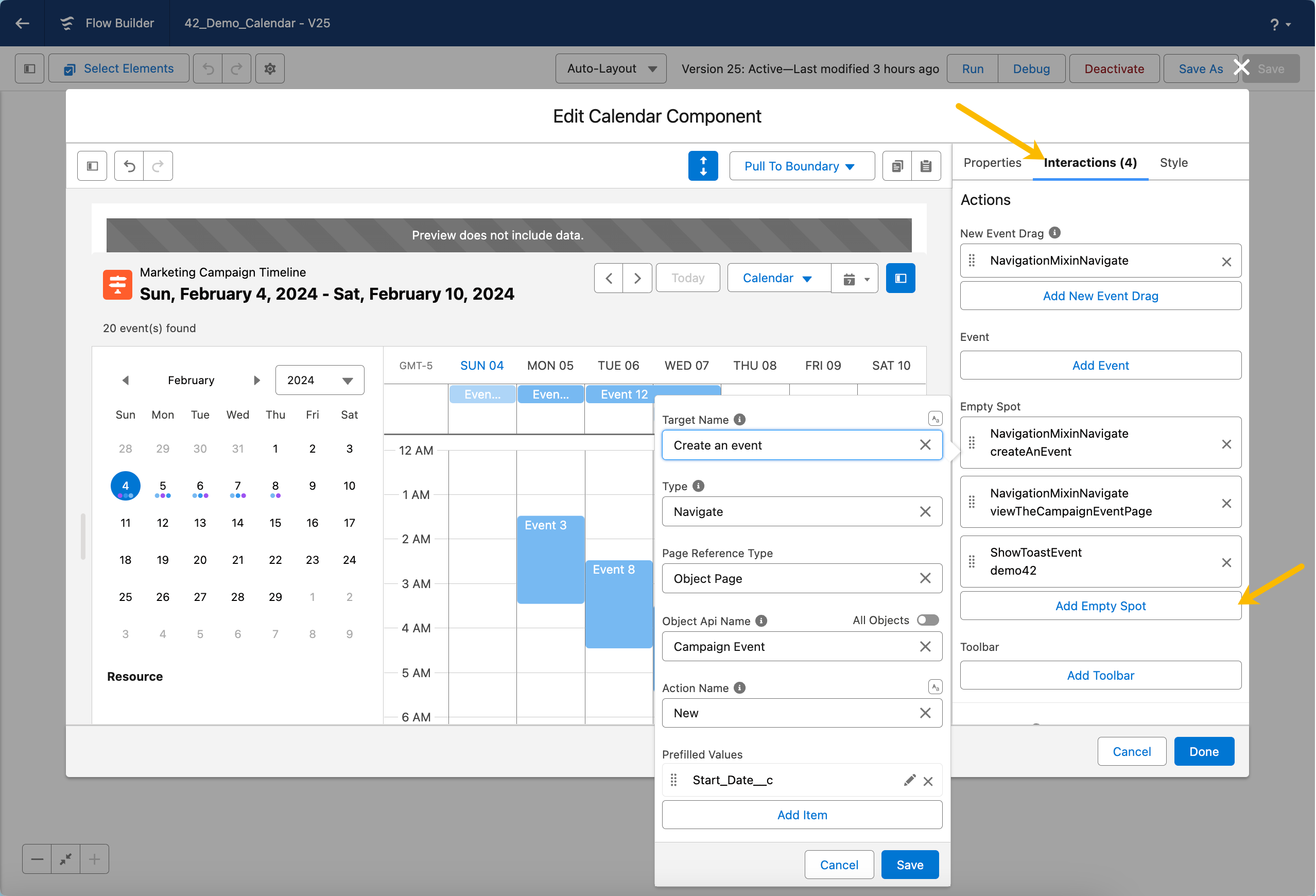
This step involves setting up the interaction when end-users click on the empty spot action. You'll need to define the action's response and program what should happen next. Use the Interactions tab to craft this experience.
For instance, in the example below, we establish an interaction where clicking the empty spot action prompts a new modal box, allowing the creation of a new data entry for the custom object 'Campaign Event.'
This process can be mirrored to enable end-users to add new data entries for different objects or to trigger other flows via a modal. [Click here](/flow/component-builder/interactions-panel.md) for a comprehensive guide on the various interaction types available and their intended functionalities.
---
# Agent Instructions
This documentation is published with GitBook. GitBook is the documentation platform designed so that both humans and AI agents can read, navigate, and reason over technical content effectively. Learn more at gitbook.com.
## Querying This Documentation
If you need additional information that is not directly available in this page, you can query the documentation dynamically by asking a question.
Perform an HTTP GET request on the current page URL with the `ask` query parameter, and the optional `goal` query parameter:
```
GET https://docs.avonnicomponents.com/flow/tutorials/components/calendar/how-to-customize-the-right-click-menu.md?ask=&goal=
```
`ask` is the immediate question: it should be specific, self-contained, and written in natural language.
`goal` is optional and describes the broader end goal you are ultimately trying to accomplish on behalf of the user. GitBook uses it to tailor the answer towards what is most useful for that goal.
The response will contain a direct answer to the question and relevant excerpts and sources from the documentation.
Use this mechanism when the answer is not explicitly present in the current page, you need clarification or additional context, or you want to retrieve related documentation sections.
.gif?alt=media)