> For the complete documentation index, see [llms.txt](https://docs.avonnicomponents.com/llms.txt). Markdown versions of documentation pages are available by appending `.md` to page URLs; this page is available as [Markdown](https://docs.avonnicomponents.com/flow/tutorials/components/biometrics/101-tutorial.md).
# 101 Tutorial
## How to use the Biometrics component
The [Avonni Biometrics](/flow/flow-components/biometrics.md) component provides a secure way to integrate device-level biometric authentication into your Salesforce Screen Flows on the Salesforce mobile app.
Here's the final result of this tutorial
### Tutorial Overview
This tutorial guides you through setting up the Avonni Biometrics component to add an extra layer of security to your flows. You'll learn to use the component to require fingerprint or facial recognition before users can proceed to the next screen. This simple validation step can be easily incorporated into your existing flows, enhancing security and improving the user experience.
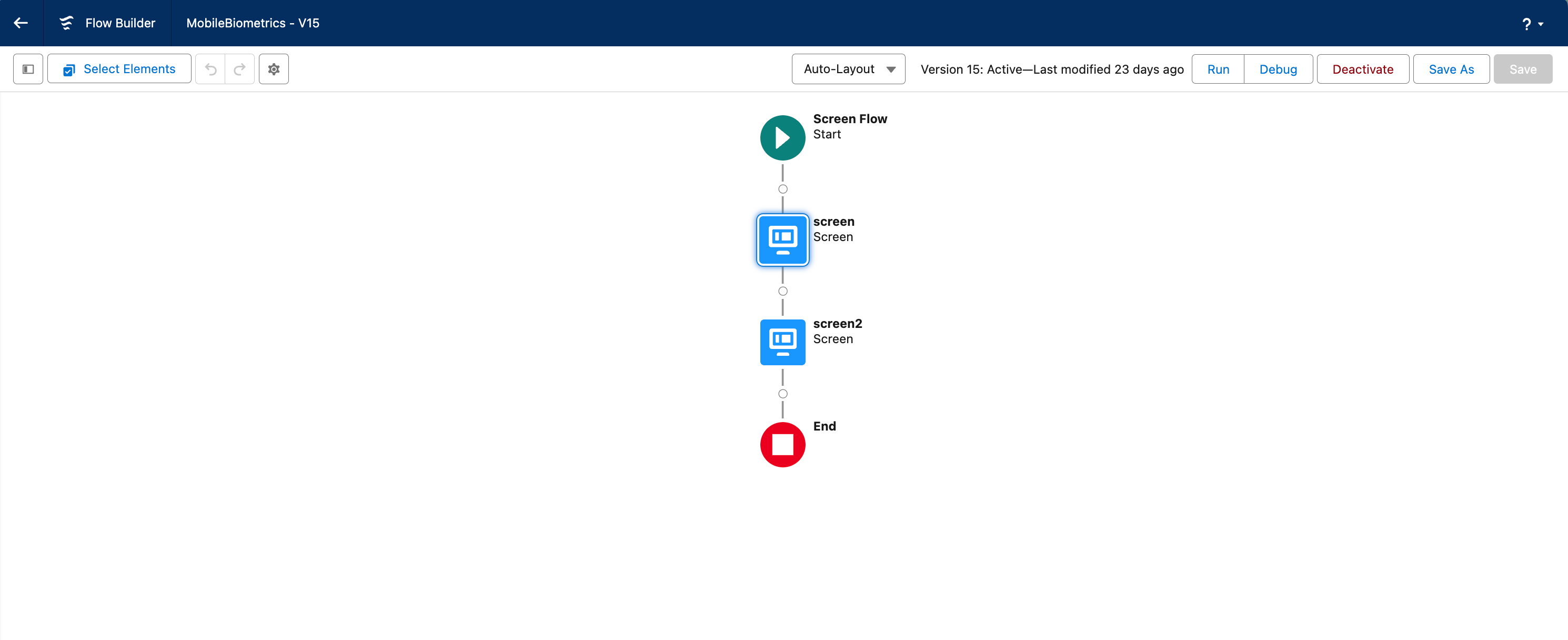
Overview of the screen flow configuration
## Guided Steps
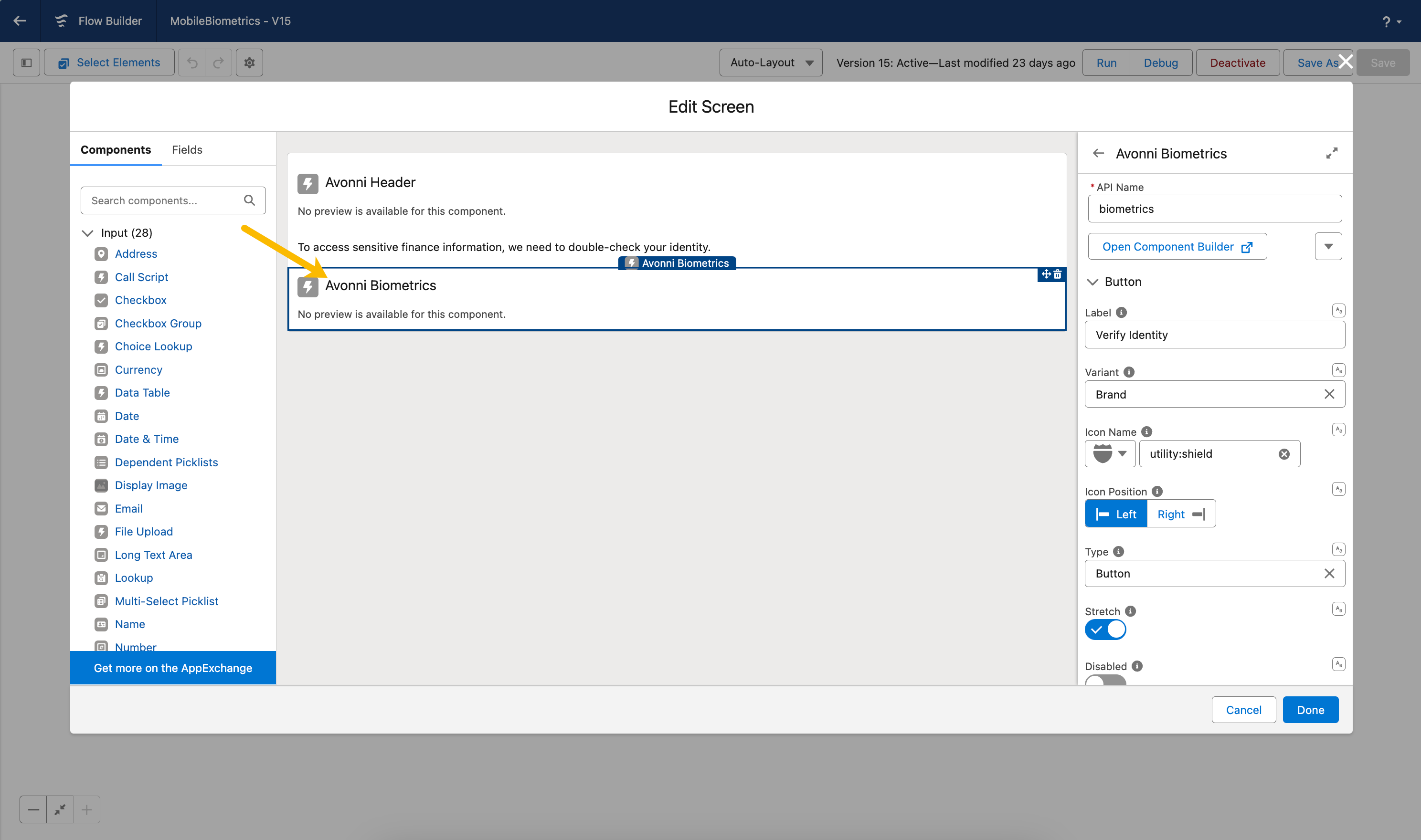
### Step 1: Add a screen element and add the Avonni Biometrics component inside
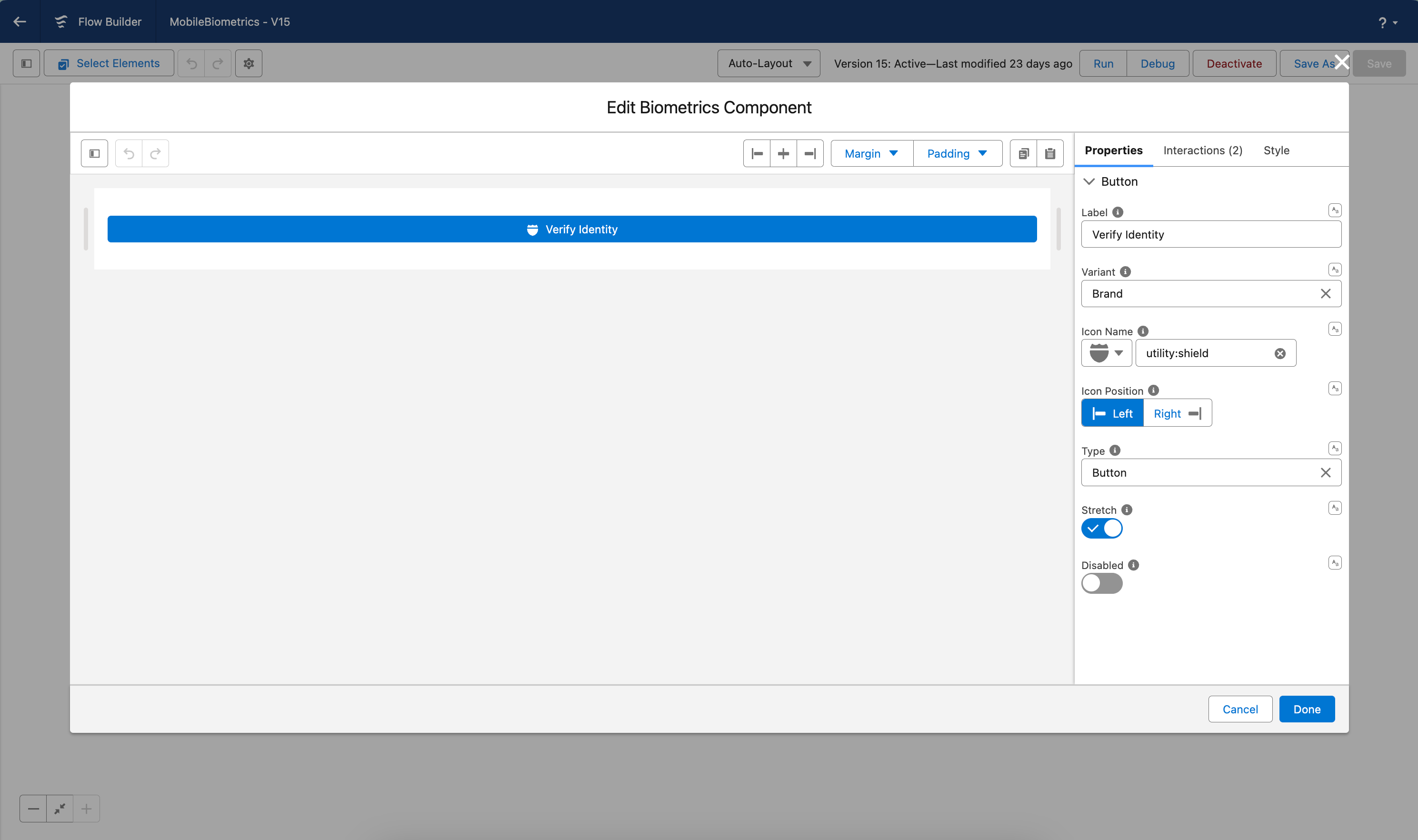
### Step 2: configure the Avonni Biometrics component.
In this step, we'll design the button users click to initiate the biometric authentication process. Customize the button's appearance (text, color, etc.) to match your flow's overall design seamlessly and provide your users a clear call to action.
Here are the key settings you can adjust:
* **Label:** Enter the text that will appear on the button (e.g., "Verify Identity," "Login with Biometrics").
* **Variant:** Choose a visual style for the button (e.g., brand, neutral, destructive).
* **Icon:** Select an icon to add a visual cue to the button.
Remember, the goal is to make the button visually appealing and easy for users to understand its purpose.
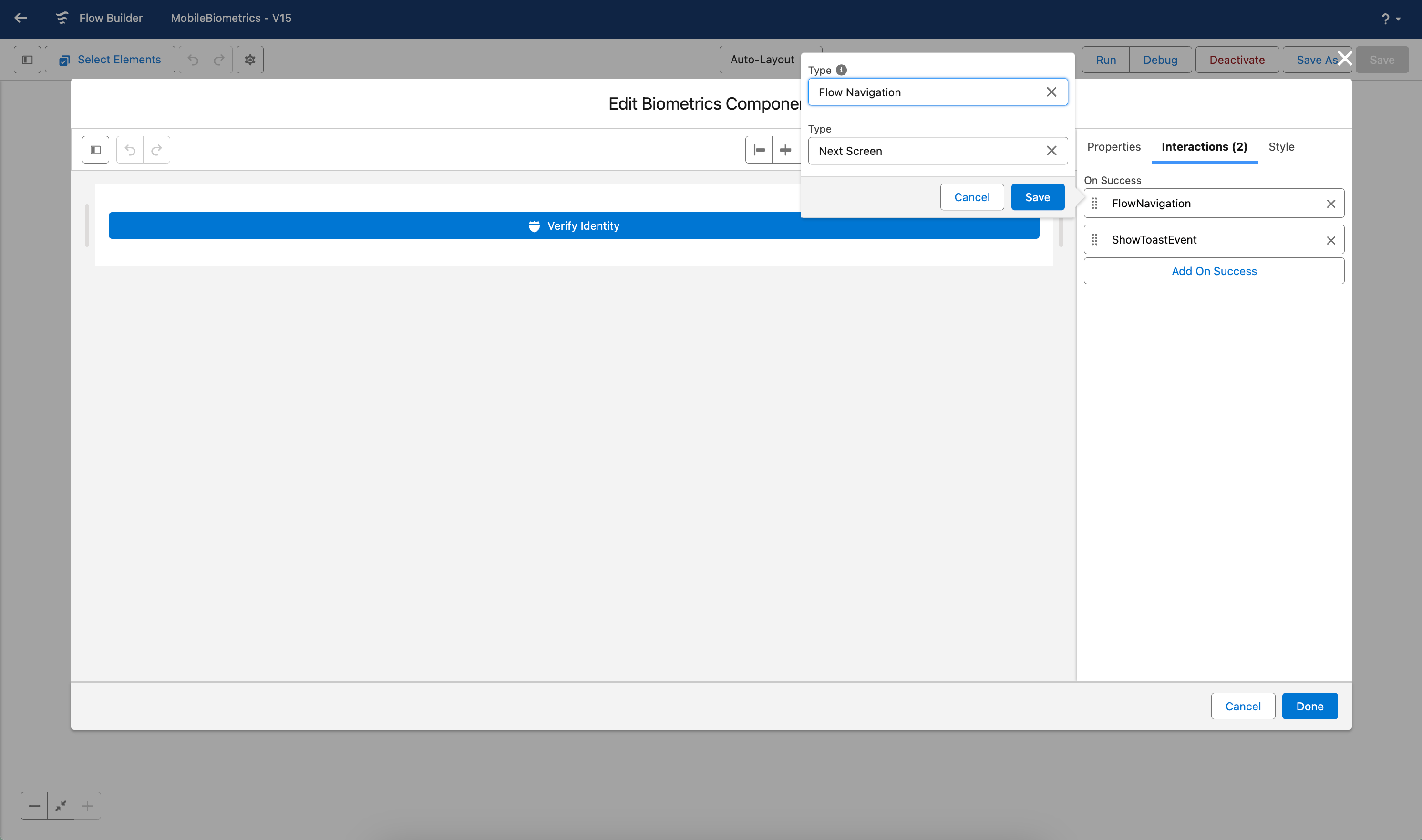
### Step 3: define the interaction
Now that you've designed the button, tell the Biometrics component what to do after successful authentication. This is where interactions come in.
Think of the interaction as the "next step" after verifying the user. In our example, we'll use the "Flow Navigation" interaction to move the user to the next screen. This is where you might display confidential data or continue the flow's process.
You can customize [the interaction to fit your specific needs](/flow/component-builder/interactions-panel.md). For instance, you could display a success message, trigger another flow, or perform other actions. The choice is yours.
---
# Agent Instructions
This documentation is published with GitBook. GitBook is the documentation platform designed so that both humans and AI agents can read, navigate, and reason over technical content effectively. Learn more at gitbook.com.
## Querying This Documentation
If you need additional information that is not directly available in this page, you can query the documentation dynamically by asking a question.
Perform an HTTP GET request on the current page URL with the `ask` query parameter, and the optional `goal` query parameter:
```
GET https://docs.avonnicomponents.com/flow/tutorials/components/biometrics/101-tutorial.md?ask=&goal=
```
`ask` is the immediate question: it should be specific, self-contained, and written in natural language.
`goal` is optional and describes the broader end goal you are ultimately trying to accomplish on behalf of the user. GitBook uses it to tailor the answer towards what is most useful for that goal.
The response will contain a direct answer to the question and relevant excerpts and sources from the documentation.
Use this mechanism when the answer is not explicitly present in the current page, you need clarification or additional context, or you want to retrieve related documentation sections.
.gif?alt=media)