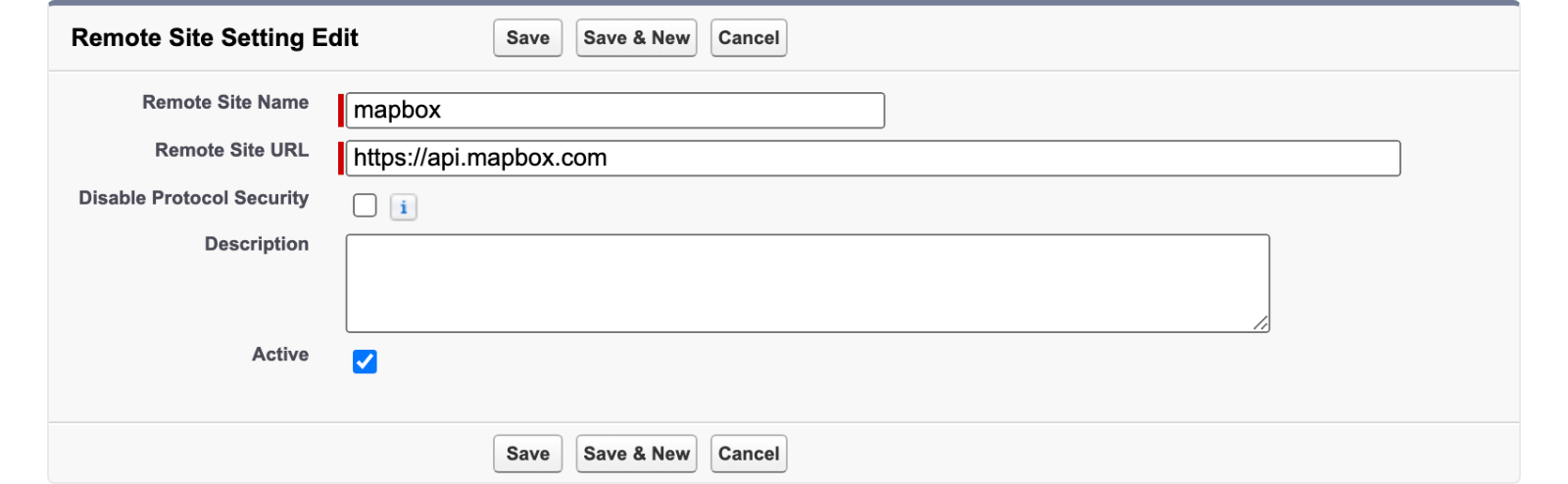
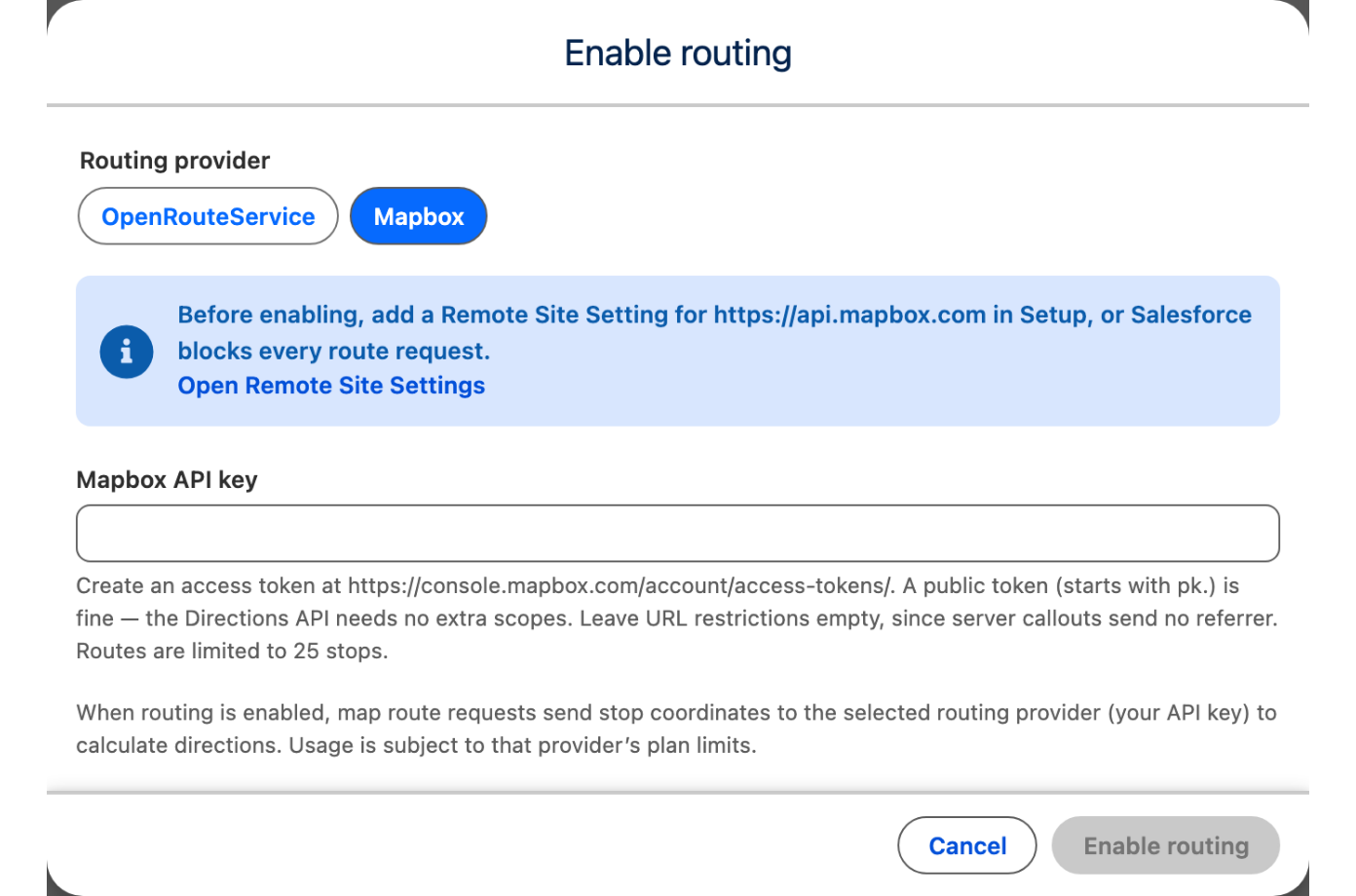
Routing Setup
Map route planning needs a routing provider. Routing is bring-your-own-key: you supply an API key from OpenRouteService or Mapbox, and Avonni hosts no routing backend of its own. Enable it once per org, and every route-capable map in the org can use it.
Before You Start
You need:
A Salesforce administrator with the Customize Application permission. Only such a user can open the routing settings or change them.
An API key from one of the two supported providers. Both offer a free tier β see Choose a Provider.
Open the Settings Tab
From the App Launcher, open the Avonni Flow Components app and select the Settings tab.
The Routing card shows the current Status and the actions available for it.
Choose a Provider
One provider is active at a time. Enabling one clears the other.
OpenRouteService
Create a free key at openrouteservice.org with a HeiGIT account.
Standard plan limits apply β roughly 2,000 directions per day. Paste the key exactly as issued; do not add a Bearer prefix.
Mapbox
Create an access token at console.mapbox.com.
A public token (starting pk.) is enough β the Directions and Optimization APIs need no extra scopes. Leave URL restrictions empty, because server-side callouts send no referrer.
Mapbox is the only provider that models traffic, so it is the only one where the route panel offers a departure or arrival time and reports arrival times per stop. It is also the only provider that can work out a route's stop order: Optimize asks Mapbox for the fastest driving order on routes of up to twelve stops, and orders the stops by straight-line proximity otherwise. Both providers cap a route at 25 stops.
Enable Routing
On the Routing card, click Enable routing.
Choose the Routing provider.
Paste the API key and click Enable routing.
The key is validated against the provider before anything is stored. A key the provider rejects is never saved.
Enabling runs server-side: the status moves through Configuring to Connected. You can leave the tab β the state is stored, so reopening the tab picks it up where it is.
How long that takes depends on the provider. Mapbox connects in a few seconds. OpenRouteService usually takes two to three minutes, because its credential is deployed to the org as metadata and the setup waits for that deploy to land before validating the key. A status sitting on Configuring for a couple of minutes is the normal path for OpenRouteService, not a sign that it has stalled β see Troubleshooting if it stays there much longer.
Status Values
Not configured
No provider is set up. Maps show no Route button, and the builder's Route section shows enablement guidance in place of its setting.
Configuring
The key is being validated and the credential set up. Transient.
Connected
Routing is live. The provider name is shown beside the status.
Verifying new key
A replacement key is being validated. The previous key stays active until the new one passes, so routing does not go down during a rotation.
Disabling
The credential is being removed. Transient.
When a key is rejected, the status returns to Not configured and the reason from the provider is shown beneath it. Nothing is stored, so the previous state is unchanged.
Route Stop Optimization
Once Mapbox is connected, the Routing card carries a Route stop optimization toggle. It governs what the Optimize button in a map's route panel does:
On (the default) β Optimize asks Mapbox for the fastest driving order, spending one provider request each time a user presses it.
Off β maps order the stops themselves at no cost. The order ignores roads, bridges and traffic, so the route is usually longer.
Turn it off if provider usage is a concern; leave it on otherwise. The setting is org-wide and takes effect on the next route, with no need to touch the maps themselves.
The toggle appears only for a provider that can optimize. OpenRouteService cannot, so maps always order their own stops there.
Grant Users Access
Enabling routing creates a permission set for the active provider:
Avonni Route ORS Accessβ for OpenRouteServiceAvonni Route Mapbox Accessβ for Mapbox
Assign it to everyone who needs to calculate routes on a map. Users without it can open the route panel but Calculate route fails.
Rotate a Key
Click Modify OpenRouteService API key (or Modify Mapbox API key, whichever provider is active) on the Routing card, paste the new key, and click Save API key. The new key is validated before it replaces the old one; if it fails, the existing key keeps working.
Rotate a key whenever the provider reissues it, or when the previous key may have been exposed.
Disable Routing
Click Disable and confirm. This removes the stored key, unassigns the provider's permission set, and stops routing for everyone in the org β maps no longer calculate directions until routing is enabled again with a key.
Privacy and Usage
When routing is enabled, calculating a route sends the stops' coordinates to the provider you chose, authenticated with your own API key. Usage counts against that provider's plan limits, and their terms govern the request.
The stored key is write-only. Once saved it cannot be read back β not from this tab, and not from Setup. If a key is lost, issue a new one with the provider and rotate.
Troubleshooting
The Settings tab is missing from the app β the tab is visible through the package's admin permission set. Assign that permission set to the user, or make the tab visible on their profile.
Opening the tab reports that only an administrator can change routing settings β the user lacks Customize Application. Routing settings are readable and writable only by administrators.
Enable fails with a Metadata API error mentioning Lightning sessions β the first-time credential setup could not run from the browser session. Have an administrator with CLI or API access create the credential once, then return here to save the key.
Status sits on Configuring β give OpenRouteService two to three minutes; that is how long its credential deploy takes. Past that, reload the tab: the state is stored server-side, so a stalled poll is not a stalled setup. If it is still there after a reload, check the provider's status page and try again.
Routes work for administrators but not for other users β those users are missing the active provider's permission set (see Grant Users Access).
Last updated
Was this helpful?