> For the complete documentation index, see [llms.txt](https://docs.avonnicomponents.com/llms.txt). Markdown versions of documentation pages are available by appending `.md` to page URLs; this page is available as [Markdown](https://docs.avonnicomponents.com/flow/getting-started/installation-and-licenses-management.md).

# Installation & Licenses management

Install the Avonni Flow Components package, then give every user the two things they need: a package license and the permission set.

Every user who runs a flow containing Avonni components needs two things: a **package license** and the **Avonni Flow Screen Components** permission set. One without the other produces errors, so this page covers the installation and both assignments.

<a href="https://appexchange.salesforce.com/appxListingDetail?listingId=a0N4V00000IDsfbUAD" class="button primary" data-icon="up-right-from-square">Install from AppExchange</a>

{% hint style="danger" %}

#### Enable Lightning Web Security first

The package needs [**Lightning Web Security**](https://developer.salesforce.com/docs/platform/lightning-components-security/guide/lws-enable.html) enabled in your org. Without it the installation fails with an error mentioning `LWC1503: Dynamic imports are not allowed`. In **Setup**, search for **Session Settings**, check **Use Lightning Web Security for Lightning web components and Aura components**, save, then install.
{% endhint %}

## What you are installing

|                            |                                                                  |
| -------------------------- | ---------------------------------------------------------------- |
| **AppExchange listing**    | Flow Components Library (70+)                                    |
| **Package name in Setup**  | Avonni Flow Components                                           |
| **Permission set**         | Avonni Flow Screen Components                                    |
| **Licenses in a sandbox**  | A site license is included: unlimited users, nothing to assign   |
| **Licenses in production** | Freemium plan, 10 licenses. For more, contact <sales@avonni.app> |

***

## Install the package

{% stepper %}
{% step %}

#### Open the listing

Click **Install from AppExchange** above. You land on the Avonni listing, with its overview, specs and security review.

You need a Salesforce user allowed to install managed packages in the target org, which usually means a System Administrator profile.
{% endstep %}

{% step %}

#### Click Get It Now

**Get It Now** starts the installation. AppExchange asks you to log in, then where to install. Install in a sandbox first, check your flows there, then run the production install.

<figure><img src="https://27923732-files.gitbook.io/~/files/v0/b/gitbook-x-prod.appspot.com/o/spaces%2F1FUd4apB9YHgCEMUFbVb%2Fuploads%2FD3oFepWXidnGtydcmDnt%2Fflow-install-get-it-now.png?alt=media" alt="The install panel of the Avonni listing on AppExchange: a blue Get It Now button above an outlined Try It button" width="320"><figcaption><p>On the listing, <strong>Get It Now</strong> is the button that installs the package.</p></figcaption></figure>
{% endstep %}

{% step %}

#### Choose who gets the components

* **Install for Admins Only** is the safe first move: you configure and test before anyone else sees the package.
* **Install for All Users** once you are ready to roll it out.

Day-to-day access is driven by the license and the permission set below, so you can widen it later without reinstalling.
{% endstep %}

{% step %}

#### Approve and install

Review the package permissions, then click **Install**. Salesforce confirms once the package is in place. A long install carries on in the background, and Salesforce emails you when it finishes.
{% endstep %}
{% endstepper %}

{% hint style="info" %}

#### Updates are not automatic

New releases do not reach your org on their own. Each release is a new version of the package, and you install it when you are ready. The [changelog](https://docs.avonnicomponents.com/changelog) always shows the current version and carries its install links for sandbox and production.
{% endhint %}

***

## Step One: Assigning Licenses

The license is what allows the package to run for a user.

{% stepper %}
{% step %}

#### Open Manage Licenses

In **Setup**, use Quick Find to open **Installed Packages**, find **Avonni Flow Components**, and click **Manage Licenses**.

<figure><img src="https://27923732-files.gitbook.io/~/files/v0/b/gitbook-x-prod.appspot.com/o/spaces%2F1FUd4apB9YHgCEMUFbVb%2Fuploads%2Fgit-blob-729b809045c662f9cadd67c190284b377289fcb8%2F2026-01-14_16-00-10.png?alt=media" alt="Setup, Installed Packages, with the Manage Licenses link of the Avonni Flow Components row outlined among the installed packages"><figcaption><p>Installed Packages, with Manage Licenses beside Avonni Flow Components.</p></figcaption></figure>
{% endstep %}

{% step %}

#### Add your users

Click **Add Users**, select everyone who will run a flow containing Avonni components, and click **Add**.
{% endstep %}
{% endstepper %}

{% hint style="info" %}
In a sandbox you can skip this step: sandboxes carry a site license, so every user is covered without an assignment.
{% endhint %}

***

## Step Two: Assigning Permission Sets

The permission set is what lets those users see the components and fetch their data through the API. A licensed user without it hits errors on the data components.

{% stepper %}
{% step %}

#### Open the permission set

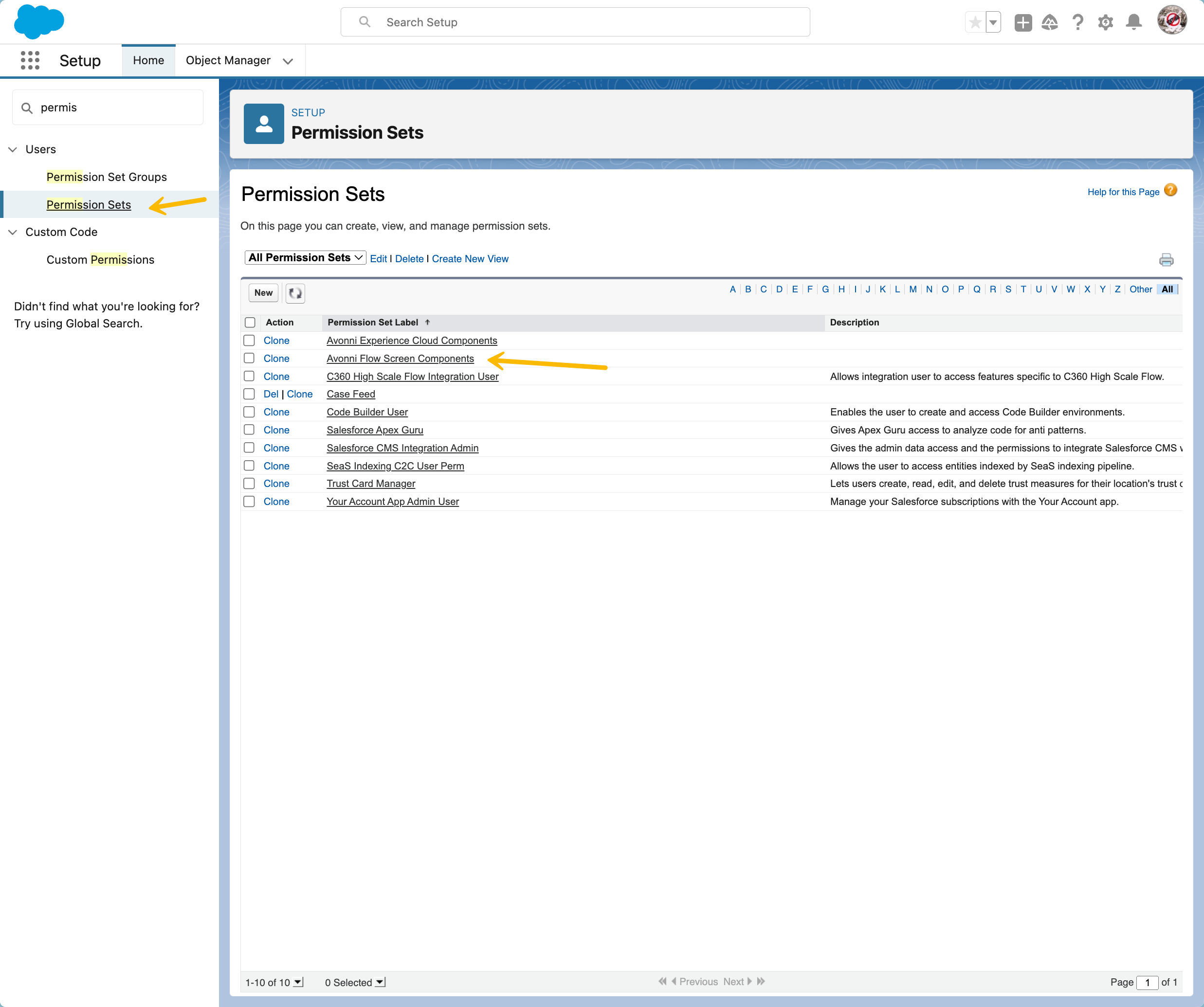
In **Setup**, use Quick Find to open **Permission Sets**, and click **Avonni Flow Screen Components**.

<figure><img src="https://27923732-files.gitbook.io/~/files/v0/b/gitbook-x-prod.appspot.com/o/spaces%2F1FUd4apB9YHgCEMUFbVb%2Fuploads%2Fgit-blob-e1f567e53bcab2c572e3ca177bb1a3773e258ef1%2F2023-12-13_11-28-00.png?alt=media" alt="The Permission Sets list in Setup, with Avonni Flow Screen Components outlined in the Permission Set Label column"><figcaption><p>The permission set to assign is <strong>Avonni Flow Screen Components</strong>.</p></figcaption></figure>
{% endstep %}

{% step %}

#### Assign the same users

Click **Manage Assignments**, then **Add Assignments**, select the users you licensed in step one, and click **Assign**.
{% endstep %}
{% endstepper %}

{% hint style="success" %}

#### Automate it for new users

A record-triggered flow can assign the license and the permission set whenever a user is created. [Walkthrough on Automation Champion](https://automationchampion.com/2022/03/17/auto-assign-package-license-to-new-users/).
{% endhint %}

***

## Guest User Access (Experience Cloud)

{% hint style="warning" %}
Guest access is an **optional add-on** for production orgs. It lets visitors run your flows on a public Experience Cloud site without a Salesforce login. [Contact us](mailto:experiencecomponents@avonni.app) to enable it on your org.
{% endhint %}

Once the add-on is on, three things have to be true before a guest can run a flow that contains Avonni components.

{% stepper %}
{% step %}

#### Open the site to guests, and to public APIs

In **Experience Builder**, under **Settings > General**, check **Guest users can see and interact with the site without logging in**.

<figure><img src="https://27923732-files.gitbook.io/~/files/v0/b/gitbook-x-prod.appspot.com/o/spaces%2F1FUd4apB9YHgCEMUFbVb%2Fuploads%2Fgit-blob-7e586157044ad70d5c530a2430d5b2efc7b9c0a6%2F2024-06-10_13-20-14.png?alt=media" alt="The General settings of Experience Builder, with the Public Access checkbox Guest users can see and interact with the site without logging in checked and outlined"><figcaption><p>Settings, General: Public Access.</p></figcaption></figure>

Then, in the site's **Administration** menu, open **Preferences** and check **Allow guest users to access public APIs**.

<figure><img src="https://27923732-files.gitbook.io/~/files/v0/b/gitbook-x-prod.appspot.com/o/spaces%2F1FUd4apB9YHgCEMUFbVb%2Fuploads%2Fgit-blob-e3b09076d012327059e49740593d7e433e9d4cec%2F2024-06-10_13-21-12.png?alt=media" alt="The Preferences page of the site Administration menu, with Allow guest users to access public APIs checked and outlined"><figcaption><p>Administration, Preferences: public API access.</p></figcaption></figure>
{% endstep %}

{% step %}

#### Give the guest profile access to the flow

From **Settings > General**, open the **Guest User Profile** of your site.

<figure><img src="https://27923732-files.gitbook.io/~/files/v0/b/gitbook-x-prod.appspot.com/o/spaces%2F1FUd4apB9YHgCEMUFbVb%2Fuploads%2Fgit-blob-929ca28aa842594dfaa41dab660751b49506f034%2F2024-06-10_13-25-53.png?alt=media" alt="The General settings of Experience Builder, with the Guest User Profile link under Site Details outlined"><figcaption><p>The Guest User Profile link opens the profile in Setup.</p></figcaption></figure>

Scroll to **Enabled Flow Access**, or search for it in the Enhanced Profile User Interface, click **Edit**, and move the flows that contain Avonni components into the enabled list.

<figure><img src="https://27923732-files.gitbook.io/~/files/v0/b/gitbook-x-prod.appspot.com/o/spaces%2F1FUd4apB9YHgCEMUFbVb%2Fuploads%2Fgit-blob-98fb3f57a4517c67e11d3763ab603c375020a4d1%2F2024-06-10_13-26-47.png?alt=media" alt="The guest user profile in Setup, scrolled to the Enabled Flow Access section, with its Edit button outlined"><figcaption><p>Enabled Flow Access, on the guest user profile.</p></figcaption></figure>
{% endstep %}

{% step %}

#### Assign the permission set to the guest user

In **Setup > Permission Sets**, open **Avonni Flow Screen Components**, click **Manage Assignments**, then **Add Assignment**, and select the guest user of your site.

<figure><img src="https://27923732-files.gitbook.io/~/files/v0/b/gitbook-x-prod.appspot.com/o/spaces%2F1FUd4apB9YHgCEMUFbVb%2Fuploads%2Fgit-blob-88be6d207a16310ccb94ded7db513abf0e3eebf3%2F2024-06-10_13-36-04.png?alt=media" alt="The Select Users to Assign page of the Avonni Flow Screen Components permission set, with the site&#x27;s guest user row checked"><figcaption><p>Pick the guest user that belongs to your site.</p></figcaption></figure>
{% endstep %}

{% step %}

#### Publish the site

Publish your site to make the changes live. Guests can now run the flow and interact with the Avonni components in it.
{% endstep %}
{% endstepper %}

***

## Optional: Routing for Map Routes

The Map component can plan a multi-stop driving route. The feature stays off until an administrator enables it, and its setup is separate from licenses and permission sets.

* Routing is **bring your own key**: you supply an API key from OpenRouteService or Mapbox. Avonni hosts no routing backend.
* Enable it from the **Settings** tab of the **Avonni Flow Components** app in the App Launcher.
* No permission set is needed. Once routing is enabled, every user who can open a map with the route panel turned on can calculate routes, including guest users of Experience Cloud sites.

<a href="/flow/getting-started/routing-setup.md" class="button secondary" data-icon="route">Routing Setup</a>

***

## Troubleshooting Common Issues

If you or your users run into trouble, check these first.

<table><thead><tr><th>Issue</th><th width="226.3779296875">Likely Cause</th><th>Solution</th></tr></thead><tbody><tr><td><strong>Package installation fails with "LWC1503: Dynamic imports are not allowed".</strong></td><td>Lightning Web Security is not enabled.</td><td>In Setup > Session Settings, check "Use Lightning Web Security for Lightning web components and Aura components", save, and run the installation again.</td></tr><tr><td><strong>"Insufficient Privileges" or an error message inside the flow.</strong></td><td>Missing license.</td><td>Go to Setup > Installed Packages > Manage Licenses and make sure the user is added.</td></tr><tr><td><strong>Component visible but data not loading (a Query or a Data Table, for instance).</strong></td><td>Missing permission set.</td><td>Assign the Avonni Flow Screen Components permission set to the user.</td></tr><tr><td><strong>Guest users see an empty space where the flow should be.</strong></td><td>Profile flow access.</td><td>Make sure the flow is in the Enabled Flow Access list of the guest user profile.</td></tr><tr><td><strong>Components fail to load on public sites only.</strong></td><td>Public API access.</td><td>In the site Administration menu, under Preferences, check "Allow guest users to access public APIs".</td></tr><tr><td><strong>"License Limit Reached" during an assignment.</strong></td><td>Out of Freemium licenses.</td><td>All 10 free production licenses are in use. Contact <a href="mailto:sales@avonni.app">sales@avonni.app</a> to add more.</td></tr></tbody></table>

### Still having trouble?

If the license and the permission set are both in place and the problem persists:

* **Check the browser console** for 403 or "Access Denied" errors.
* **After a sandbox refresh**, re-verify the license assignments, though sandboxes generally run on a site license.
* **Contact support** at <support@avonni.app> with a screenshot of the error.


---

# Agent Instructions
This documentation is published with GitBook. GitBook is the documentation platform designed so that both humans and AI agents can read, navigate, and reason over technical content effectively. Learn more at gitbook.com.

## Querying This Documentation
If you need additional information that is not directly available in this page, you can query the documentation by asking a question.

Perform an HTTP GET request on the following URL with the `ask` and `goal` query parameters:

```
GET https://docs.avonnicomponents.com/flow/getting-started/installation-and-licenses-management.md?ask=<question>&goal=<user_goal>
```

`ask` is the immediate question: it should be specific, self-contained, and written in natural language.
`goal` is what the user is ultimately trying to achieve, the reason they need the answer. Sharing it helps GitBook give you a better, more relevant answer. A goal is most helpful when it describes the outcome the user wants rather than restating the question. For example, with `ask=how do I create an API token`, a goal like `automate deployments from our CI pipeline` lets GitBook tailor the answer to that use case.

The response will contain a direct answer to the question and relevant excerpts and sources from the documentation.

Use this mechanism when the answer is not explicitly present in the current page, you need clarification or additional context, or you want to retrieve related documentation sections.