> For the complete documentation index, see [llms.txt](https://docs.avonnicomponents.com/llms.txt). Markdown versions of documentation pages are available by appending `.md` to page URLs; this page is available as [Markdown](https://docs.avonnicomponents.com/flow/flow-components/timer.md).

# Timer

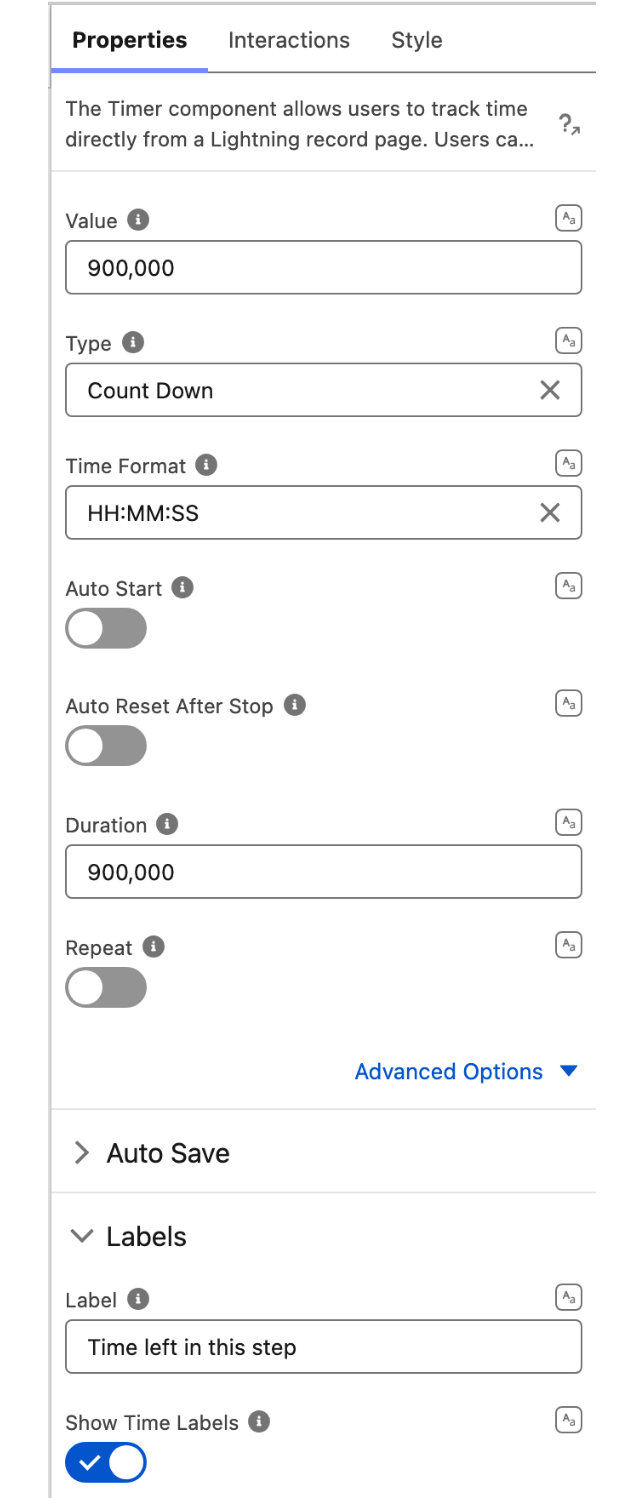
The **Timer** component tracks time directly on a Flow screen. Users start, pause, stop, and reset the timer with configurable buttons, and the recorded value can be saved automatically to a record field — useful for logging time spent on tasks, cases, or other record-based work.

## Overview

Configure whether the timer counts up or down, how the time is formatted, whether it starts automatically, and which controls appear. When Auto Save is enabled, stopping the timer writes the elapsed value to a chosen field on a record.

## Configuration

### Timer

Set the core behavior of the timer:

* **Value** sets the timer's starting value (in milliseconds).
* **Type** controls the direction of the count: **Count Up** (default) or **Count Down**.
* **Time Format** sets how the time is displayed: **HH:MM:SS**, **HH:MM**, **MM:SS**, **HH**, **MM**, **SS**, or **Custom**.
* **Custom Time Format** defines the display pattern using `hh`, `mm`, `ss`, and `ms` tokens separated by `:` or `.` (for example `hh:mm:ss.ms`). Requires **Time Format** = **Custom**.
* **Auto Start** starts the timer automatically when the screen renders.
* **Auto Reset After Stop** resets the timer to its starting value each time it is stopped.
* **Duration** sets how long the timer runs, in milliseconds.
* **Repeat** restarts the timer when it reaches the duration. Requires **Duration**.
* **Interval** sets how often the display updates, in milliseconds. (Advanced)

### Auto Save

Persist the recorded time to a record when the timer stops:

* **Auto Save On Stop** saves the timer value automatically when the timer is stopped.
* **Object API Name** is the object whose record will be updated.
* **Field** is the field the timer value is written to. Requires **Auto Save On Stop**.
* **Record Id** identifies the record to update. Requires **Field**.

### Labels

* **Show Time Labels** displays descriptive labels beside the time units.
* **Time Labels Format** sets the label style: **Short** or **Long**. Requires **Show Time Labels**.
* **Time Labels Position** places the labels **Top** or **Bottom**. Requires **Show Time Labels**.

### Buttons

* **Buttons Position** places the controls **Left**, **Right**, **Top**, or **Bottom**.
* **Start Button Label** and **Start Button Icon** customize the start control.
* **Pause Button Label** and **Pause Button Icon** customize the pause control.
* **Disable Pause Button** hides the ability to pause. (Advanced)
* **Stop Button Label** and **Stop Button Icon** customize the stop control.
* **Display Reset Button** shows a reset control, customized with **Reset Button Label** and **Reset Button Icon**.

## Use Cases

* **Case handling** — log the time an agent spends on a case and save it to a field on stop.
* **Timed tasks** — count down a fixed duration and repeat it for interval-based work.
* **Self-service** — let users track time on a guided Flow without leaving the screen.

## Interactions

The Timer emits an event on each control action, so a Flow interaction can react to it:

### On Start

Triggered when the timer is started.

### On Pause

Triggered when the timer is paused.

### On Stop

Triggered when the timer is stopped.

### On Save

Triggered when the timer value is saved.

## Styling

The Style tab exposes the following categories: **Margin**, **Padding**, **Border**, **Background**, **Horizontal Alignment**, and **Flow Dialog** (spacing and appearance when the component is shown inside a Flow dialog).

## Output Variables

| Output variable    | Type   | What it returns                                                           |
| ------------------ | ------ | ------------------------------------------------------------------------- |
| **Value**          | Number | The current timer value, in milliseconds.                                 |
| **Value On Pause** | Number | The timer value captured at the moment it was paused.                     |
| **State**          | Text   | The current state of the timer (for example running, paused, stopped).    |
| **Record**         | Record | The record updated when the timer is stopped (when Auto Save is enabled). |

## Troubleshooting

* **The timer doesn't save** — confirm **Auto Save On Stop** is enabled and that **Object API Name**, **Field**, and **Record Id** all resolve to a writable record and field.
* **Count Down never ends** — set a **Duration**; without one, there is no target for the countdown to reach.
* **The display isn't what I expect** — when using a custom pattern, check **Custom Time Format** uses only the `hh`, `mm`, `ss`, `ms` tokens and that **Time Format** is set to **Custom**.


---

# Agent Instructions
This documentation is published with GitBook. GitBook is the documentation platform designed so that both humans and AI agents can read, navigate, and reason over technical content effectively. Learn more at gitbook.com.

## Querying This Documentation
If you need additional information that is not directly available in this page, you can query the documentation dynamically by asking a question.

Perform an HTTP GET request on the current page URL with the `ask` query parameter, and the optional `goal` query parameter:

```
GET https://docs.avonnicomponents.com/flow/flow-components/timer.md?ask=<question>&goal=<endgoal>
```

`ask` is the immediate question: it should be specific, self-contained, and written in natural language.
`goal` is optional and describes the broader end goal you are ultimately trying to accomplish on behalf of the user. GitBook uses it to tailor the answer towards what is most useful for that goal.

The response will contain a direct answer to the question and relevant excerpts and sources from the documentation.

Use this mechanism when the answer is not explicitly present in the current page, you need clarification or additional context, or you want to retrieve related documentation sections.