> For the complete documentation index, see [llms.txt](https://docs.avonnicomponents.com/llms.txt). Markdown versions of documentation pages are available by appending `.md` to page URLs; this page is available as [Markdown](https://docs.avonnicomponents.com/flow/component-builder/interactions-panel/open-quick-action.md).
# Open Quick Action
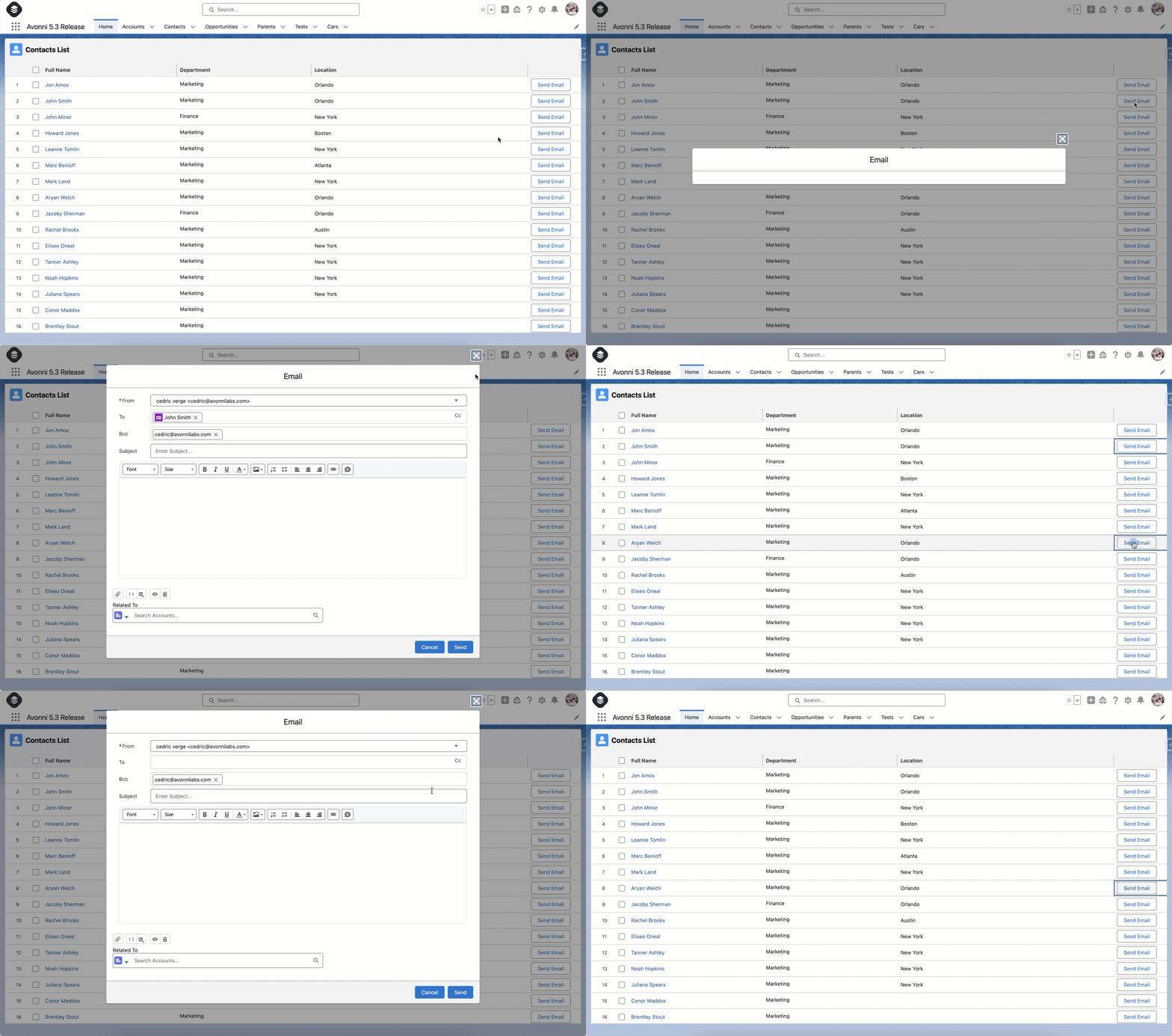
The Open Quick Action interaction opens a Salesforce Quick Action (global or object-specific) directly from your screen flow components, optionally targeting a record and prefilling field values.
## Overview
The Open Quick Action interaction lets you trigger Salesforce Quick Actions directly from your screen flow components.
* **Launches Actions:** Trigger predefined Salesforce Quick Actions.
* **Enhances Flow Experience:** Make your flows more interactive and efficient.
{% hint style="warning" %}
The Open Quick Action interaction doesn't function when your flow is embedded within an Experience Cloud Site. It's designed to work only within internal Salesforce applications.
{% endhint %}
## Configuration
1. **Configure Your Avonni Component:** Set up the Avonni component (e.g., Data Table, Button) as you normally would.
2. **Create an Action:** Add an action to the component to trigger the Open Quick Action. This could be:
* A header button
* An action button within the component
* A row action (if using the Data Table)
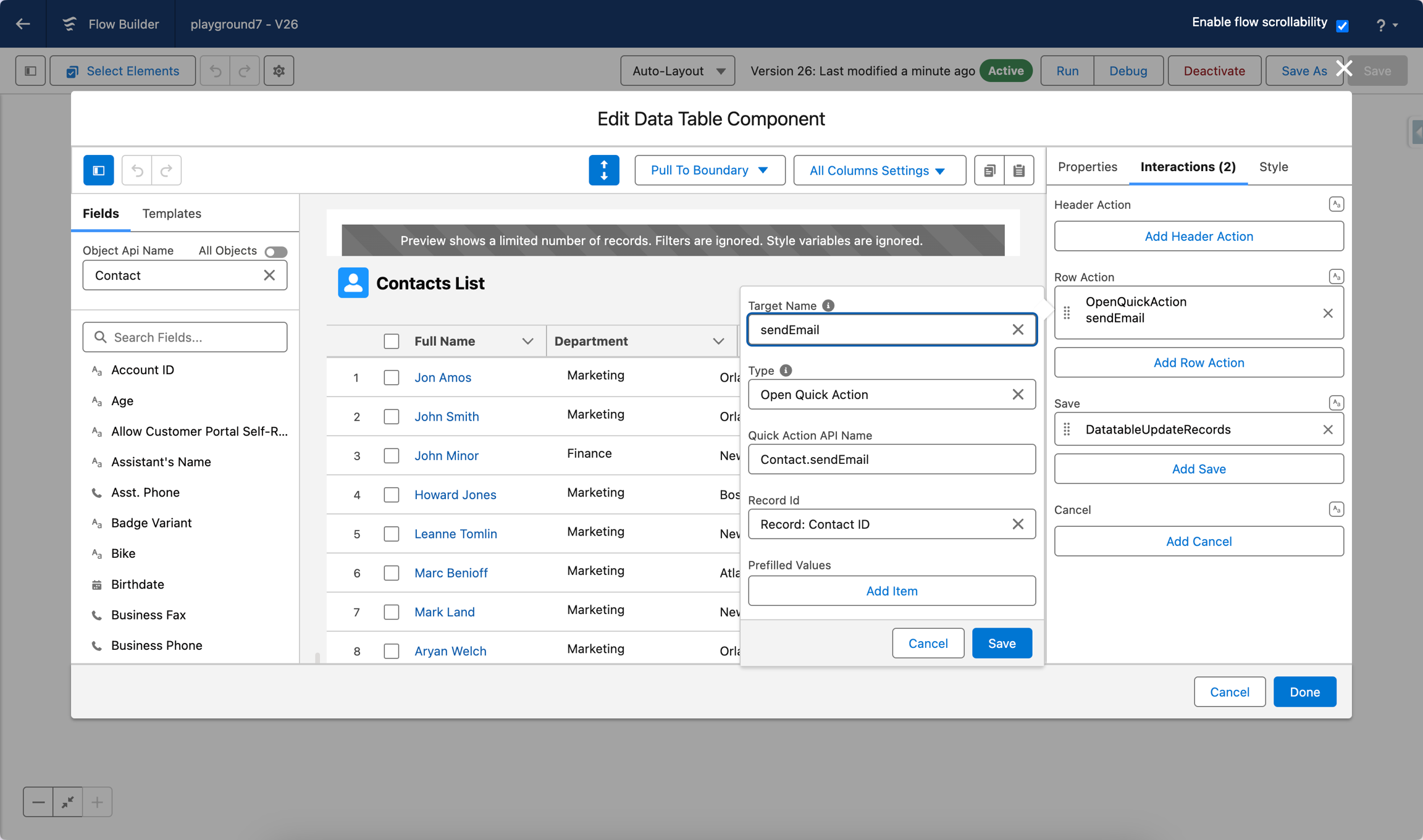
3. **Configure the Interaction:**
* Go to the **Interactions** tab of the component.
* Create a new interaction and choose the trigger element (e.g., the button you just created).
* **Select a Target Name:** Choose the action you created in step 2.
* From the **Type** dropdown, select "Open Quick Action."
* Enter the API Name of the Quick Action you want to use. If selecting a Quick Action from a specific object, include the object's API name followed by a dot (.) before the Quick Action's API name.
For example, if you want to use the "SendEmail" Quick Action on the Contact object, you would enter: **`Contact.SendEmail`**.

* **Record ID Field:** Specify the field that contains the record ID you want to pass to the Quick Action.
* **Prefilled Values (Optional):** Add any default values you want to pre-fill in the Quick Action form.
{% hint style="danger" %}
**Passing Record ID to Quick Actions**
Think of it this way: for a component to launch a Quick Action and pass along the record ID, it must be directly connected to the record's data.
The Data Table works because it displays the record's information. However, suppose you're using a component like a Header or Button to show a record's name (maybe by pulling it from a variable). In that case, that component isn't truly linked to the record's data in a way that Flow Builder can understand.
It's like the component knows the record's name but not its " address." So, it can't tell the Quick Action where to find the record to perform the action.
{% endhint %}
When users click the button or trigger the action, the selected Quick Action automatically opens, passing the relevant record ID and prefilled values for a seamless user experience.
---
# Agent Instructions
This documentation is published with GitBook. GitBook is the documentation platform designed so that both humans and AI agents can read, navigate, and reason over technical content effectively. Learn more at gitbook.com.
## Querying This Documentation
If you need additional information that is not directly available in this page, you can query the documentation dynamically by asking a question.
Perform an HTTP GET request on the current page URL with the `ask` query parameter, and the optional `goal` query parameter:
```
GET https://docs.avonnicomponents.com/flow/component-builder/interactions-panel/open-quick-action.md?ask=&goal=
```
`ask` is the immediate question: it should be specific, self-contained, and written in natural language.
`goal` is optional and describes the broader end goal you are ultimately trying to accomplish on behalf of the user. GitBook uses it to tailor the answer towards what is most useful for that goal.
The response will contain a direct answer to the question and relevant excerpts and sources from the documentation.
Use this mechanism when the answer is not explicitly present in the current page, you need clarification or additional context, or you want to retrieve related documentation sections.