> For the complete documentation index, see [llms.txt](https://docs.avonnicomponents.com/llms.txt). Markdown versions of documentation pages are available by appending `.md` to page URLs; this page is available as [Markdown](https://docs.avonnicomponents.com/flow/component-builder/interactions-panel/flow-navigation.md).
# Flow Navigation
The Flow Navigation interaction moves the user to another screen within the running flow.
## Overview
Flow Navigation actions give you precise control over how users move through your screens in a Salesforce flow. This is especially useful when you want different interactions (like clicking a button or saving data) to lead to different screens.
## Configuration
| Action | Navigation Label | Description |
| ------ | ---------------- | ----------------------------------------------------------------------------------------------------------------------------------------------------- |
| NEXT | Next | Takes the user to the *next screen* in your flow. Think of it like moving forward in a book. |
| BACK | Previous | Takes the user back to the screen they were on *immediately before*. Like hitting the "back" button in your web browser. |
| PAUSE | Pause | This lets you save the user's progress in the flow and allows them to come back and complete it later. This is handy for longer or more complex flows |
| FINISH | Finish | This ends the flow. You'll typically use this on the last screen or when a specific condition is met. |
{% hint style="warning" %}
"Next" and "Previous" only work if another screen is defined after or before the current one.
{% endhint %}
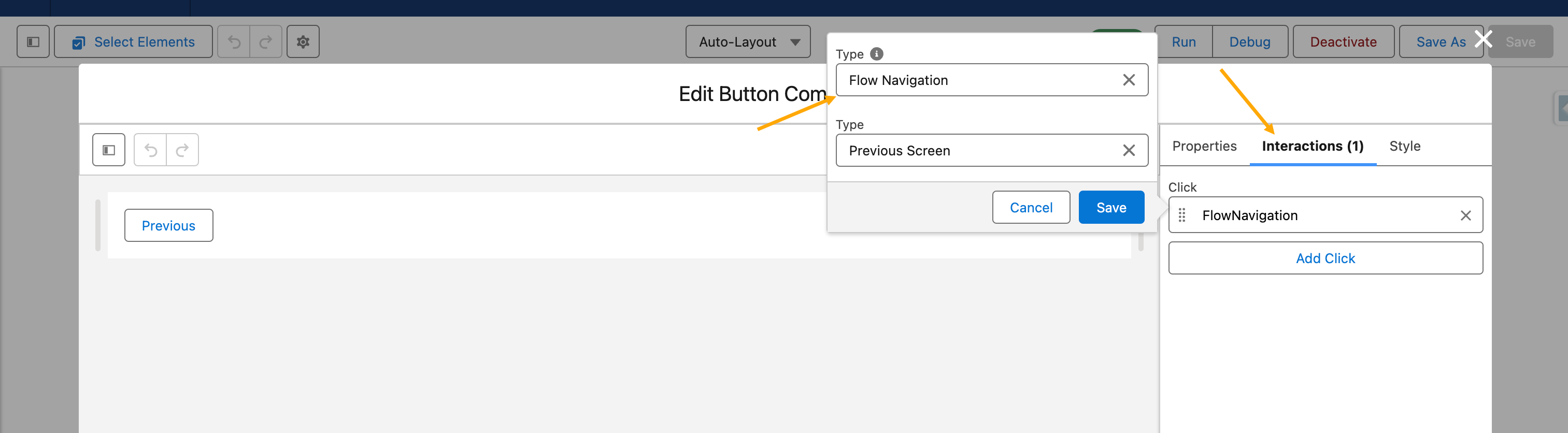
### How to access the Flow Navigation actions
Flow Navigation actions are accessible from the [Interaction Panel](/flow/component-builder/interactions-panel.md).
#### Steps to follow
* **Open the Interaction Panel**
* Create your action
* Select "**`Flow Navigation`**" as type
* And define a navigation action.
## Example
Imagine a user filling out a form on a screen. When they click "Save", you can use a Flow Navigation action to automatically save their input and take them to the next screen, where they might see a summary of their data.
---
# Agent Instructions
This documentation is published with GitBook. GitBook is the documentation platform designed so that both humans and AI agents can read, navigate, and reason over technical content effectively. Learn more at gitbook.com.
## Querying This Documentation
If you need additional information that is not directly available in this page, you can query the documentation dynamically by asking a question.
Perform an HTTP GET request on the current page URL with the `ask` query parameter, and the optional `goal` query parameter:
```
GET https://docs.avonnicomponents.com/flow/component-builder/interactions-panel/flow-navigation.md?ask=&goal=
```
`ask` is the immediate question: it should be specific, self-contained, and written in natural language.
`goal` is optional and describes the broader end goal you are ultimately trying to accomplish on behalf of the user. GitBook uses it to tailor the answer towards what is most useful for that goal.
The response will contain a direct answer to the question and relevant excerpts and sources from the documentation.
Use this mechanism when the answer is not explicitly present in the current page, you need clarification or additional context, or you want to retrieve related documentation sections.