> For the complete documentation index, see [llms.txt](https://docs.avonnicomponents.com/llms.txt). Markdown versions of documentation pages are available by appending `.md` to page URLs; this page is available as [Markdown](https://docs.avonnicomponents.com/flow/build-with-ai/prompt-library.md).

# Prompt Library

Copy-paste prompts for building screen flows with Avonni Flow Screen Components, organized by goal.

{% hint style="warning" %}
🚧 **Early access.** Build with AI is rolling out gradually and improving with every release. Something unclear, missing, or broken? [Tell us](/flow/help/support-and-troubleshooting.md): your feedback directly shapes what we improve next.
{% endhint %}

Every prompt on this page is ready to paste into Claude, Cursor, or GitHub Copilot once your assistant is set up. Copy one, swap in your own objects and fields, and send. The assistant verifies every component and interaction against the MCP server before generating, so you can be ambitious.

{% hint style="info" %}
**How to adapt a prompt:** replace the objects (`Account`, `Case`, `Event`) and groupings with yours, and describe the outcome you want. You don't need to name properties or settings: the assistant looks up what exists and configures it.
{% endhint %}

## Guided data entry

Screens that make input fast and hard to get wrong.

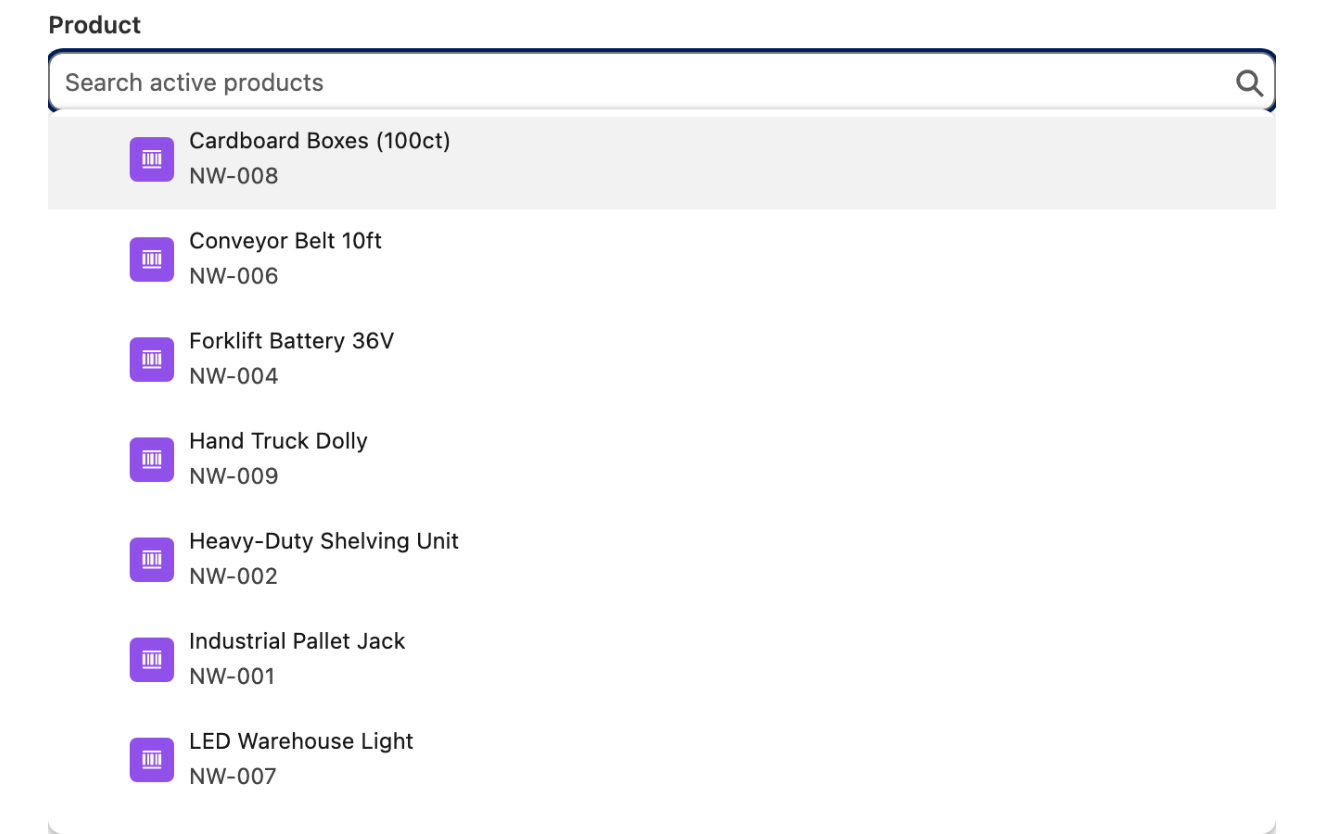
> Add a Combobox of active Products to my screen, searchable, with the selected record available to the next screen.

<figure><img src="https://27923732-files.gitbook.io/~/files/v0/b/gitbook-x-prod.appspot.com/o/spaces%2F1FUd4apB9YHgCEMUFbVb%2Fuploads%2FMHdoSMH5gGGYJ9HpypUw%2Fprompt-01-products.png?alt=media" alt="The Combobox dropdown open on seven products, each one showing its product code under the name"><figcaption><p>The field is the search box: typing filters the list as you go. The product the user picks is available to the next screen.</p></figcaption></figure>

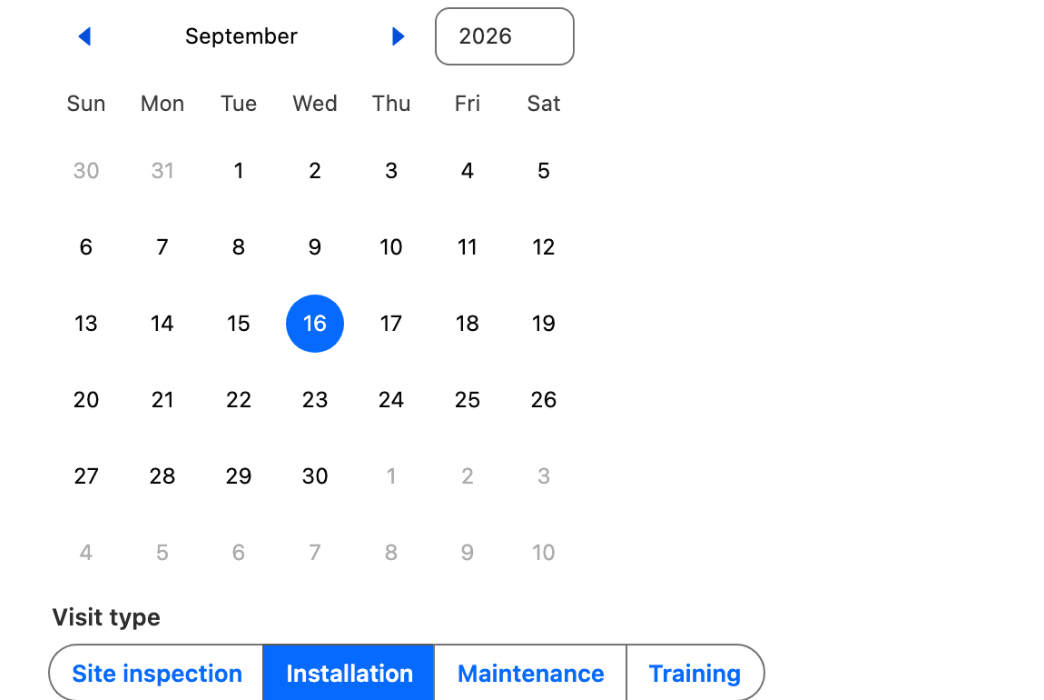
> Add a Date Picker and an Input Choice Set for the visit type to my intake screen.

<figure><img src="https://27923732-files.gitbook.io/~/files/v0/b/gitbook-x-prod.appspot.com/o/spaces%2F1FUd4apB9YHgCEMUFbVb%2Fuploads%2FZLLkqpEW947bs6B75fOt%2Fprompt-02-intake.png?alt=media" alt="A month calendar with the 16th selected, above a row of four visit type buttons with Installation active"><figcaption><p>Both controls on one screen: the day above, the visit type as buttons underneath.</p></figcaption></figure>

> Add a Barcode Scanner to my screen and store the scanned value in a flow variable.

<figure><img src="https://27923732-files.gitbook.io/~/files/v0/b/gitbook-x-prod.appspot.com/o/spaces%2F1FUd4apB9YHgCEMUFbVb%2Fuploads%2FZ54ANfe0rdDpBW1NYUHd%2Fprompt-03-scan.png?alt=media" alt="A barcode field with a CODE_128 type selector beside it and a scanned value listed underneath"><figcaption><p>On a desktop the scanner is an input with a barcode type beside it. On a mobile device the same component opens the camera.</p></figcaption></figure>

## Working with records

Let users find, pick, and act on records inside the flow.

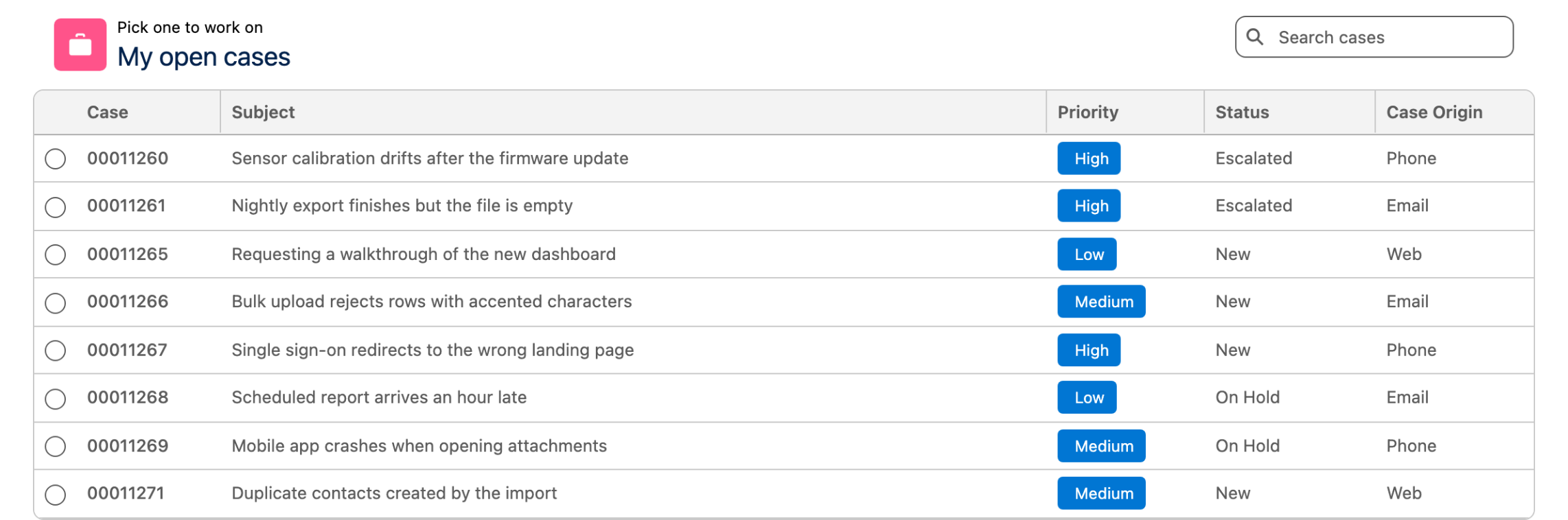
> Add an Avonni Data Table of open Cases for the current user with a search bar, and move to the next screen when a row is selected.

<figure><img src="https://27923732-files.gitbook.io/~/files/v0/b/gitbook-x-prod.appspot.com/o/spaces%2F1FUd4apB9YHgCEMUFbVb%2Fuploads%2F1qHMc2m9KpWiEpqwVWUc%2Fprompt-04-cases.png?alt=media" alt="A table of open cases with case number, subject, priority, status and origin, and a search box in the header"><figcaption><p>The signed-in user's open cases, searchable from the header. Selecting a row moves the flow to the next screen.</p></figcaption></figure>

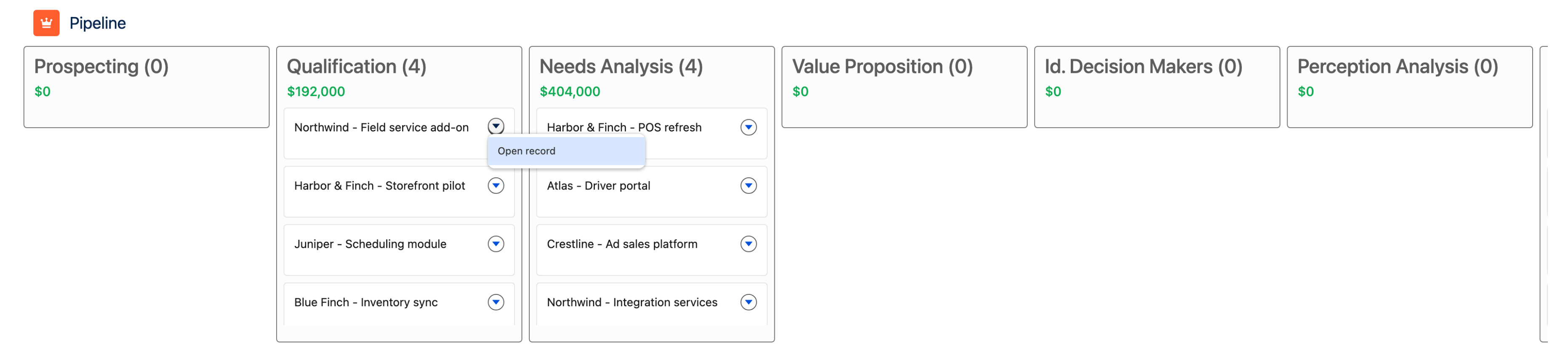
> Add a Kanban of Opportunities grouped by stage to my screen flow, with a card action that opens the record.

<figure><img src="https://27923732-files.gitbook.io/~/files/v0/b/gitbook-x-prod.appspot.com/o/spaces%2F1FUd4apB9YHgCEMUFbVb%2Fuploads%2FTLxEbubgU3jeVppijJup%2Fprompt-05-kanban.png?alt=media" alt="A kanban board of opportunities in stage columns, one card&#x27;s action menu open on Open record"><figcaption><p>Opportunities grouped by stage, each column headed with its total. Every card carries its own <strong>Open record</strong> action.</p></figcaption></figure>

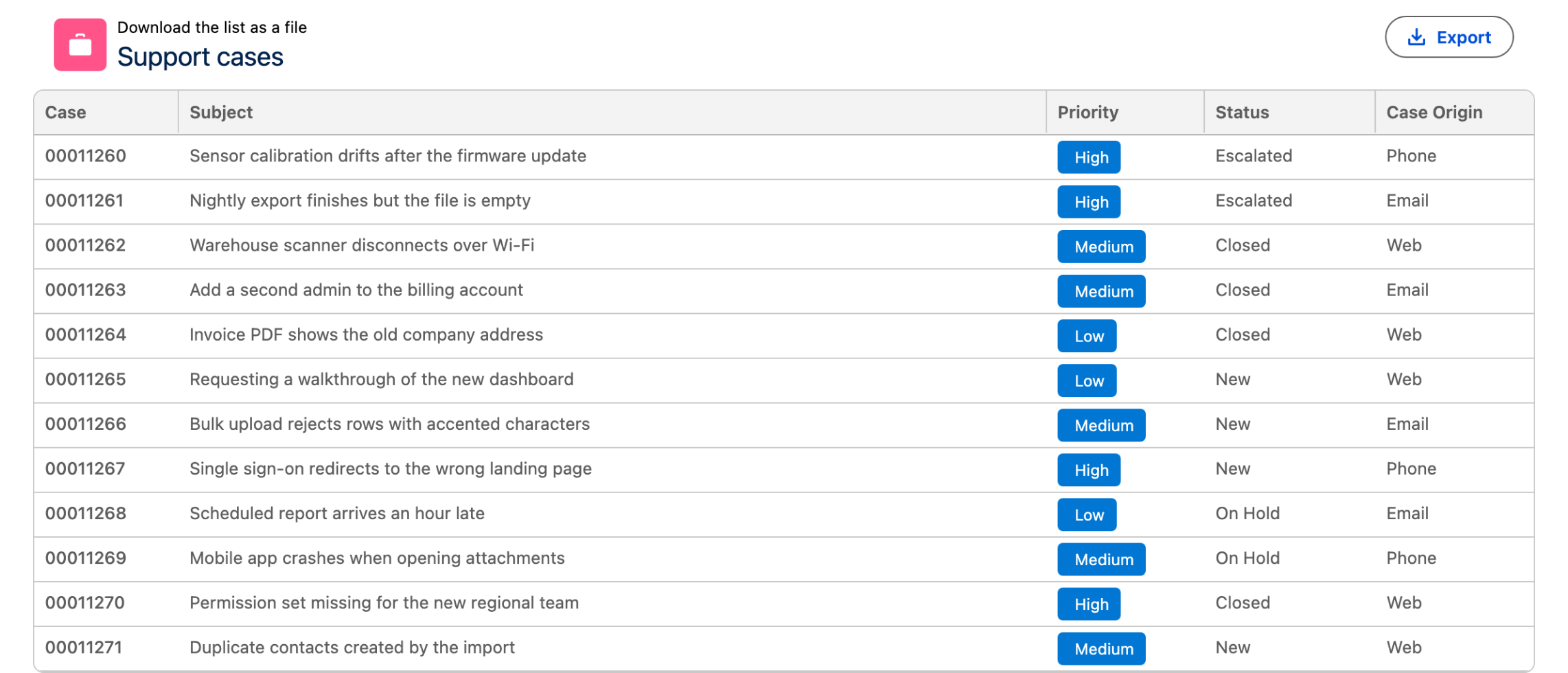
> Add an export button so users can download the Data Table as a file.

<figure><img src="https://27923732-files.gitbook.io/~/files/v0/b/gitbook-x-prod.appspot.com/o/spaces%2F1FUd4apB9YHgCEMUFbVb%2Fuploads%2FjN9eY9Clj2AShzyS11XR%2Fprompt-06-export.png?alt=media" alt="A support case table whose header carries an Export button with a download icon"><figcaption><p><strong>Export</strong> sits in the table header. It opens Salesforce's own export dialog, where the user picks the file name and the format.</p></figcaption></figure>

## Scheduling and booking

Dates, times and availability, without a custom component.

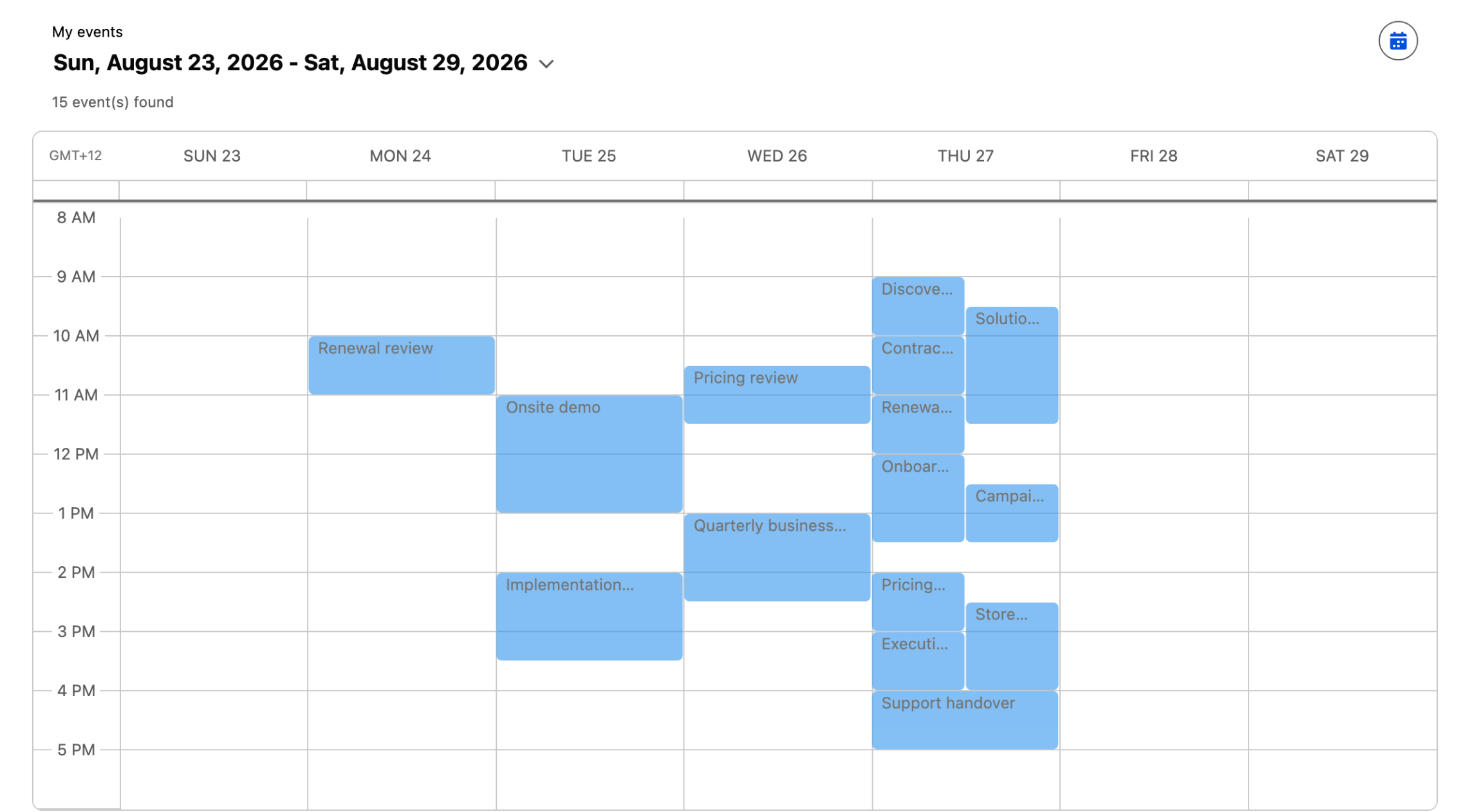
> Create a screen flow with an Avonni Calendar showing Events for the current user.

<figure><img src="https://27923732-files.gitbook.io/~/files/v0/b/gitbook-x-prod.appspot.com/o/spaces%2F1FUd4apB9YHgCEMUFbVb%2Fuploads%2F7Oz2wOkQFiCkp9turXKW%2Fprompt-07-calendar.png?alt=media" alt="A week grid from Sunday to Saturday with fifteen events placed at their times"><figcaption><p>A week of the user's events, each one at the hour it starts. Month and agenda are the same component on a different display.</p></figcaption></figure>

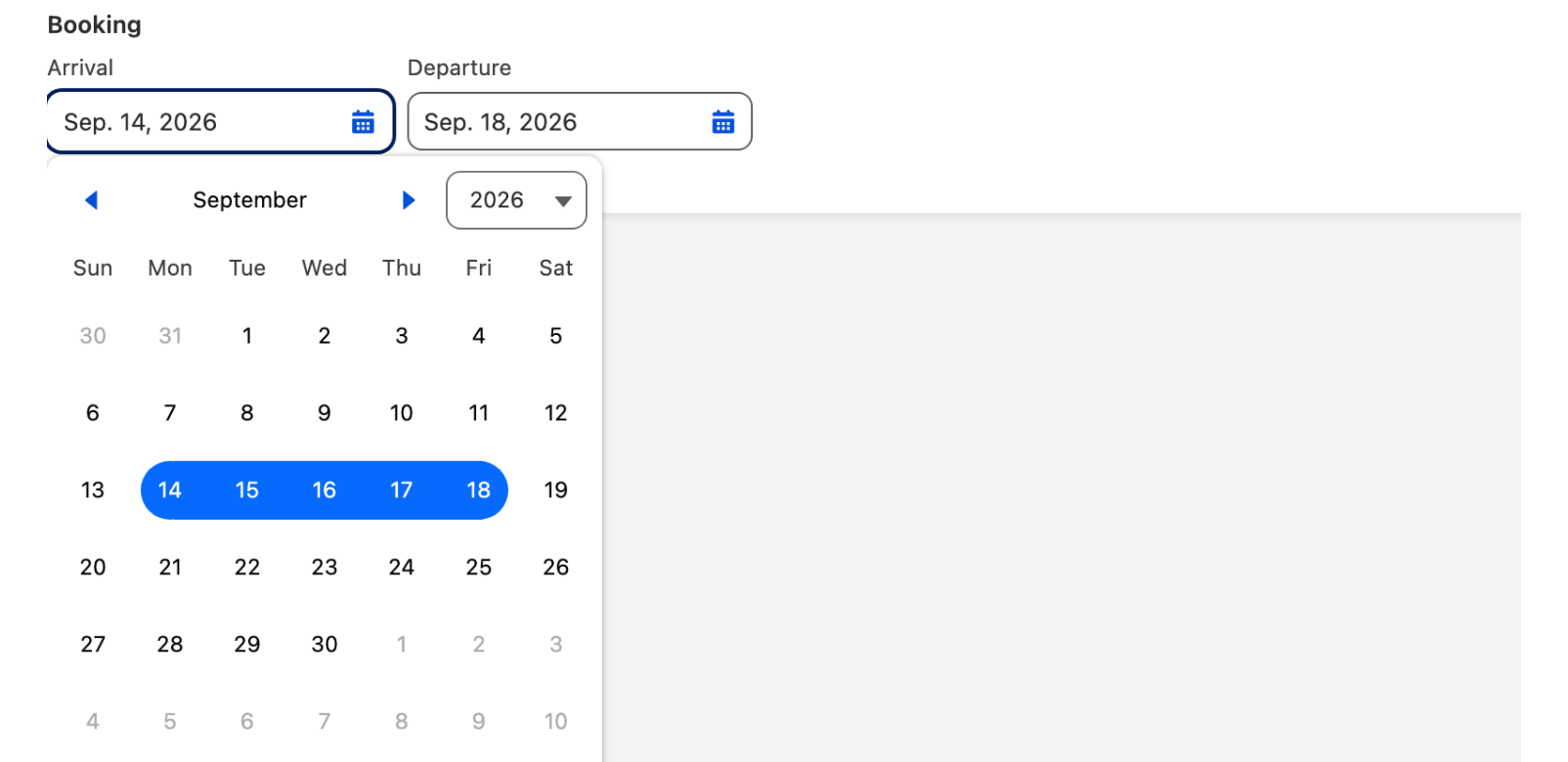
> Add an Input Date Range so the user can pick a start and end date for their booking.

<figure><img src="https://27923732-files.gitbook.io/~/files/v0/b/gitbook-x-prod.appspot.com/o/spaces%2F1FUd4apB9YHgCEMUFbVb%2Fuploads%2Febcwu2E7BIrUca3tKZFw%2Fprompt-08-dates.png?alt=media" alt="An arrival and a departure date side by side in a single date range control"><figcaption><p>One control, two dates, and the range in between.</p></figcaption></figure>

## Screen polish and feedback

Small touches that make a flow feel finished.

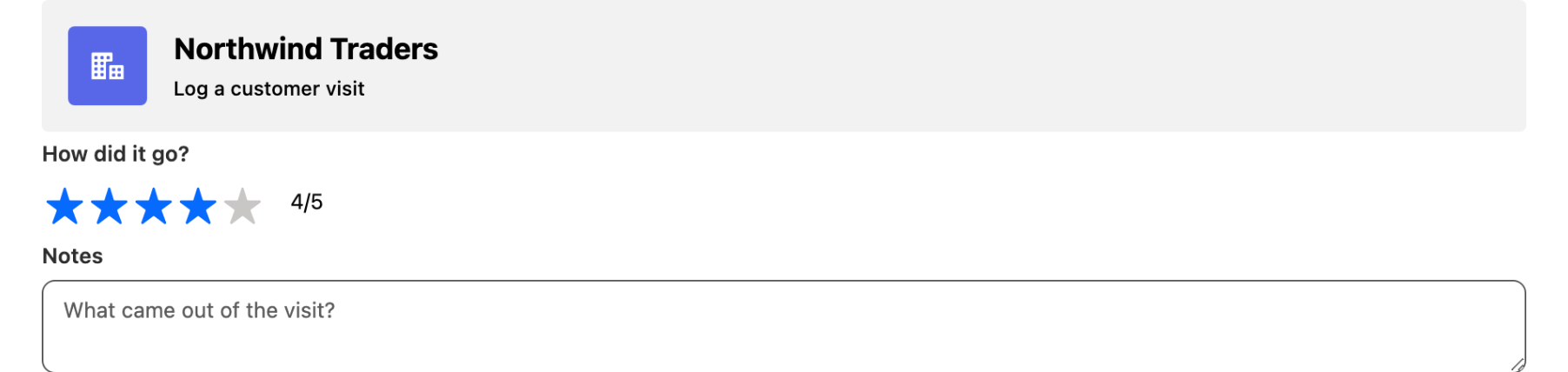
> Add a Header with the account name and an icon at the top of my screen.

<figure><img src="https://27923732-files.gitbook.io/~/files/v0/b/gitbook-x-prod.appspot.com/o/spaces%2F1FUd4apB9YHgCEMUFbVb%2Fuploads%2FqbmAwRqDC1dEx2X0fr1S%2Fprompt-09-header.png?alt=media" alt="A header with an account icon, the account name and a subtitle, above a rating and a notes field"><figcaption><p>The header carries the account name and its icon, and the rest of the screen sits under it.</p></figcaption></figure>

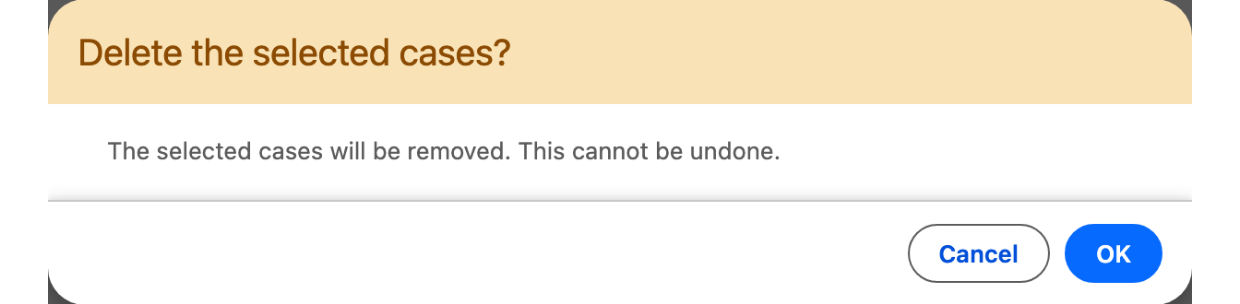
> Open a confirmation modal before deleting the selected records.

<figure><img src="https://27923732-files.gitbook.io/~/files/v0/b/gitbook-x-prod.appspot.com/o/spaces%2F1FUd4apB9YHgCEMUFbVb%2Fuploads%2FoL4hSCTtQY3aWaweFOVO%2Fprompt-10-confirm.png?alt=media" alt="A warning dialog reading Delete the selected cases? with Cancel and OK buttons"><figcaption><p>The confirmation is an interaction on the button, not a component of its own: <strong>Open Confirm Dialog</strong>, with the delete wired to what happens after OK.</p></figcaption></figure>

> Show a toast when the record updates, and fire confetti when the user submits the final screen.

<figure><img src="https://27923732-files.gitbook.io/~/files/v0/b/gitbook-x-prod.appspot.com/o/spaces%2F1FUd4apB9YHgCEMUFbVb%2Fuploads%2FlLJntSWXWJTihHE4FcxW%2Fprompt-11-celebrate.png?alt=media" alt="A success toast at the top of the screen and confetti falling over the submit button"><figcaption><p>One button, two interactions: the toast confirms, the confetti celebrates. The Interaction Service component has to be on the same screen for the confetti to fire.</p></figcaption></figure>

## Complete use cases

When a request spans several artifacts, `avonni-architect` plans and builds all the pieces in the right order.

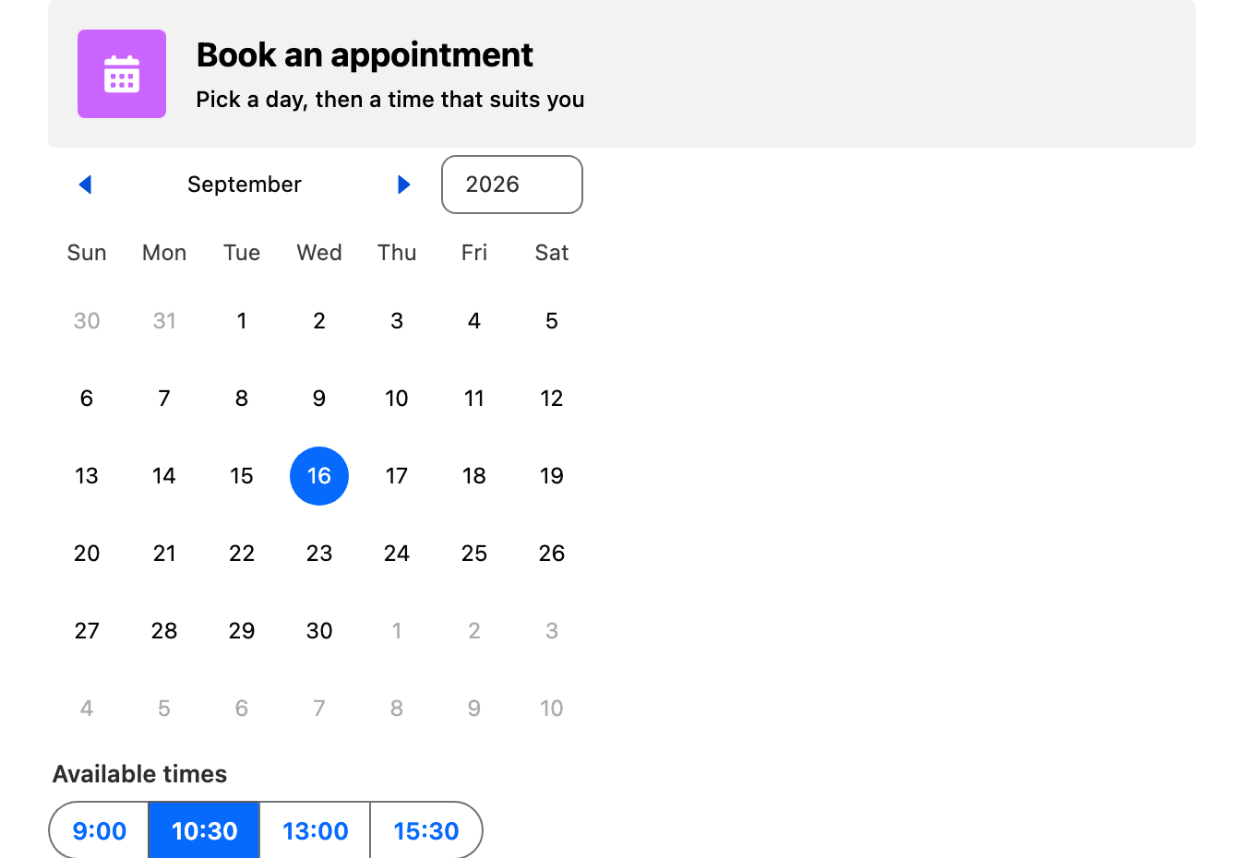
> Create a screen flow for booking appointments, and a Dynamic Component with a button that launches it.

<figure><img src="https://27923732-files.gitbook.io/~/files/v0/b/gitbook-x-prod.appspot.com/o/spaces%2F1FUd4apB9YHgCEMUFbVb%2Fuploads%2FUWoIkJNb6VXRnbUIbEP0%2Fprompt-12-booking.png?alt=media" alt="A booking screen with a header, a month calendar and four selectable time slots"><figcaption><p>The first of the two screens. The Dynamic Component whose button launches this flow lives on a record page, which is a different surface.</p></figcaption></figure>

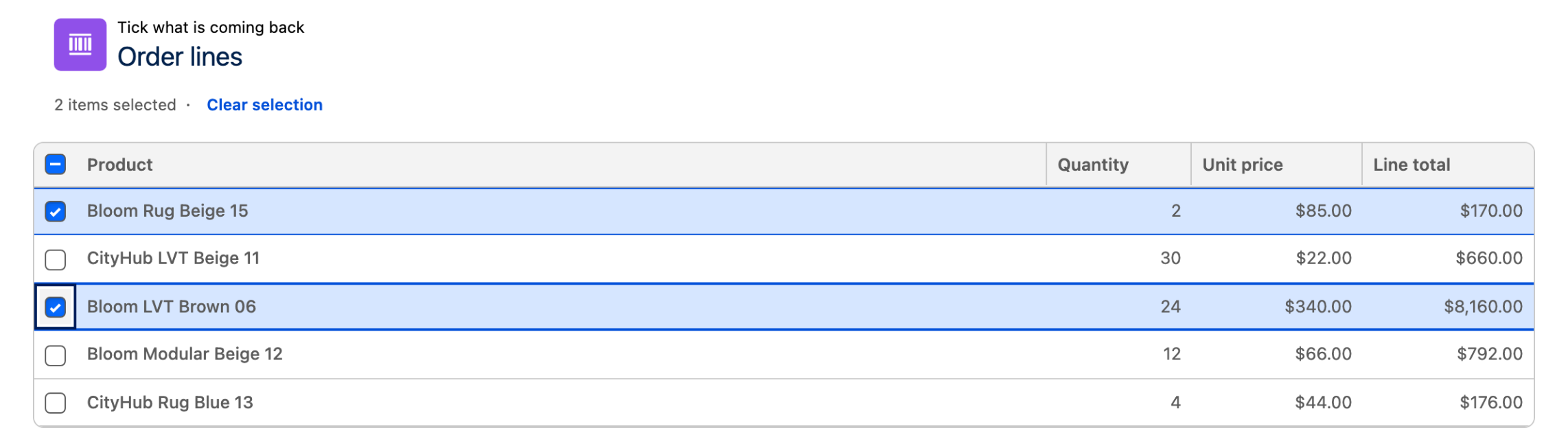
> Build a returns flow: a screen to pick the Order, a screen with a Data Table of its line items to select what's returned, and a confirmation screen.

<figure><img src="https://27923732-files.gitbook.io/~/files/v0/b/gitbook-x-prod.appspot.com/o/spaces%2F1FUd4apB9YHgCEMUFbVb%2Fuploads%2FWreow7mKIATLhJFEdaGJ%2Fprompt-13-returns.png?alt=media" alt="A table of five order lines with product, quantity, unit price and line total, two rows ticked"><figcaption><p>The second of the three screens: the lines of the order the user picked, with what is coming back ticked.</p></figcaption></figure>

***

## Make these prompts yours

* **Name real objects and fields.** "A Data Table of `Invoice__c` records filtered on `Status__c = 'Overdue'`" beats "a table of invoices".
* **Iterate in the same conversation.** Follow up with "make the columns sortable" or "change the grouping to owner": the assistant updates the same screen.
* **Say what happens next.** Mention the navigation ("move to the next screen when a row is selected") and the assistant wires the interaction for you.

{% hint style="success" %}
Not set up yet? The whole thing takes a few minutes: [Setup](/flow/build-with-ai/setup.md).
{% endhint %}


---

# Agent Instructions
This documentation is published with GitBook. GitBook is the documentation platform designed so that both humans and AI agents can read, navigate, and reason over technical content effectively. Learn more at gitbook.com.

## Querying This Documentation
If you need additional information that is not directly available in this page, you can query the documentation dynamically by asking a question.

Perform an HTTP GET request on the current page URL with the `ask` query parameter, and the optional `goal` query parameter:

```
GET https://docs.avonnicomponents.com/flow/build-with-ai/prompt-library.md?ask=<question>&goal=<endgoal>
```

`ask` is the immediate question: it should be specific, self-contained, and written in natural language.
`goal` is optional and describes the broader end goal you are ultimately trying to accomplish on behalf of the user. GitBook uses it to tailor the answer towards what is most useful for that goal.

The response will contain a direct answer to the question and relevant excerpts and sources from the documentation.

Use this mechanism when the answer is not explicitly present in the current page, you need clarification or additional context, or you want to retrieve related documentation sections.