Create file
Overview
The Create File action is a powerful automation utility that bridges the gap between Flow data and Salesforce Files. It eliminates the need to manually navigate the complex relationship between ContentVersion, ContentDocument, and ContentDocumentLink.
Note: What this action is NOT
This is not a "Document Builder" with a visual editor. It creates a file based exactly on the data you provide.
For CSV/TXT: Great for raw data exports.
For PDF: It will create a PDF containing the exact text/HTML you provide, but it does not support "Drag & Drop" styling
Key Capabilities
Dynamic Document Generation: Instantly turn user screen inputs, record fields, or data collections into downloadable documents.
Smart Linking: Automatically attaches the created file to any record (Opportunity, Case, Custom Object, etc.) via the Related Record ID, making it immediately visible in the record's "Files" related list.
Format Agnostic: Create anything from simple Log files (.txt) and Data exports (.csv) to complex Documents (.pdf) or Images, provided the source data is Base64 encoded.
Clean Output: Returns the new File ID immediately, allowing you to use the created file in subsequent Flow steps, such as sending it in an email or posting it to Chatter
Input Parameters
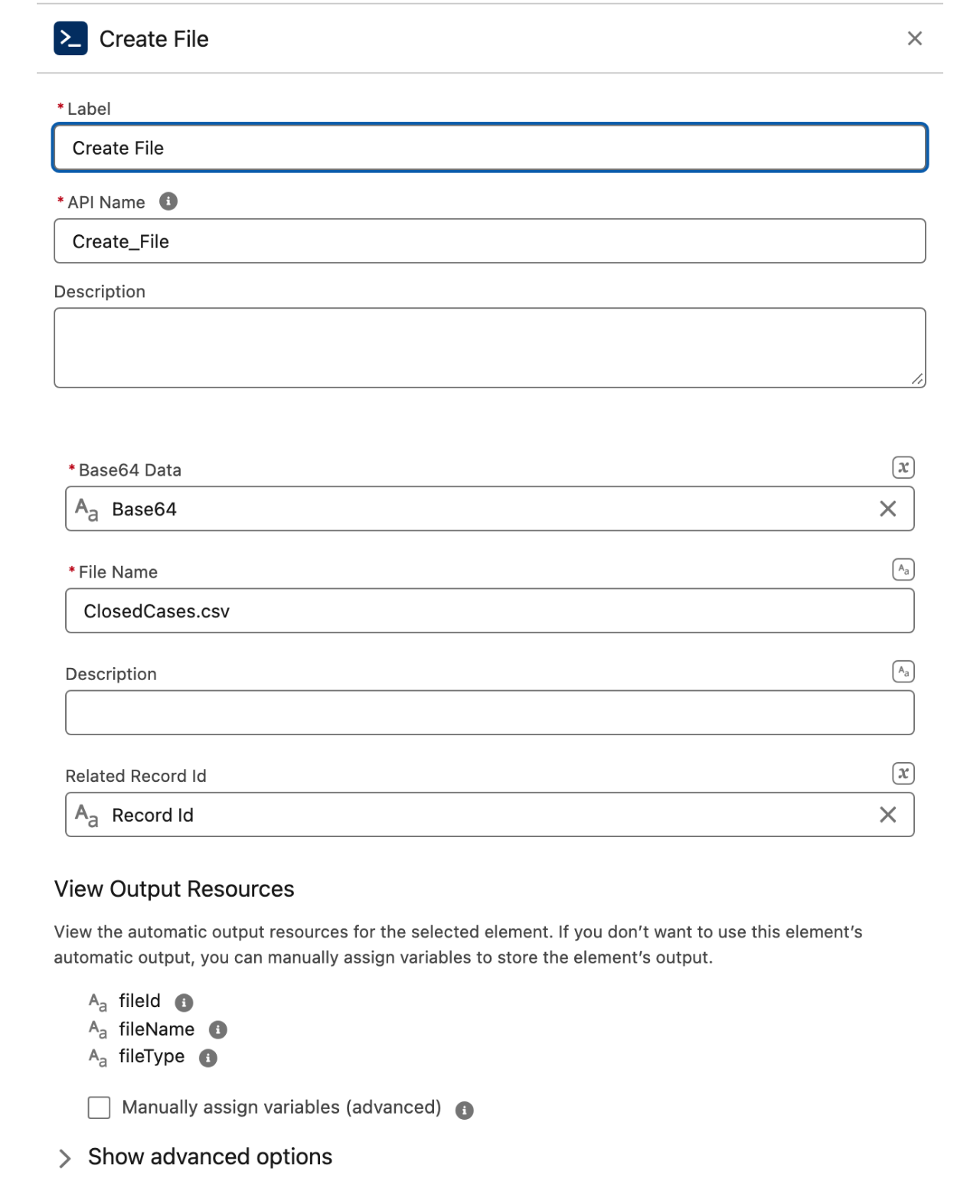
Base64 Data
Required
The core content of your file, encoded in Base64 string format.
File Name
Required
The name of the file including the extension (e.g., Invoice_001.pdf).
Description
Optional
A brief summary of the file's content.
Related Record Id
Optional
The ID of the record (e.g., 006...) where the file should be attached.
How to Prepare Your Data (Visual Example)
The most common question is: "How do I get my Salesforce data into the Base64 Data field?" Because Salesforce stores files as binary data, you cannot simply plug a "Text" variable into this action. You must first encode your content.
1. Turning Text into a File (CSV/TXT)
If you want to create a file from record data or user input, follow this process:
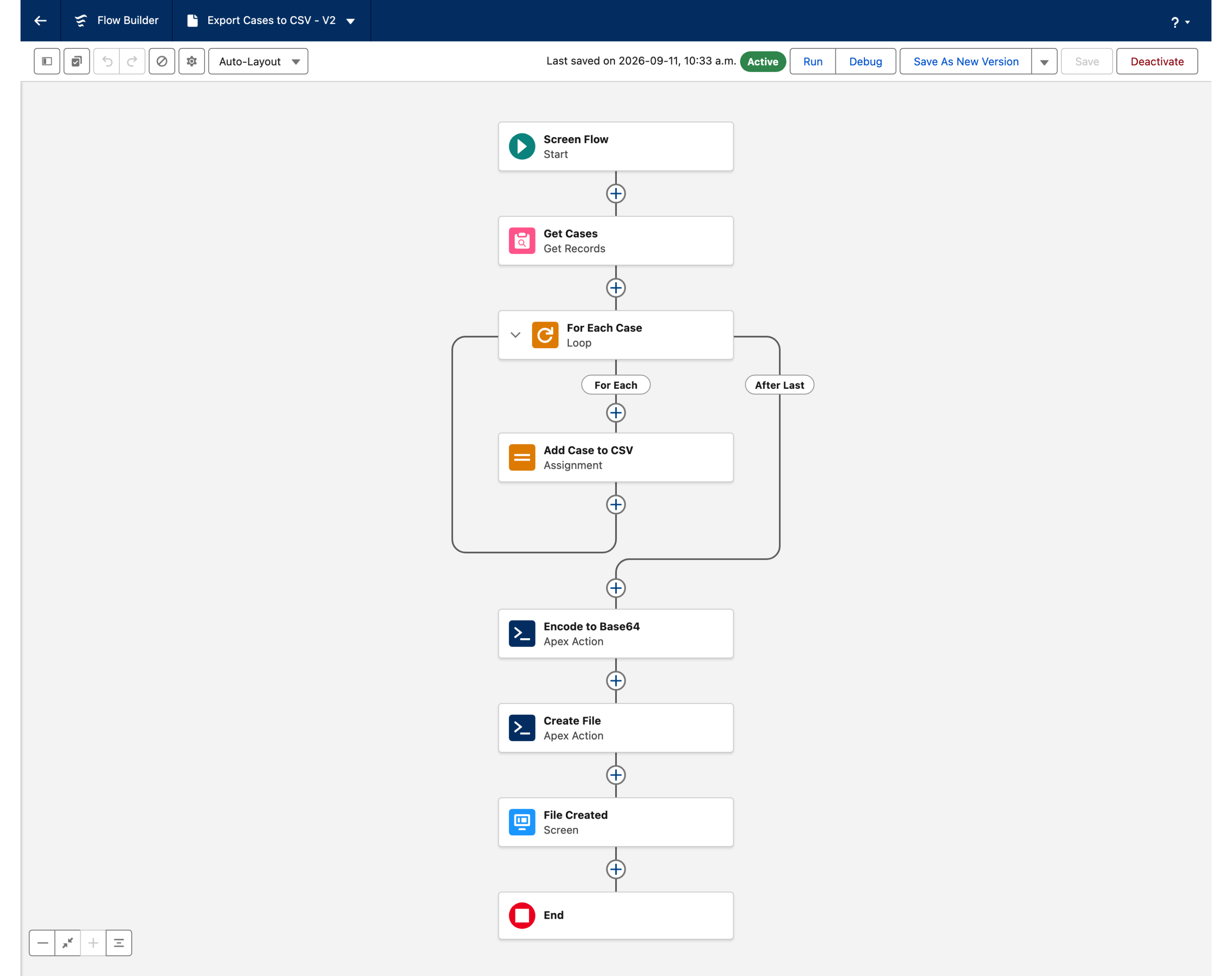
Step A: Gather your content. Use a Loop and an Assignment (or a Text Template) to build your file's body. For a CSV, this would be a list of values separated by commas.
Step B: Encode to Base64. Since Flow doesn't have a native "Encode" button, you must use a helper.
Community Solution: Use a free Invocable Action (like Convert Text to Base64 from UnofficialSF).
Apex Solution: Use a simple one-line Apex method:
EncodingUtil.base64Encode(Blob.valueOf(yourText)).
Step C: Map to Action. Pass the Output of that encoding step directly into the Base64 Data field of the Create File action.
2. The Logic Flow
Salesforce Data > Text Variable > Encoding Helper (Apex/Action) > Create file
Important
Why is this necessary? > If you skip the encoding step and pass raw text into the Base64 Data field, the action will create a file, but it will be corrupted or appear empty when you try to open it.
Example
Generating a CSV of Case Details
Use this example to learn how to turn record data into an attached file.
Build the File Content
You need to turn those records into a "CSV string."
Create a Text Variable: Name it
varCSVContent.Loop: Iterate through your Case collection.
Assignment (Inside Loop): Add the Case data to your variable.
Example:
varCSVContentAdd{!Loop_Case.CaseNumber} , {!Loop_Case.Subject}followed by a line break.
The "Base64" Transformation
The Create File action requires data in Base64 format. Since Flow doesn't do this natively, you have two options:
Option A (Recommended): Use a free community action like UnofficialSF's "Convert Text to Base64".
Option B (Custom): Create a tiny Apex Action with one line of code:
return EncodingUtil.base64Encode(Blob.valueOf(inputText));
Best Practices
Extensions Matter: Salesforce determines the file type by the extension you provide in the File Name field. Always include
.pdf,.csv, or.txt.Size Limits: Keep in mind that Apex actions have heap size limits. For extremely large files (multi-MB), ensure your Flow logic is optimized.
Privacy: If the file contains sensitive info, use the "Show Advanced Options" in the Flow Builder to set the visibility or sharing privacy of the created file.
Output Resources
Once the action runs, it returns:
fileId: The ID of the created
ContentVersion.fileName: The final name of the file.
fileType: The detected file format.
You can use these outputs later in your flow, for example, to post the file to a Chatter feed or display a "Download" link on a success screen.
Last updated
Was this helpful?