> For the complete documentation index, see [llms.txt](https://docs.avonnicomponents.com/llms.txt). Markdown versions of documentation pages are available by appending `.md` to page URLs; this page is available as [Markdown](https://docs.avonnicomponents.com/experience-cloud/tutorials/interactions/configure-the-open-flow-dialog-to-open-a-flow-by-clicking-a-button.md).
# Configure the Open Flow Dialog to open a flow by clicking a button
## Overview
This tutorial guides you through configuring the [Open Flow Dialog](https://docs.avonnicomponents.com/experience-cloud/properties-panel/interactions/open-flow-dialog.md) to launch a Salesforce flow when a user clicks an Avonni Button component on your Salesforce Experience Cloud site. The flow can be built and enhanced using various [Avonni Components for flows](https://docs.avonnicomponents.com/flow/), offering a seamless and integrated user experience.
{% hint style="danger" %}
**Displaying Flows in Dialog Boxes**
When using the "Open Flow Dialog Interaction" feature to show a flow in a dialog box, it's important to ensure the flow is configured correctly. Here's the key:
* **Place the Flow on Your Site:** The flow you want to display must be added to your Experience Cloud site. You can add it to any page, even if that page is not accessible to visitors.
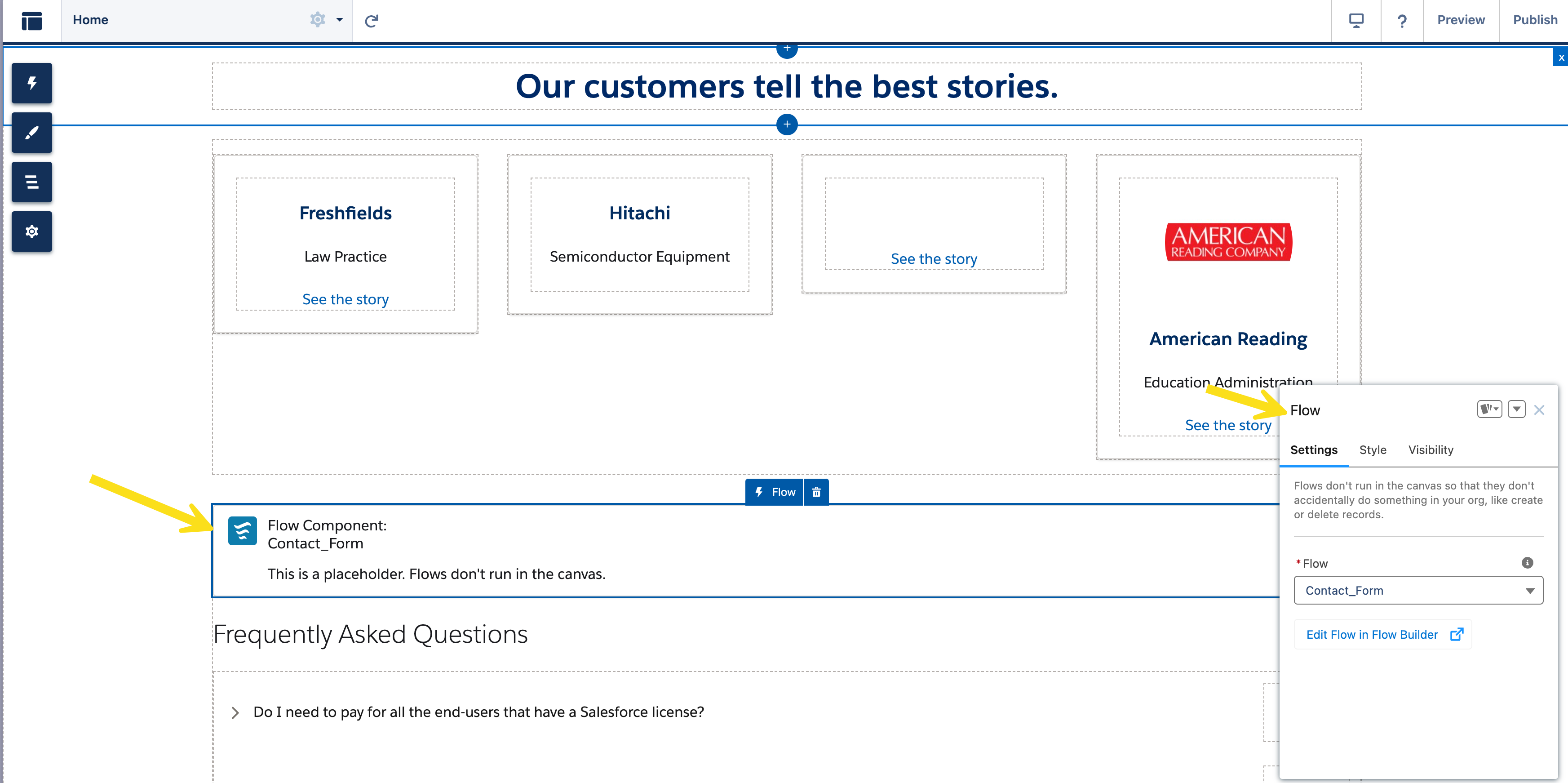 * **Publish Your Site:** Once the flow is added to your site, publish the site. This allows the system to locate and load the flow when opening the dialog box.
**Why is this necessary?**
Think of it like this: you can't show something in a dialog box if it doesn't exist somewhere on your site. Adding the flow to your site makes it available for Experience Cloud to use when needed.
**Important Note**
The flow does not need to be on a visible page, but it must be present somewhere within your site's structure. This ensures the flow is loaded correctly when the dialog box is triggered.
{% endhint %}
{% hint style="warning" %}
Ensure that you have set up your flow to allow guest users access if your sites are accessible to guest users.
{% endhint %}
## Interactive Step-by-Step Configuration Guide
{% @arcade/embed url="" flowId="Cxu0lBJkIxDxiNFlZr0U" %}
---
# Agent Instructions
This documentation is published with GitBook. GitBook is the documentation platform designed so that both humans and AI agents can read, navigate, and reason over technical content effectively. Learn more at gitbook.com.
## Querying This Documentation
If you need additional information that is not directly available in this page, you can query the documentation by asking a question.
Perform an HTTP GET request on the following URL with the `ask` and `goal` query parameters:
```
GET https://docs.avonnicomponents.com/experience-cloud/tutorials/interactions/configure-the-open-flow-dialog-to-open-a-flow-by-clicking-a-button.md?ask=&goal=
```
`ask` is the immediate question: it should be specific, self-contained, and written in natural language.
`goal` is what the user is ultimately trying to achieve, the reason they need the answer. Sharing it helps GitBook give you a better, more relevant answer. A goal is most helpful when it describes the outcome the user wants rather than restating the question. For example, with `ask=how do I create an API token`, a goal like `automate deployments from our CI pipeline` lets GitBook tailor the answer to that use case.
The response will contain a direct answer to the question and relevant excerpts and sources from the documentation.
Use this mechanism when the answer is not explicitly present in the current page, you need clarification or additional context, or you want to retrieve related documentation sections.