# AX - Avatar
## Overview
**AX - Avatar** is an Experience Cloud component that displays profile pictures, initials, or icons on Experience Sites pages to represent users, contacts, accounts, or any Salesforce record.
Use it to show portal user profiles, account representatives, contact lists, or entity identifiers with consistent visual styling. The component automatically displays images when available or falls back to initials or icons.
Perfect for user profile headers, community member lists, contact directories, or anywhere portal users need visual identification of people or entities.
***
## Customizing the Avatar
The Avonni Avatar component helps you create visually consistent representations of users or entities within your Salesforce Experience Cloud site. Here's a step-by-step guide to personalize the Avatar to fit your needs:
### **Displaying Initials**
The Avatar component offers flexibility in how you display initials:
#### **Manual Entry**
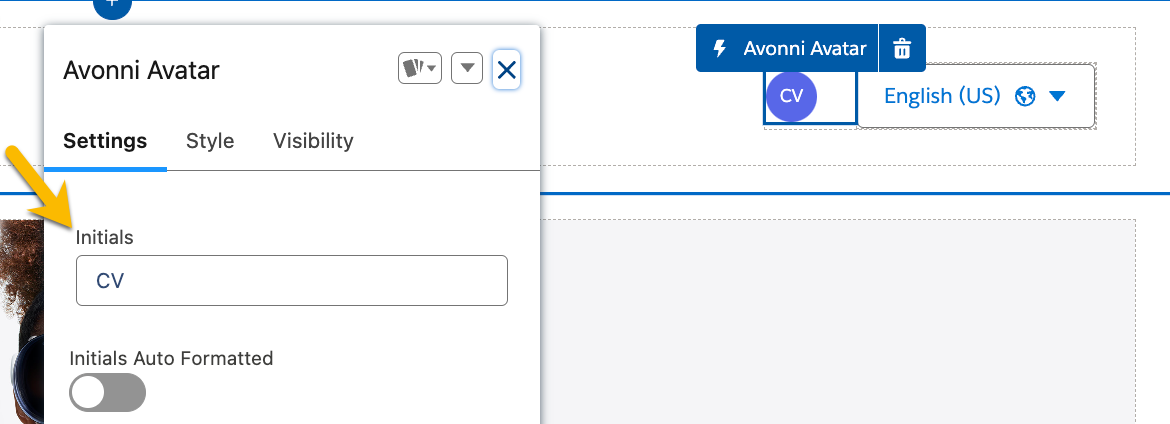
If you know the initials you want to display, enter them directly into the "Initials" field.
#### **Dynamic Generation (Expressions)**
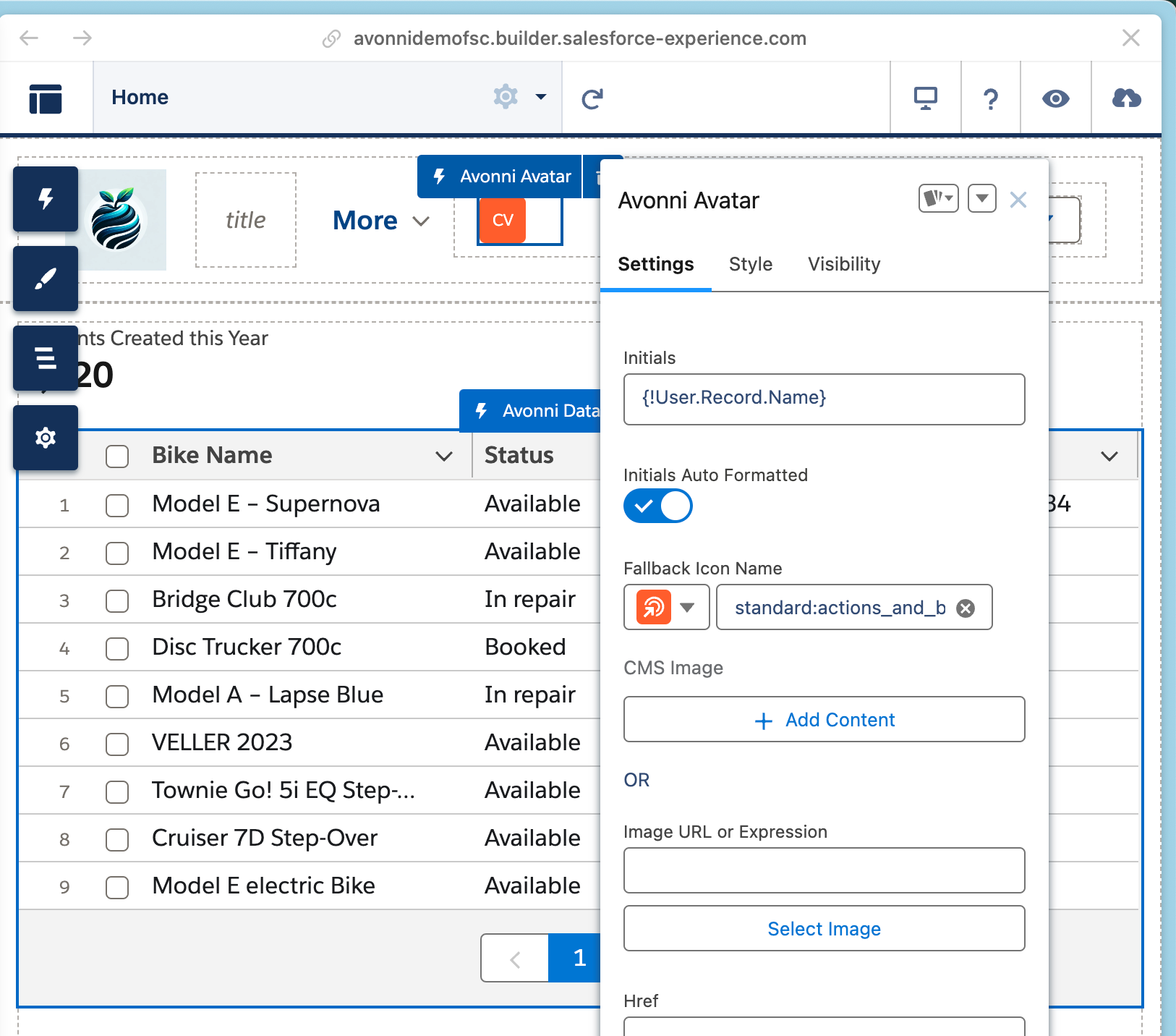
To make your Avonni components dynamic, you can use [Experience Cloud Expressions](https://docs.avonnicomponents.com/experience-cloud/getting-started/learning-the-basics#expressions). For example, in the Avatar component below, you can use the following expression to display the currently logged-in user's name automatically:
```
{!User.Record.Name}
```
You can replace `Name` with the actual field name storing the user's name in your Salesforce org.
If you'd like to automatically generate initials from a full name, enable the "Initials Auto Formatted" option. This will use Experience Cloud expressions to extract and format the first letter of each word in the name.
Displaying Initials Dynamically from the Current User's Name
### **Custom Image**
Add a profile photo, logo, or any image to make the Avatar instantly recognizable. Upload your image using the **Selected Content** option—the component automatically crops and formats it to fit within the Avatar shape.
If no image is added, the Avatar displays initials instead
### **Variant (Shape)**
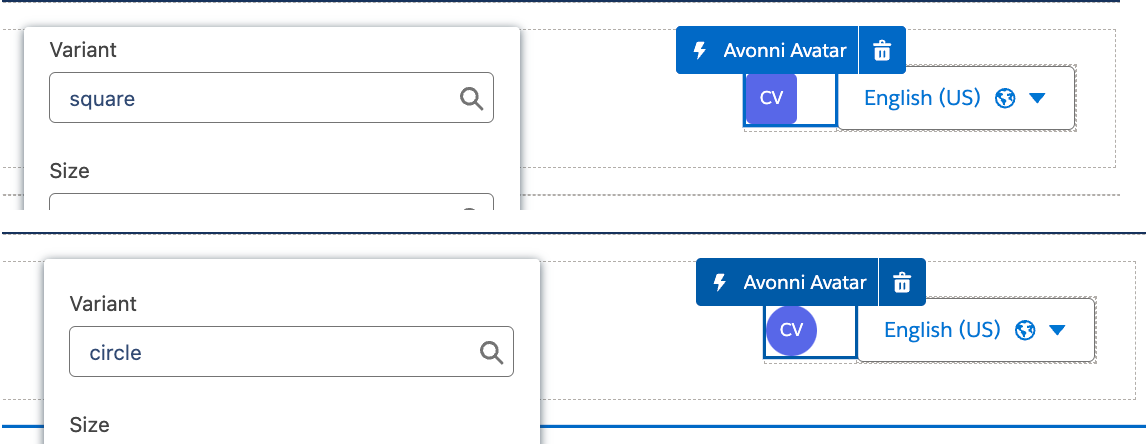
Choose between **circle** or **square** using the **Variant** field to match your portal's design. Circular avatars work well for people, while square shapes suit logos or entity icons
### **Size**
Control how large the Avatar appears on the page using the **Size** property. Options range from **x-small** to **xx-large**, so you can balance it with surrounding content—smaller for inline lists, larger for profile headers.
### **Primary and Secondary Text**
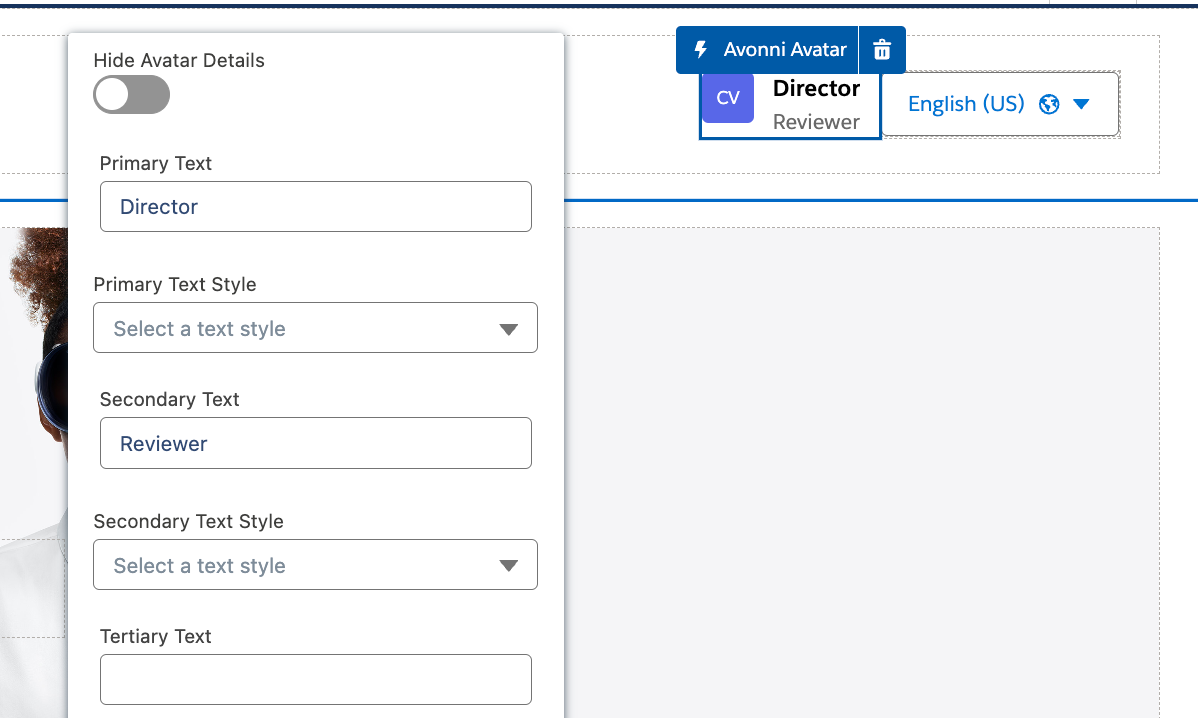
Display additional context alongside the Avatar by adding text fields. Use **Primary Text** for the most important information (like a full name) and **Secondary Text** for supporting details (like job title or email).
You can also set font styles for each text level to create visual hierarchy between the primary and secondary information.
### **Tags**
Add visual labels to categorize or highlight information about the Avatar. Tags appear as small badges and can be styled with different colors using the **Tag Variant** option—useful for showing status, department, role, or any quick identifier.
***
## **Example Use Cases**
**User Profiles** – Create complete profile headers by combining a custom image with primary text for the user's name and secondary text for their job title or department. This gives portal users a clear, professional representation on their profile pages.
**Community Forums** – Display Avatars next to posts and comments so community members can quickly identify who's contributing. This adds a personal touch that encourages engagement and makes conversations easier to follow.
**Team Pages** – Showcase team members with Avatars that include names, roles, and tags for department or expertise. This helps portal users find the right contact and understand team structure at a glance.
***
## Specifications
{% tabs %}
{% tab title="Properties" %}
| Name | Description |
| --------------------------- | ------------------------------------------------------------------------------------------------------------------------------------------ |
| **Initials** | Input specific initials to be displayed within the Avatar. It lets you define the representative letters for a user or entity manually |
| **Initials Auto Formatted** | This feature auto-generates and displays initials based on a provided full name, ensuring a consistent representation without manual input |
| **Fallback icon name** | Determines the backup icon to be shown in the Avatar when primary data (like an image or initials) is absent, ensuring visual continuity |
| **Size** | Adjust the overall dimensions of the Avatar to fit within various UI contexts |
| **Variant** | Choose between a circular (`circle`) or a square (`square`) shape for the Avatar to align with your design preferences |
| **Hide Avatar Details** | Toggle to show or conceal additional details associated with the Avatar, such as texts or tags |
| **Primary Text** | The main text displayed alongside the Avatar, often used for names or main identifiers |
| **Primary Text Style** | Designate the font style for the primary text, choosing from options like Heading 1-4 or Paragraph 1-2 |
| **Secondary Text** | Additional text displayed below the primary text, suitable for supplementary information or subheadings |
| **Secondary Text Style** | Define the font style for the secondary text, with choices ranging from Heading 1-4 to Paragraph 1-2 |
| **Tertiary Text** | Third-level text, typically used for extra details or attributes related to the Avatar |
| **Tertiary Text Style** | Choose the desired font style for the tertiary text, with options including Heading 1-4 and Paragraph 1-2 |
| **Text Position** | Specify the alignment or positioning of the accompanying texts in relation to the Avatar, allowing for better visual layout |
| **Tags** | Set properties for any badge tags associated with the Avatar, providing a way to add categorical markers or indicators to your Avatars |
| {% endtab %} | |
{% tab title="Appareance" %}
| Attribute | Property Name | Description | Possible Values |
| ------------------ | ----------------------------- | ---------------------------------------------------------- | -------------------------------------------- |
| **Primary Text** | Primary Text Color | Sets the color of the main text within the Avatar | Standard color values, color utility classes |
| **Primary Text** | Primary Text Font Size | Changes the size of the primary text | Font size values (e.g., 12px, 1rem) |
| **Primary Text** | Primary Text Font Style | Controls the font style (e.g., italic, oblique) | Standard font style options |
| **Primary Text** | Primary Text Font Weight | Defines the boldness of the primary text | Font weight values (e.g., normal, bold) |
| **Secondary Text** | Secondary Text Color | Sets the color of the supplementary text | Standard color values, color utility classes |
| **Secondary Text** | Secondary Text Font Size | Changes the size of the secondary text | Font size values (e.g., 12px, 1rem) |
| **Secondary Text** | Secondary Text Font Style | Controls the font style (e.g., italic, oblique) | Standard font style options |
| **Secondary Text** | Secondary Text Font Weight | Defines the boldness of the secondary text | Font weight values (e.g., normal, bold) |
| **Tertiary Text** | Tertiary Text Color | Sets the color of the third-level text | Standard color values, color utility classes |
| **Tertiary Text** | Tertiary Text Font Size | Changes the size of the tertiary text | Font size values (e.g., 12px, 1rem) |
| **Tertiary Text** | Tertiary Text Font Style | Controls the font style (e.g., italic, oblique) | Standard font style options |
| **Tertiary Text** | Tertiary Text Font Weight | Defines the boldness of the tertiary text | Font weight values (e.g., normal, bold) |
| **Icon** | Icon Background Color | Sets the background color of the icon area | Standard color values, color utility classes |
| **Icon** | Icon Foreground Color | Sets the color of the icon image or initials | Standard color values, color utility classes |
| **Icon** | Icon Foreground Color Utility | Applies a predefined color scheme to the icon | Specific utility class names |
| **Icon** | Icon Image Object Fit | Controls how an icon image fits within its space | fill, contain, cover, none, scale-down |
| **Border** | Border Size | Specifies the width of the Avatar's border | Pixel values (e.g., 1px, 2px) |
| **Border** | Border Radius | Controls the roundedness of the Avatar's corners | Pixel values, % (e.g., 50% for a circle) |
| **Border** | Border Color | Sets the color of the Avatar's border | Standard color values, color utility classes |
| **Border** | Border Style | Defines the appearance of the border (e.g., solid, dashed) | Standard CSS border styles |
| **Initials** | Initials Color | Sets the text color for the displayed initials | Standard color values, color utility classes |
| **Initials** | Initials Color Hover | Color of initials when the Avatar is hovered over | Standard color values, color utility classes |
| **Initials** | Initials Font Weight | Controls the boldness of the initials text | Font weight values (e.g., normal, bold) |
| **Initials** | Entity Color | Background color when initials are generated | Standard color values, color utility classes |
| **Initials** | Entity Font Weight | Font weight of initials generated from an entity | Font weight values (e.g., normal, bold) |
| {% endtab %} | | | |
| {% endtabs %} | | | |