> For the complete documentation index, see [llms.txt](https://docs.avonnicomponents.com/llms.txt). Markdown versions of documentation pages are available by appending `.md` to page URLs; this page is available as [Markdown](https://docs.avonnicomponents.com/experience-cloud/experience-cloud-ja/hajimeni/quick-start-guide.md).
# クイックスタートガイド
{% hint style="warning" %}
#### インストールする前に
有効にする **Lightning Web Security** まず組織レベルで: **設定** > **セッション設定** > **Lightning Web Components に Lightning Web Security を使用する**.
その設定がオフだと、パッケージのインストールは検証時に `LWC1503: 動的インポートは許可されていません`というエラーで失敗します。パッケージや組織に問題はありません。設定を有効にして、インストールをもう一度実行してください。
{% endhint %}
{% hint style="warning" %}
#### 重要
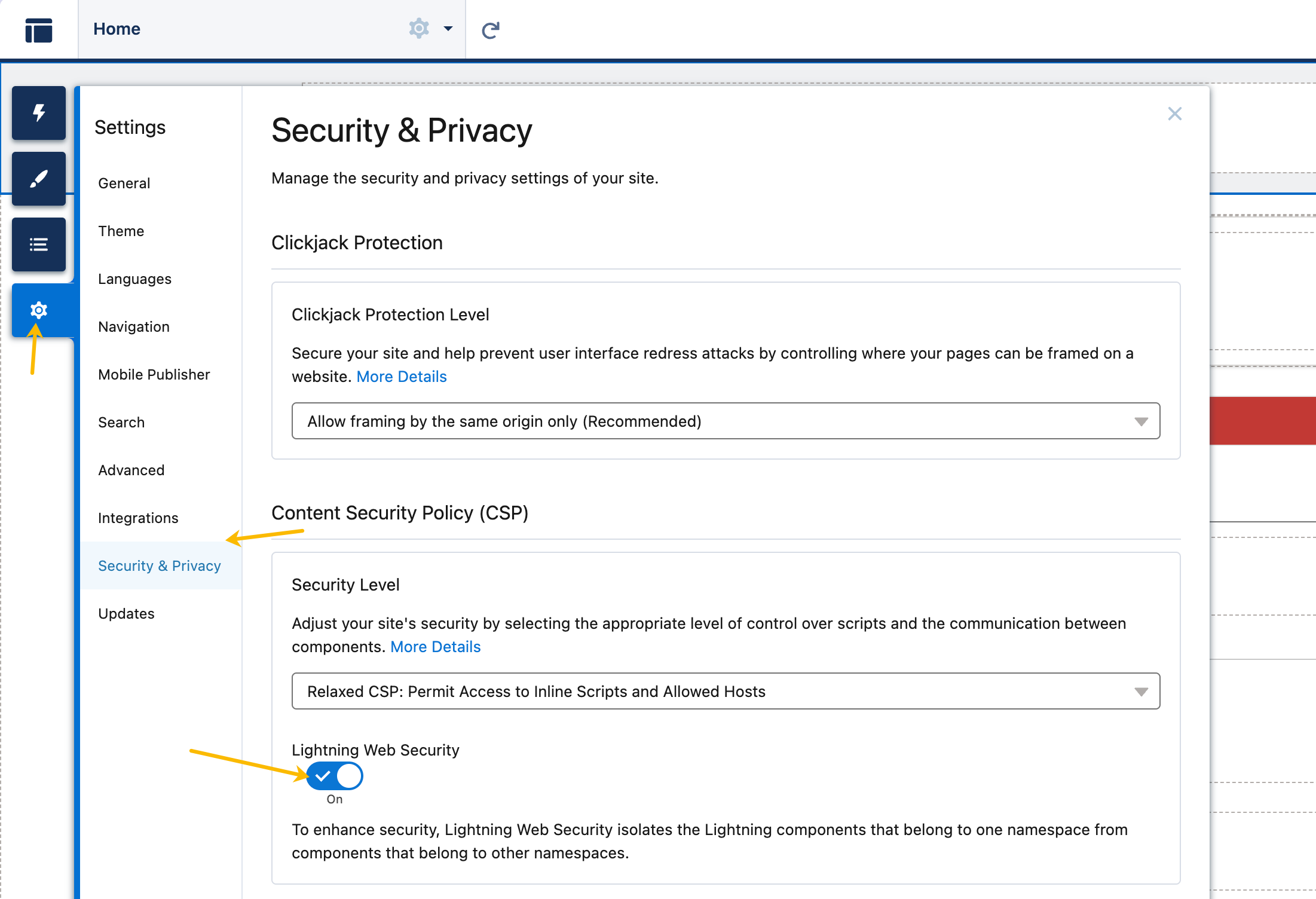
Experience Cloud サイトで Avonni Components を使用する前に、'**Lightning Web Security**」オプションです。このトグルは設定パネルの「**セキュリティとプライバシー**」セクションにあります。この設定が有効でない場合、Avonni Components が正しく動作しない可能性があります。
{% endhint %}
## Avonni Components へのアクセス
インストール後、 [**Avonni Experience Components パッケージ**](https://appexchange.salesforce.com/appxListingDetail?listingId=2e584bb3-b5e0-415d-9347-d6567158d840\&channel=recommended\&cta=gin\&other_source=AppExchange+Recommended)、これらのコンポーネントは Experience Cloud サイトエディターで見つけて使用できます:
### **コンポーネントを見つける**
1. Experience Builder で Experience サイトを開く
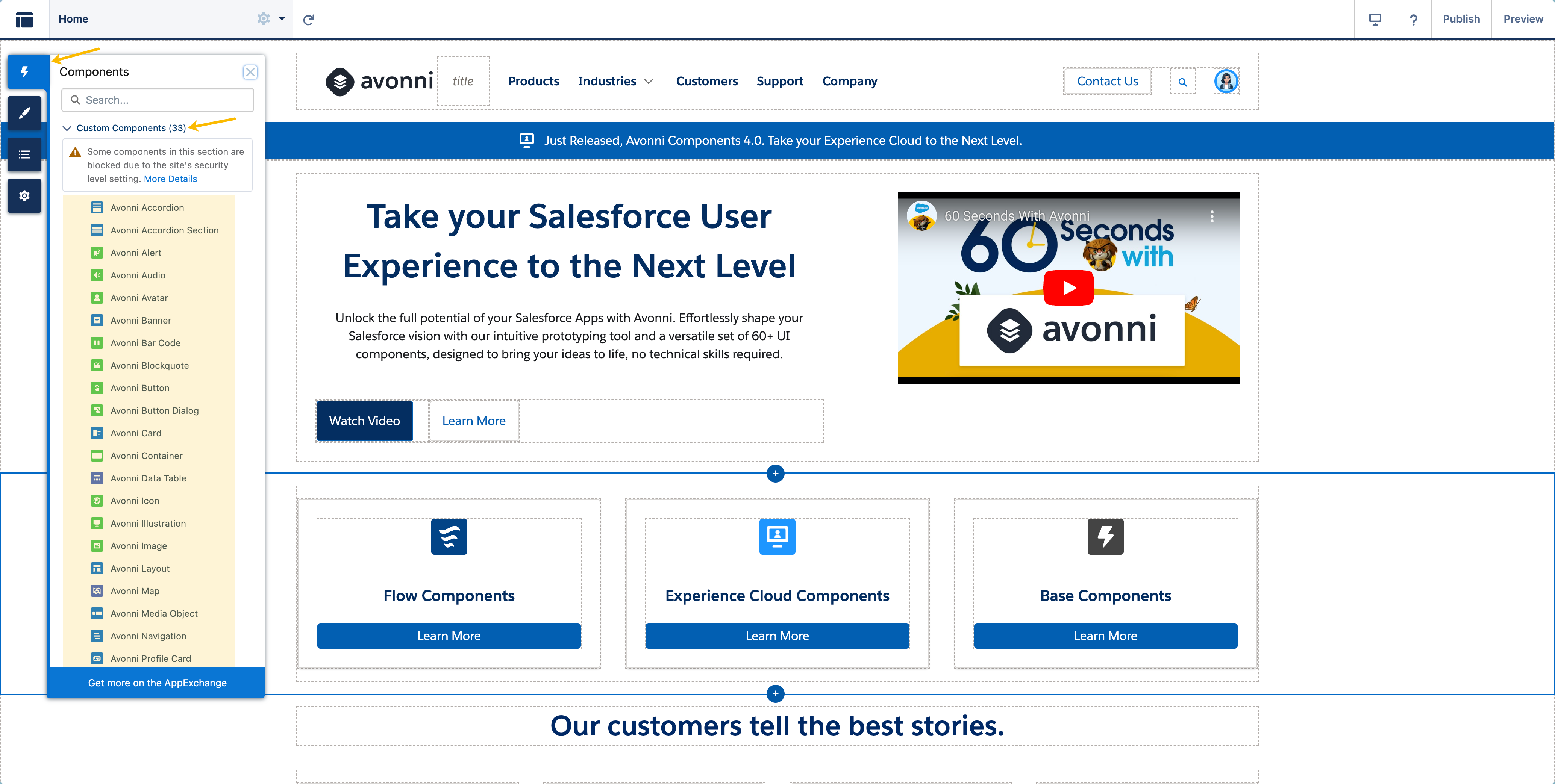
2. をクリックします **コンポーネント** パネル(通常は左サイドバーにあります)
3. までスクロールし、 **カスタムコンポーネント** セクション
4. "AX -" で始まるコンポーネントを探します(例: AX - Data Table、AX - Calendar、AX - Kanban)
### **ページにコンポーネントを追加する**
カスタムコンポーネント一覧で AX コンポーネントを見つけたら、ページキャンバスにドラッグ&ドロップするだけです。次に、右側のプロパティパネルでコンポーネントの設定を行います。
Experience Sites 用のすべての AX コンポーネントには "AX -" という接頭辞が付いており、標準の Salesforce コンポーネントと簡単に識別・区別できるようになっています。
{% hint style="warning" %}
#### 注意
以前に Screen Flow 用の Avonni Components パッケージをインストールしている場合、Experience Sites のコンポーネントは異なる命名形式を使用することに注意してください:
* **Experience Sites のコンポーネント:** AX - コンポーネント名(例: AX - Kanban、AX - Data Table)
* **Screen Flow のコンポーネント:** Avonni - コンポーネント名(例: Avonni Kanban、Avonni Data Table)
どちらも組織内で共存できます。
{% endhint %}
インストール後、Avonni Components は Experience Site エディターで利用できます。次の手順: License Management ページで、ユーザーに必要なライセンスと権限セットを割り当てます。
---
# Agent Instructions
This documentation is published with GitBook. GitBook is the documentation platform designed so that both humans and AI agents can read, navigate, and reason over technical content effectively. Learn more at gitbook.com.
## Querying This Documentation
If you need additional information that is not directly available in this page, you can query the documentation dynamically by asking a question.
Perform an HTTP GET request on the current page URL with the `ask` query parameter, and the optional `goal` query parameter:
```
GET https://docs.avonnicomponents.com/experience-cloud/experience-cloud-ja/hajimeni/quick-start-guide.md?ask=&goal=
```
`ask` is the immediate question: it should be specific, self-contained, and written in natural language.
`goal` is optional and describes the broader end goal you are ultimately trying to accomplish on behalf of the user. GitBook uses it to tailor the answer towards what is most useful for that goal.
The response will contain a direct answer to the question and relevant excerpts and sources from the documentation.
Use this mechanism when the answer is not explicitly present in the current page, you need clarification or additional context, or you want to retrieve related documentation sections.
 {% endhint %}
## Avonni Components へのアクセス
インストール後、 [**Avonni Experience Components パッケージ**](https://appexchange.salesforce.com/appxListingDetail?listingId=2e584bb3-b5e0-415d-9347-d6567158d840\&channel=recommended\&cta=gin\&other_source=AppExchange+Recommended)、これらのコンポーネントは Experience Cloud サイトエディターで見つけて使用できます:
### **コンポーネントを見つける**
1. Experience Builder で Experience サイトを開く
2. をクリックします **コンポーネント** パネル(通常は左サイドバーにあります)
3. までスクロールし、 **カスタムコンポーネント** セクション
4. "AX -" で始まるコンポーネントを探します(例: AX - Data Table、AX - Calendar、AX - Kanban)
### **ページにコンポーネントを追加する**
カスタムコンポーネント一覧で AX コンポーネントを見つけたら、ページキャンバスにドラッグ&ドロップするだけです。次に、右側のプロパティパネルでコンポーネントの設定を行います。
Experience Sites 用のすべての AX コンポーネントには "AX -" という接頭辞が付いており、標準の Salesforce コンポーネントと簡単に識別・区別できるようになっています。
{% endhint %}
## Avonni Components へのアクセス
インストール後、 [**Avonni Experience Components パッケージ**](https://appexchange.salesforce.com/appxListingDetail?listingId=2e584bb3-b5e0-415d-9347-d6567158d840\&channel=recommended\&cta=gin\&other_source=AppExchange+Recommended)、これらのコンポーネントは Experience Cloud サイトエディターで見つけて使用できます:
### **コンポーネントを見つける**
1. Experience Builder で Experience サイトを開く
2. をクリックします **コンポーネント** パネル(通常は左サイドバーにあります)
3. までスクロールし、 **カスタムコンポーネント** セクション
4. "AX -" で始まるコンポーネントを探します(例: AX - Data Table、AX - Calendar、AX - Kanban)
### **ページにコンポーネントを追加する**
カスタムコンポーネント一覧で AX コンポーネントを見つけたら、ページキャンバスにドラッグ&ドロップするだけです。次に、右側のプロパティパネルでコンポーネントの設定を行います。
Experience Sites 用のすべての AX コンポーネントには "AX -" という接頭辞が付いており、標準の Salesforce コンポーネントと簡単に識別・区別できるようになっています。