# Clear Fields on Button Click
## Overview
Learn how to use [**assignment interactions**](https://docs.avonnicomponents.com/dynamic-components/component-builder/interactions/variable-operations/assignment) to reset input component values to their default state.
***
## Use Cases
We’re building a form with Dynamic Components and want to add a Reset button that clears all current inputs back to a blank state.
***
## Guided Steps
{% stepper %}
{% step %}
#### Build the form layout
Create your form using Dynamic Components and add the required input components, such as text inputs or date inputs
{% endstep %}
{% step %}
#### Add the Reset button
Add a Reset button to the form that users will click to clear all fields.
{% endstep %}
{% step %}
#### Create variables for each input
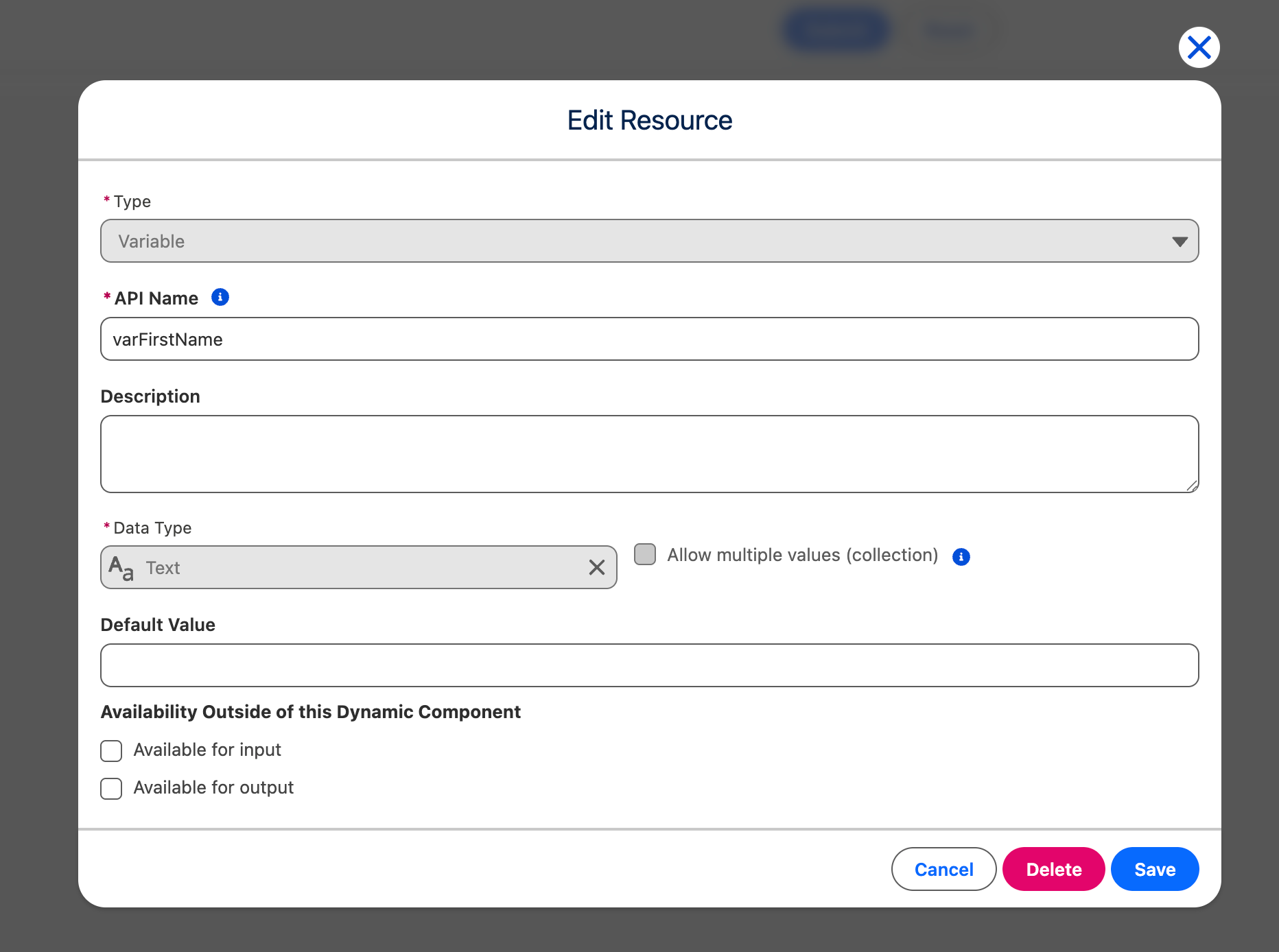
Create a variable for every input component. These variables will temporarily store the user-entered values.
{% endstep %}
{% step %}
#### Bind variables to input values
For each input component, assign its corresponding variable to the component’s Value attribute. For example, for the First Name input, assign the \`varFirstName\` variable to its Value.
{% endstep %}
{% step %}
#### Capture input values with Assignment interactions
For the first input component, open the [**Interactions tab**](https://docs.avonnicomponents.com/dynamic-components/component-builder/interactions) and create an Assignment interaction. In this interaction, set the variable value to the component’s Value attribute. **Repeat this for each input component in the form**.
{% endstep %}
{% step %}
#### Clear values on Reset button click
Create an Assignment interaction on the Reset button. Use the Reset button as the target, and in the assignments, set each input variable (for example, \`varFirstName\`) to \`empty\` (leave it blank). **Repeat this for all variables linked to your inputs**.
{% endstep %}
{% step %}
#### Confirm fields are cleared
When the Reset button is clicked, all associated variables are reset, clearing the stored values and emptying the input components.
{% endstep %}
{% endstepper %}
***
## Understanding the Logic: How it Works
Here is the "behind-the-scenes" flow of what you just built:
**1. The Variable is the "Source of Truth"**
Think of a Variable as a small storage container. Instead of the Input Component "owning" its own text, we tell it to look at the variable to decide what to display.
* The Logic: "Whatever is inside `varFirstName` is what should appear on the screen."
**2. The Interaction is the "Update"**
When a user types into a field, the Assignment Interaction acts like a bridge. It constantly takes what the user is typing and saves it into that storage container (the variable).
* The Logic: "User typed 'John' → Put 'John' into `varFirstName`."
**3. The Reset is a "Data Wipe"**
The Reset button doesn't actually talk to the Input fields at all. It only talks to the Variables. When you click the button, you are emptying the storage containers.
* The Logic: "Button Clicked → Set `varFirstName` to `empty`."
**4. The "Reaction" (The Magic Part)**
Because the Input field is bound to the variable, it is constantly watching it. As soon as the button clears the variable, the Input field notices the container is empty and immediately disappears its text to match.
#### Summary Diagram
> User Types → Updates Variable → Input Field displays variable value.
>
> Button Clicked → Clears Variable → Input Field reflects the empty variable.
Why do we do it this way? By using variables instead of just "deleting text," you can now use that data elsewhere (like showing a "Welcome \[Name]" message on another page) because the information is stored in a way the whole app can understand, not just the single input box.
.gif?alt=media&token=0c45a2ed-8421-4593-8647-51d1e03ba3a2)
.gif?alt=media&token=1da9e9dc-294f-45eb-9584-f720297a198c)
.gif?alt=media&token=cb5c9ec4-dd1c-482d-965b-7602767fd5bb)
.gif?alt=media&token=f59cb445-6688-47f6-a894-a2f13d566a12)