> For the complete documentation index, see [llms.txt](https://docs.avonnicomponents.com/llms.txt). Markdown versions of documentation pages are available by appending `.md` to page URLs; this page is available as [Markdown](https://docs.avonnicomponents.com/dynamic-components/tutorials/components/data-table/define-row-actions.md).
# Define Row Actions
Build a row menu on an Account table with Mark as Hot and View Website, so reps qualify and research prospects without opening each record.
A sales rep reviews fifty Accounts every morning. For each one they either flag it as a hot prospect or look at the company's website. A menu at the end of each row puts both actions one click away, and the table stays on screen.
Both actions sit in one menu at the end of each row.
## Before you start
* A Data Table on the Account object with a **Query** data source that includes the **Website** and **Rating** fields. See [Data Table](/dynamic-components/components/data-table.md).
* An active Screen Flow, here called Mark as Hot, with a Text input variable `recordId` marked **Available for input**. It updates the Account's **Rating** to Hot.
## Menu or buttons?
| Use a row action menu (this page) when | Use visible buttons ([Add Custom Buttons](/dynamic-components/tutorials/components/data-table/add-custom-buttons.md)) when |
| --------------------------------------------- | -------------------------------------------------------------------------------------------------------------------------- |
| A row has two or more actions | A row has one or two actions used on almost every row |
| Space is tight and the table has many columns | Users should see the action without opening anything |
| Some actions are occasional | The action is the main reason the table exists |
Both trigger the same **Row Action Click** interaction, so you can switch later without rebuilding the logic.
## Steps
{% stepper %}
{% step %}
### Add an action column
1. Select the Data Table and stay on the **Properties** tab.
2. Under **Columns**, click **Add Columns**, choose **Custom**, and set **Type** to **Action**.
3. Leave **Custom Label** off: the menu column reads best without a header.
4. Set the column **Name** (for example `Actions`). It must be unique in the table. With **Custom Label** off, the column appears as `-` in the **Columns** list.
{% endstep %}
{% step %}
### List the actions in the menu
Under **Type Attributes** > **Row Actions**, add two items:
| Label | Name |
| ------------ | -------------- |
| Mark as Hot | `mark_as_hot` |
| View Website | `view_website` |
**Name** fills itself from the label. Keep it: the interactions below listen to it. **Menu Alignment** controls where the menu opens; **Auto** suits most tables.
Each row action gets a label and a name.
{% endstep %}
{% step %}
### Run the Mark as Hot flow
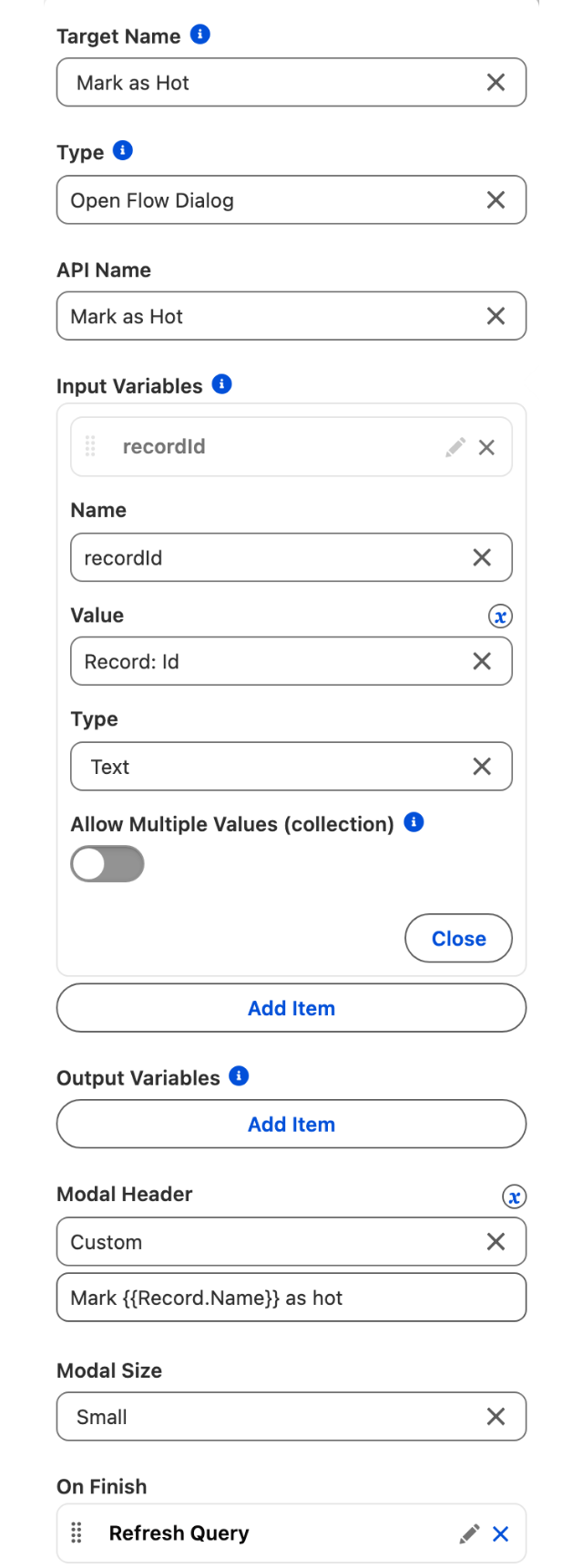
1. Open the **Interactions** tab and add an interaction under **Row Action Click**.
2. **Target Name**: **Mark as Hot**.
3. **Type**: **Open Flow Dialog**. In **API Name**, pick the Mark as Hot flow.
4. Under **Input Variables**, add an item: **Name** `recordId`, then for **Value** pick the row's Id from the **Record** entries (the field then reads `Record: Id`), and set **Type** to **Text**.
5. **Modal Header**: choose **Custom**, then enter `Mark {{Record.Name}} as hot` in the field below.
6. Under **On Finish**, add **Refresh Query**, so the new Rating shows as soon as the flow closes.
Mark as Hot opens its flow with the row's Id and refreshes the table when the flow finishes.
{% endstep %}
{% step %}
### Open the website in a new tab
Add a second interaction under **Row Action Click**:
* **Target Name**: **View Website**.
* **Type**: **Navigate**.
* **Page Reference Type**: **Web Page**.
* **Url**: the Website field from the **Record** entries (`{{Record.Website}}`).
* **Target**: **New Tab/Window**, so the table stays open in the first tab.
{% endstep %}
{% step %}
### Save and test
Save the component and open the page where it is placed. Each row ends with a small menu button. Open it on one Account and choose **Mark as Hot**: the flow opens with the Account name in the header, and after **Finish** that row's Rating reads Hot. Choose **View Website** on another row: the company's site opens in a new tab.
{% endstep %}
{% endstepper %}
## Troubleshooting
The flow opens but does not know which Account was clicked
Map **Value** from the **Record** entries, which hold the row whose menu was used. **First Selected Row** follows the selection checkboxes and stays empty unless the user also ticked the row. When you need the whole record rather than its Id, the Data Table exposes it as **Clicked Row Action - Row sObject**.
The Rating does not change in the table after the flow
Add **Refresh Query** under **On Finish** on the Open Flow Dialog interaction. Without it the table keeps the values it loaded first.
## Related tutorials
* [Add Custom Buttons](/dynamic-components/tutorials/components/data-table/add-custom-buttons.md): the same logic behind visible buttons.
* [Configure Header Actions](/dynamic-components/tutorials/components/data-table/configure-header-actions.md): act on several selected rows at once.
* [Open a Record from a Row](/dynamic-components/tutorials/components/data-table/open-a-record-from-a-row.md): let the whole row open the Account.
---
# Agent Instructions
This documentation is published with GitBook. GitBook is the documentation platform designed so that both humans and AI agents can read, navigate, and reason over technical content effectively. Learn more at gitbook.com.
## Querying This Documentation
If you need additional information that is not directly available in this page, you can query the documentation by asking a question.
Perform an HTTP GET request on the following URL with the `ask` and `goal` query parameters:
```
GET https://docs.avonnicomponents.com/dynamic-components/tutorials/components/data-table/define-row-actions.md?ask=&goal=
```
`ask` is the immediate question: it should be specific, self-contained, and written in natural language.
`goal` is what the user is ultimately trying to achieve, the reason they need the answer. Sharing it helps GitBook give you a better, more relevant answer. A goal is most helpful when it describes the outcome the user wants rather than restating the question. For example, with `ask=how do I create an API token`, a goal like `automate deployments from our CI pipeline` lets GitBook tailor the answer to that use case.
The response will contain a direct answer to the question and relevant excerpts and sources from the documentation.
Use this mechanism when the answer is not explicitly present in the current page, you need clarification or additional context, or you want to retrieve related documentation sections.