> For the complete documentation index, see [llms.txt](https://docs.avonnicomponents.com/llms.txt). Markdown versions of documentation pages are available by appending `.md` to page URLs; this page is available as [Markdown](https://docs.avonnicomponents.com/dynamic-components/components/map/enable-map-routing.md).

# Enable Map Routing

Map route planning needs a routing provider. Routing is bring-your-own-key: you supply an API key from OpenRouteService or Mapbox, and Avonni hosts no routing backend of its own. Enable it once per package: every route-capable map from that package can use it. If the org runs more than one Avonni package, enable routing in each package's Settings tab.

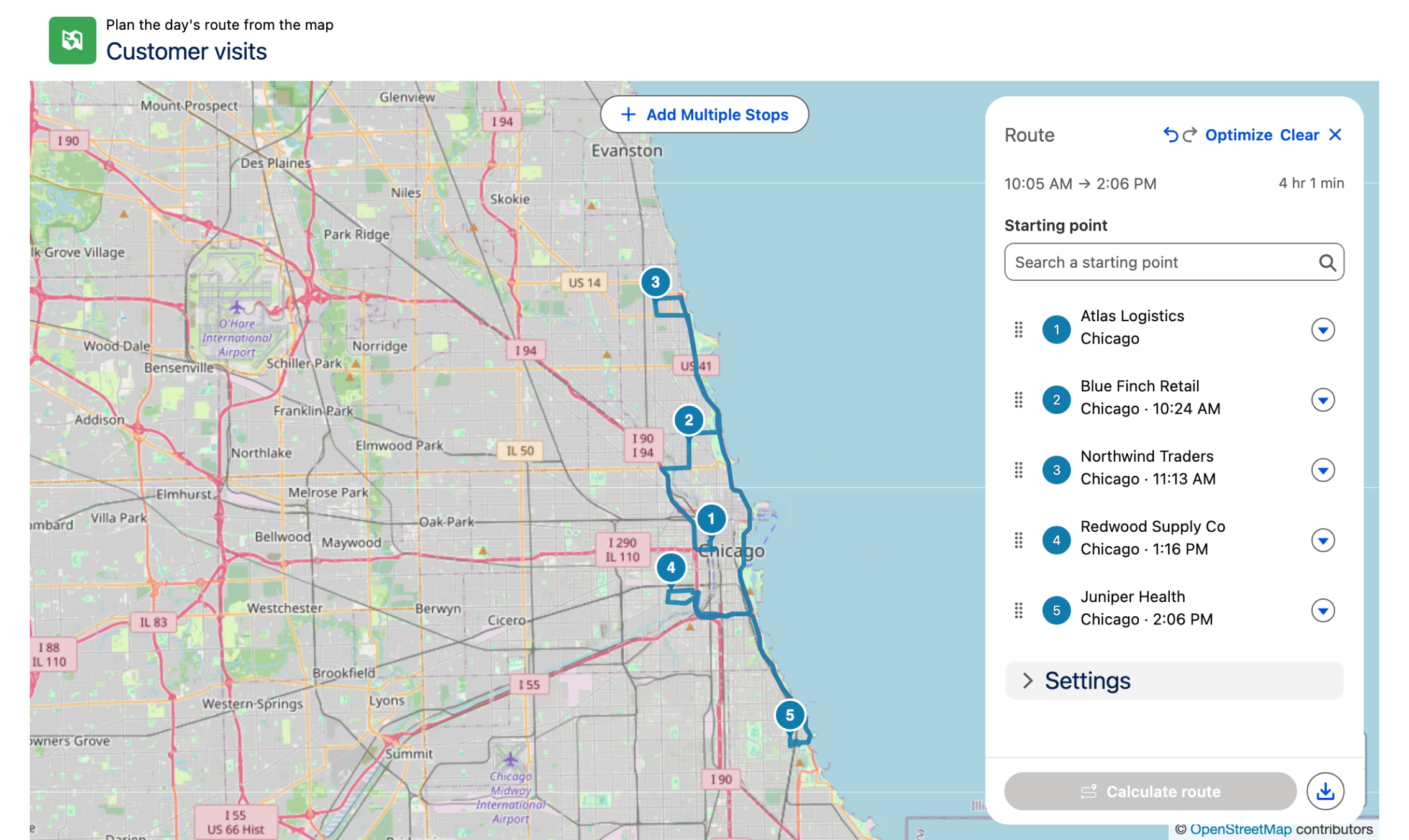
<figure><img src="https://2532358799-files.gitbook.io/~/files/v0/b/gitbook-x-prod.appspot.com/o/spaces%2FODPvvv7Cx9Z9RECLn3oV%2Fuploads%2F3MVyQKBoX3uQ5mSU8U0o%2Frouting-route-panel.png?alt=media" alt="A map of Chicago with five numbered stops joined by a driving route. The Route panel on the right lists the five stops in order with an arrival time for each stop after the first, and shows the departure and arrival times, the total duration, and the Optimize and Clear actions."><figcaption><p>Once routing is enabled, the Route panel turns the stops picked on a map into a driving route. With Mapbox, it also shows when each stop is reached.</p></figcaption></figure>

## Before You Start

You need:

* A Salesforce administrator with the **Customize Application** permission. Only such a user can open the routing settings or change them.
* An API key from one of the two supported providers. Both offer a free tier — see [Choose a Provider](#choose-a-provider).
* A Remote Site Setting for the provider's host. The packages ship none — see [Add a Remote Site Setting](#add-a-remote-site-setting).

## Open the Settings Tab

From the App Launcher, open the **Avonni Components** app and select the **Settings** tab.

The **Routing** card shows the current **Status** and the actions available for it.

<figure><img src="https://2532358799-files.gitbook.io/~/files/v0/b/gitbook-x-prod.appspot.com/o/spaces%2FODPvvv7Cx9Z9RECLn3oV%2Fuploads%2FY1rOfbwpTLelqFmSTp7P%2Frouting-card-not-configured.png?alt=media" alt="The Routing card on the Settings tab, with the status Not configured and an Enable routing button at the top right." width="563"><figcaption><p>Before routing is enabled, the Routing card reads Not configured.</p></figcaption></figure>

## Choose a Provider

One provider is active at a time. Enabling one clears the other.

<table><thead><tr><th width="180">Provider</th><th>Getting a key</th><th>Notes</th></tr></thead><tbody><tr><td><strong>OpenRouteService</strong></td><td>Create a free key at <a href="https://openrouteservice.org">openrouteservice.org</a> with a HeiGIT account.</td><td>Standard plan limits apply — roughly 2,000 directions per day. Paste the key exactly as issued; do not add a <code>Bearer</code> prefix.</td></tr><tr><td><strong>Mapbox</strong></td><td>Create an access token at <a href="https://console.mapbox.com/account/access-tokens/">console.mapbox.com</a>.</td><td>A public token (starting <code>pk.</code>) is enough — the Directions and Optimization APIs need no extra scopes. Leave URL restrictions empty, because server-side callouts send no referrer.</td></tr></tbody></table>

Mapbox is the only provider that models traffic, so it is the only one where the route panel offers a departure or arrival time and reports arrival times per stop. It is also the only provider that can work out a route's stop order: **Optimize** asks Mapbox for the fastest driving order on routes of up to twelve stops, and orders the stops by straight-line proximity otherwise. Both providers cap a route at 25 stops.

## Add a Remote Site Setting

Salesforce blocks every call to a host that no Remote Site Setting allows, and the Avonni packages do not add one for you: an administrator decides which provider the org may reach.

1. In Setup, open **Remote Site Settings** and click **New Remote Site**.
2. Enter a name, such as `Mapbox` or `OpenRouteService`, and the URL of the provider you chose:
   * **OpenRouteService** — `https://api.heigit.org`
   * **Mapbox** — `https://api.mapbox.com`
3. Leave **Active** checked and save.

<figure><img src="https://2532358799-files.gitbook.io/~/files/v0/b/gitbook-x-prod.appspot.com/o/spaces%2FODPvvv7Cx9Z9RECLn3oV%2Fuploads%2FxzgQNh3cvUmiMU8SzRes%2Frouting-remote-site-setting.png?alt=media" alt="The Remote Site Setting Edit form in Setup with Remote Site Name mapbox, Remote Site URL https://api.mapbox.com, Disable Protocol Security unchecked, an empty Description and Active checked."><figcaption><p>A Remote Site Setting for Mapbox: any name you like, the URL https://api.mapbox.com, and Active checked.</p></figcaption></figure>

The **Enable routing** dialog names the URL for the provider you select, with a link to the Setup page.

## Enable Routing

1. On the **Routing** card, click **Enable routing**.
2. Choose the **Routing provider**.
3. Paste the API key and click **Enable routing**.

<figure><img src="https://2532358799-files.gitbook.io/~/files/v0/b/gitbook-x-prod.appspot.com/o/spaces%2FODPvvv7Cx9Z9RECLn3oV%2Fuploads%2FfZMvRvWjvijiribJk3jp%2Frouting-enable-dialog.png?alt=media" alt="The Enable routing dialog with Mapbox selected as the routing provider, a notice to add a Remote Site Setting for https://api.mapbox.com, an empty Mapbox API key field and the help text on creating a Mapbox access token." width="563"><figcaption><p>The dialog names the Remote Site Setting the chosen provider needs. Its Enable routing button stays unavailable until a key is entered.</p></figcaption></figure>

The key is validated against the provider before anything is stored. A key the provider rejects is never saved.

If no Remote Site Setting allows the provider's host, Salesforce blocks the validation and the reason names the URL to add.

Enabling runs server-side: the status moves through **Configuring** to **Connected**. You can leave the tab — the state is stored, so reopening the tab picks it up where it is.

Enabling takes a few seconds with either provider.

### Status Values

<figure><img src="https://2532358799-files.gitbook.io/~/files/v0/b/gitbook-x-prod.appspot.com/o/spaces%2FODPvvv7Cx9Z9RECLn3oV%2Fuploads%2FOzkYf0ItahCRCav2RZtg%2Frouting-card-connected.png?alt=media" alt="The Routing card with the status Connected (Mapbox), the Modify Mapbox API key and Disable buttons, and the Route stop optimization toggle switched on." width="563"><figcaption><p>Once routing is connected, the provider name appears beside the status. With Mapbox, the card also carries the Route stop optimization toggle.</p></figcaption></figure>

<table><thead><tr><th width="220">Status</th><th>What it means</th></tr></thead><tbody><tr><td><strong>Not configured</strong></td><td>No provider is set up. Maps show no <strong>Route</strong> button, and the builder's <strong>Route</strong> section shows enablement guidance in place of its setting.</td></tr><tr><td><strong>Configuring</strong></td><td>The key is being validated against the provider. Transient.</td></tr><tr><td><strong>Connected</strong></td><td>Routing is live. The provider name is shown beside the status.</td></tr><tr><td><strong>Verifying new key</strong></td><td>A replacement key is being validated. The previous key stays active until the new one passes, so routing does not go down during a rotation.</td></tr><tr><td><strong>Disabling</strong></td><td>The stored key is being removed. Transient.</td></tr></tbody></table>

When a key is rejected, the status returns to **Not configured** and the reason from the provider is shown beneath it. Nothing is stored, so the previous state is unchanged.

## Route Stop Optimization

Once Mapbox is connected, the **Routing** card carries a **Route stop optimization** toggle. It governs what the **Optimize** button in a map's route panel does:

* **On** (the default) — Optimize asks Mapbox for the fastest driving order, spending one provider request each time a user presses it.
* **Off** — maps order the stops themselves at no cost. The order ignores roads, bridges and traffic, so the route is usually longer.

Turn it off if provider usage is a concern; leave it on otherwise. The setting is org-wide and takes effect on the next route, with no need to touch the maps themselves.

The toggle appears only for a provider that can optimize. OpenRouteService cannot, so maps always order their own stops there.

## Who Can Calculate Routes

Routing needs no permission set. Once routing is enabled, every user who can open a map with **Show Route Panel** turned on can calculate routes with the org's key, including guest users of Experience Cloud sites.

To keep a group of users from calculating routes, turn **Show Route Panel** off on the maps they can open. Every route a user calculates counts against your provider plan.

## Rotate a Key

Click **Modify OpenRouteService API key** (or **Modify Mapbox API key**, whichever provider is active) on the **Routing** card, paste the new key, and click **Save API key**. The new key is validated before it replaces the old one; if it fails, the existing key keeps working.

<figure><img src="https://2532358799-files.gitbook.io/~/files/v0/b/gitbook-x-prod.appspot.com/o/spaces%2FODPvvv7Cx9Z9RECLn3oV%2Fuploads%2FrWiaYPnOwiAvBjEXn1ss%2Frouting-modify-key-dialog.png?alt=media" alt="The Modify Mapbox API key dialog, showing the provider Mapbox, an empty New Mapbox API key field with help on creating a Mapbox access token, and a Save API key button that stays unavailable while the field is empty." width="563"><figcaption><p>The dialog names the active provider. Save API key stays unavailable until a new key is entered.</p></figcaption></figure>

Rotate a key whenever the provider reissues it, or when the previous key may have been exposed.

## Disable Routing

Click **Disable** and confirm. This removes the stored key and stops routing for everyone in the org — maps no longer calculate directions until routing is enabled again with a key.

## Privacy and Usage

When routing is enabled, calculating a route sends the stops' coordinates to the provider you chose, authenticated with your own API key. Usage counts against that provider's plan limits, and their terms govern the request.

The stored key is write-only. Once saved it cannot be read back — not from this tab, and not from Setup. If a key is lost, issue a new one with the provider and rotate.

## Troubleshooting

* **The Settings tab is missing from the app** — the tab is visible through the package's admin permission set. Assign that permission set to the user, or make the tab visible on their profile.
* **Opening the tab reports that only an administrator can change routing settings** — the user lacks **Customize Application**. Routing settings are readable and writable only by administrators.
* **Status sits on Configuring** — enabling takes a few seconds. Reload the tab: the state is stored server-side, so a stalled poll is not a stalled setup. If it is still there after a reload, check the provider's status page and try again.
* **Enable reports that Salesforce blocked the call, or the Routing card warns that no Remote Site Setting allows the provider** — add a Remote Site Setting for the provider's URL, or reactivate the one that was turned off. See [Add a Remote Site Setting](#add-a-remote-site-setting). Until it is in place, every route falls back to a straight line.


---

# Agent Instructions
This documentation is published with GitBook. GitBook is the documentation platform designed so that both humans and AI agents can read, navigate, and reason over technical content effectively. Learn more at gitbook.com.

## Querying This Documentation
If you need additional information that is not directly available in this page, you can query the documentation by asking a question.

Perform an HTTP GET request on the following URL with the `ask` and `goal` query parameters:

```
GET https://docs.avonnicomponents.com/dynamic-components/components/map/enable-map-routing.md?ask=<question>&goal=<user_goal>
```

`ask` is the immediate question: it should be specific, self-contained, and written in natural language.
`goal` is what the user is ultimately trying to achieve, the reason they need the answer. Sharing it helps GitBook give you a better, more relevant answer. A goal is most helpful when it describes the outcome the user wants rather than restating the question. For example, with `ask=how do I create an API token`, a goal like `automate deployments from our CI pipeline` lets GitBook tailor the answer to that use case.

The response will contain a direct answer to the question and relevant excerpts and sources from the documentation.

Use this mechanism when the answer is not explicitly present in the current page, you need clarification or additional context, or you want to retrieve related documentation sections.
