# Using Variables and Component Data

## Overview

Dynamic Components can pull from three types of data: **global variables** provided by Salesforce and the platform, **resources** you define yourself (variables, constants, formulas), and **live attribute values from other components on your canvas**. All three are accessed the same way — through the Resource Selector.

***

## The Resource Selector

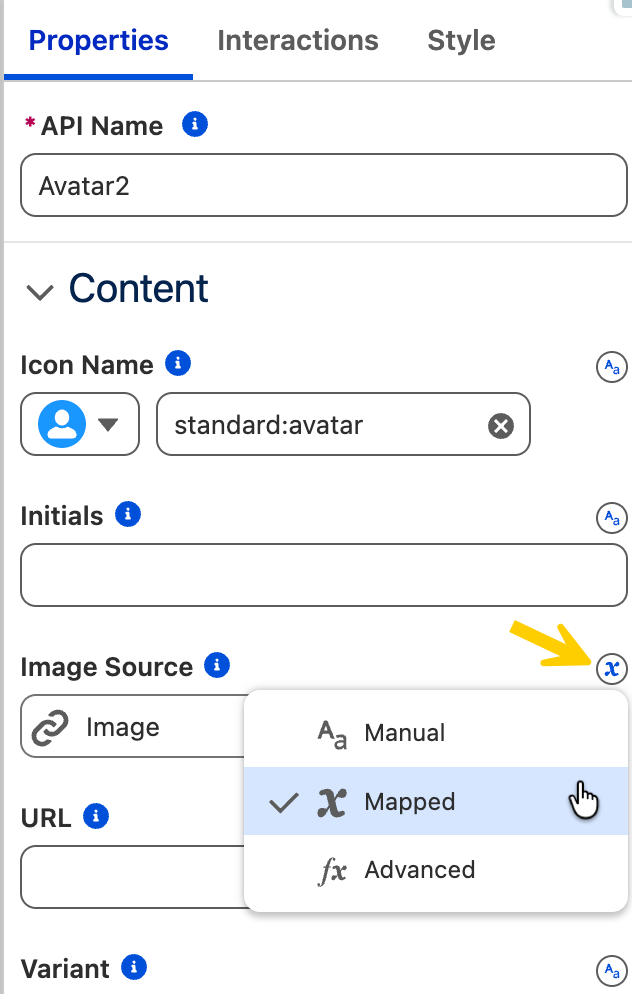
The Resource Selector is the small icon (`x` or a tag symbol) that appears **next to configurable properties throughout the builder — in the Properties Panel**, filter fields, and interaction settings. Clicking it opens a picker where you choose what data to bind to that property.

<figure><img src="/files/6IXWx8ty9nKLXnhNs2QH" alt="" width="316"><figcaption></figcaption></figure>

The three categories you'll see in the picker correspond to the three data types covered below:

***

### Global Variables

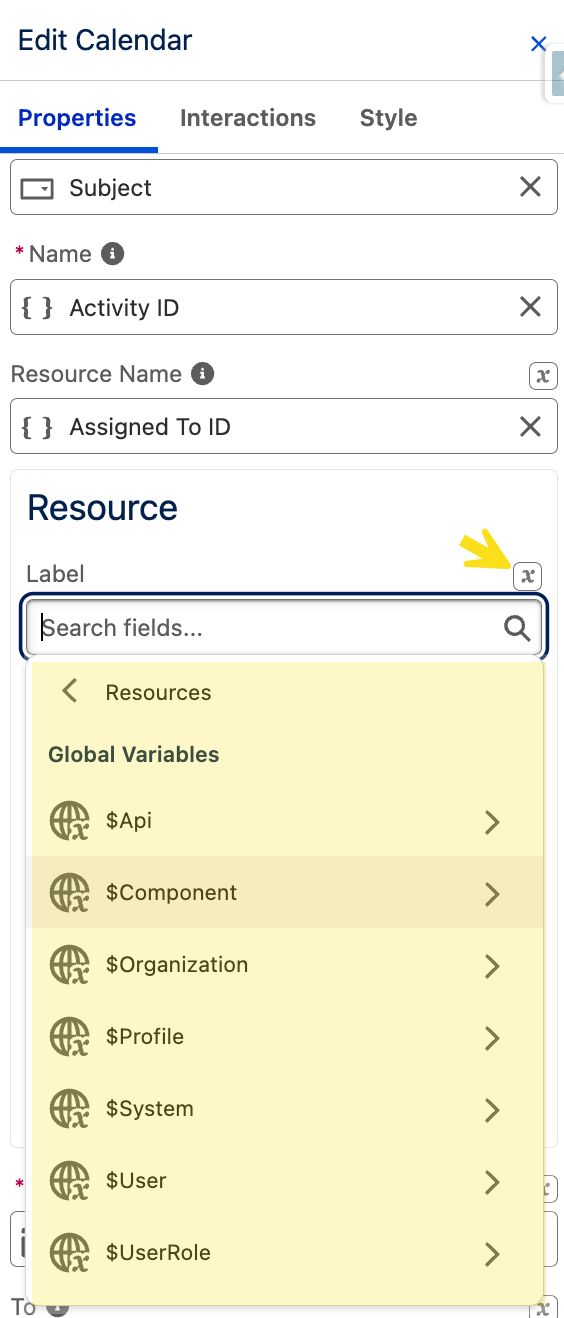
Global variables give you context about the running environment — the current user, org, record, and component. They're always prefixed with `$`.

<figure><img src="/files/YVu1G39rZ32IDRMiFqjC" alt="" width="282"><figcaption></figcaption></figure>

<table><thead><tr><th width="205.0791015625">Variable</th><th>What it provides</th></tr></thead><tbody><tr><td><code>$User</code></td><td>Currently logged-in user. Common fields: <code>$User.Id</code>, <code>$User.FirstName</code>, <code>$User.LastName</code>, <code>$User.Email</code>. Useful for personalization and "My Records" filters.</td></tr><tr><td><code>$UserRole</code></td><td>Current user's role in the role hierarchy: <code>$UserRole.Id</code>, <code>$UserRole.Name</code>. Useful for visibility rules based on role.</td></tr><tr><td><code>$Profile</code></td><td>Current user's profile: <code>$Profile.Id</code>, <code>$Profile.Name</code>. Useful for visibility rules based on profile.</td></tr><tr><td><code>$Permission</code></td><td>Custom permissions assigned to the current user. Useful for showing or hiding UI elements based on specific permissions.</td></tr><tr><td><code>$Component</code></td><td>The full record currently being viewed, when the Target Page Object is set and the component is on a record page. Access any field with dot notation: <code>$Component.record.Name</code>, <code>$Component.record.Industry</code>.</td></tr><tr><td><code>$Component.recordId</code></td><td>Just the ID of the current record (15 or 18 characters). Also accessible as <code>@recordId</code> in the Resource Selector. Useful for passing to queries or interactions.</td></tr><tr><td><code>$Organization</code></td><td>Current org details: <code>$Organization.Id</code>, <code>$Organization.Name</code>.</td></tr><tr><td><code>$Location</code></td><td>Current user's geolocation (latitude and longitude), when location access is available. Useful for map components or proximity-based filters.</td></tr><tr><td><code>$System</code></td><td>System-level information such as the current date and time.</td></tr><tr><td><code>$Api</code></td><td>Salesforce API context. Used in advanced scenarios.</td></tr></tbody></table>

`$Component` and `$Component.recordId` require the [**Target Page Object**](/dynamic-components/core-concepts/target-page-object.md) to be set — see the Target Page Object page for details.

***

### **Resources (Variables, Constants, Formulas)**

Resources are values you define in the Resources Panel. To use one, click the Resource Selector next to any property and select it from the list. The builder displays the reference as `{!YourResourceApiName}`.

Common uses: storing user input, computing display values with formulas, setting filter values, controlling component visibility, and passing data between interactions.

### **Component Attributes**

Component attributes let one component read another's live state — this is the main mechanism for building reactive interfaces.

To reference a component attribute:

1. Click the Resource Selector
2. Select the source component

| Attribute           | Component type              | What it holds                           |
| ------------------- | --------------------------- | --------------------------------------- |
| `.value`            | Inputs, comboboxes, sliders | Current selected or entered value       |
| `.firstSelectedRow` | Data Table                  | The full row object of the selected row |
| `.activeItemValue`  | Tabs                        | The value of the currently active tab   |

***

## Examples

### Example 1: **Showing the current user's full name**

### Example 2: **Showing a button only when a specific status is selected**

Imagine you have a combobox that allows users to select a status ('Active' or 'Inactive'). You want to show a "Reactivate" button only when 'Inactive' is selected.

1. **Add Combobox:** Add an Avonni Combobox. Give it an `API Name` (e.g., `StatusSelector`). Configure its options (Label/Value: Active/active, Inactive/inactive).
2. **Add Button:** Add an Avonni Button. Set its `Label` to "Reactivate".
3. **Set Button Visibility:** Select the Button. In the  property, click the resource selector:
   * Choose **Component Attribute**.
   * **Component:** Select your Combobox (`StatusSelector`).
   * **Attribute:** Select `value`.
   * **Operator:** Set to `equals`.
   * **Value:** Enter the text `inactive` (matching the combobox option value).


---

# Agent Instructions: Querying This Documentation

If you need additional information that is not directly available in this page, you can query the documentation dynamically by asking a question.

Perform an HTTP GET request on the current page URL with the `ask` query parameter:

```
GET https://docs.avonnicomponents.com/dynamic-components/core-concepts/using-variables-and-component-data.md?ask=<question>
```

The question should be specific, self-contained, and written in natural language.
The response will contain a direct answer to the question and relevant excerpts and sources from the documentation.

Use this mechanism when the answer is not explicitly present in the current page, you need clarification or additional context, or you want to retrieve related documentation sections.