> For the complete documentation index, see [llms.txt](https://docs.avonnicomponents.com/llms.txt). Markdown versions of documentation pages are available by appending `.md` to page URLs; this page is available as [Markdown](https://docs.avonnicomponents.com/dynamic-components/core-concepts/experience-sites-integration.md).
# Experience Sites Integration
## Overview
Your Dynamic Components work on Experience Cloud sites just like they do on internal Lightning pages. You build your component in the Dynamic Component Builder, activate it, then add it to your site pages through the Experience Builder.
***
## **Two Ways to Use Avonni in Experience Cloud**
### **Dynamic Components (what this guide covers)**
Build complex, custom solutions (a filterable data table, a Kanban board, a metrics dashboard), then place the entire custom component on your site page. Best for advanced, interactive use cases.
### **Pre-Built Experience Site Components**
Use [**our library of 40+ individual components**](/experience-cloud/experience-components/view-all-components.md) (Map, Gallery, Data Table, etc.) that you can drag directly onto pages. Best for simpler needs where you want a quick, pre-made element.
You can use both on the same site! Use pre-built components for simple tasks and Dynamic Components for custom, complex experiences.
***
## **How to Add Dynamic Components to Your Site**
{% stepper %}
{% step %}
#### Build and activate your component
Create your Dynamic Component in the Component Builder, save it, then click Activate. Without activation, it won't appear in the Experience Builder.
{% endstep %}
{% step %}
#### Add it to your site page
1. Open your Experience Cloud site in the Experience Builder
2. Navigate to the page where you want to add your component
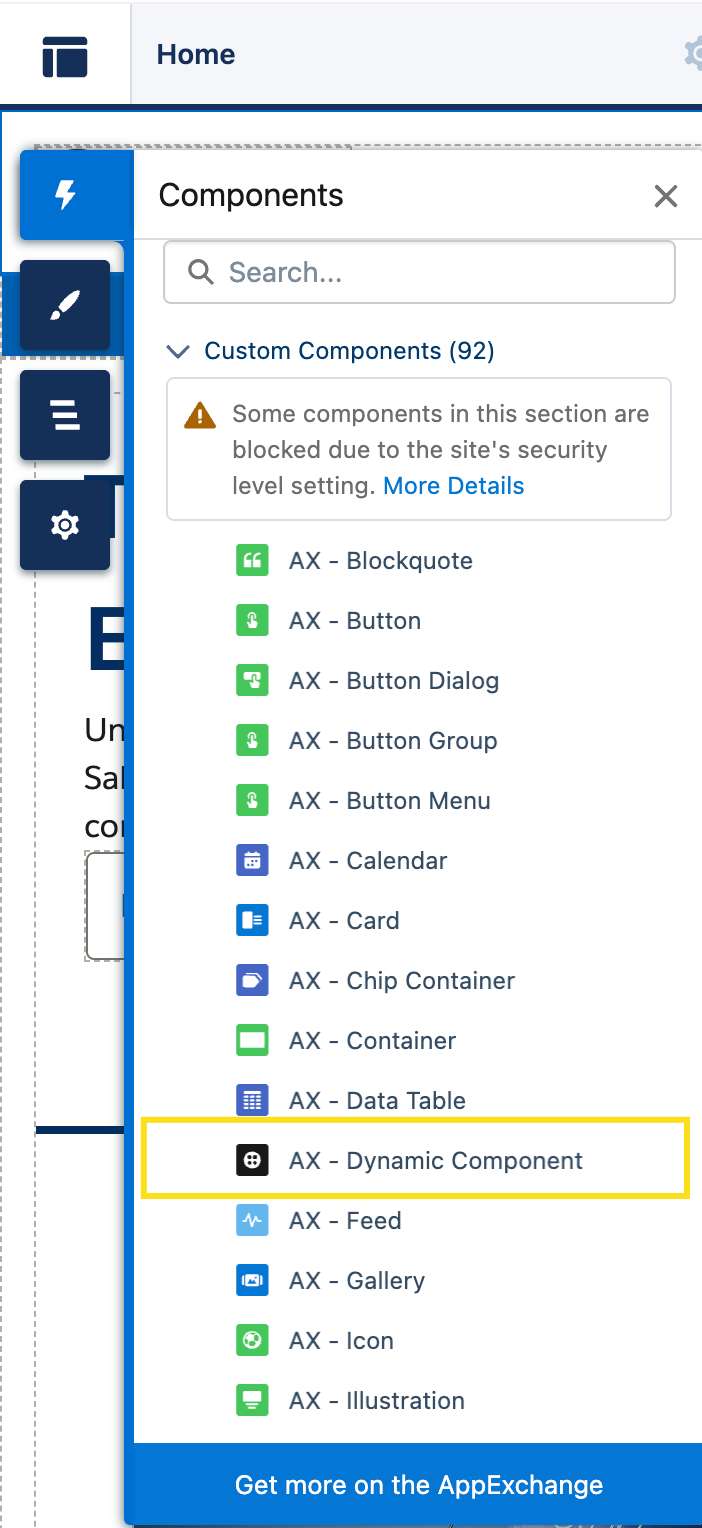
3. In the Components panel (left side), find **"AX - Dynamic Component"** under **Custom Components**
4. Drag it onto your page
{% hint style="warning" %}
#### **For Legacy Package Installations**
If you installed the legacy standalone Dynamic Components package (instead of the [**Avonni Experiences Components package**](https://appexchange.salesforce.com/appxListingDetail?listingId=2e584bb3-b5e0-415d-9347-d6567158d840\&channel=recommended\&other_source=AppExchange+Recommended)), look for **"Avonni Dynamic Component"** in the component list, not "AX - Dynamic Component."
{% endhint %}
{% hint style="info" %}
#### Components blocked by the site's security level
If the Components panel shows "Some components in this section are blocked due to the site's security level setting", the site's security level is blocking custom components. Click **More Details** in that warning to see which ones, then adjust the level in the site's Settings, under Security & Privacy.
{% endhint %}
{% endstep %}
{% step %}
#### **Choose which component to display**
Select the component you just placed on the page. In the Properties Panel on the right, you'll see:
**Component Name:** Select which Dynamic Component you want to display from the dropdown. Only activated components are listed, so if yours doesn't appear, make sure it's activated in the Component Builder.
**Record ID:** Pre-filled with `{!recordId}`. On record detail pages (like Case Detail or custom object pages) this passes the current record's ID to your component automatically. Leave it as it is unless you need to pass a different ID.
**Object Name:** Pre-filled with `{!objectApiName}`. On record and object pages this passes the object's API name to your component, giving it additional context about the page.
**Input Variables:** Set the component's own Variables from this site page. Every Variable whose **Availability Outside of this Dynamic Component** includes **Available for input** appears here, so one Dynamic Component can behave differently on two site pages without being duplicated. The section only appears once the selected component has at least one such Variable, and it refreshes when you change Component Name. Text, number, boolean, date, date/time and collections of those are supported.
{% hint style="info" %}
For your component to read the record on the page, its [**Target Page Object**](/dynamic-components/core-concepts/target-page-object.md) must be set. `$Component.record` and `$Component.recordId` are only available when it is.
{% endhint %}
{% endstep %}
{% step %}
#### Publish your site
Changes made in the Experience Builder are not visible to your site's visitors until you publish. Click **Publish** in the Experience Builder toolbar.
{% endstep %}
{% endstepper %}
**Done!** Your Dynamic Component is live on the site, provided your site users have the [**required Avonni licenses and permissions**](/dynamic-components/getting-started/installation-and-licenses-management.md). Site members need the **Avonni Experience Cloud Components User** permission set. On a public site, unauthenticated visitors need that permission set on the site's guest user profile, and guest user access in production is an add-on: see [**License Management**](/experience-cloud/getting-started/license-management.md) for the procedure.
***
## Visibility Rules on Experience Cloud
Visibility rules work on Experience Cloud pages the same way they work on internal Lightning Pages. Any condition you set up in the Component Builder (based on record data, variables, formulas, or device type) applies at runtime on your site, for both Aura and LWR sites.
This matters because Salesforce's built-in Audiences feature controls visibility at the page or component level, but only using broad criteria such as profile, location, or record type. If you need finer control (showing a section only when a field has a specific value, or hiding a form until the user clicks a button), Audiences won't get you there.
With Dynamic Components, you define those conditions directly in the Component Builder using the **Set Component Visibility** property. The rules run on the client side at page load and update as the user interacts. No need to create separate page variations or duplicate components for different audiences.
This applies to every component inside your Dynamic Component, including embedded Flows (via the [**Flow component**](/dynamic-components/components/flow.md)) and custom LWCs (via the [**LWC Container**](/dynamic-components/components/lwc-container.md)).
For a full walkthrough of visibility rules, see [**Component Visibility**](/dynamic-components/core-concepts/component-visibility.md).
***
## Aura vs. LWR: what to know
Both site types are supported. A few differences worth noting:
| | Aura sites | LWR sites |
| --------------------------------- | ------------------------------------------------------------------------------------------------------------------------------------------------------------------ | ----------------------------------------------------------------------------------------------------------------- |
| **Dynamic Components** | Supported | Supported |
| **Visibility rules** | Work identically | Work identically |
| **Record ID on non-record pages** | Not auto-populated. Pass it yourself in the Record ID property. | Auto-populated |
| **Object Name** | Not auto-populated. When you leave the Object Name property empty and a Record ID is present, the component derives the object from that record with an Apex call. | Auto-populated |
| **Lightning Locker** | Standard behavior | More restrictive. Some features (like the Language Selector's window object access) require Locker to be disabled |
If you're on an Aura site and your Dynamic Component doesn't display record data on a non-record page, check that you've passed `{!recordId}` in the component properties. This is the most common issue we see.
{% hint style="warning" %}
#### On-load interactions in preview
Execute Flow and Biometric interactions that run on load are skipped in the Experience Builder preview and in a site preview. They do run on the published site. If one of them seems to do nothing while you are previewing, check it on the published site before investigating further.
{% endhint %}
---
# Agent Instructions
This documentation is published with GitBook. GitBook is the documentation platform designed so that both humans and AI agents can read, navigate, and reason over technical content effectively. Learn more at gitbook.com.
## Querying This Documentation
If you need additional information that is not directly available in this page, you can query the documentation dynamically by asking a question.
Perform an HTTP GET request on the current page URL with the `ask` query parameter, and the optional `goal` query parameter:
```
GET https://docs.avonnicomponents.com/dynamic-components/core-concepts/experience-sites-integration.md?ask=&goal=
```
`ask` is the immediate question: it should be specific, self-contained, and written in natural language.
`goal` is optional and describes the broader end goal you are ultimately trying to accomplish on behalf of the user. GitBook uses it to tailor the answer towards what is most useful for that goal.
The response will contain a direct answer to the question and relevant excerpts and sources from the documentation.
Use this mechanism when the answer is not explicitly present in the current page, you need clarification or additional context, or you want to retrieve related documentation sections.