> For the complete documentation index, see [llms.txt](https://docs.avonnicomponents.com/llms.txt). Markdown versions of documentation pages are available by appending `.md` to page URLs; this page is available as [Markdown](https://docs.avonnicomponents.com/dynamic-components/core-concepts/component-visibility.md).
# Component Visibility
## Overview
Instead of always showing all components, you can define rules that determine *when* a component is visible. Show a section only when a checkbox is checked, hide a chart on mobile, or display a form only after the user picks an option.
Visibility rules work on Lightning Pages and Experience Cloud sites (both Aura and LWR). The conditions you define in the Component Builder apply at runtime regardless of where the Dynamic Component is deployed.
{% hint style="info" %}
#### Info
If you're building on an Experience Cloud site and find that Salesforce Audiences are too broad for your needs, visibility rules give you field-level and interaction-level control over what appears on the page. See **Experience Sites Integration** for setup details.
{% endhint %}
***
## How Dynamic Visibility Works
Every Avonni component has a **Set Component Visibility** panel in the Properties Panel. The **When to Display Component** dropdown controls when the component is shown:
| Option | Behaviour |
| -------------------------- | ------------------------------------------------------------------------------------------------------------------------------------- |
| **Always** | The component is always visible. This is the default. |
| **All Conditions Are Met** | The component is shown only when every condition you define evaluates to true. |
| **Any Condition Is Met** | The component is shown when at least one of your conditions evaluates to true. |
| **Custom Logic Is Met** | The component is shown based on a custom logical expression you write (e.g. `1 AND (2 OR 3)`), referencing your conditions by number. |
***
## Setting Up Conditional Visibility
1. **Select the component** on the canvas.
2. **Open the Properties Panel** (right side) and find the **Set Component Visibility** section.
3. **Choose a display mode** from the **When to Display Component** dropdown: *All Conditions Are Met*, *Any Condition Is Met*, or *Custom Logic Is Met*.
4. **Add one or more conditions.** Each condition compares a value on the left to a value on the right using an operator. The left-hand value can be:
* **Component Attribute:** The state or value of another component (e.g., `@MyCheckbox.checked`).
* **Variable:** A Variable resource you created.
* **Formula:** A Formula resource, useful for complex expressions.
* **Global Variable:** System-provided information such as `$Component.FormFactor`, which returns `'Desktop'`, `'Tablet'`, or `'Phone'`.
5. **If using Custom Logic**, enter your expression in the logic field using condition numbers (e.g., `1 AND (2 OR 3)`).
***
## What a Condition Compares
A condition is evaluated against the value stored on the record, not against the label displayed in the builder or on the page. Most of the time the two are the same text and the condition works as written. When they differ, the condition is false, the component stays hidden, and no error is shown.
Record types are where this comes up most often. The condition editor shows the record type **label**, for example `Distribution Headquarters`, while the record stores the **API name**, for example `Distribution_Headquarters`. A record type API name cannot contain a space, so a condition written with a multi word label never matches. Single word record types such as `Contractor` have the same label and API name, which is why conditions on some components work while an apparently identical one does not.
To get the value the condition needs: open **Setup**, go to **Object Manager**, select the object, open **Record Types**, and copy the **Record Type Name**. Use that text in the condition.
The comparison is exact. A trailing space, a different capitalization, or an abbreviation is enough to make the condition false. The same applies to picklists, where the API value often differs from the label users see.
The field used in a condition also has to be part of the data the component loads, and readable by the user viewing the page. A field the running user cannot read arrives empty, so the condition is false for them while it stays true for an administrator.
{% hint style="info" %}
#### The component is hidden and you cannot tell why
Keep the same field in the condition, change the operator to **Is Not Null**, and reload the page.
If the component appears, the field does reach the component and only the compared value is wrong. Copy the stored value from Setup and try again.
If the component is still hidden, the field never reaches the component. Add it to the data the component loads, then check the object and field permissions of the profile that views the page.
{% endhint %}
***
## Examples
### Conditionally Displaying a Calendar
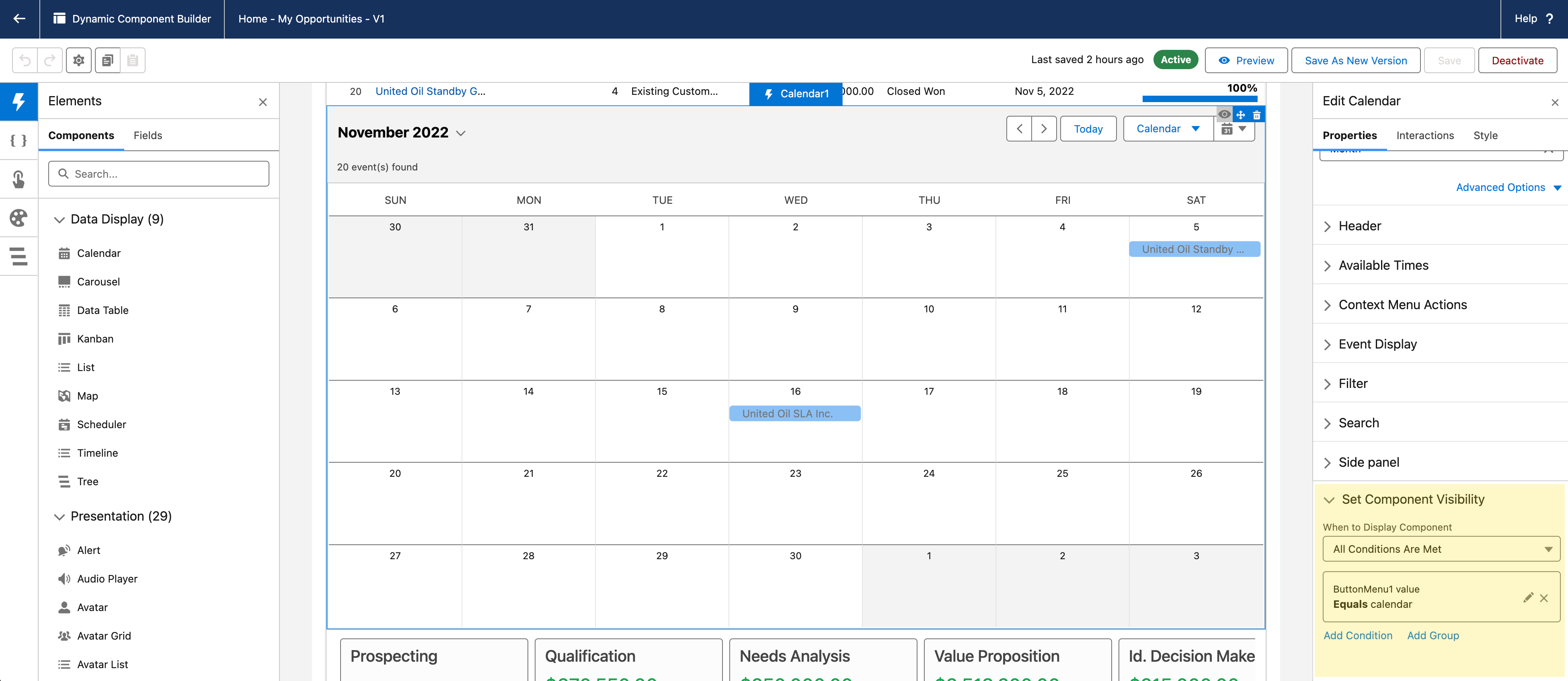
Let's create an example in which an Avonni Calendar component is visible only when the user selects the "Calendar" option from an Avonni Button Menu.
{% stepper %}
{% step %}
#### **Add a Button Menu**
* Drag an Avonni **Button Menu** component onto the canvas.
* In its properties, configure the `Items`:
* Add an item with `Label: Table`, `Value: table`
* Add an item with `Label: Calendar`, `Value: calendar`
* Give the Button Menu a descriptive `API Name` (e.g., `ViewModeMenu`).
{% endstep %}
{% step %}
#### **Add the Calendar**
Drag an Avonni **Calendar** component onto the canvas
{% endstep %}
{% step %}
#### **Set the Calendar's Visibility**
* Select the **Calendar** component.
* In the Properties Panel, open **Set Component Visibility**.
* Set **When to Display Component** to **All Conditions Are Met**.
* Add a condition: left side → **Component Attribute** → `ViewModeMenu` → `value`; operator → **equals**; right side → `calendar`.
{% endstep %}
{% endstepper %}
#### **How It Works**
The Calendar's `Visible` property is now directly linked to the `value` of the `ViewModeMenu` Button Menu. When the user selects "Calendar" in the Button Menu, the `value` becomes `'calendar'`, the condition evaluates to `true`, and the Calendar component is displayed. If any other option is selected, the condition is `false`, and the Calendar is *not loaded*.
### Device-Specific Layout
Let's show a detailed Data Table on desktops/tablets, but a simpler List component on phones.
{% stepper %}
{% step %}
**Add Data Table**
Add your Data Table component (e.g., `MyDataTable`).
{% endstep %}
{% step %}
**Set Data Table Visibility**
* Select `MyDataTable`.
* Open **Set Component Visibility** → set **When to Display Component** to **All Conditions Are Met**.
* Add a condition: **Global Variable** `$Component.FormFactor` **not equal to** `'Phone'`.
{% endstep %}
{% step %}
**Add List Component**
Add your List component (e.g., `MyList`) designed for mobile viewing.
{% endstep %}
{% step %}
**Set List Visibility**
* Select `MyList`.
* Open **Set Component Visibility** → set **When to Display Component** to **All Conditions Are Met**.
* Add a condition: **Global Variable** `$Component.FormFactor` **equals** `'Phone'`.
{% endstep %}
{% endstepper %}
**Result:** Users on desktops or tablets will see the Data Table, while users viewing on a phone will see the List component, providing an optimized view for each device form factor.
***
## Common Use Cases
* **Conditional Forms:** Show/hide form fields based on previous selections.
* **Personalized Dashboards:** Display different components based on user role or profile.
* **Progressive Disclosure:** Gradually reveal information as the user interacts.
* **Error Messages:** Show error messages only when an error occurs.
* **Loading Indicators:** Show a loading indicator while data is being fetched, then hide it and show the data component.
* **Creating Responsive Layouts** that adapt to Desktop, Tablet, and Phone screens
* **Experience Cloud sites:** Control component visibility based on record data or user interactions when Salesforce Audiences don't offer enough granularity. For example, show a Flow only to users whose Account has a specific `Type` value, or hide a section until the user selects a tab. This works on both Aura and LWR sites.
***
## Tips
* **Start Simple:** Begin with simple conditions and gradually increase complexity.
* **Copy Values From Setup:** When a condition compares a record type or a picklist, use the stored API value rather than the label.
* **Test Thoroughly:** Test your visibility conditions with different data and user interactions.
* **Test As Your Users:** An administrator sees fields a standard profile may not, so check the page with a profile your users actually have.
* **Use Formulas Carefully:** While powerful, complex formulas can be more complicated to maintain.
* **Use Boolean Variables:** Create boolean variables to make it more readable.
***
## **In Summary**
Use the **When to Display Component** dropdown, **All Conditions Are Met**, **Any Condition Is Met**, or **Custom Logic Is Met**, to define when a component appears. Conditions can reference component attributes, variables, formulas, or `$Component.FormFactor`, and they compare against the value stored on the record rather than the label. This works on Lightning Pages and Experience Cloud sites alike. In Experience Cloud, visibility rules provide the fine-grained, condition-based control that Salesforce Audiences doesn't cover.
---
# Agent Instructions
This documentation is published with GitBook. GitBook is the documentation platform designed so that both humans and AI agents can read, navigate, and reason over technical content effectively. Learn more at gitbook.com.
## Querying This Documentation
If you need additional information that is not directly available in this page, you can query the documentation by asking a question.
Perform an HTTP GET request on the following URL with the `ask` and `goal` query parameters:
```
GET https://docs.avonnicomponents.com/dynamic-components/core-concepts/component-visibility.md?ask=&goal=
```
`ask` is the immediate question: it should be specific, self-contained, and written in natural language.
`goal` is what the user is ultimately trying to achieve, the reason they need the answer. Sharing it helps GitBook give you a better, more relevant answer. A goal is most helpful when it describes the outcome the user wants rather than restating the question. For example, with `ask=how do I create an API token`, a goal like `automate deployments from our CI pipeline` lets GitBook tailor the answer to that use case.
The response will contain a direct answer to the question and relevant excerpts and sources from the documentation.
Use this mechanism when the answer is not explicitly present in the current page, you need clarification or additional context, or you want to retrieve related documentation sections.
.png?alt=media)
.gif?alt=media)