# Component Builder Overview

## Overview

The Component Builder is where you assemble Dynamic Components — drag elements from the library, wire them to data, and define how they react to user actions. Everything is visual: no code, no XML, no metadata files. If you've used a page builder like Webflow or Figma, the layout will feel familiar, just with Salesforce data flowing through it.

Your work here produces a deployable component you can place on any Lightning Page or Experience Site.

***

## Anatomy of the Builder

<figure><img src="/files/74iEwo7WqpZdfHfjmCrY" alt=""><figcaption></figcaption></figure>

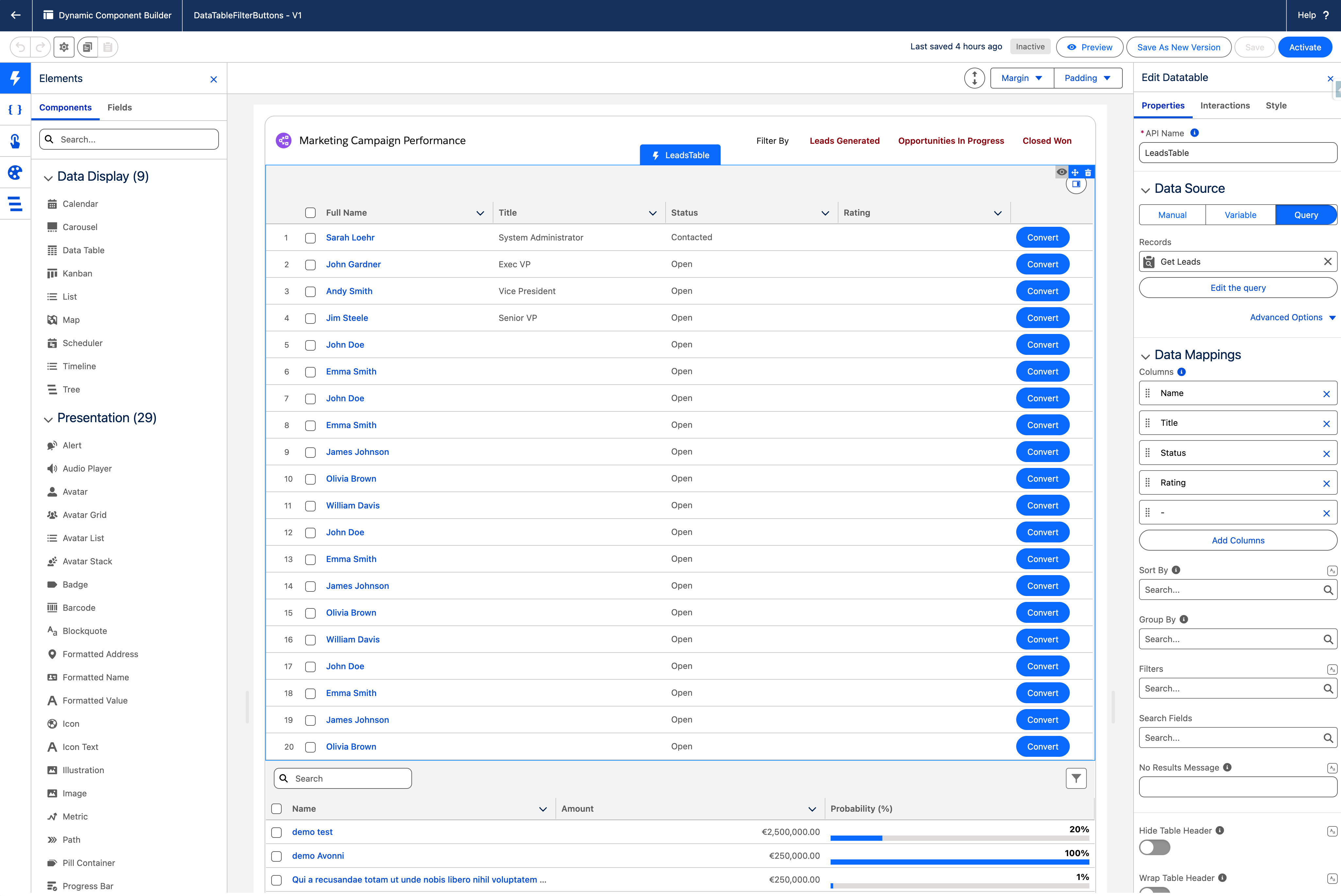
Four areas split the screen. Each has a distinct job.

| Area                         | What it does                                                           |
| ---------------------------- | ---------------------------------------------------------------------- |
| **Canvas (center)**          | The visual workspace where you assemble and arrange components.        |
| **Left Panel (left)**        | Your toolkit — components, resources, interactions, styles, structure. |
| **Properties Panel (right)** | Context-sensitive settings for whatever is selected on the canvas.     |
| **Top Bar (top)**            | Save, Preview, Undo/Redo, and global Settings for the component.       |

***

## Canvas

The canvas is the central area where you drop components and arrange them into a layout. Drag from the **Component Library** on the left and drop anywhere on the canvas. Drop one component inside another to nest them — the same way you'd nest a Button inside a Card.

**Layout components** give the canvas its structure: Cards, Columns, Containers, and Tabbed Containers hold other components and define how they are positioned relative to one another. See Layout Components for the full set.

{% hint style="info" %} Use the **Component Structure Panel** (in the Left Panel) when nesting gets deep. The tree view makes it much easier to select the exact component you want than it is to click through layers on the canvas. {% endhint %}

***

## Left Panel

The Left Panel is your toolkit. Five tabs sit along the edge — switch between them depending on what you're doing.

### Component Library

The catalog of every Avonni component, organized by category (Data, Display, Input, Layout). Drag any component onto the canvas to add it.

A second tab — **Fields** — appears once you've set the **Target Object API Name** in Settings. Every field on that object shows up there, and dragging a field onto a component binds it to data in one move. Faster than configuring Data Mappings manually for each field.

[**→ Browse the Component Library**](/dynamic-components/components/explore-all-components.md)

### Resources Panel

Where you create the data and logic that drive the component. Five resource types live here:

| Resource         | Used for                                                                       |
| ---------------- | ------------------------------------------------------------------------------ |
| **Variable**     | Values that change at runtime — user input, selections, computed state.        |
| **Constant**     | Fixed values that never change — labels, configuration flags.                  |
| **Formula**      | A value computed from other resources — totals, conditions, formatted strings. |
| **Query**        | Records fetched from a single Salesforce object.                               |
| **Nested Query** | Records fetched together with their related child records.                     |

[**→ Resources Overview — when to use which**](/dynamic-components/component-builder/resources/overview.md)

### Interactions Panel

A single place to view and manage every interaction configured across the component. Each interaction connects an event (**On Click**, **On Load**, **On Row Select**) to one or more actions (**Execute Flow**, **Set Variable**, **Navigate to Record**).

[**→ Interactions Overview**](/dynamic-components/component-builder/interactions.md)

### Style Panel

Reusable named styles you apply across multiple components for visual consistency. Define a style once, apply it everywhere, change it in one place to update every instance.

[**→ Custom Styles**](/dynamic-components/component-builder/configuring-components/style.md)

### Component Structure Panel

A hierarchical tree of every component on the canvas. Critical when layouts get nested — easier to click a row in the tree than to find the right element buried in the canvas.

***

## Properties Panel

The right-side panel changes based on what's selected on the canvas. Click a Button and you see Button settings. Click a Data Table to see the Data Table settings.

Most pages in this documentation describe the contents of this panel, organized by component. Settings are grouped into sections — typically:

<table><thead><tr><th width="277.40625">Section</th><th>What it controls</th></tr></thead><tbody><tr><td><strong>Data Source</strong></td><td>Where the component pulls its data from (Query, Variable, Manual).</td></tr><tr><td><strong>Data Mappings</strong></td><td>How Salesforce fields map to the component's fields or columns.</td></tr><tr><td><strong>General Settings</strong></td><td>Labels, sizes, layout options.</td></tr><tr><td><strong>Display / Behavior</strong></td><td>Visual options, conditional visibility, formatting.</td></tr><tr><td><strong>Interactions</strong></td><td>Event-to-action wiring (also accessible from the Left Panel).</td></tr></tbody></table>

[**→ Data Sources Overview**](/dynamic-components/component-builder/data-sources/overview.md) — how Data Source and Data Mappings work together

***

## Top Bar

| Control                     | Location  | What it does                                                                                                             |
| --------------------------- | --------- | ------------------------------------------------------------------------------------------------------------------------ |
| **Settings** (gear icon ⚙️) | Top-left  | Component-wide settings — most importantly the **Target Object API Name** that drives the Fields tab and record context. |
| **Undo / Redo**             | Top-left  | Step backward or forward through recent canvas changes.                                                                  |
| **Preview**                 | Top-right | Opens a live preview of the component as end users will experience it.                                                   |
| **Save**                    | Top-right | Saves the component. Save is not Deploy — see the warning below.                                                         |

{% hint style="warning" %}

#### **Save vs. Activate**

Save persists your work inside the Component Builder. To make the component available on a Lightning Page or Experience Site, you also need to **Activate** it from the component list view
{% endhint %}

→ [**Settings & Target Object**](/dynamic-components/core-concepts/target-page-object.md) — what each global setting controls&#x20;

→ [**Publishing a Component**](/dynamic-components/core-concepts/publishing-your-dynamic-components.md) — pushing your work live.

***

## Where to go next

| Page                                                                                        | What's on it                                                       |
| ------------------------------------------------------------------------------------------- | ------------------------------------------------------------------ |
| [**Quick Start tutorial**](/dynamic-components/getting-started/quickstart-guide.md)         | Build your first Dynamic Component in under 10 minutes.            |
| [**Resources Overview**](/dynamic-components/component-builder/resources/overview.md)       | Variables, Constants, Formulas, Queries — when to use which.       |
| [**Data Sources Overview**](/dynamic-components/component-builder/data-sources/overview.md) | How components connect to Salesforce data and your own variables.  |
| [**Interactions Overview**](/dynamic-components/component-builder/interactions.md)          | Make components react to user actions and trigger Salesforce work. |


---

# Agent Instructions: Querying This Documentation

If you need additional information that is not directly available in this page, you can query the documentation dynamically by asking a question.

Perform an HTTP GET request on the current page URL with the `ask` query parameter:

```
GET https://docs.avonnicomponents.com/dynamic-components/core-concepts/component-builder-overview.md?ask=<question>
```

The question should be specific, self-contained, and written in natural language.
The response will contain a direct answer to the question and relevant excerpts and sources from the documentation.

Use this mechanism when the answer is not explicitly present in the current page, you need clarification or additional context, or you want to retrieve related documentation sections.
