Pill Container
The Avonni Pill Container component displays a collection of pills — compact tags or selected items — with optional collapsing, single-line layout, drag-and-drop sorting, avatars, links, and per-pill actions.
Overview
To start with the Avonni Pill Container component, you'll first need to connect it to your data and configure how the pills are displayed. The sections below follow the configuration panel from top to bottom, so you can read along as you build.
Configuration
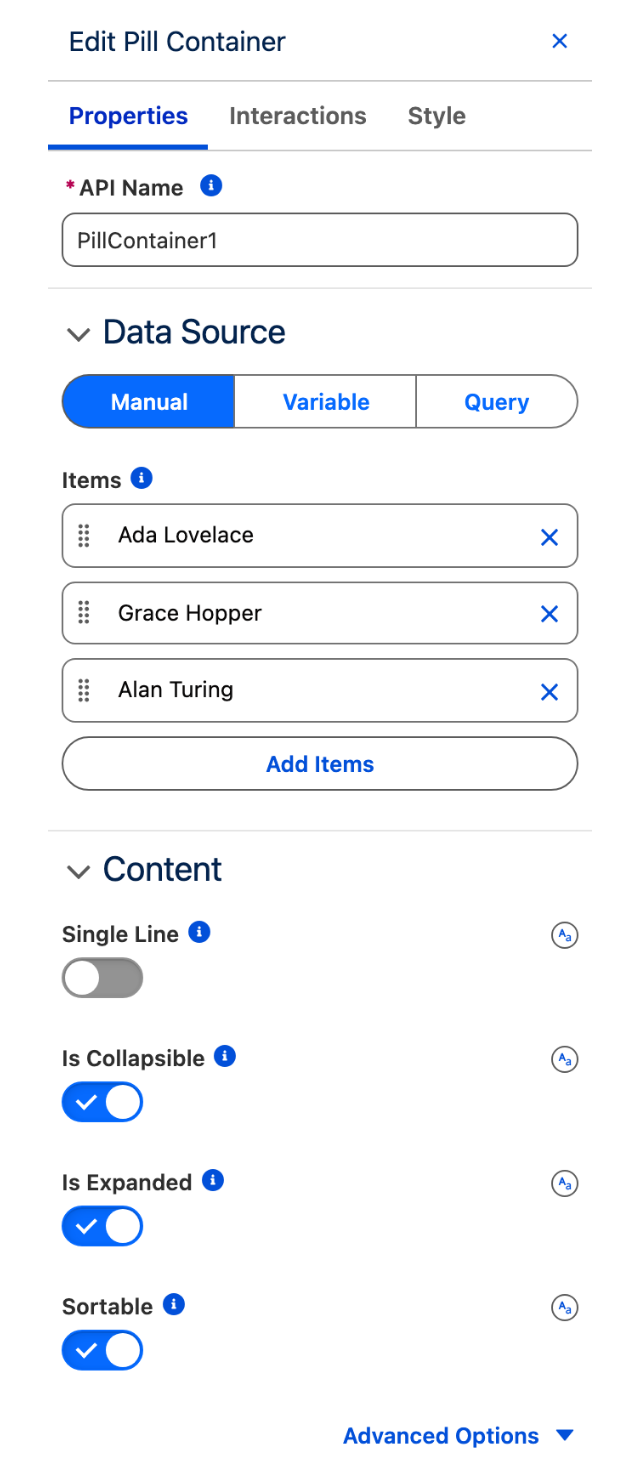
To configure the Pill Container, select it on the canvas. The Edit Pill Container panel opens on the right with three tabs: Properties, Interactions, and Style. The sections below mirror the Properties tab.
Data Source
Before you build your pill container, you must tell the Avonni Pill Container component where to get the items it should display. You have several options, depending on the source and nature of your data:
Manual
Enter data directly into the component configuration.
Variable
This is useful for data that changes based on user interactions or other component logic.
Query
This is the most common option for displaying Salesforce records.
Data Mapping
When using a dynamic data source for your Pill Container, you'll need to configure the Data Mappings section to tell the component how to build each pill from your data.
Think of it like a translator: Data Mappings ensure the correct information from your Salesforce data ends up in each pill.
Why are Data Mappings Important?
Without data mapping, the container wouldn't know which part of your data to render. This could result in pills showing incorrect or irrelevant information.
How Do Data Mappings Work?
In the Data Mappings section, you'll establish the connection between your Salesforce data fields and the corresponding pill attributes. By selecting which field maps to which attribute, you ensure each pill accurately displays the correct information from your Salesforce data.
Label
Text to display in the pill. For common objects this is prefilled (for example, the Subject of a Task or the Name of an Account).
URL
Address of the web page the pill label links to.
Target
Controls where the URL opens — Self (current tab, default), Blank (new tab), Parent (parent frame), or Top (full window).
Avatar
An optional avatar shown inside the pill, with its own Variant (Circle or Square), Initials, Icon Name, and Image Source.
Key Field
Unique identifier of the item, defaulting to the record Id. Available under Advanced Options.
Content
The Content section controls the overall layout and behavior of the pills.
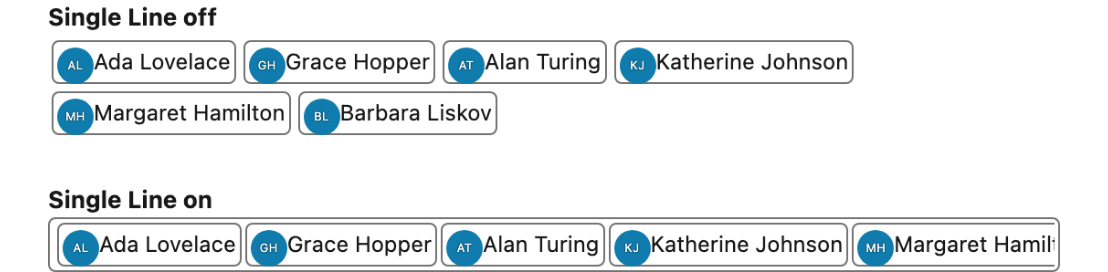
Single Line
When enabled, the pills are limited to a single line instead of wrapping onto multiple rows.
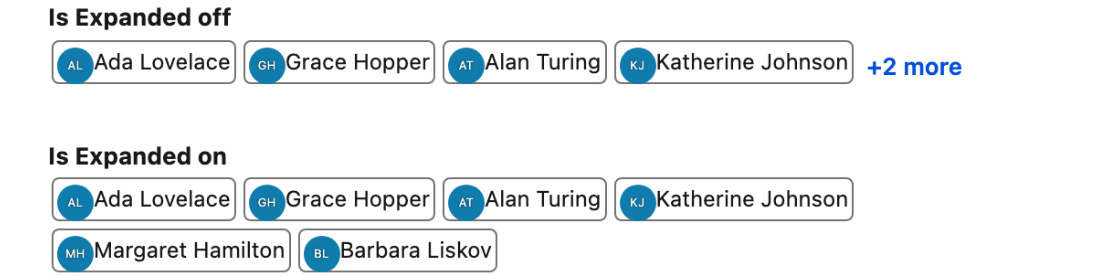
Is Collapsible
When enabled, the list of pills can be collapsed. Use Is Collapsible together with Is Expanded to control whether the pills are shown collapsed or expanded.
Is Expanded
When enabled — and only when Is Collapsible is also enabled — the list of pills is shown in its expanded state. This attribute is ignored when Is Collapsible is off.
Sortable
When enabled, users can reorder the pills by dragging and dropping them, or by using the spacebar key. Pair this with the On Reorder interaction to react to the new order.
Alternative Text
Available under Advanced Options, this is the accessible text used to describe the pill container for assistive technologies.
Actions
The Actions section lets you attach buttons that appear to the right of each pill — for example, a remove or edit button. Each action can define a Label, a unique Name, an Icon Name (a Lightning Design System icon), and a Disabled state. Trigger behavior for these buttons from the On Item Action Click interaction.
Set Component Visibility
All components support conditional visibility — see Component Visibility.
Interactions
Interactions define what happens when users interact with the Pill Container. Configure them from the Interactions tab of the Edit Pill Container panel.
Item Click
Fires when a user clicks a pill. Use this to navigate to a related record, open a modal, or trigger any flow logic tied to the selected item.
Item Action Click
Fires when a user clicks an action button on a pill. Use the targetName output to identify which action was clicked so you can branch your flow logic accordingly.
Reorder
Fires when a user drags and drops or keyboard-reorders the pills. Requires Sortable to be enabled. Use this to persist the new pill order back to your records.
Output Variables
The Pill Container exposes these output variables you can reference elsewhere on the page after the user interacts with it.
Item Click
When a user clicks a pill, these variables update with the clicked pill's data.
Clicked Item
Object
The full data object for the clicked pill, with the same properties as the static data source items.
Clicked Item SObject
Record (SObject)
The Salesforce record associated with the clicked pill. Requires a Query or Variable data source.
Example: When a user clicks a Contact pill, use Clicked Item SObject to display that contact's details in a record-detail component next to the pill container.
Item Action Click
When a user clicks an action button on a pill, these variables update with the action and pill details.
Clicked Item Action - Name
Text (String)
The name of the action button the user clicked. Use this to branch your logic when multiple actions are configured.
Clicked Item Action - Item
Object
The data object for the pill whose action was clicked, with the same properties as the static data source items.
Clicked Item Action - Item sObject
Record (SObject)
The Salesforce record for the pill whose action was clicked. Requires a Query or Variable data source.
Example: When a user clicks a "Remove" action on a pill, use Clicked Item Action - Name to confirm the action name and Clicked Item Action - Item sObject to delete the corresponding record.
Reorder
When a user drags and drops or keyboard-reorders the pills, these variables update with the new order. Requires Sortable to be enabled.
Sorted Items
Object
The pills in their new order, each with the same properties as the static data source items.
Sorted Items sObject
Record Collection (SObject[])
The Salesforce records in their new order. Requires a Query or Variable data source.
Example: After a user reorders skill pills on a profile page, use Sorted Items sObject to write the updated order back to a custom field on each related record.
Others
Number of Items
Number
The total number of pills currently displayed in the container.
Last updated
Was this helpful?