# Navigation Container

## Overview

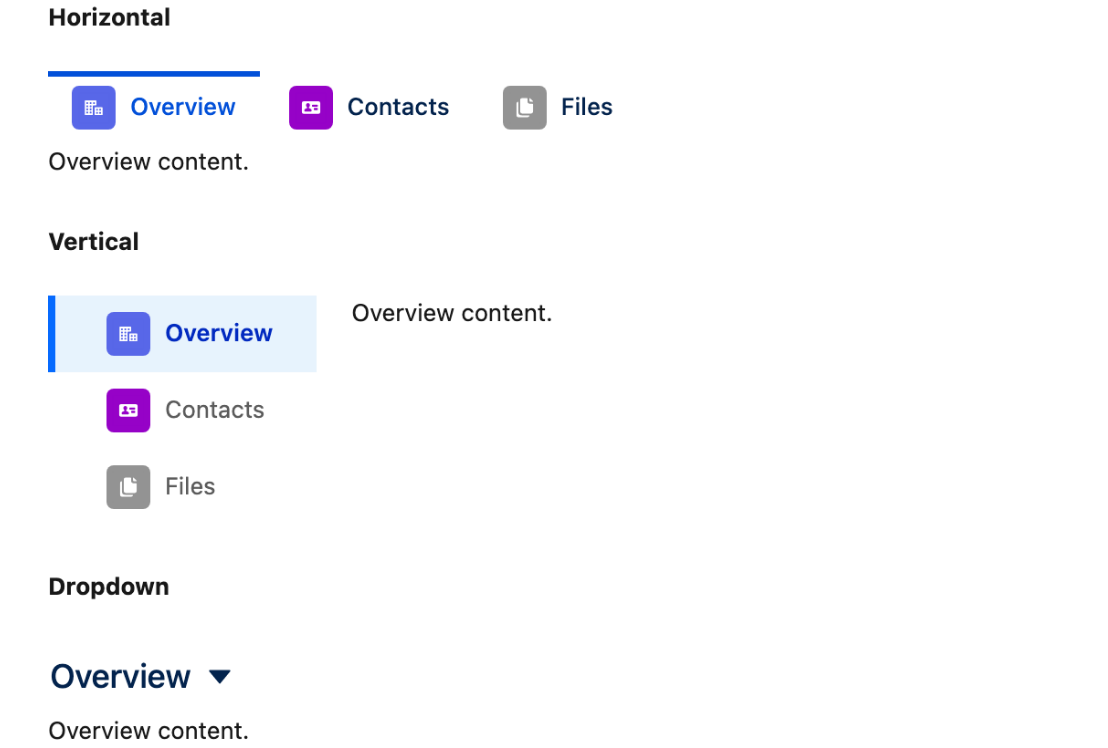
The Navigation Container displays a menu — horizontal, vertical, or dropdown — in which each item reveals its own content area. Drop any Avonni components into those areas to build layouts where users switch between sections using the menu. Use it for multi-section record pages, wizards, filtered dashboards, or any layout where you want one region of the page to change based on the selected navigation item.

***

{% hint style="warning" %}

#### Key Difference with the Vertical Navigation Component

The Navigation Container and the [Vertical Navigation component](/dynamic-components/components/vertical-navigation.md) look similar but serve very different purposes.

* **Vertical Navigation** is a **data-driven** component. You connect it to a data source (records, picklist, or manual list), and it renders one navigation item per record. You **cannot drag other Avonni components inside the items** — it is a navigation element, not a layout.
* **Navigation Container** is a **layout container**. You define the navigation items manually, and then drag any Avonni components into the content area of each item. You control the layout and content of every item independently.

Use **Vertical Navigation** when the navigation items come from a list of records. Use the **Navigation Container** when you want to build a menu-based layout with arbitrary components inside each section.
{% endhint %}

***

## Quick Start: Build an Account Detail Menu in 2 Minutes

Follow these steps to add a horizontal navigation to an Account Record Page with three sections: **Overview**, **Contacts**, and **Files**.

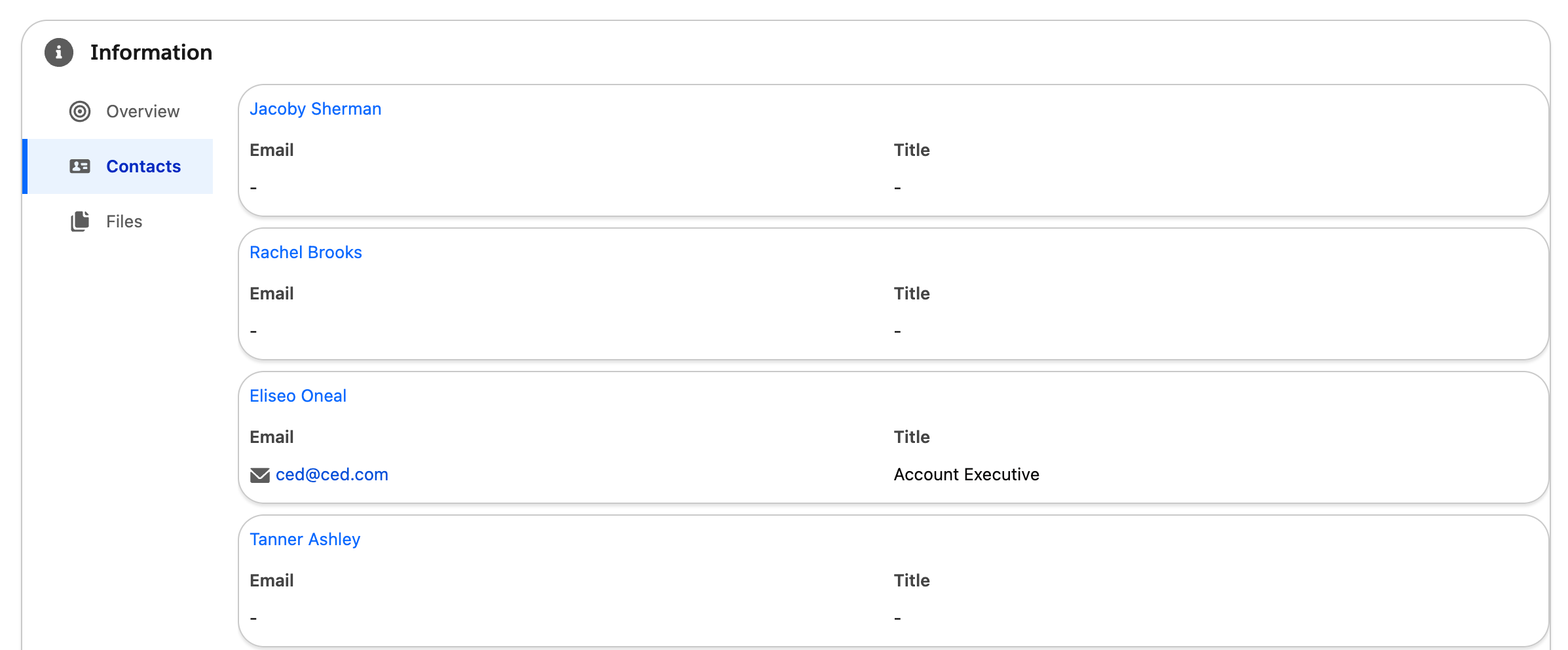
<figure><img src="/files/FhbSd6GP7bdvPwbuvpOl" alt=""><figcaption></figcaption></figure>

{% stepper %}
{% step %}

#### **Create a New Component**

* Open the **Avonni Dynamic Components** App.
* Click **New**.
* **Name:** Enter a name (e.g., "Account Navigation Layout").
* **Target Page Object:** Select **Account**.
  * *Why: This lets variables like `{!RecordId}` resolve to the Account currently being viewed.*
    {% endstep %}

{% step %}

#### **Add the Component to the Canvas**

* From the **Component Library** (left sidebar), search for **Navigation Container**.
* Drag it onto the canvas.
  {% endstep %}

{% step %}

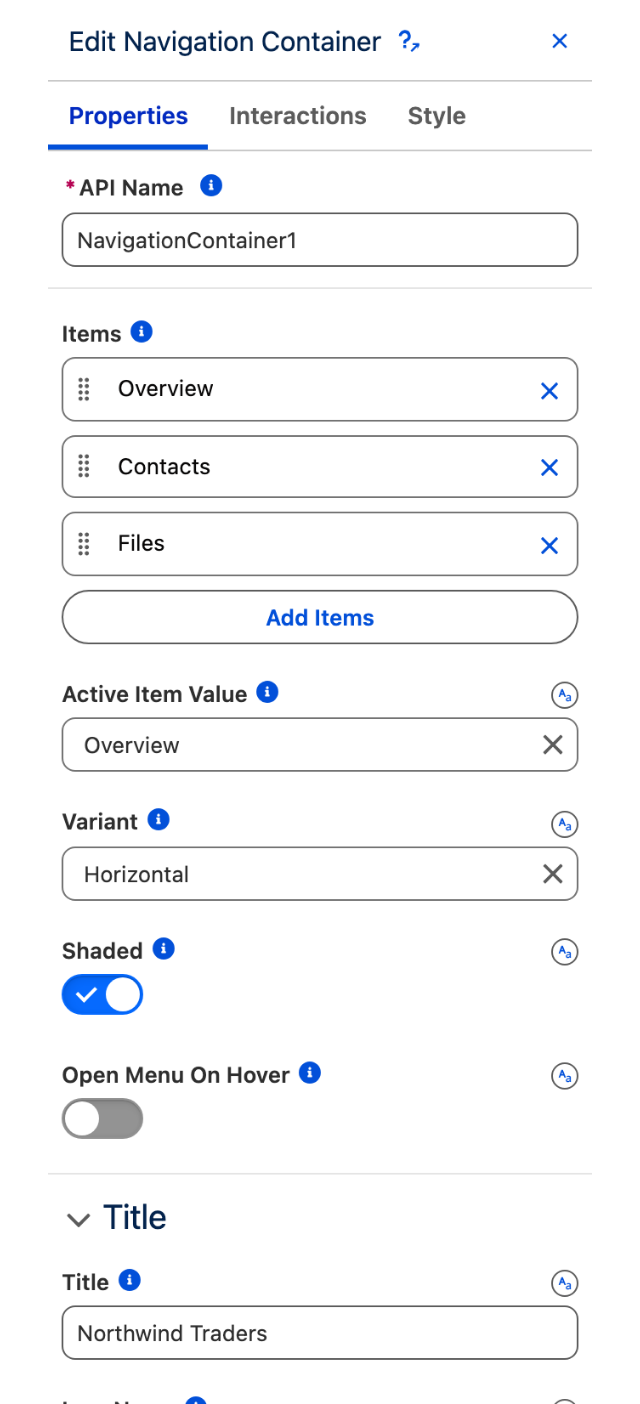
#### **Define the Navigation Items**

* Select the Navigation Container on the canvas.
* In the Properties Panel (right), find **Items** and click the button to open the Items editor.
* Click **Add Item** three times and configure each:
  * **Item 1** — Label: `Overview`, Value: `overview`, Icon Name: `standard:account`.
  * **Item 2** — Label: `Contacts`, Value: `contacts`, Icon Name: `standard:contact`.
  * **Item 3** — Label: `Files`, Value: `files`, Icon Name: `standard:file`.
  * *Why: The **Value** must be unique. It is what you reference when setting the default active item or reacting to item clicks.*&#x20;
    {% endstep %}

{% step %}

#### **Choose a Variant**

* Still in the Properties Panel, set **Variant** to **Horizontal**.
  * *Note: Use **Vertical** for a sidebar-style menu, or **Dropdown** to collapse all items into a single button.*
* Set **Active Item Value** to `overview` so the first section is selected by default when the page loads
  {% endstep %}

{% step %}

#### **Add Content to Each Navigation Item**

This is the step that distinguishes this component from Vertical Navigation.

* On the canvas, click the **Overview** item in the menu preview — the content area below activates.
* Drag a **Record Detail** component into that area.
* Click the **Contacts** item to switch the canvas to that item's content area.
* Drag a **Data Table** component into it, then connect it to a `Contact` query filtered by `AccountId = {!RecordId}`.
* Click the **Files** item and drop a **File Upload** component into its area.
  * *Why: Each navigation item is an independent container. Whatever you drop inside only appears when that item is selected.*
    {% endstep %}

{% step %}

#### **Save and Activate**

* Click **Save**.
* Click **Activate** to [add this dynamic component to your Account Lightning Page](/dynamic-components/core-concepts/publishing-your-dynamic-components.md).&#x20;
  {% endstep %}
  {% endstepper %}

***

## Configuration

Select the Navigation Container on the canvas to access the Properties Panel. Configuration is organized around the navigation items, the overall variant, an optional title block, and the active-item indicator.

### Navigation Items

The **Items** collection defines the entries that appear in the navigation. Each item has its own content area for child components.

<table><thead><tr><th width="139.62890625">Setting</th><th>Description</th><th>Example / Options</th></tr></thead><tbody><tr><td><strong>Label</strong></td><td>The text shown on the navigation item.</td><td><code>Overview</code>, <code>Contacts</code></td></tr><tr><td><strong>Value</strong></td><td>Unique identifier for the item. Required. Used by <strong>Active Item Value</strong> and by any interaction that reacts to the clicked item.</td><td><code>overview</code>, <code>contacts</code></td></tr><tr><td><strong>Icon Name</strong></td><td>Lightning Design System icon shown to the left of the label.</td><td><code>standard:account</code>, <code>utility:user</code></td></tr><tr><td><strong>Disabled</strong></td><td>Grays out the item and prevents users from selecting it.</td><td>true / false (Default: off)</td></tr><tr><td><strong>Hidden</strong></td><td>Hides the item from the navigation. Useful for conditionally removing sections based on a Boolean expression.</td><td>true / false (Default: off)</td></tr></tbody></table>

{% hint style="warning" %}

#### **The content area is empty until you fill it**

Adding items only creates the navigation entries. The content panel below each item stays blank until you drag Avonni components into it on the canvas
{% endhint %}

### Variant and Display Settings

These settings control how the navigation looks and behaves.

| Setting                | Description                                                                                                                                                | Example / Options                                                                                                                                                 |
| ---------------------- | ---------------------------------------------------------------------------------------------------------------------------------------------------------- | ----------------------------------------------------------------------------------------------------------------------------------------------------------------- |
| **Variant**            | How the navigation renders.                                                                                                                                | **Horizontal** (default) — items in a row above the content. **Vertical** — items in a sidebar. **Dropdown** — all items collapsed into a single dropdown button. |
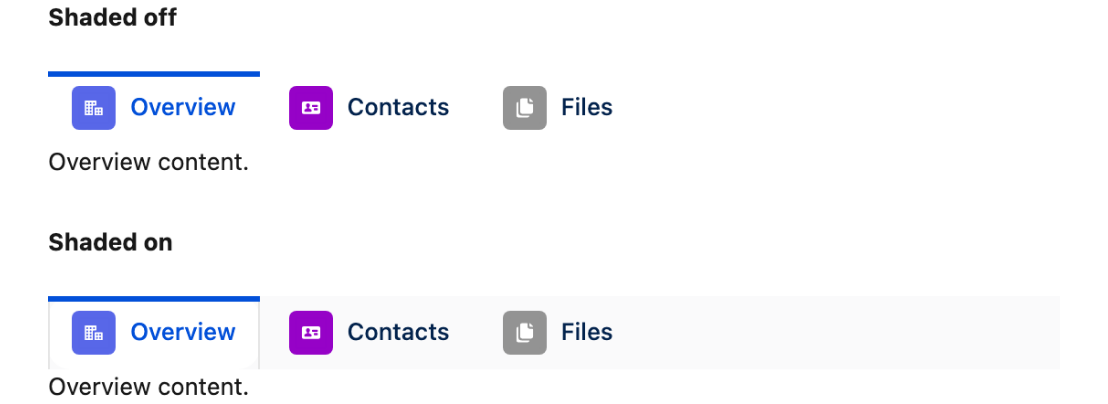
| **Shaded**             | Adds a subtle gray background to the navigation items for more visual separation. Only available when Variant is **Horizontal** or **Vertical**.           | true / false (Default: off)                                                                                                                                       |
| **Open Menu on Hover** | Opens sub-item menus when the mouse hovers over a parent item instead of requiring a click. Only available when Variant is **Horizontal** or **Dropdown**. | true / false (Default: off)                                                                                                                                       |

### Active Item

The **Active Item Value** setting defines which item is selected when the component loads. Match it to the **Value** of one of your items.

* **Static default:** Type the value directly (e.g., `overview`). That item opens by default every time.
* **Dynamic default:** Bind it to a Variable, URL parameter, or record field to change the active item at runtime — for example, to open a specific section based on a record's status.

### Title

The Title section (collapsible in the Properties Panel) adds an optional header above the navigation, useful when the component acts as a standalone sidebar or panel.

| Setting          | Description                                                                                 | Example / Options                                          |
| ---------------- | ------------------------------------------------------------------------------------------- | ---------------------------------------------------------- |
| **Title**        | Text displayed as the title. Supports expressions for dynamic content.                      | `Account Menu`, `{!Account.Name}`                          |
| **Icon Name**    | SLDS icon shown next to the title.                                                          | `standard:account`, `utility:settings`                     |
| **Icon Size**    | Size of the title icon.                                                                     | Xxs, Xs, Small, **Medium** (default), Large                |
| **Image Source** | URL of an image to show in place of the title icon. The image takes priority over the icon. | URL to a Salesforce file, static resource, or external URL |

### Item Indicator

A visual marker (a line) indicates which item is currently active. Only available when the variant is **Horizontal** or **Vertical**.

| Setting      | Description                                       | Example / Options                                                                            |
| ------------ | ------------------------------------------------- | -------------------------------------------------------------------------------------------- |
| **Show**     | Displays the active-item indicator.               | true / false (Default: on)                                                                   |
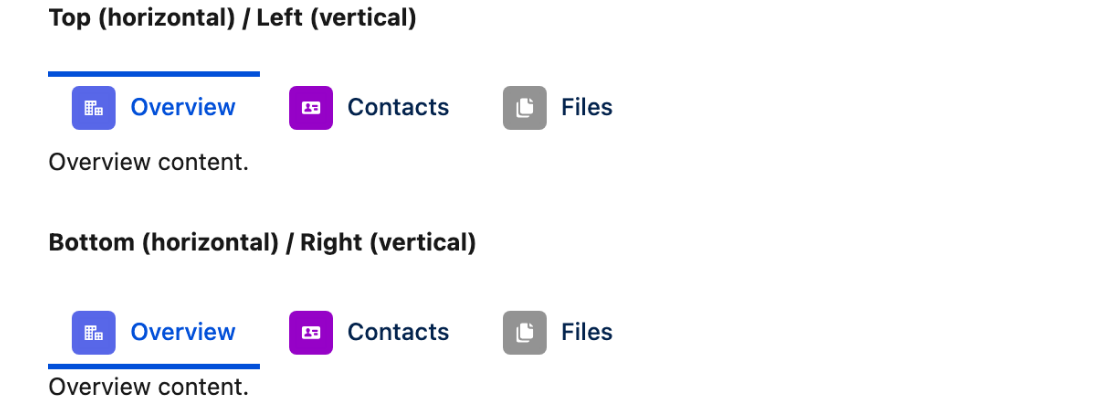
| **Position** | Where the indicator appears relative to the item. | **Top (horizontal) / Left (vertical)** (default), **Bottom (horizontal) / Right (vertical)** |

***

## Interactions

Unlike data-driven navigation, the Navigation Container already works without any interaction — clicking an item automatically switches the visible content area. Interactions let you trigger additional behavior when an item is clicked, such as logging the event, navigating to another page, or launching a Flow.

| Trigger        | Fires When                         | Common Actions                                                 |
| -------------- | ---------------------------------- | -------------------------------------------------------------- |
| **Item Click** | The user clicks a navigation item. | Execute Flow, Navigate, Show Toast, Enter Record Data Manually |

**Setting Up an Item Click Interaction**

1. Click the **Interactions** tab in the Properties Panel.
2. Click **Add Interaction**.
3. **Trigger:** Select **Item Click**.
4. **Action:** Choose the action to run — for example, **Execute Flow** to pass the selected item value into an Autolaunched Flow.
5. Map the flow's input variables using the active item's properties (`label`, `value`, `iconName`) as the source.

{% hint style="info" %}

#### **Controlling Component Visibility Instead of an Interaction**

You can also show or hide components on the page based on the selected navigation item without an interaction, using component visibility rules. Set a component's visibility to depend on the container's **Active Item Value** matching a specific item value. Useful when your navigation items are already inside the container — but also works for components placed outside the container.
{% endhint %}

***

## Example

### Service Console Case Page with Tabbed Workspace

**Scenario:** Provide service agents with a compact, vertical navigation on the left side of a Case record page, featuring three workspaces: **Case Details**, **Customer History**, and **Related Articles**.

{% stepper %}
{% step %}

#### **Create the Component**

* Open the **Avonni Dynamic Components** App.
* Click **New**.
* **Name:** `Case Agent Workspace`.
* **Target Page Object:** Select **Case**.&#x20;
  {% endstep %}

{% step %}

#### **Add the Navigation Container**

* Drag the Navigation Container onto the canvas.
* In the Properties Panel, set **Variant** to **Vertical**.
* Set **Shaded** to `true` to separate the sidebar visually from the content.
  {% endstep %}

{% step %}

#### **Build the Navigation Items**

Open the **Items** editor and add three items:

* **Case Details** — Value: `details`, Icon: `standard:case`.
* **Customer History** — Value: `history`, Icon: `standard:account`.
* **Related Articles** — Value: `articles`, Icon: `standard:knowledge`.

Set **Active Item Value** to `details`.
{% endstep %}

{% step %}

#### **Populate Each Item's Content**

* Click **Case Details** on the canvas and drop a **Record Detail** component inside, bound to `{!RecordId}`.
* Click **Customer History** and drop a **Data Table** querying prior `Case` records for the account (`AccountId = {!Case.AccountId}`).
* Click **Related Articles** and drop a **List** component querying `KnowledgeArticleVersion` filtered to the Case's topic.
  {% endstep %}

{% step %}

#### **Log Navigation Clicks for Analytics**

* Open the **Interactions** tab.
* Add an **Item Click** interaction with the **Execute Flow** action.
* Select an Autolaunched Flow that writes a record to a custom `Workspace_Usage__c` object, mapping the clicked item's **Value** as the Flow input.
  {% endstep %}

{% step %}

#### **Save and Activate**

Save the component and activate it to the Case Record Page. The agent now has a compact workspace that lets them switch sections without scrolling.&#x20;
{% endstep %}
{% endstepper %}

***

## Troubleshooting

| Problem                                                                               | Cause                                                                                                                                | Fix                                                                                                                                                           |
| ------------------------------------------------------------------------------------- | ------------------------------------------------------------------------------------------------------------------------------------ | ------------------------------------------------------------------------------------------------------------------------------------------------------------- |
| **The content area is blank after selecting a navigation item**                       | Each item is an empty container until you place components inside. The Navigation Container does not generate content automatically. | Select the container on the canvas, click the specific navigation item, then drag Avonni components from the Component Library into that item's content area. |
| **The component displays but no navigation items appear**                             | The **Items** collection is empty, or every item has **Hidden** set to `true`.                                                       | Open the Items editor and add at least one item with **Hidden** unchecked.                                                                                    |
| **The page loads with no item selected**                                              | **Active Item Value** is blank or does not match any item's **Value** exactly.                                                       | Set **Active Item Value** to one of the item **Value** strings — matching is case-sensitive and must be an exact match.                                       |
| **Shaded has no effect**                                                              | The **Variant** is set to **Dropdown**. The Shaded option only applies to Horizontal and Vertical variants.                          | Switch to Horizontal or Vertical, or accept the default appearance for Dropdown.                                                                              |
| **Open Menu on Hover is missing from the Properties Panel**                           | The **Variant** is set to **Vertical**. Hover behavior is only available for Horizontal and Dropdown variants.                       | Switch to Horizontal or Dropdown if you need hover-to-open behavior.                                                                                          |
| **The item indicator line does not show**                                             | **Show** is unchecked in the **Item Indicator** section, or the **Variant** is **Dropdown** (where the indicator does not apply).    | Expand the Item Indicator section and check **Show**. For Dropdown navigations, the indicator is intentionally unavailable.                                   |
| **The title icon does not appear even though Icon Name is set**                       | **Image Source** is also set. The image takes priority over the icon.                                                                | Clear the **Image Source** field, or remove the icon if you meant to use the image.                                                                           |
| **Clicking a navigation item switches the content but the interaction does not fire** | No **Item Click** interaction is configured, or the configured action is missing required field mappings.                            | Open the Interactions tab, add an **Item Click** trigger, and complete the action's mappings.                                                                 |
| **An item should be conditionally hidden but always shows**                           | **Hidden** is a static `false`, or the Boolean expression bound to it evaluates to `false`.                                          | Bind **Hidden** to a Boolean expression (e.g., `{!User.Profile.Name == 'Standard User'}`). Test the expression in the Debug Panel using Preview Context.      |
| **The component works in preview but not on the Lightning Page**                      | The component was saved but not deployed, or the Target Page Object on the component does not match the page's object.               | Click **Deploy**, then confirm the component's Target Page Object matches the Lightning Page's record object.                                                 |

***

## Key Considerations

* **Plan your navigation depth first.** Decide how many sections you need before building. Adding a fourth item later means rebuilding layout spacing, especially in Horizontal variant.
* **Keep item values stable.** If you rename a Value after binding it to Active Item Value, filters, or Flow mappings, those references break. Treat Value as an API name.
* **Use Vertical for dense layouts, Horizontal for scannable layouts, Dropdown for mobile or space-constrained pages.** The variant affects not only look but also how many items comfortably fit.
* **Combine with component visibility rules** to render sections conditionally based on user, record status, or permissions — without creating multiple Lightning Pages.
* **Performance:** Every component you drop inside a navigation item loads when the page loads, not when the item is first clicked. For heavy components (large data tables, charts), consider how many you place across all items.
* **Nested containers are allowed.** You can place Containers, Columns, Tabbed Containers, or even another Navigation Container inside a navigation item for more complex layouts


---

# Agent Instructions: Querying This Documentation

If you need additional information that is not directly available in this page, you can query the documentation dynamically by asking a question.

Perform an HTTP GET request on the current page URL with the `ask` query parameter:

```
GET https://docs.avonnicomponents.com/dynamic-components/components/navigation-container.md?ask=<question>
```

The question should be specific, self-contained, and written in natural language.
The response will contain a direct answer to the question and relevant excerpts and sources from the documentation.

Use this mechanism when the answer is not explicitly present in the current page, you need clarification or additional context, or you want to retrieve related documentation sections.