# Agent Chat

## Overview

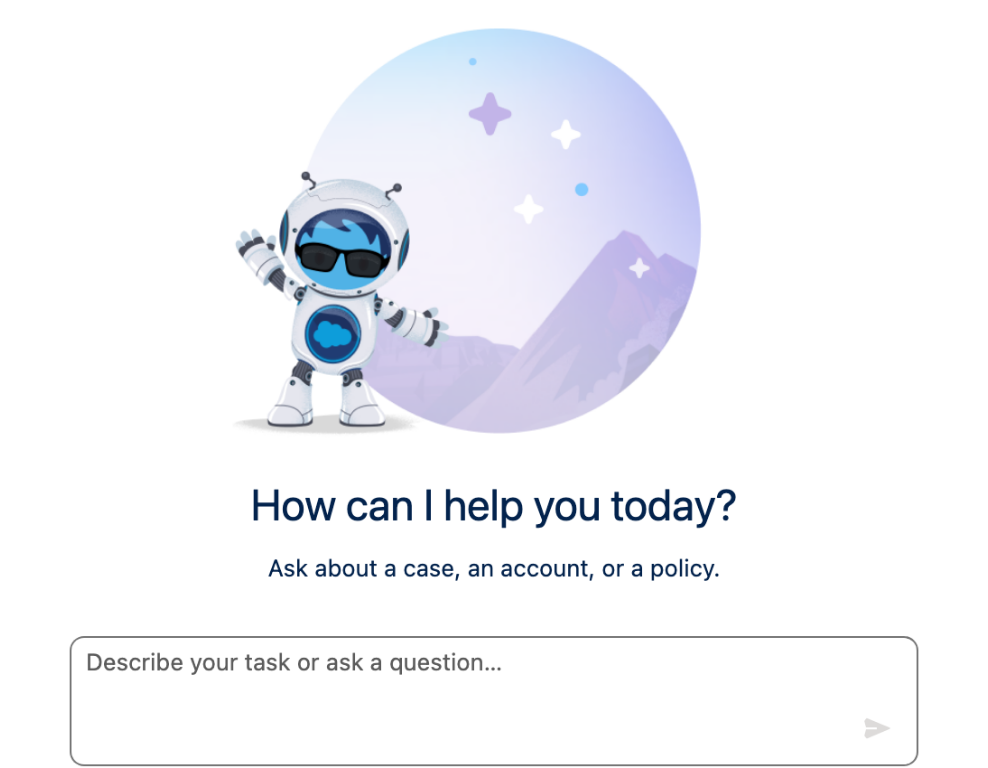
The Agent Chat component displays a conversational chat interface connected to an Agentforce agent. Use it on Lightning Pages or Experience Sites to let users interact with an AI agent directly from a Salesforce record or app page.

***

## Quick Start

**Scenario**: Add an Employee Assistant chat to a Lightning Home Page, powered by an existing Agentforce agent.

{% stepper %}
{% step %}

#### Add the Agent Chat component

* In the **Component Library** (left sidebar), locate **Agent Chat** under **Data Display**.
* Drag it onto the **Canvas**.
  {% endstep %}

{% step %}

#### Set the Agent API Name

* Select the component on the Canvas.
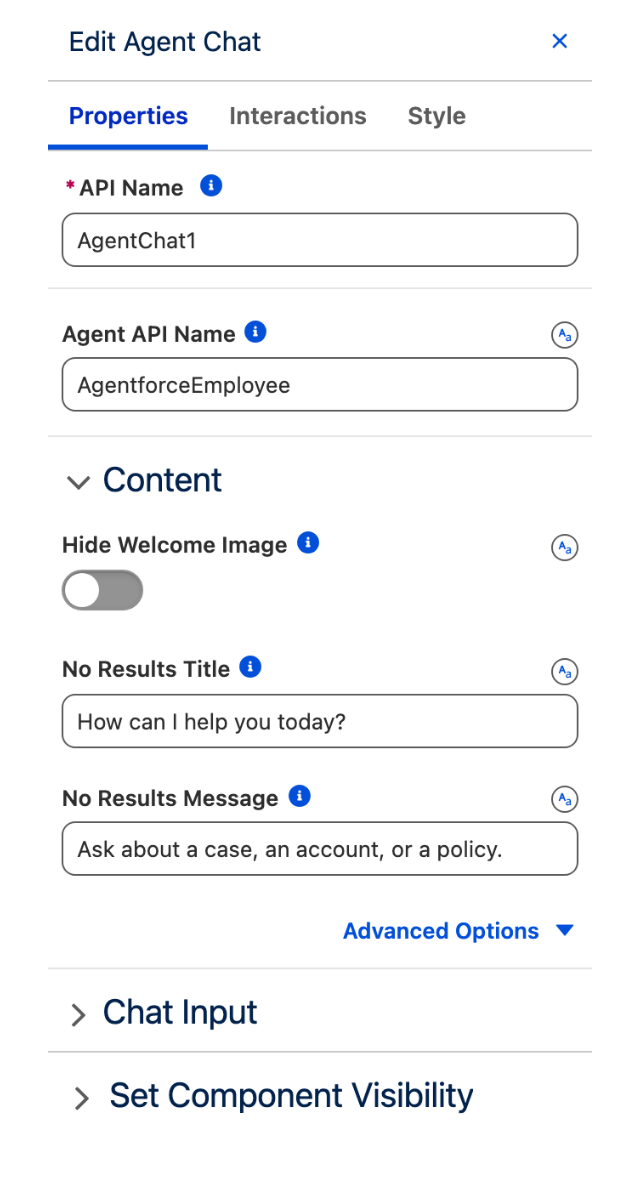
* In the **Properties Panel**, enter the API name of your Agentforce agent in the **Agent API Name** field.
* Example: `Agentforce_Employee_Agent`

> **Why**: This connects the chat interface to a specific Agentforce agent. The value must match the agent's API name exactly as configured in Salesforce.
> {% endstep %}

{% step %}

#### Customize the welcome screen (optional)

* Set **No Results Title** to the greeting users will see before sending their first message (e.g., `How can I help you today?`).
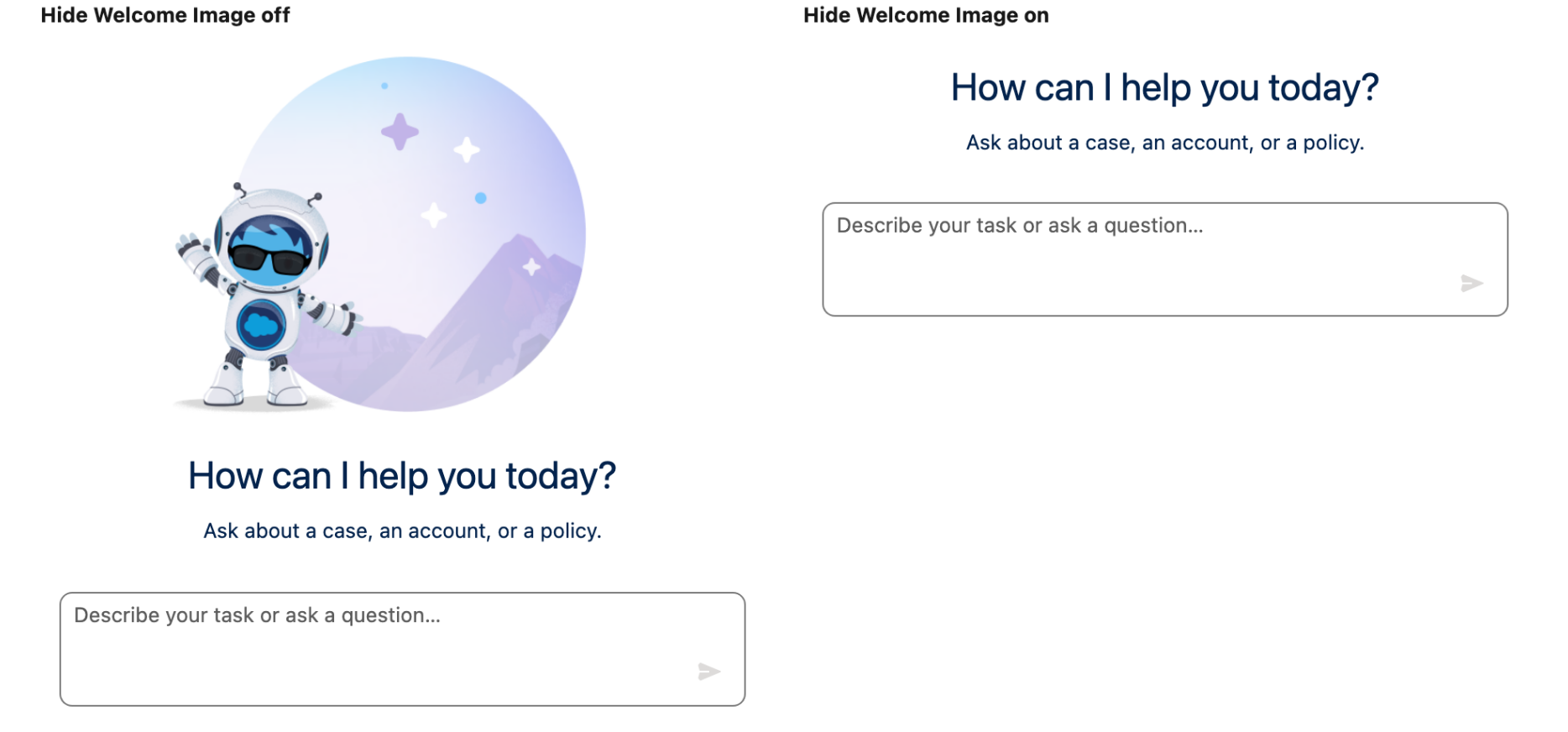
* Leave **Hide Welcome Image** off to show the default robot illustration. Toggle it on for a plain, text-only welcome state.
  {% endstep %}

{% step %}

#### Set the Chat Input placeholder

Under **Chat Input**, update **Placeholder** to guide users on what to type (e.g., `Describe your task or ask a question...`).
{% endstep %}

{% step %}

#### Save and activate

* Click **Save**, then **Activate**.
* Add the Dynamic Component to a Lightning Page via Lightning App Builder.
  {% endstep %}
  {% endstepper %}

***

## Configuration Reference

### Agent

Controls which Agentforce agent powers the chat.

| Setting            | Description                                                                                                      | Example / Options           |
| ------------------ | ---------------------------------------------------------------------------------------------------------------- | --------------------------- |
| **Agent API Name** | The API name of the Agentforce agent to connect to. Must match the agent's API name in Salesforce Setup exactly. | `Agentforce_Employee_Agent` |

***

### Content

Controls the welcome screen displayed before the user sends their first message.

| Setting                | Description                                                                                                               | Example / Options                          |
| ---------------------- | ------------------------------------------------------------------------------------------------------------------------- | ------------------------------------------ |
| **Hide Welcome Image** | Hides the default robot illustration on the welcome screen. (Default: off)                                                | On / Off                                   |
| **No Results Title**   | The heading shown on the welcome screen.                                                                                  | `Let's chat!`, `How can I help you today?` |
| **No Results Message** | A supporting message shown below the title on the welcome screen. Leave blank to show the title only.                     | `Ask me anything about your open cases.`   |
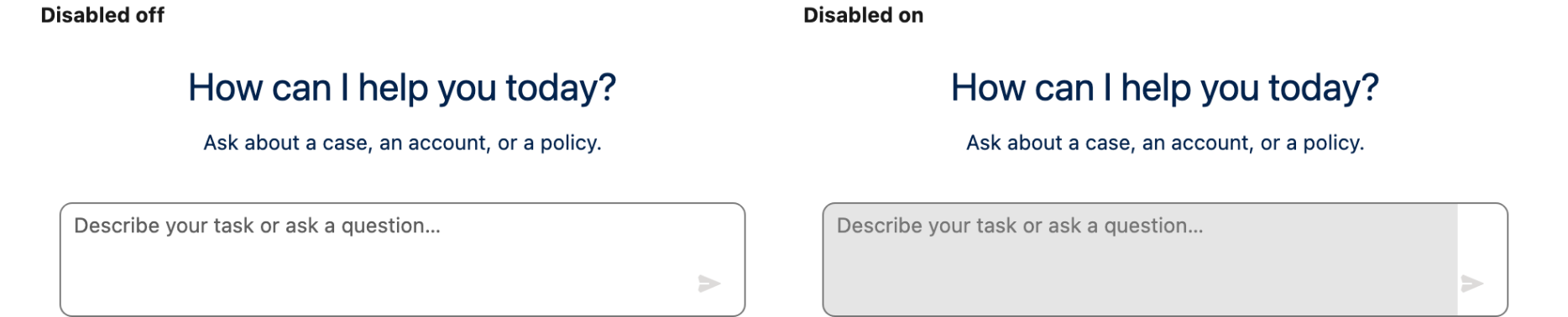
| **Disabled**           | Prevents users from typing or sending messages. Use to temporarily lock the component without removing it. (Default: off) | On / Off                                   |

***

### Chat Input

Controls the message input area at the bottom of the component.

| Setting         | Description                                                       | Example / Options                         |
| --------------- | ----------------------------------------------------------------- | ----------------------------------------- |
| **Placeholder** | The hint text shown inside the input field before the user types. | `Describe your task or ask a question...` |

***

### Set Component Visibility

Controls when the Agent Chat component is visible on the page. Use this to show or hide the component based on field values, user profile, or other conditions without configuring a separate rule on the Lightning Page.

Refer to the [Component Visibility documentation](https://docs.avonnicomponents.com/dynamic-components/getting-started/understanding-the-essentials/component-visibility) for the full list of supported conditions.

***

## Common Patterns

### Employee Self-Service Assistant

* **Agent API Name**: `Agentforce_Employee_Agent`
* **No Results Title**: `How can I help you today?`
* **Placeholder**: `Ask me anything about HR policies, benefits, or IT requests...`
* Add to the Home Page so employees can access the agent from any context.

### Case Resolution Assistant

* **Agent API Name**: `Agentforce_Case_Agent`
* **No Results Title**: `Need help resolving this case?`
* **Placeholder**: `Describe the issue or ask a question...`
* Add to a Case Record Page. The agent has access to the case context through the Agentforce configuration.

### Gated Agent (Admin-Controlled)

* Use **Disabled** toggle with a **Set Component Visibility** rule to enable the chat only for specific profiles or when a record field meets a condition (e.g., `Status = Active`).

***

## Troubleshooting

<details>

<summary><strong>The chat loads but the agent does not respond</strong></summary>

* Cause: The **Agent API Name** does not match the agent's API name in Salesforce Setup, or the agent is inactive.
* Fix: Go to Salesforce Setup → Agentforce → confirm the API name and that the agent is active. Copy the exact API name into the component's **Agent API Name** field.

</details>

<details>

<summary><strong>The welcome screen does not appear</strong></summary>

* Cause: **Hide Welcome Image** is toggled on and **No Results Title** is blank, leaving the welcome state empty.
* Fix: Either toggle **Hide Welcome Image** off, or enter a value in **No Results Title**.

</details>

<details>

<summary><strong>Users cannot type in the input field</strong></summary>

* Cause: The **Disabled** toggle is on.
* Fix: Toggle **Disabled** off in the Properties Panel, then save and re-activate.

</details>