> For the complete documentation index, see [llms.txt](https://docs.avonnicomponents.com/llms.txt). Markdown versions of documentation pages are available by appending `.md` to page URLs; this page is available as [Markdown](https://docs.avonnicomponents.com/dynamic-components/component-builder/resources/formula.md).
# Formula
Formula resources in Avonni Dynamic Components allow you to perform calculations and derive values dynamically *within* your component. Unlike Constants (which are fixed), Formula resources re-evaluate whenever their referenced values change, providing a powerful way to create dynamic and responsive behavior.
***
## 1. Overview
A Formula resource is essentially a named expression that calculates a value. This value can then be used in other parts of your component, such as:
* **Component Properties:** Set the value of a component property (e.g., a label, a visibility condition, a filter value).
* **Interactions:** Pass calculated values to interactions (e.g., as input variables to a Flow).
* **Other Formulas:** Use the result of one Formula resource within another Formula resource (creating chained calculations).
* **Filters**: Directly in Data Filters
***
## 2. Creating a Formula Resource
To create a Formula resource in your Avonni Dynamic Component:
1. **Open the Resources Panel:** Click the **Resources** button.
2. **Create a New Resource:** Click the button to create a new resource ("+" icon or "New Resource").
3. **Select "Formula":** Choose "Formula" as the resource type.
4. **Configure the Formula:**
* **API Name:** Enter a unique and descriptive identifier for the formula (e.g., `TotalPrice`, `IsDiscountApplicable`, `FormattedOrderDate`). This is how you'll reference the formula.
* **Description (Optional):** Briefly describe the formula's purpose.
* **Data Type:** Select the data type of the *result* of the formula:
* **Boolean:** The formula will return `true` or `false`.
* **Date:** The formula will return a date value.
* **Date/Time:** The formula will return a date and time value.
* **Number:** The formula will return a numeric value.
* **Record:** The formula will return a Salesforce record (you'd typically construct a record ID dynamically).
* **Text:** The formula will return a string of text.
* **Formula:** Enter the formula expression itself. This is where you define the calculation. You can use:
* **Resources:** Reference other resources (variables, constants, component attributes) from the resources menu.
* **Operators:** Use standard mathematical operators (`+`, `-`, `*`, `/`), comparison operators (`=`, `<`, `>`, `<=`, `>=`, `!=`), and logical operators (`AND`, `OR`, `NOT`).
* **Functions:** Use built-in functions provided by Avonni.
* **Literals**: Directly add number, text, or date.
***
## 3. Using a Formula Resource
Once you've created a Formula resource, you can reference it throughout your Dynamic Component, just like any other resource:
1. **Locate the Property:** Find the property where you want to use the formula's result (e.g., a component's `label`, a filter's `value`, an interaction's input variable).
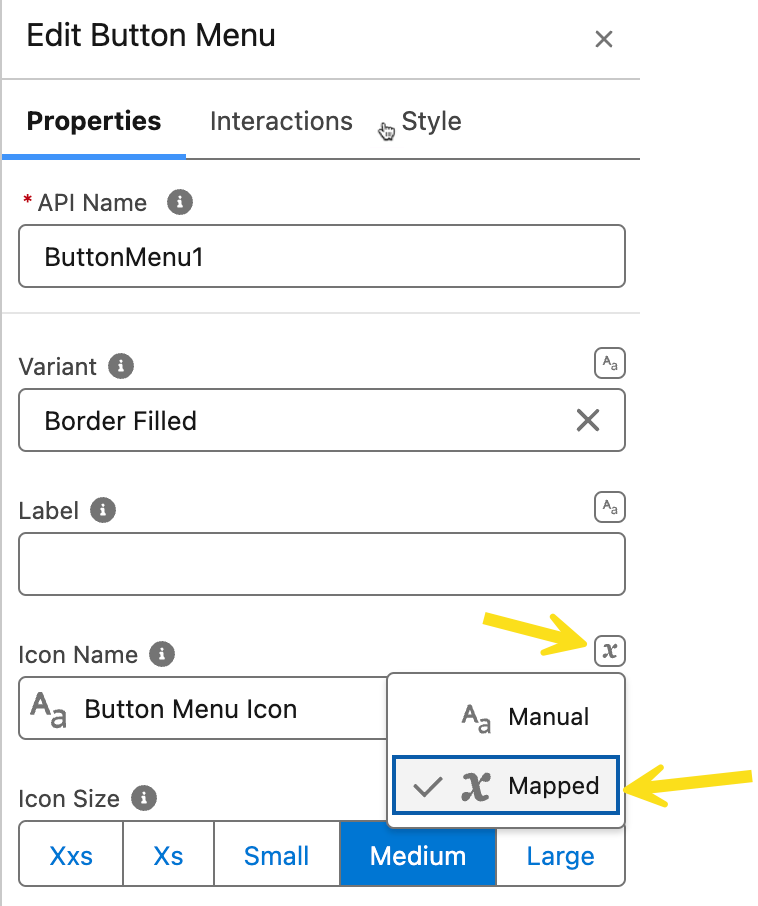
2. Click the **resource selector** icon next to the property and choose your Formula resource from the list.
***
## 4. Example Formulas
* **5.1 Total Price Calculation:**
* **Data Type:** `Number`
* **Formula:** `{!Quantity} * {!UnitPrice}` (Assumes `Quantity` and `UnitPrice` are Number variables or component attributes)
* **Use Case:** Display the total price in a Text component, or use it in a filter condition.
* **5.2 Discount Eligibility Check:**
* **Data Type:** `Boolean`
* **Formula:** `{!Quantity} > 10` (Assumes `Quantity` is a Number variable)
* **Use Case:** Control the visibility of a "Discount Applied" message, or enable/disable a "Discount" button.
* **5.3 Formatted Date:**
* **Data Type:** `Text`
* **Formula:** `TEXT({!OrderDate}, 'MMMM dd, yyyy')` (Assumes `OrderDate` is a Date variable)
* **Note:** You may need date/time formatting function to format the date.
* **Use Case:** Display a date in a specific format in a Text component or label.
* **5.4 Dynamic Button Menu Icon (Your Example):**
* **Data Type:** `Text`
* **Formula:**
```
IF(@ButtonMenu1.value == 'table', 'utility:table',
IF(@ButtonMenu1.value == 'kanban', 'utility:kanban',
IF(@ButtonMenu1.value == 'grid', 'utility:tile_card_list',
IF(@ButtonMenu1.value == 'groupby', 'utility:summarydetail',
IF(@ButtonMenu1.value == 'calendar', 'utility:shift_pattern',
IF(@ButtonMenu1.value == 'map', 'utility:location',
'utility:table' // Default icon
)
)
)
)
)
)
```
* **Use Case**: In this case, the `ButtonMenu1` is the name of a Button Menu Component.
* **Explanation:** This formula dynamically sets the *icon name* of a component (likely a Button or Button Menu) based on the selected value of a Button Menu component named `ButtonMenu1`. It uses nested `IF()` statements to check the selected value and return the appropriate icon name. This is a powerful example of using a formula to control a component's *appearance* based on user interaction.
* **5.5 Conditional Visibility based on Record Data:**
* **Data Type:** `Boolean`
* **Formula:** `{!Account.Type} = 'Customer'` (Assumes you have a Record variable named `Account` populated via an "On Load" interaction)
* **Use Case:** Show a specific section of your component *only* if the current Account's `Type` field is equal to 'Customer'.
* **5.6 Dynamic URL**:
* **Data Type:** `Text`
* **Formula:** `'https://www.avonnicomponents.com/example?id=' & {!recordId}`
* **Use Case**: Create a URL link to another page.
* **5.7 Concatenate fields**:
* **Data Type:** `Text`
* **Formula:** `{!FirstName} & " " & {!LastName}`
* **Use Case:** Create a Full Name value
***
## 5. Important Considerations
* **Data Type Compatibility:** Ensure the data types of the resources and operators you use in your formula are compatible.
* **Error Handling:** Consider how your formula should behave if any referenced resources are null or have unexpected values. Use functions like `IF()` and `ISBLANK()` to handle these cases gracefully.
* **Performance:** While formulas are generally efficient, very complex ones with many nested functions or references to large datasets could impact performance.
* **Referencing other components**: You can reference components using the `@` symbol.
## **In Summary**
Formula resources provide a powerful and flexible way to perform calculations and derive dynamic values within your Avonni Dynamic Components. They promote reusability, readability, and maintainability, making your components more dynamic and responsive
---
# Agent Instructions
This documentation is published with GitBook. GitBook is the documentation platform designed so that both humans and AI agents can read, navigate, and reason over technical content effectively. Learn more at gitbook.com.
## Querying This Documentation
If you need additional information that is not directly available in this page, you can query the documentation dynamically by asking a question.
Perform an HTTP GET request on the current page URL with the `ask` query parameter, and the optional `goal` query parameter:
```
GET https://docs.avonnicomponents.com/dynamic-components/component-builder/resources/formula.md?ask=&goal=
```
`ask` is the immediate question: it should be specific, self-contained, and written in natural language.
`goal` is optional and describes the broader end goal you are ultimately trying to accomplish on behalf of the user. GitBook uses it to tailor the answer towards what is most useful for that goal.
The response will contain a direct answer to the question and relevant excerpts and sources from the documentation.
Use this mechanism when the answer is not explicitly present in the current page, you need clarification or additional context, or you want to retrieve related documentation sections.