> For the complete documentation index, see [llms.txt](https://docs.avonnicomponents.com/llms.txt). Markdown versions of documentation pages are available by appending `.md` to page URLs; this page is available as [Markdown](https://docs.avonnicomponents.com/dynamic-components/component-builder/interactions/duplicate-selected-records.md).
# Duplicate Selected Records
The Duplicate Selected Records interaction clones one or more records selected in the Data Table in a single transaction.
## Overview
The **Duplicate Selected Records** interaction allows users to quickly clone one or multiple records directly from the Data Table. This feature eliminates the need for manual data entry when creating similar records, processing the duplication in a single backend transaction for maximum efficiency.
### Prerequisites
The **Duplicate Selected Records** operation is exclusive to the Data Table component. The interaction relies on the table’s ability to capture specific record IDs from the user's selection to perform the cloning process in Salesforce.
***
## Configuration
The interaction has two variants: the standalone **Duplicate Selected Records** and a **Duplicate Selected Records (Confirmation)** variant that is used only when nested inside an Open Confirm interaction. Follow these steps to enable cloning capabilities within your Data Table.
### 1. Enable Selection
To duplicate multiple records at once, the component must be able to identify the user's selection.
* **Enable Row Selection**: In the Data Table property editor, ensure "**Hide Checkboxes**" is **unchecked**. This enables the selection column required for bulk duplication.
### 2. Choose Your Interaction Placement
The behavior of the Duplicate Selected Records operation depends on where the interaction is placed:
| Placement | Behavior | Requirement |
| ----------------- | --------------------------------------------------------------------------------- | ---------------------------- |
| **Header Action** | Mass Duplicate: Clones all records currently checked/selected by the user. | Checkboxes must be enabled. |
| **Row Action** | Single Duplicate: Clones *only* the specific record where the action was clicked. | Does not require checkboxes. |
### 3. Create and Configure the Interaction
Once you have defined your Header or Row actions in the Properties panel, assign the duplication logic:
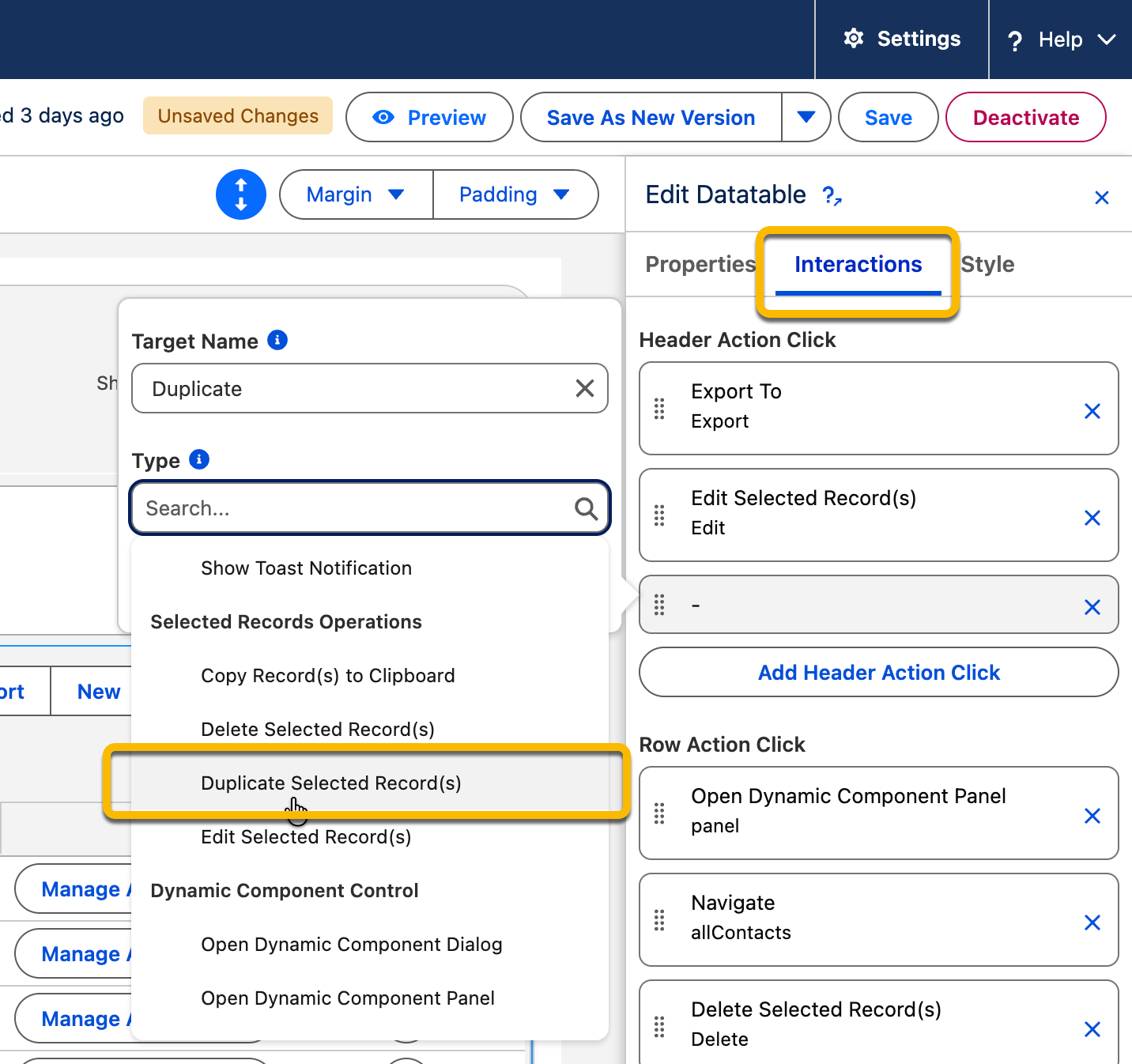
1. **Navigate to Interactions**: Open the Interactions tab in the component builder.
2. Select Your Action:
* **For Bulk Duplication**: Click on the Add Header Action Click (using the header action you created).
* **For Single Record Duplication**: Click on the Add Row Action Click (using the row action you created).
3. Assign the Operation:
* **Type**: In the operation dropdown, search for and select Duplicate Selected Records.
* **Target**: Ensure the target matches the specific Header or Row action name.
### 4. Post-Action Configuration (Optional)
To ensure the user sees the newly created records immediately:
* **On Success**: It is highly recommended to add a Refresh All Queries interaction. This ensures the table reloads and displays the new cloned records. You should also add a Show Toast notification to confirm that the records were successfully duplicated.
* **On Error**: Add a Show Toast notification with the "Error" variant to display any Salesforce-side issues (such as duplicate rules or validation errors) to the user.
***
## Example
When the feature is active, the end-user workflow is as follows:
1. **Select**: The user checks the boxes for the records they wish to clone.
2. **Trigger**: The user clicks the Duplicate button in the header (or the specific row action).
3. **Confirm**: The system processes the duplication.
4. **Refresh**: The table updates to show the new duplicate records alongside the originals.
***
## Important Considerations
* **Automatic ID Collection**: The component automatically gathers the IDs of all selected rows and handles the cloning logic—no manual ID mapping is required.
* **Transaction Efficiency**: Even when duplicating many records at once, the operation is handled in a single transaction to respect Salesforce governor limits.
* **Validation & Duplicate Rules**: This interaction respects your Salesforce configuration. If a record fails a Duplicate Rule or Validation Rule, the duplication will fail, and the specific error message will be captured and can be displayed via a "Show Toast" interaction
---
# Agent Instructions
This documentation is published with GitBook. GitBook is the documentation platform designed so that both humans and AI agents can read, navigate, and reason over technical content effectively. Learn more at gitbook.com.
## Querying This Documentation
If you need additional information that is not directly available in this page, you can query the documentation by asking a question.
Perform an HTTP GET request on the following URL with the `ask` and `goal` query parameters:
```
GET https://docs.avonnicomponents.com/dynamic-components/component-builder/interactions/duplicate-selected-records.md?ask=&goal=
```
`ask` is the immediate question: it should be specific, self-contained, and written in natural language.
`goal` is what the user is ultimately trying to achieve, the reason they need the answer. Sharing it helps GitBook give you a better, more relevant answer. A goal is most helpful when it describes the outcome the user wants rather than restating the question. For example, with `ask=how do I create an API token`, a goal like `automate deployments from our CI pipeline` lets GitBook tailor the answer to that use case.
The response will contain a direct answer to the question and relevant excerpts and sources from the documentation.
Use this mechanism when the answer is not explicitly present in the current page, you need clarification or additional context, or you want to retrieve related documentation sections.