# Templates

## Overview

Templates let you turn any version of a Dynamic Component into a reusable starting point. When you create a new Dynamic Component, you can pick a template instead of starting from scratch — the new component opens in the Component Builder as an independent copy of the template, ready to customize.

Use templates to standardize layouts across an org, share proven component patterns with your team, and skip the repetitive setup that most new components share.

***

## Quick Start

**Save a Record Page Layout as a Template**

This walkthrough takes a finished Dynamic Component (a two-column record page with a header, a Data Table, and a Tabbed Container), saves it as a template, and then uses that template to create a new component.

{% stepper %}
{% step %}

#### **Open the Avonni Components App**

* From the App Launcher (nine-dot grid), open the **Avonni Components** app.
* Locate the Dynamic Component you want to use as a template (for example, `Account_Record_Page_v3`).
  {% endstep %}

{% step %}

#### **Open the Avonni Components App**

* Click the dropdown arrow next to the component's name to expand the list of saved versions.
* Find the version you want to use as a template — typically the active or most recent version.
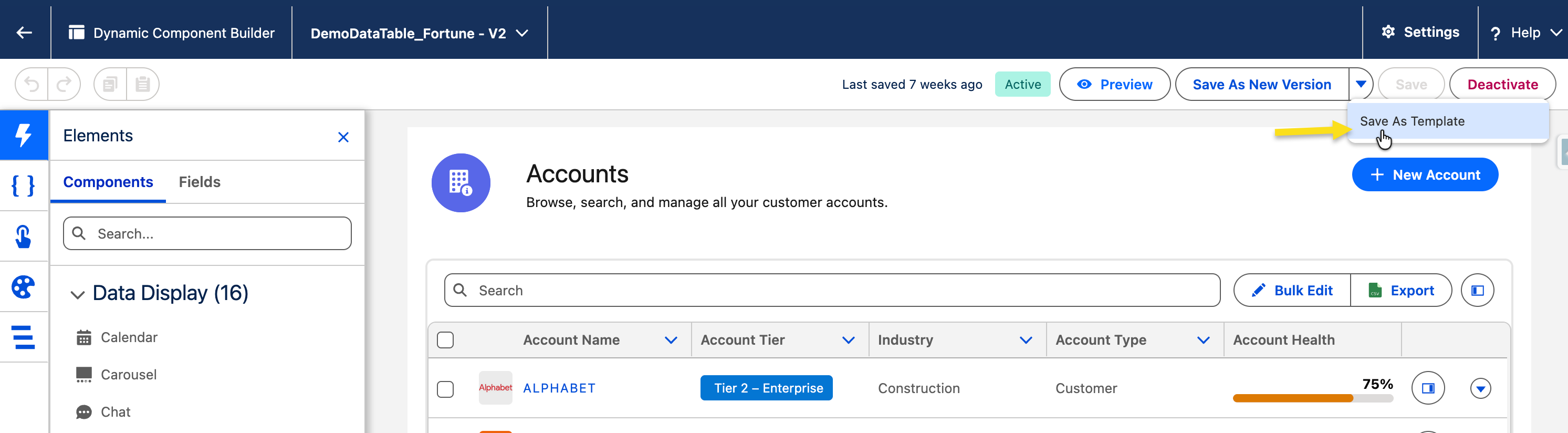
* From the version's action menu, select **Save as Template**.

*Why a specific version: a template is a snapshot of one version. If you keep working on the source component after saving the template, those changes do not flow into the template*
{% endstep %}

{% step %}

#### **Name and Describe the Template**

* **Template Name**: enter a clear, descriptive name (for example, `Standard Record Page Layout`).
* **Description** (optional): explain what the template contains and when to use it. This helps other admins pick the right template later.
* Click **Save**.

The template now appears in the Templates section of the Avonni Components App.
{% endstep %}

{% step %}

#### **Create a New Component from the Template**

* Return to the Avonni Components App home page.
* Click **New** to start a new Dynamic Component.
* In the creation dialog, select **Create from Template**.
* Pick `Standard Record Page Layout` from the list.
* Enter an **API Name** for the new component (for example, `Contact_Record_Page`).
* (Optional) Assign the new component to a folder.
* Click **Create**
  {% endstep %}
  {% endstepper %}

The Component Builder opens with a copy of the template. You can now modify it freely — changes here do not affect the original template or the component the template was created from.

***

## Creating a Template

You can create a template from any saved version of an existing Dynamic Component. Templates are version-specific — they capture the layout, components, data sources, resources, interactions, and styling of the version you select whenat the moment you save them.

### From the Component List

1. Open the **Avonni Components** app.
2. Find the Dynamic Component you want to convert to a template.
3. Click the dropdown arrow next to the component name to expand its versions.
4. Locate the version you want to capture.
5. From the version's action menu, select **Save as Template**.
6. Enter a **Template Name** and (optional) **Description**.
7. Click **Save**.

<figure><img src="/files/weCewdR5X6Y6ttbnF7LP" alt=""><figcaption></figcaption></figure>

### What Gets Captured in a Template

| Captured                                                       | Not Captured                                                                               |
| -------------------------------------------------------------- | ------------------------------------------------------------------------------------------ |
| Component layout and structure (Columns, Sections, Tabs, etc.) | Run-time data fetched by Data Sources (templates store the configuration, not the records) |
| All components placed on the canvas                            | The original component's version history                                                   |
| Data Source configurations (Query, Picklist, Manual, Variable) | Folder assignments                                                                         |
| Resources (Variables, Constants, Formulas)                     | Lightning Page placement — you must add the new component to a page yourself               |
| Interactions and On Load Interaction                           |                                                                                            |
| Component styling and properties                               |                                                                                            |

{% hint style="info" %}

#### **Templates are independent snapshots**

Updating the source Dynamic Component after saving a template does not update the template. To "update" a template, save a new template from the latest version and (optionally) delete the old one
{% endhint %}

***

## Using a Template to Create a New Component

When you create a new Dynamic Component, you can either start from a blank canvas or start from a template. Starting from a template gives you a working component immediately, which you can then customize.

### Steps

1. From the Avonni Components App home page, click **New**.
2. In the new component dialog, select **Create from Template**.
3. Browse or search the available templates. The list shows the template name and description.
4. Select the template you want to use.
5. Enter the new component's **API Name**. This is the unique identifier in Salesforce metadata — it must follow standard API name rules (no spaces, no special characters except underscores).
6. (Optional) Enter a **Description** and assign one or more **Folders**.
7. Click **Create**.

The Component Builder opens with a new component, an independent copy of the template. Modifying it has no effect on the template or on any other component created from the same template.

### What to Customize After Creation

A template is a starting point — most of the time, you'll need to adjust:

<table><thead><tr><th width="191.986083984375">Area</th><th>Common Customizations</th></tr></thead><tbody><tr><td><strong>Data Sources</strong></td><td>Repoint Query filters to the correct object or filter values (for example, swap <code>AccountId = '{!RecordId}'</code> for <code>ContactId = '{!RecordId}'</code>).</td></tr><tr><td><strong>Field Mappings</strong></td><td>Update Data Mappings if the new component targets a different object than the template was built for.</td></tr><tr><td><strong>Interactions</strong></td><td>Re-map field values inside Execute Flow, Create Record, or Navigate actions if the target object changed.</td></tr><tr><td><strong>Visibility</strong></td><td>Adjust component-level visibility rules if the new use case has different conditions.</td></tr><tr><td><strong>Styling</strong></td><td>Apply branding tweaks if the template was built for a different theme.</td></tr></tbody></table>

***

## Managing Templates

Templates appear in the **Templates** section of the Avonni Components App, separate from your active Dynamic Components.

### Viewing Templates

* Navigate to the **Templates** tab in the Avonni Components App.
* The list shows the template name, description, and creation date.
* Use the search bar to filter by name.

### Editing a Template's Metadata

You can rename a template or update its description without rebuilding it.

1. Open the **Templates** tab.
2. Find the template and click its action menu.
3. Select **Edit Details**.
4. Update the **Name** or **Description**.
5. Click **Save**.

To change the template's actual content (layout, components, configuration), you need to create a new template from an updated Dynamic Component version. Templates are snapshots — the canvas inside them cannot be edited directly.

### Deleting a Template

1. From the **Templates** tab, locate the template you want to remove.
2. Open its action menu and select **Delete**.
3. Confirm the deletion.

Deleting a template does **not** affect any Dynamic Components that were previously created from it. Each component created from a template is an independent copy.

{% hint style="warning" %} Like Dynamic Components and Folders, templates are stored as Custom Metadata Type records. Deleting a template from the Avonni app may redirect you to Salesforce Setup to confirm the deletion of the underlying metadata record. {% endhint %}

***

## Troubleshooting

| Problem                                                                                            | Cause                                                                                                                                                                                              | Fix                                                                                                                                                               |
| -------------------------------------------------------------------------------------------------- | -------------------------------------------------------------------------------------------------------------------------------------------------------------------------------------------------- | ----------------------------------------------------------------------------------------------------------------------------------------------------------------- |
| **Save as Template** does not appear in the version's action menu                                  | You're viewing the component list level, not the version level. The action lives on a specific version, not on the component itself.                                                               | Click the dropdown arrow next to the component name to expand its versions, then open the action menu on the version you want to capture.                         |
| New component created from a template shows no data                                                | The Data Source filters in the template reference a record context (for example, `{!RecordId}`) that doesn't apply to the page you placed the new component on, or the target object is different. | Open the new component, check each Data Source filter, and update the field references and `{!RecordId}` bindings to match the new use case.                      |
| Changes to the source component aren't appearing in the template                                   | Templates are one-time snapshots. They do not stay synced with the source Dynamic Component.                                                                                                       | Save a new template from the updated version and delete the old one if it's no longer needed.                                                                     |
| Two components created from the same template behave differently after a template update           | Each component is an independent copy created at the moment the template was used. Updating the template does not update existing components.                                                      | If you need both components to share the latest template, recreate them from the new template — or apply the same changes manually to each.                       |
| The template's interactions reference fields that don't exist on the new component's target object | The template was built against a different Salesforce object, and the field API names do not exist on the new object.                                                                              | Open each interaction in the new component and update field mappings to use API names that exist on the new target object.                                        |
| Cannot create a template — the **Save as Template** option is disabled                             | The component version is in **Draft** state and has not been saved at least once, or the user does not have permission to manage Avonni metadata.                                                  | Save the version first. If the option is still disabled, confirm the user has the Avonni admin permission set assigned.                                           |
| Template list is empty after creating one                                                          | The new template was saved but the Templates tab hasn't refreshed.                                                                                                                                 | Refresh the Avonni Components App page (or close and reopen the tab).                                                                                             |
| Deleted a template by mistake — components created from it stopped working                         | This is not possible. Components created from a template are independent of the template. If a component stopped working after a template was deleted, the cause is unrelated.                     | Check the component's version status, Lightning Page placement, and Data Source configuration — the failure is in the component itself, not the deleted template. |

***

## Key Considerations

* **Templates are snapshots, not links.** A template captures a single version of a component at one point in time. It does not stay in sync with the source.
* **Naming matters.** Use descriptive template names with a clear pattern (for example, `RecordPage_TwoColumn_Standard` or `Dashboard_SalesKPI_Compact`). Templates are reused across teams — vague names ("template1", "test") make them hard to pick.
* **Document templates in the description field.** Include the target object, the intended use case, and any prerequisites (such as required Custom Fields or Flows). Admins picking a template later need this context.
* **Audit templates periodically.** Templates created against an older Salesforce schema may reference fields that have been renamed or deleted. When you change your data model, review templates that touch the affected objects.
* **Templates and folders are independent.** Folder assignment is not captured in a template. When creating a new component from a template, assign folders manually.
* **Permissions still apply.** A template doesn't bypass field-level security or sharing rules. A user creating a component from a template still needs read access to the underlying objects and fields the template references.
* **Plan for variation.** A single template that requires heavy customization for every use case is a sign that it's too specific. If you find yourself rewriting half the component every time, consider splitting into smaller, more focused templates


---

# Agent Instructions: Querying This Documentation

If you need additional information that is not directly available in this page, you can query the documentation dynamically by asking a question.

Perform an HTTP GET request on the current page URL with the `ask` query parameter:

```
GET https://docs.avonnicomponents.com/dynamic-components/avonni-components-app/templates.md?ask=<question>
```

The question should be specific, self-contained, and written in natural language.
The response will contain a direct answer to the question and relevant excerpts and sources from the documentation.

Use this mechanism when the answer is not explicitly present in the current page, you need clarification or additional context, or you want to retrieve related documentation sections.