> For the complete documentation index, see [llms.txt](https://docs.avonnicomponents.com/llms.txt). Markdown versions of documentation pages are available by appending `.md` to page URLs; this page is available as [Markdown](https://docs.avonnicomponents.com/dynamic-components/avonni-components-app/folders.md).
# Folders
## Folders: Organizing Your Dynamic Components
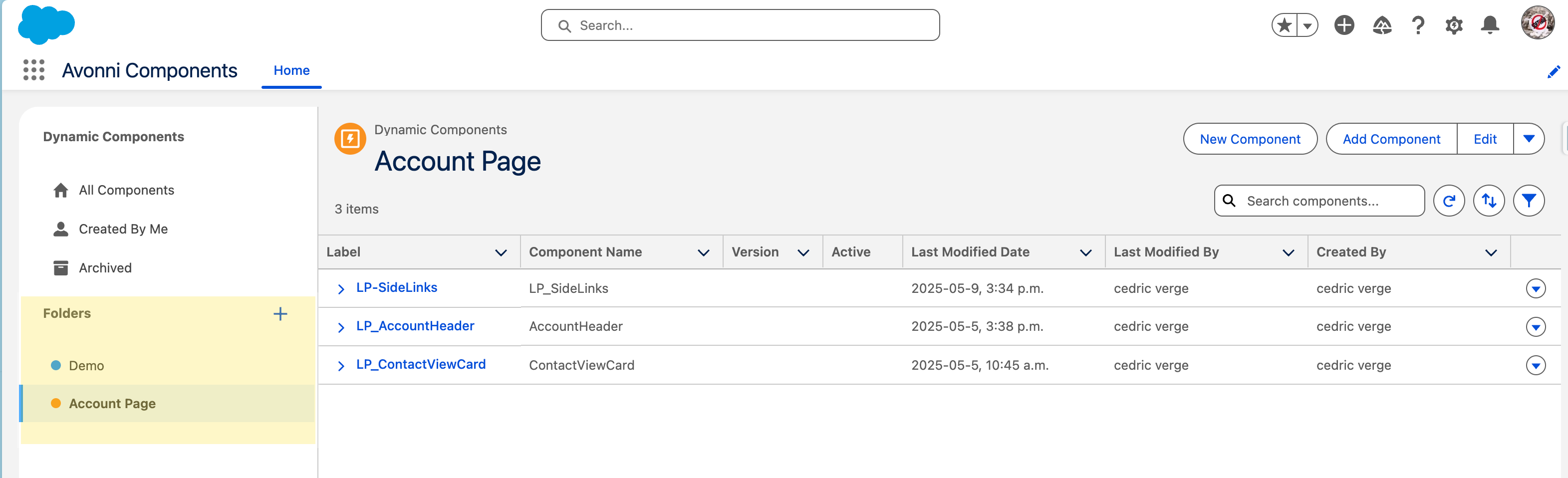
As your library of Avonni Dynamic Components grows, keeping them organized becomes essential. The **Folders** feature provides a simple yet powerful way to categorize, manage, and quickly locate your components directly within the Avonni Dynamic Components App.
## Creating and Managing Folders
You can create, customize, and delete folders to suit your organizational needs.
### Creating a New Folder
1. **Locate "New Folder" Option:** In the Folders panel on the left, look for a button or icon to create a new folder (e.g., a "+" icon next to the Folders heading, or a "New Folder" button).
2. **Enter Folder Name:** Provide a clear and descriptive name for your folder.
3. **Assign a Color (Optional):** You can assign a specific color to the folder for better visual distinction in the folder list.
4. **Save:** Confirm the creation of the folder.
### Editing Folder Properties (Renaming, Changing Color)
1. **Select the Folder:** Find the folder you wish to edit in the Folders panel.
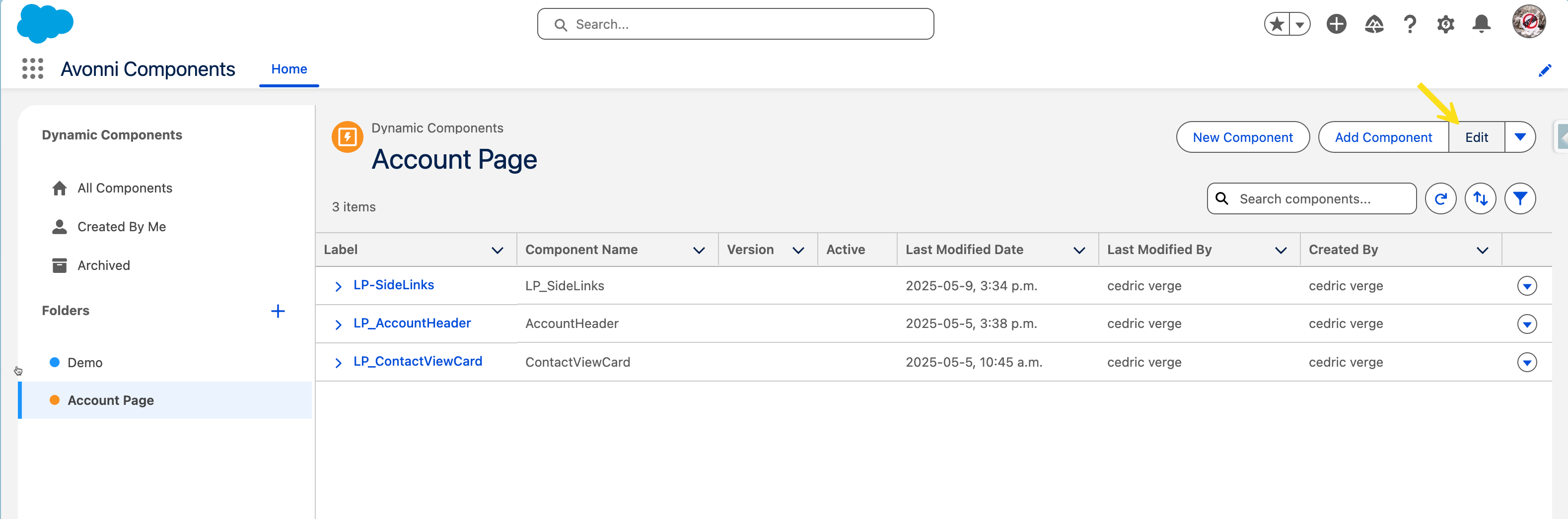
2. **Access Edit Options:** Click on the Edit Button located at the top right corner associated with that folder.
3. **Modify:** Choose options like "Rename Folder" or "Change Color" and make your desired adjustments.
4. **Save Changes.**
### Deleting a Folder
Deleting a folder is a multi-step process because Dynamic Components (and likely folders themselves) are stored as Custom Metadata Types in Salesforce.
1. **Select the Folder to Delete:** In the Folders panel within the Avonni app, identify the folder you want to remove.
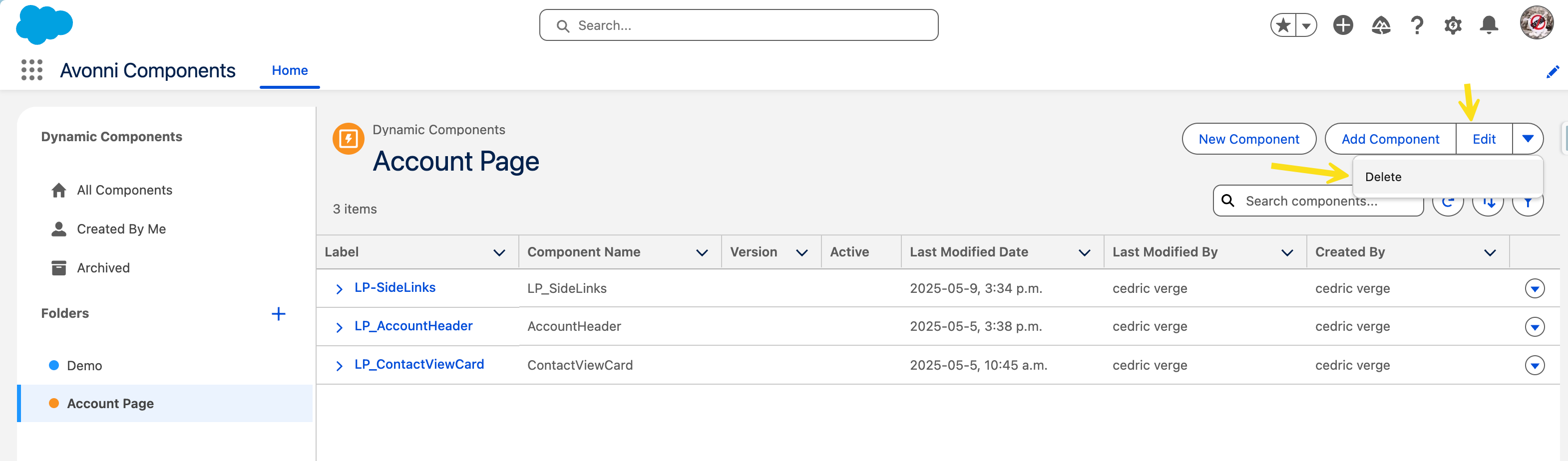
2. **Initiate Deletion from Avonni App:** Use the action menu for that folder and select the "Delete Folder" option.
3. **Redirection to Salesforce Setup**
* **Important:** Clicking "Delete" in the Avonni App will **redirect you** to the corresponding Custom Metadata Type record page for that folder within **Salesforce Setup**. This is a necessary step because the final, permanent deletion must occur through standard Salesforce mechanisms.
4. **Confirm Deletion in Salesforce Setup**
* On the Custom Metadata Type record page you were redirected to, click the standard Salesforce **"Delete"** link/button.
* Confirm the deletion when prompted by Salesforce. The deletion is not effective until this Salesforce step is completed.
{% hint style="warning" %}
**What Happens to Components When a Folder is Deleted?**
* Deleting a folder **WILL NOT delete the Dynamic Components** assigned to it.
* Instead, it will simply **remove the assignment** of those components to the folder you are deleting. The components will still exist (likely appearing as "unfiled" or in any other folders they might be assigned to).
{% endhint %}
## Assigning Components to Folders
You can assign a Dynamic Component to one or multiple folders during its creation or by editing it later.
### During New Component Creation
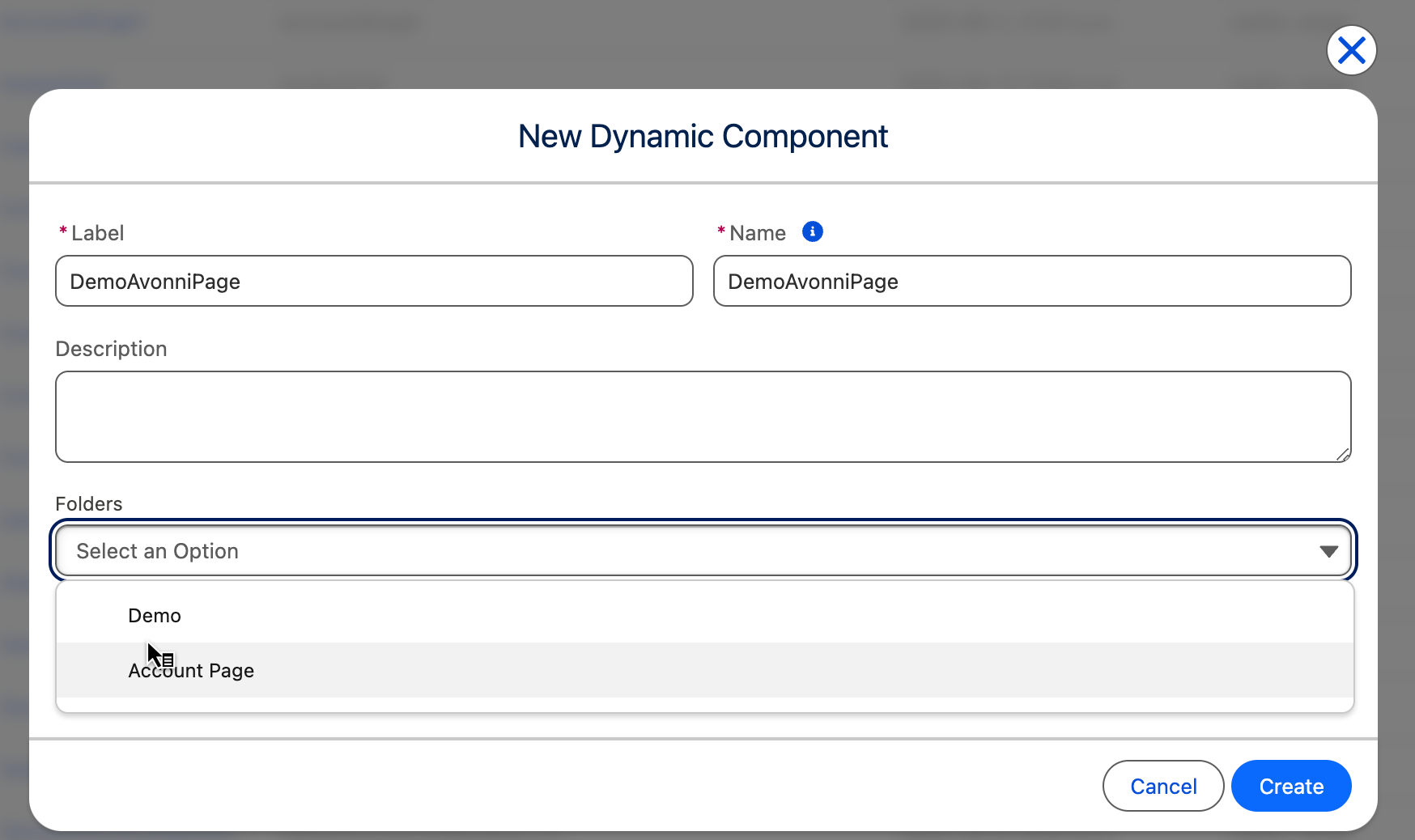
1. When you click "New" to create a Dynamic Component from the Avonni Components App home page, the creation dialog will include an option to **assign it to folders**.
2. You can select one or more existing folders to associate with your new component.
### For Existing Components (from Component Builder Settings)
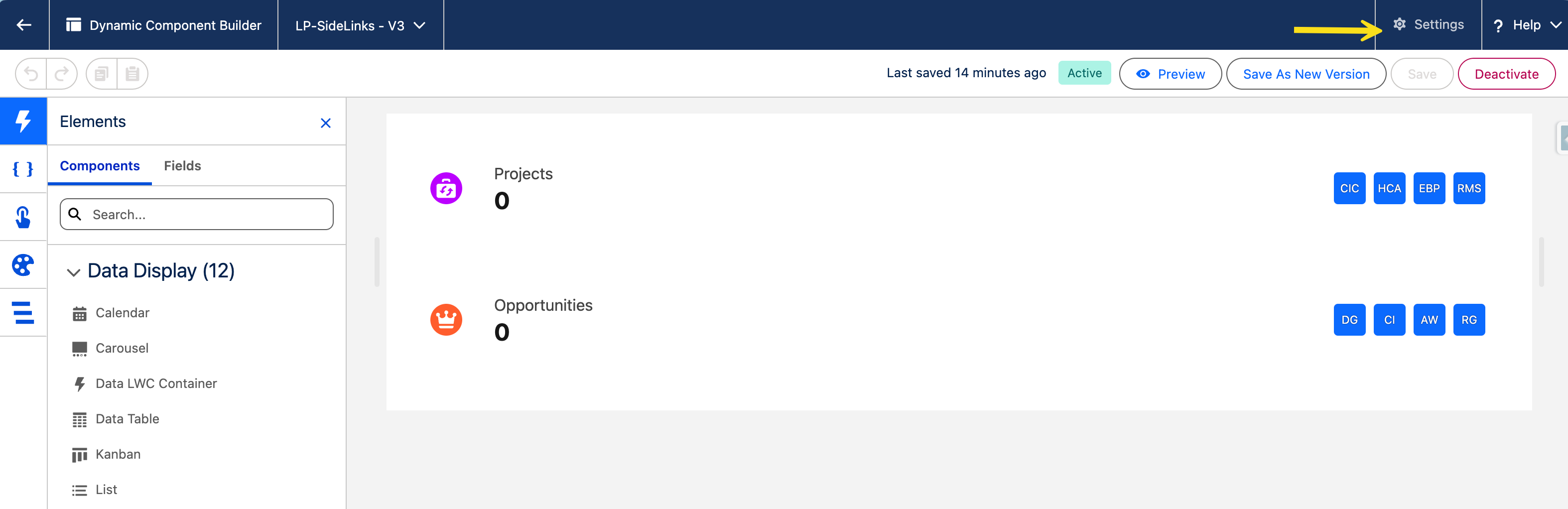
1. Open the Dynamic Component you wish to assign to a folder in the **Component Builder**.
2. Click the **Settings** icon (usually a gear ⚙️ in the top-left).
3. In the settings panel, find the section for **Folder Assignments** (or similar).
4. Here, you can add or remove the component's association with existing folders. You can typically assign a component to multiple folders if needed.
5. **Save** your Dynamic Component changes.
### Adding Components to a Folder (from Folder View)
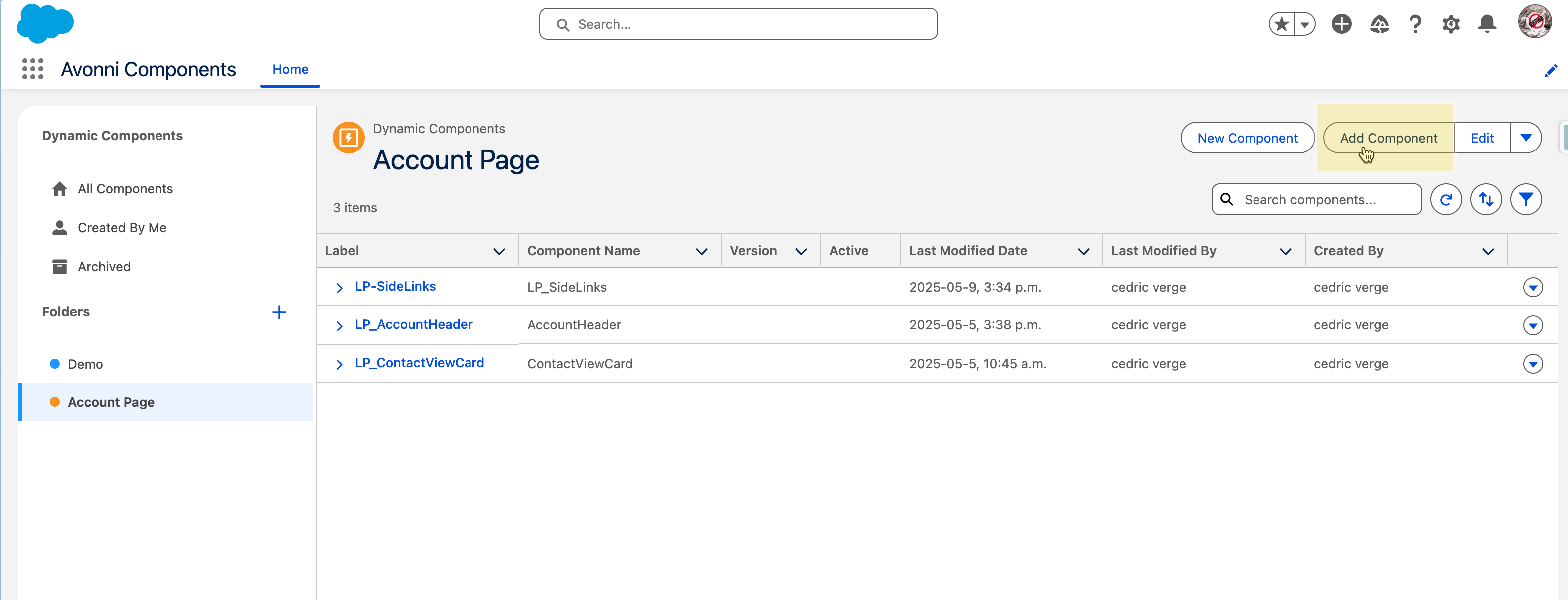
1. **Select a Folder:** In the Folders panel on the Avonni Dynamic Components app home page, click on the folder to which you want to add existing components.
2. **Find "Add Component" Button:** Look for an "Add Component" button within the view of the selected folder's contentsWithin the view of the selected folder's contents, look for an "**Add Component**" button (or similar).
3. **Select Components:** Clicking this button will likely open a list or search interface allowing you to select one or more existing Dynamic Components to assign to the currently viewed folder.
4. **Confirm Assignment.**
## Key Considerations
* **Organizational Tool:** Folders are primarily for organization and do not typically enforce security or sharing rules (Salesforce profiles, permission sets, etc. still handle these).
* **Multiple Folders:** A single Dynamic Component can often be assigned to multiple folders if that suits your organizational structure.
* **Deleting Folders vs. Components:** Deleting a folder only removes the organizational tag; it does not delete the components themselves. Component deletion is a separate process (see Version Management documentation).
## In Summary
The Folders feature in the Avonni Dynamic Components App provides an essential way to keep your custom components organized and easily accessible. By creating a logical folder structure and assigning components appropriately, you can significantly improve your workflow, especially as your library of custom solutions grows
---
# Agent Instructions
This documentation is published with GitBook. GitBook is the documentation platform designed so that both humans and AI agents can read, navigate, and reason over technical content effectively. Learn more at gitbook.com.
## Querying This Documentation
If you need additional information that is not directly available in this page, you can query the documentation dynamically by asking a question.
Perform an HTTP GET request on the current page URL with the `ask` query parameter, and the optional `goal` query parameter:
```
GET https://docs.avonnicomponents.com/dynamic-components/avonni-components-app/folders.md?ask=&goal=
```
`ask` is the immediate question: it should be specific, self-contained, and written in natural language.
`goal` is optional and describes the broader end goal you are ultimately trying to accomplish on behalf of the user. GitBook uses it to tailor the answer towards what is most useful for that goal.
The response will contain a direct answer to the question and relevant excerpts and sources from the documentation.
Use this mechanism when the answer is not explicitly present in the current page, you need clarification or additional context, or you want to retrieve related documentation sections.