# Creating a new component

## Overview

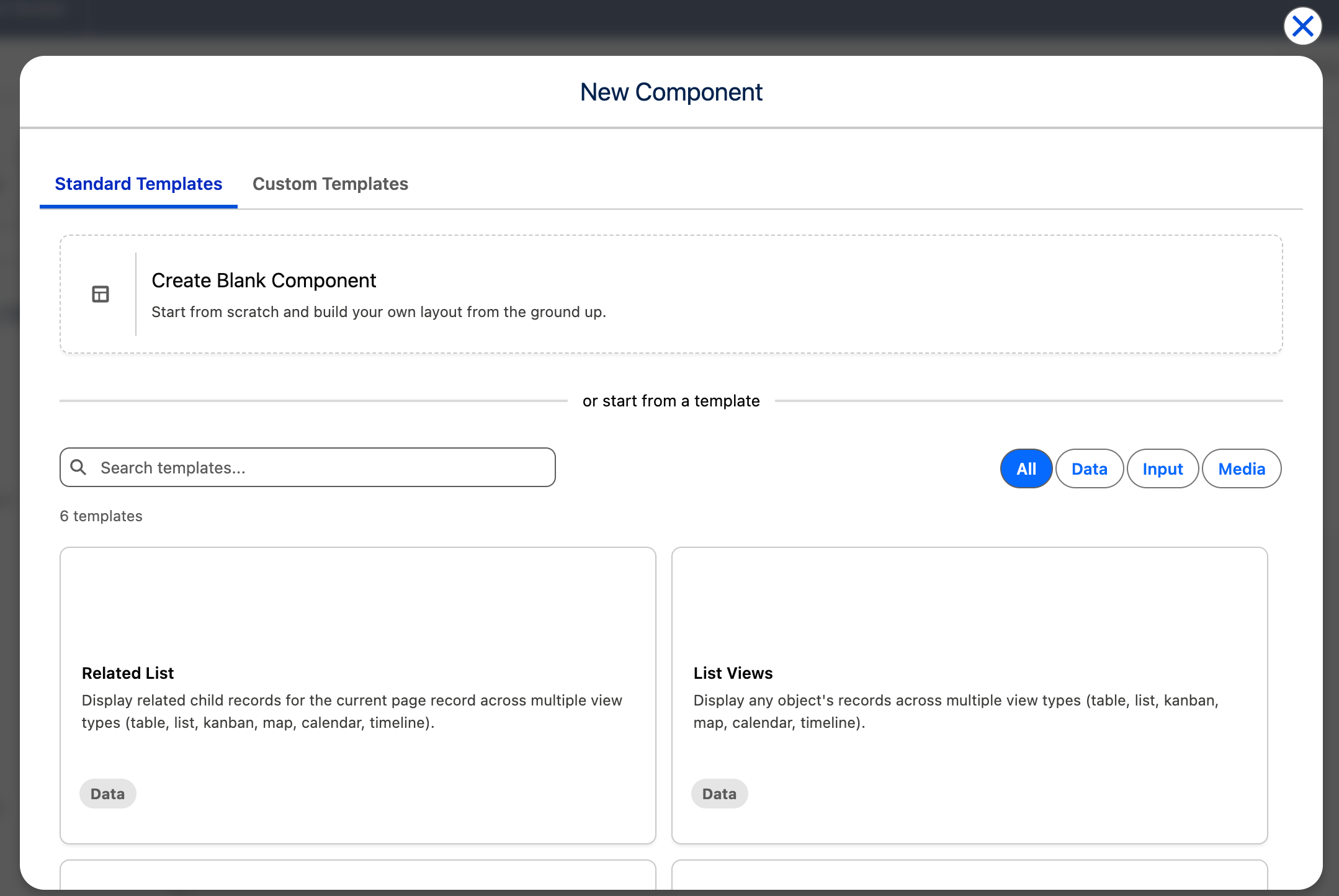
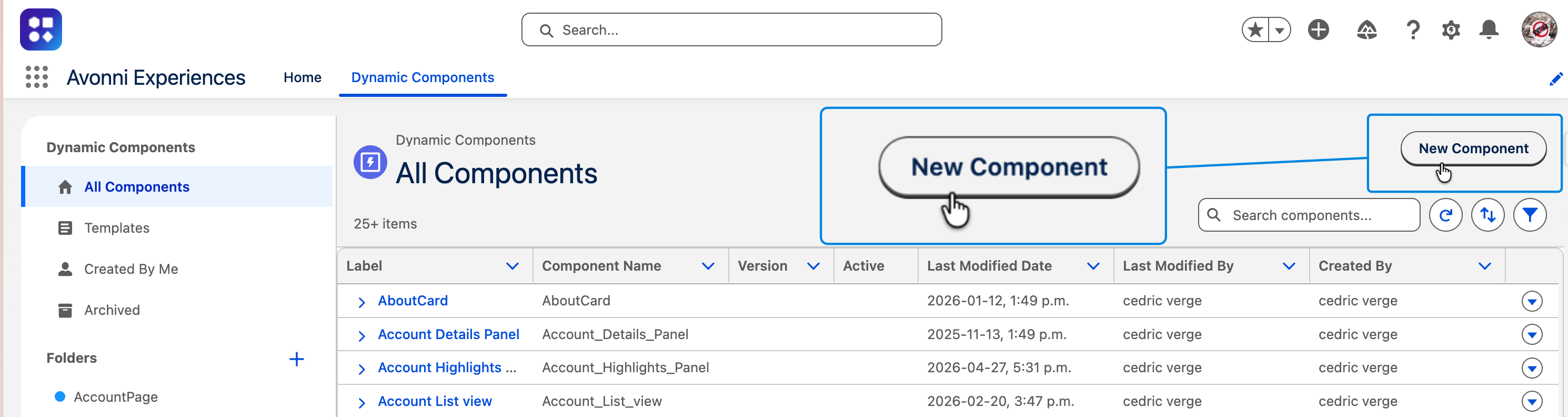
The New Component Modal is the starting point for every Dynamic Component you build. It opens when you click **New Component** in the Avonni Components App and offers three paths to get going: a standard template or one of your team's custom templates.

Choose the path that matches how much you already know about what you want to build.

***

## Open the New Component Modal

1. Open the **Avonni Components App** from the Salesforce App Launcher.
2. Click **New Component** (top-right of the component list view).
3. The modal opens with three tabs at the top: **Standard Templates and** **Custom Templates**.

<figure><img src="/files/6T3eTX78qUQovlVuuvYb" alt=""><figcaption></figcaption></figure>

If you're already inside a folder, the new component lands in that folder by default. Move it later from the row action menu if needed.

***

## Choose a Starting Point

<table><thead><tr><th width="232.44183349609375">Path</th><th>Best when...</th></tr></thead><tbody><tr><td><strong>Standard Templates</strong></td><td>You want a known starting shape (a Data Table page, a Kanban view, a Map) and prefer to tweak from a working baseline.</td></tr><tr><td><strong>Custom Templates</strong></td><td>Your team has already built and saved a reusable starting point that matches your use case.</td></tr></tbody></table>

{% hint style="info" %}
There's no wrong choice — every component is fully editable in the Builder regardless of how it was created. Pick the path that gets you closest to what you have in mind, then iterate.&#x20;
{% endhint %}

***

## Standard Templates

<figure><img src="/files/cYcVAbTxgbe8YsXHr16k" alt=""><figcaption></figcaption></figure>

Standard Templates are preconfigured starting points maintained by Avonni and organized by use case. Each template comes with the right components on the canvas, sensible default settings, and example data wiring you can replace with your own.

Common categories include:

* **Data display** — Data Table, Kanban, List, Repeater starting points
* **Visualization** — Map, Chart, Calendar...
* **Forms & input** — Multi-field input layouts with validation patterns
* **Conversations** — Chat, Feed, Comment-thread starting points

To use one:

1. Click the **Standard Templates** tab.
2. Browse the gallery or filter by category.
3. Click a template to see a preview and a description of its contents.
4. Click **Use Template**.
5. Give the new component a name (use a clear, descriptive one — `Account_PipelineKanban`, not `MyComponent1`).
6. Click **Create**. The Component Builder opens with the template loaded.

[**→ Component Builder Overview**](/dynamic-components/core-concepts/component-builder-overview.md) — what to do once the Builder opens

***

## Custom Templates

[**Custom Templates**](/dynamic-components/avonni-components-app/templates.md) are components your team has saved as reusable starting points. They appear in this tab for everyone in the org with access.

**To use a custom template:**

1. Click the **Custom Templates** tab.
2. Find the template (filter by name or by who created it).
3. Click **Use Template** and follow the same naming flow as standard templates.

**To save a component as a custom template:**

1. Open the component in the Component Builder.
2. From the component menu (top-right), select **Save as Template**.
3. Give the template a name and a short description so others can find it.
4. Set the visibility (org-wide or restricted to specific profiles).

{% hint style="info" %}
Custom Templates pay off when you have a recurring pattern — a standard "record detail" layout, a branded form, a shared filter panel. Save it once, and every future component starts five steps ahead
{% endhint %}

***

## After Creation

Whichever path you choose, the flow is the same:

1. The Component Builder opens with your new component loaded.
2. Set the **Target Object API Name** in **Settings** if it isn't already populated.
3. Review the components on the canvas and the bindings in the Properties Panel.
4. Save your work, then **Preview** to confirm it looks right.
5. **Deploy** the component when you're ready to use it on a Lightning Page.

[**→ Publishing a Component**](/dynamic-components/core-concepts/publishing-your-dynamic-components.md) — pushing it live

***

## Picking the Right Starting Point

A quick decision guide:

| You want to...                                                     | Pick                                                                                              |
| ------------------------------------------------------------------ | ------------------------------------------------------------------------------------------------- |
| **Build something close to what a Standard Template already does** | **Standard Template** — fastest to a working result                                               |
| **Reproduce a layout your team uses across multiple pages**        | **Custom Template** — consistency for free                                                        |
| **Build something simple from scratch and skip the templates**     | Pick the closest **Standard Template** and clear what you don't need — faster than starting blank |

***

## Troubleshooting

| Problem                                                   | Cause                                                                                                        | Fix                                                                                                            |
| --------------------------------------------------------- | ------------------------------------------------------------------------------------------------------------ | -------------------------------------------------------------------------------------------------------------- |
| **A custom template I expect to see isn't there**         | Visibility was restricted to specific profiles when the template was saved, and your profile isn't included. | Ask the template creator to update visibility, or have an admin adjust the sharing settings.                   |
| **The new component lands in the wrong folder**           | The modal defaults to the folder you opened it from.                                                         | Move the component from the row action menu in the component list view.                                        |
| **I picked a template by mistake and want to start over** | The component is editable but already has the template's content.                                            | Delete the component from the list view and start a new one — faster than clearing everything from the canvas. |

### Where to go next

| Page                                                                                                  | What's on it                                                              |
| ----------------------------------------------------------------------------------------------------- | ------------------------------------------------------------------------- |
| [**Component Builder Overview**](/dynamic-components/core-concepts/component-builder-overview.md)     | Tour of the visual design environment you just landed in.                 |
| [**Quick Start tutorial**](/dynamic-components/getting-started/quickstart-guide.md)                   | Build a real component end to end in under 10 minutes.                    |
| [**Publishing a Component**](/dynamic-components/core-concepts/publishing-your-dynamic-components.md) | Make your new component available on Lightning Pages or Experience Sites. |
| [**Working with Versions**](/dynamic-components/avonni-components-app/version-management.md)          | Once it's live, manage updates safely with versioning.                    |


---

# Agent Instructions: Querying This Documentation

If you need additional information that is not directly available in this page, you can query the documentation dynamically by asking a question.

Perform an HTTP GET request on the current page URL with the `ask` query parameter:

```
GET https://docs.avonnicomponents.com/dynamic-components/avonni-components-app/creating-a-new-component.md?ask=<question>
```

The question should be specific, self-contained, and written in natural language.
The response will contain a direct answer to the question and relevant excerpts and sources from the documentation.

Use this mechanism when the answer is not explicitly present in the current page, you need clarification or additional context, or you want to retrieve related documentation sections.